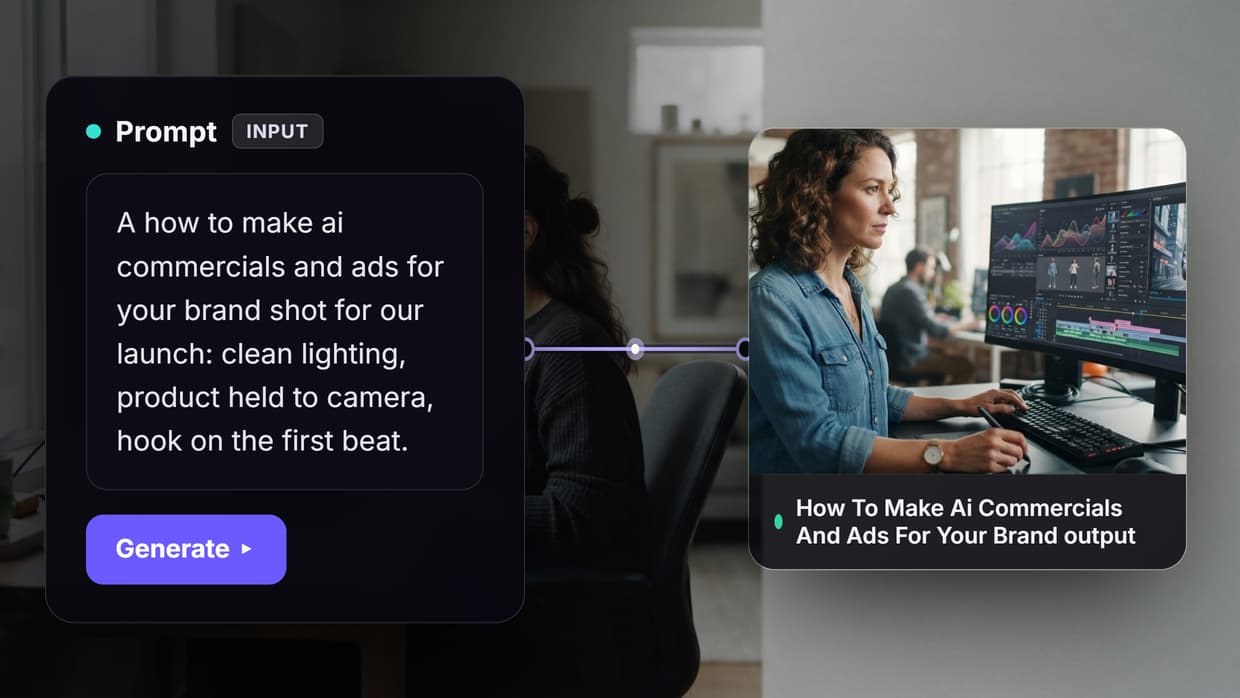
Professional product photography used to require studios, expensive equipment, and days of turnaround time. Wireflow now enables sellers to chain AI models together into automated pipelines that transform basic smartphone shots into polished, lifestyle-ready product images in minutes. Whether you run a Shopify store or manage thousands of SKUs on Amazon, this guide walks through the full workflow from capture to final export.
What You Need Before Starting
Before generating AI product photos, prepare these essentials. A visual node editor makes the process far more manageable when you are working with multiple products at once.
- Source images: Smartphone shots work fine. Shoot on a plain white or light gray background. Natural window light produces the best input for AI processing.
- Product angles: Capture the exact angle you want in the final image. AI handles relighting and background generation well, but perspective changes often produce artifacts.
- Brand guidelines: Know your color palette, preferred scene style (minimal, lifestyle, outdoor), and any platform-specific size requirements (Amazon requires 1000x1000px minimum).
Step 1: Remove the Background
The first step strips away whatever background your source photo has. For a hands-on look at this in action, check out the AI product photography feature page.
Upload your product photo to a background removal model. Most AI tools use a segmentation model that isolates the product from its surroundings in under 3 seconds. The output is a transparent PNG with clean edges.
Tips for better results:
- Avoid photos where the product blends into the background (white product on white surface)
- Products with fine edges (hair, fur, lace) may need manual touch-up on the alpha mask
- Batch processing 50-100 images at once saves significant time compared to one-by-one uploads
Step 2: Generate Professional Backgrounds
With your product isolated, you can now place it into any scene. AI background generators accept your transparent product image plus a text prompt describing the desired scene.
Effective prompt patterns for ecommerce:
- "Minimalist marble countertop with soft directional lighting, product centered"
- "Kitchen shelf with blurred greenery in background, warm morning light"
- "White studio setup with subtle shadow, product floating slightly above surface"
The AI generates a new background that matches your lighting description and composites the product naturally. Most generators produce 4-8 variations per prompt, letting you pick the best match for your listing.
Step 3: Enhance and Upscale
Raw AI output often needs refinement before it is listing-ready. An AI image upscaler brings your composite up to the resolution platforms require while adding subtle sharpness and detail recovery.
Key enhancement steps:
- Upscale to 2x or 4x the generated resolution. Most AI scenes render at 1024x1024; Amazon and Shopify prefer 2000x2000 or larger.
- Color correction: Adjust white balance so your product color matches the real item. AI-generated lighting can shift hues slightly.
- Shadow refinement: Add or adjust contact shadows so the product looks grounded, not floating.
The batch AI generation approach lets you process an entire catalog through these steps without manual intervention for each image.
Step 4: Create Lifestyle and Context Shots
Beyond the main product-on-white hero image, modern ecommerce listings perform better with lifestyle context shots. These show the product in use, at scale, or in its intended environment.
For a cosmetics bottle, you might generate:
- The bottle on a bathroom shelf beside real-looking accessories
- A hand holding the bottle in a spa-like setting
- A flat-lay arrangement with complementary items
AI image generators trained on product photography datasets handle these compositions well. The key is providing clear spatial descriptions in your prompt so the AI places your product at a realistic scale.
Step 5: Optimize for Each Platform
Different marketplaces have different image requirements. Your AI pipeline should account for platform-specific crops and formats.
| Platform | Main Image | Size | Background |
|---|---|---|---|
| Amazon | Pure white required | 1000x1000 min | #FFFFFF only |
| Shopify | Flexible | 2048x2048 recommended | Any |
| Etsy | Lifestyle preferred | 2000x2000 | Natural scenes |
| eBay | White preferred | 1600x1600 | White or light |
Set up template workflows for each platform. A single source image can feed into multiple parallel branches, each producing platform-compliant output automatically.
Step 6: Scale with Automation
Once your workflow produces consistent results for one product, automate it across your entire catalog. Connect your product database or CSV export to the AI workflow builder so each new SKU triggers the full pipeline automatically.
Realistic throughput benchmarks:
- Small catalog (50 SKUs): Complete in one afternoon with manual oversight
- Medium catalog (500 SKUs): 2-3 days fully automated with spot-checking
- Large catalog (5000+ SKUs): Continuous pipeline processing over 1-2 weeks
The per-image cost with AI tools ranges from $1 to $8, compared to $75 to $300 for traditional product photography. That savings compounds fast at scale.
Common Mistakes to Avoid
These pitfalls trip up most sellers on their first AI photography batch. Building reusable AI templates helps prevent repeating errors across products.
- Using AI for transparent or reflective products without manual review: Glass, chrome, and mirrors confuse most generators. Always spot-check these.
- Ignoring color accuracy: Your customer will return the item if the shade of blue on-screen doesn't match what arrives. Calibrate against a physical reference.
- Over-prompting scenes: Simple, clean backgrounds convert better than elaborate scenes for main listing images. Save the creative compositions for secondary gallery slots.
- Skipping A/B testing: Generate 3-4 variations and test which converts best before committing to one style across your catalog.
Try It: Pre-Built Product Photography Workflow
Try it yourself: Build this workflow in Wireflow — the nodes are pre-configured with the exact setup discussed above. The workflow chains a background removal step into a Recraft V4 lifestyle scene generator, producing catalog-ready output from a single product photo.
FAQ
How much does AI product photography cost per image?
Most AI tools charge between $1 and $8 per generated image. Subscription plans with monthly credits bring the cost closer to $0.50 per image at scale. Traditional photography costs $75 to $300 per product for comparison.
Can AI-generated product photos be used on Amazon?
Yes. Amazon allows AI-generated images as long as they meet the platform's image requirements: pure white background for the main image, minimum 1000x1000 pixels, and the product filling at least 85% of the frame. Secondary images can use lifestyle backgrounds.
What source photo quality do I need?
A modern smartphone camera (iPhone 12 or newer, Samsung Galaxy S21 or newer) produces sufficient quality. Shoot in natural light, avoid harsh shadows, and ensure the product is in sharp focus. The AI handles the rest.
How long does it take to generate one product photo?
A single image takes 10 to 30 seconds to generate depending on the AI model and output resolution. The full workflow including background removal, generation, and upscaling typically completes in under 2 minutes per image.
Do AI product photos look fake?
Current AI models produce photorealistic results for most product categories. Hard goods (bottles, boxes, electronics) look nearly indistinguishable from studio shots. Soft goods (clothing, fabric) and reflective surfaces may need light manual editing for best results.
Should I still hire a photographer?
For hero campaign shots, brand launch imagery, or products with unusual materials (transparent glass, fine jewelry), professional photography still delivers the best results. AI works best for catalog-scale listing images where consistency and speed matter more than artistic direction.
Is there an EU labeling requirement for AI-generated images?
The EU AI Act requires synthetic image labeling starting August 2026. If you sell in Europe, add metadata tags indicating AI generation. Most platforms are building this into their listing tools automatically.
Can I generate product photos in bulk?
Yes. Most AI photography tools support batch processing. Upload a CSV or connect your product database, define your background and style settings once, and the system processes your entire catalog. Expect 100 to 200 finished images per hour with automated pipelines.
Would you rather we just built it?
We get on a call, learn your style, build the workflow, and ship the deliverables on a schedule. You keep the workflow either way.