 Andrew Adams · Co-Founder & Operations at Wireflow ·
 AI Photo to Painting
Wireflow turns a photo into a painting as a node graph you own.
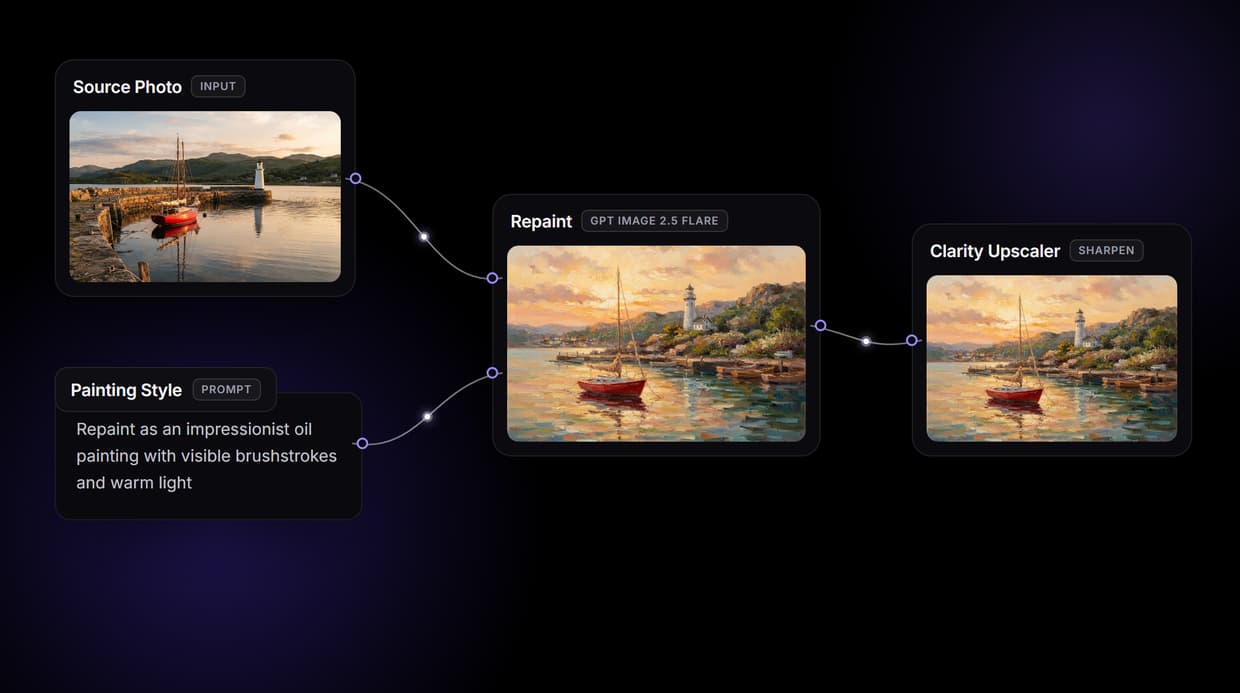
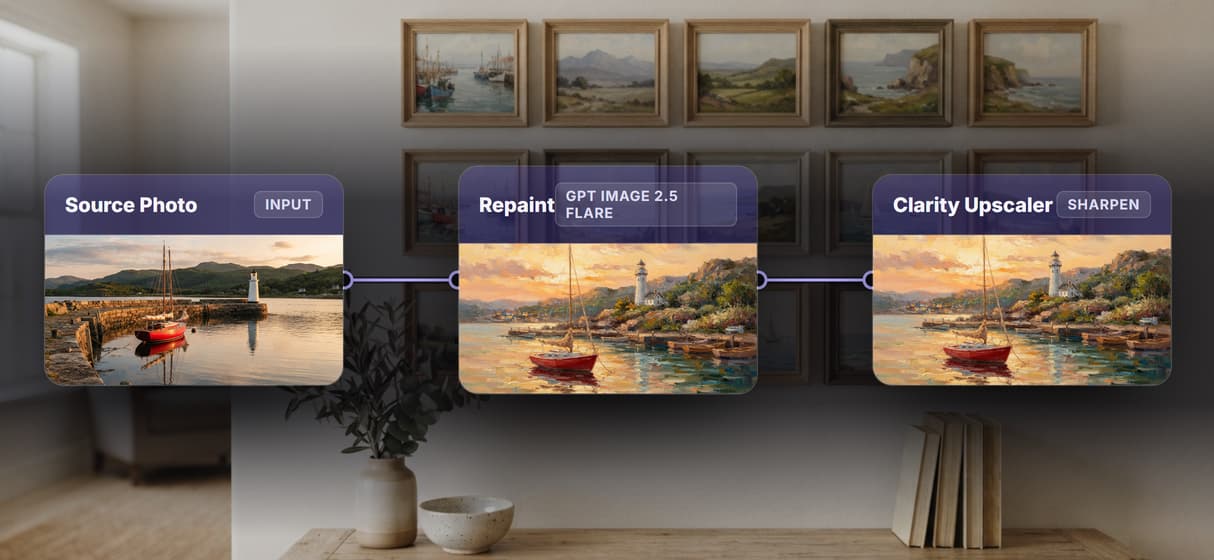
A Source Photo node and a Painting Style node feed Repaint (GPT Image 2.5 Flare), which redraws your photo as the painting you describe, then a Clarity Upscaler node sharpens the result. Free to build, pay per generation.
Free to build · no credit card · See how it works ↓
How to Use AI Photo to Painting
Steps to get you started in Wireflow.
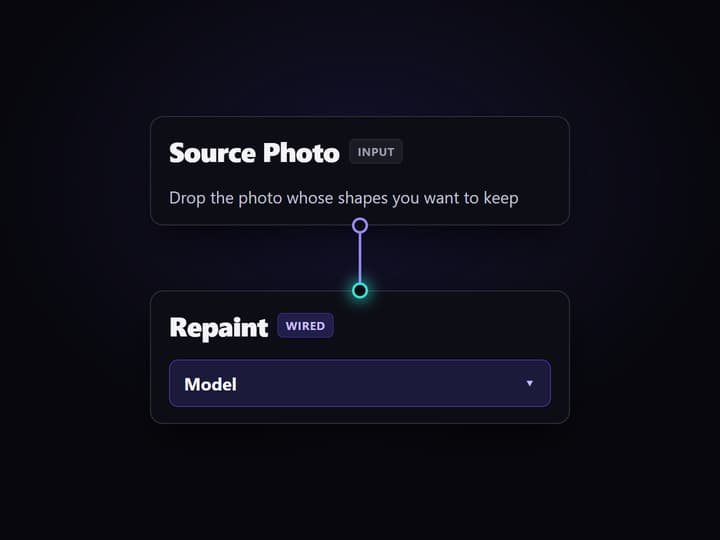
Add your source photo
Open the flow and drop your image into the Source Photo node. This is the content that keeps its shapes and composition while the medium around it becomes paint.
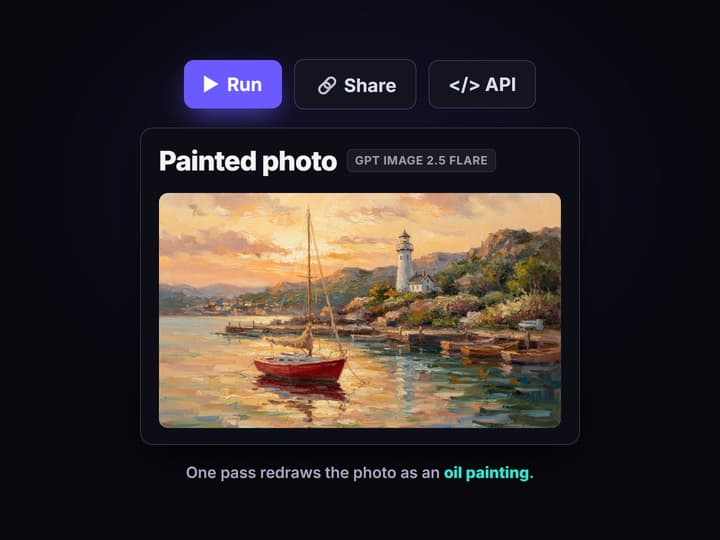
Write the painting style and run
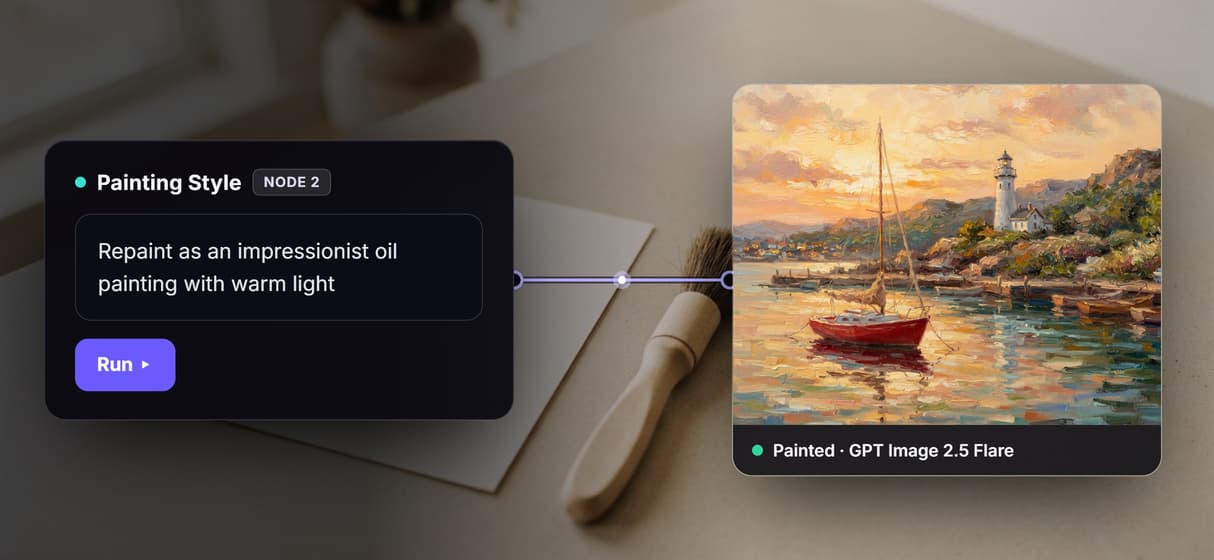
Type the target look into the Painting Style node, for example repaint as an impressionist oil painting with visible brushstrokes and warm light. Repaint (GPT Image 2.5 Flare) paints the photo in one pass.
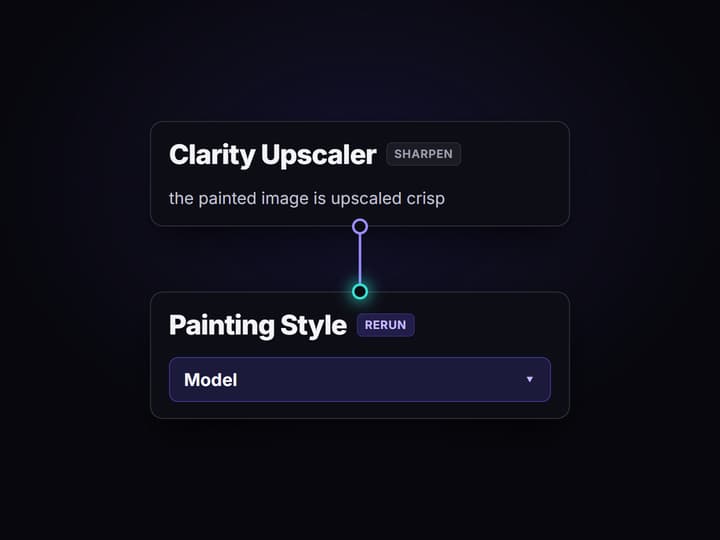
Sharpen, then rerun on new photos
The Clarity Upscaler node sharpens the painting, and you can edit the style or drop a new photo and run again. Share the flow link and the team runs the same recipe.
What AI photo to painting does on Wireflow
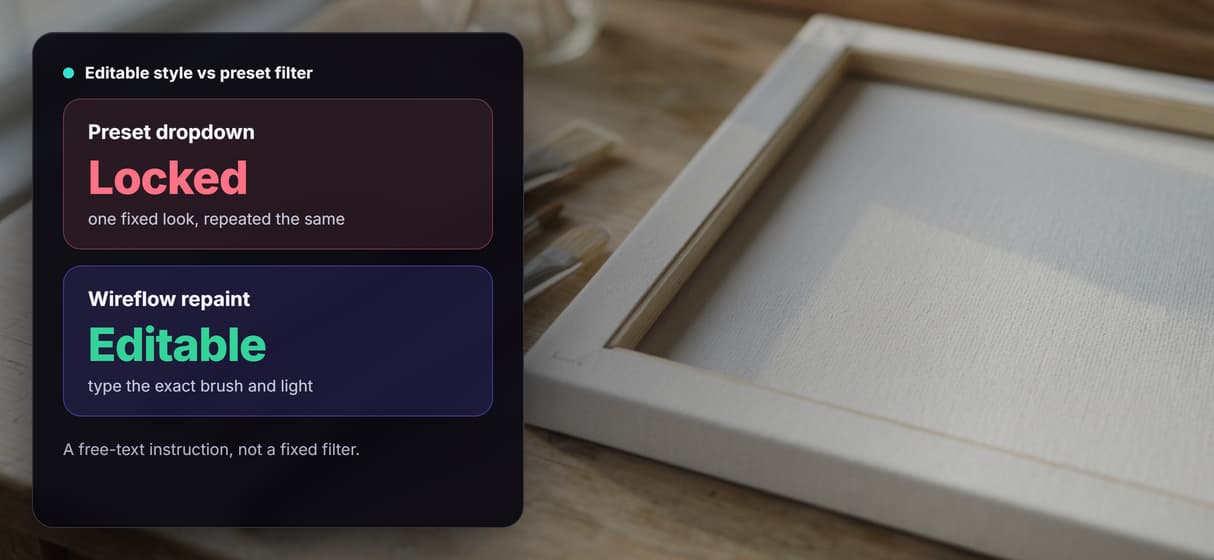
Most photo to painting tools give you one upload box and a style dropdown: pick oil or watercolor, press go, and hope it lands. Wireflow makes the repaint a small workflow you can see and own. A Source Photo node holds your image, a Painting Style node holds the target look, and both wire into Repaint (GPT Image 2.5 Flare), which redraws the photo from those two inputs in one run. It is a rewirable step in the same node based image generation canvas your team already uses.
It runs on hosted compute in the browser with nothing to install, no VRAM ceiling, and no GPU rig to rent. The same canvas drives every other free AI image generator job you build. Building the graph is free; you only spend credits when a node generates.
What is wired into the photo to painting flow
Source Photo input
An image node holds the content photo whose shapes and composition you want to keep.
Painting Style input
A text node holds the target look, for example an impressionist oil painting with warm light.
Repaint node
Repaint (GPT Image 2.5 Flare) reads the photo plus the style and returns the painted image.
Clarity Upscaler node
The Clarity Upscaler sharpens the painted result so the final canvas ships at higher resolution.
Swappable models
Drop Flux 2, Seedream V4, or Nano Banana Pro into the repaint node for a different brush.
Endpoint and MCP tool
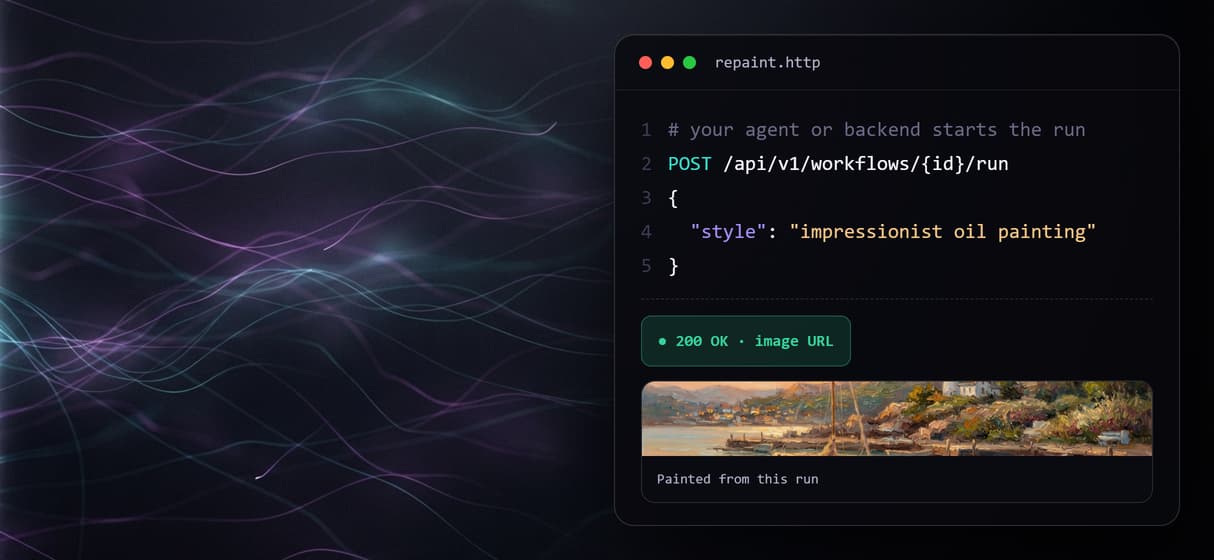
The published flow is a REST endpoint and an MCP tool an agent can call for assets.
How the photo to painting graph actually runs
The workflow behind this page's button is deliberately small: two inputs, one repaint node, one upscaler.
- Two inputs feed the repaint. The Source Photo carries the content and the Painting Style carries the look, so the model has both the what and the how in one call.
- Repaint redraws the photo. GPT Image 2.5 Flare reads the image plus the style and returns a painting, keeping the subject while changing the medium and palette.
- Clarity sharpens the output. The painted image passes into the Clarity Upscaler node so the final asset is crisp, not soft.
Because the repaint lives among the hosted image models, you can chain it further, adding a background swap or handing the output to the Clarity upscaler API at a larger size, without leaving the browser.
When photo to painting is not the right tool
This flow is a generative reinterpretation, not a pixel-exact filter. Modern diffusion editing redraws your subject in the painting style, so fine details can shift between runs; if you need one fixed preset applied identically every time, a deterministic look like an AI photo to anime conversion is closer to what you want. It is also the generation layer, not the art director, so it will not decide the style for you or fix a composition it was never given.
It runs on hosted models only: no offline or local runs, no custom Python nodes, and no local checkpoints or LoRA training. When a job needs layered edits or precise masking after the repaint, pair the paint node with an editing step and keep photo to painting as one honest ingredient in the graph.
More Than Just AI Photo to Painting
A photo plus an instruction, any painting out
A Source Photo and a Painting Style wire into Repaint, and GPT Image 2.5 Flare redraws your photo as the painting you type, inside an AI image editor.
The repaint is one node, not the whole tool
Painting is a single step you chain: source photo to Repaint to a Clarity Upscaler, wired to an AI image upscaler node so the canvas ships sharp.
Paint a whole set from one saved recipe
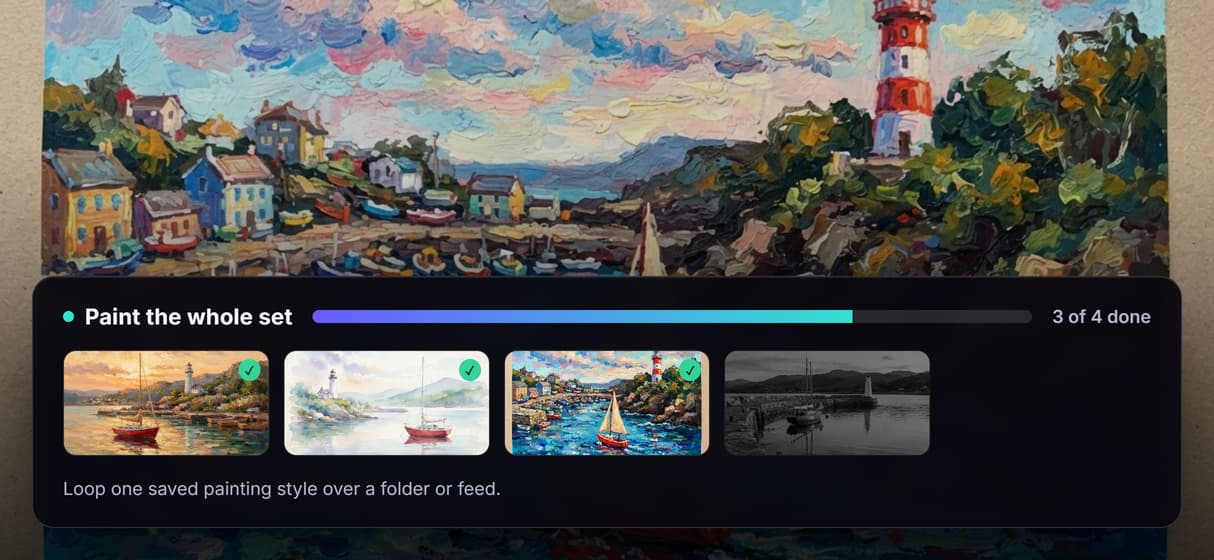
Save the graph once and loop the same painting style over a folder or feed, so a batch stays consistent. It is node based image generation you rerun.
An editable style, not a preset dropdown
Type the exact brush and light you want instead of picking a locked filter, unlike a one-shot AI photo to cartoon preset that repeats identically.
Rerun it, version it, call it from code
The flow is versioned and shareable by link, so every rerun is reproducible. It is a REST endpoint and an image generation MCP tool an agent can call.
AI Models Available
Automate Any Workflow
Included in Every Plan
FAQs
On Wireflow you open the flow, drop your image into the Source Photo node, and type the look into the Painting Style node, for example an impressionist oil painting. Repaint (GPT Image 2.5 Flare) redraws the photo in one pass, then a Clarity Upscaler node sharpens the painting.
Discover related AI tools
More From Wireflow
Written by
Andrew Adams · Co-Founder & Operations at Wireflow
Runs client operations and content strategy at Wireflow. Works directly with creative teams and agencies to build production AI workflows.
Turn a photo into a painting, own the flow
Open the flow, add a photo, and type a style: Repaint redraws it as a painting and the Clarity Upscaler sharpens the result. Building is free, and you pay per generation, not a subscription.