How to Edit Images in Claude with Hosted Edit Models

In this article▾
- What Claude Can and Cannot Do With an Image
- What You Need Before You Start
- Step 1: Connect the Edit Models to Claude
- Step 2: Get Your Photo to the Edit Model
- Step 3: Pick an Edit Model
- Step 4: Ask for the Edit in Plain Words
- What a Real Edit Looks Like
- Common Problems and Fixes
- Start With One Product Photo
- Frequently Asked Questions
To edit images in Claude, connect a hosted image edit model through MCP, then ask in plain words for the change, such as a new backdrop or a removed sticker. Claude reads your photo and writes the instruction, and the edit model changes the pixels. Wireflow is one way to set this up: its connector gives Claude Nano Banana, GPT Image 2.5, FLUX 3 and Seedream edit models from one sign-in.
You can take two routes to the same result. Inside Claude, the edit runs through an MCP connector and the finished image comes back as a link in the chat. If you would rather click than type, the same edit models run in the AI image editor in your browser. This guide covers the Claude route step by step, using product and background examples.
What Claude Can and Cannot Do With an Image
Claude has vision, so it can look at a photo, describe it, spot a color cast or a crooked horizon, and write a precise edit instruction. What it does not have is an image model. Ask the plain chat to remove a background and you usually get advice or code rather than an edited photo. Making brand-new pictures is a separate job, covered in our guide to generating images in Claude Code.
Some edits do not need a model at all. Cropping, resizing, converting PNG to WebP or adding a border are fixed operations, and Claude Code can run a short Pillow or ImageMagick script on your machine to do them. Anything that has to invent pixels, like a new background or the gap left by a removed object, needs a generative model of the kind sold through image editing APIs.
| Edit | Script in Claude Code | Edit model |
|---|---|---|
| Crop, resize, convert format | Yes | Not needed |
| Swap the background | No | Yes |
| Remove an object or sticker | No | Yes |
| Fix white balance or exposure | Basic fixes | Yes, for bigger changes |
| Cut the product out on transparency | No | Use a background removal model |
Build this in Wireflow
Make the same kind of asset on a canvas you control, with a free account and no credit card.
What You Need Before You Start
- Claude in the browser or desktop app with access to custom connectors, or Claude Code in a terminal
- A product or background photo, either online at an https:// address or saved on your computer
- An account on a hosted MCP server with credits for the runs (connecting and browsing models costs nothing)

Step 1: Connect the Edit Models to Claude
In the Claude app:
- Open Customize, then Connectors.
- Click + Add, then Add custom connector.
- Give it a name and paste
https://www.wireflow.ai/api/mcpas the remote server URL. - Click Continue, leave the advanced OAuth fields empty, then click Add.
- Sign in and approve the consent screen. There is no API key to paste.
On Team and Enterprise plans, an Owner adds the connector under Organization settings first, and members then click Connect. The permissions it asks for are listed in the MCP connector guide.
In Claude Code, one command adds the same server: claude mcp add --transport http wireflow https://www.wireflow.ai/api/mcp. Run /mcp inside Claude Code afterwards, pick the server and sign in.
Step 2: Get Your Photo to the Edit Model
Claude can see a photo you paste into the chat, but the edit model needs the file itself at a web address. There are three ways to get it there:
- A public link. If the photo already lives at an https:// URL, paste the link.
- An upload link. Ask Claude to "send me an upload link". You get a page that needs no login and works on a phone, and the file lands on your board as an Import node. This uses the optional write permission you can grant when you connect.
- The upload API. In Claude Code, a script can post a local file to the media upload endpoint: up to 4MB in one call, or up to 25MB for images through the upload URL flow.
Supported image types are JPG, PNG, GIF, WebP and AVIF.
Step 3: Pick an Edit Model
Every model below takes your photo plus a written instruction. Credits are per image, from the live models list when this guide was written.
| Model | Credits per image | What it is built for |
|---|---|---|
| Seedream 5 Lite Edit | about 10 | Edits from text instructions, 1 to 4 outputs per run |
| Nano Banana Lite Edit | about 16 | Fast, low-cost edits, up to 10 input images |
| Nano Banana 2 Edit | about 20 | Edits with strong prompt adherence |
| GPT Image 2.5 Flare Edit | 20 | Placing a real product into a new scene, with an optional mask |
| FLUX 3 Image Edit | about 20 | Up to 10 references, aspect ratio follows the first image |
For most product shots, draft on Nano Banana Lite, then move to GPT Image 2.5 Flare Edit with a mask when the label has to stay exact. Seedream 5 Lite costs about half as much per image as the others, which makes it a good place to test a new prompt.
Step 4: Ask for the Edit in Plain Words
A good edit prompt says three things: what to change, what must stay the same, and the output shape. Ask Claude to name the model and the credit cost and wait for your OK before it runs anything.
- Background swap: "Put this mug on a sunlit wooden kitchen counter beside a linen napkin. Keep the mug, lid and sleeve exactly as they are. Use Nano Banana Lite, 16:9."
- Clean-up: "Remove the price sticker and the dust on the table. Change nothing else."
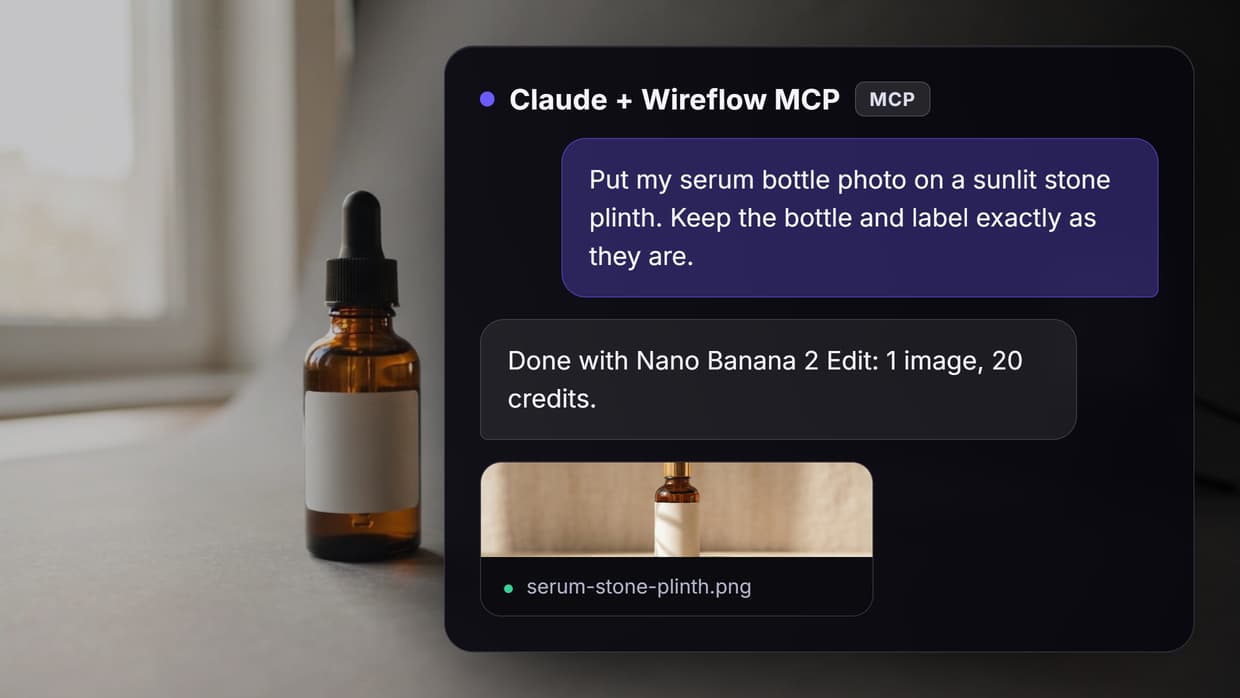
- Studio white: "Place the bottle on a pure white background with a soft shadow under it. Keep the label text sharp."
Claude sends the photo and your instruction to the model, waits for the run to finish, and returns a link to the edited image. For more scene ideas and prompt patterns, see our walkthrough on changing photo backgrounds with AI.

What a Real Edit Looks Like
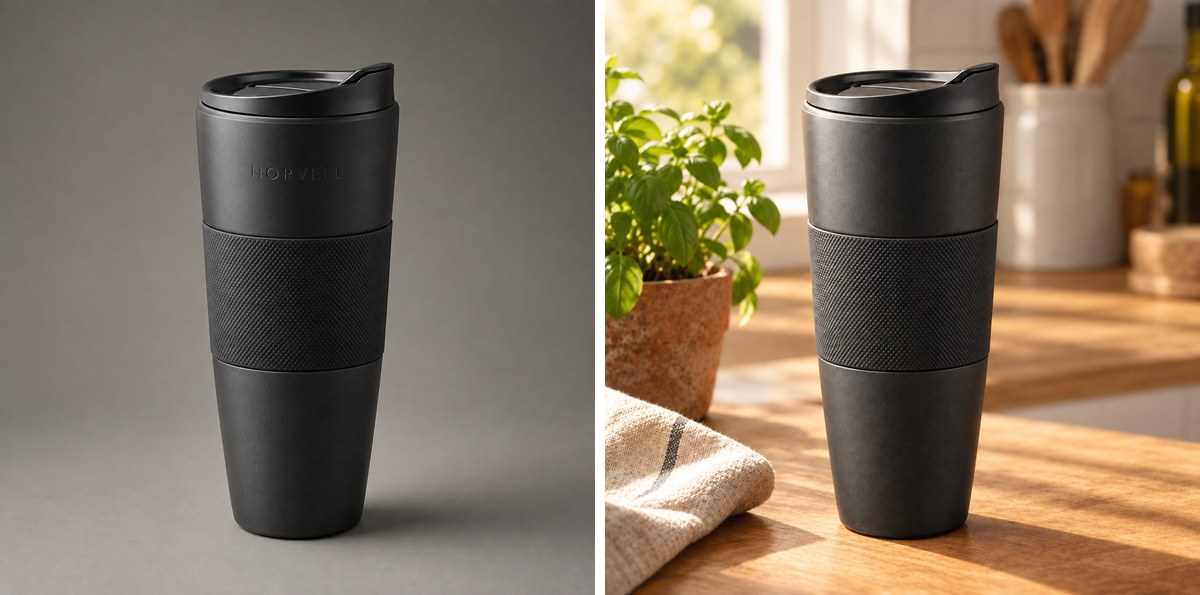
We ran this restage through GPT Image 2.5 Flare Edit without a mask, asking it to place this exact product on a sunlit wooden kitchen counter beside a linen napkin and a small potted herb. The shape, lid and textured sleeve came through unchanged, and the light and shadow in the new scene look believable. One detail did not survive: the faint embossed wordmark on the original mug is gone in the edited version.
That is the most common failure in product edits. Small text, logos and embossing drift, so zoom in on the label before you publish anything. If it changed, rerun with a mask around the product, add "keep the logo exactly as it is" to the prompt, or try another model from the table.
Common Problems and Fixes
- The label or logo changed. Add a mask so only the background is repainted, or name what must stay in the prompt.
- The output has the wrong shape. Ask for an aspect ratio. Nano Banana Lite offers auto, 21:9, 16:9, 3:2, 4:3 and more, while FLUX 3 Image Edit follows the first image.
- You need a transparent cut-out. An edit model repaints the scene, so for a clean PNG one of the free background remover tools is the better fit.
Start With One Product Photo
Editing images in Claude takes three moves: connect an edit model, get the photo to it, and say what to change and what to keep. Start with one product shot and a low-cost model, check the label at full size, then reuse the prompt across your catalog once it holds up. To apply the same edit to a whole folder, set it up as a batch image run instead of asking for one photo at a time.
Try it yourself: Open the product restage workflow in Wireflow. It turns a short brief into a product shot, then its GPT Image 2.5 Flare Edit node restages that product on a kitchen counter, the same edit shown above. Replace the generated shot with your own photo to run the edit on your product. You can open and change this workflow for free. A new account gets up to 60 starter credits and a free video, and each run uses credits. Plans start at $36 a month for 2,660 credits.
Frequently Asked Questions
Can Claude edit images by itself?
No. Claude can read an image and write a clear edit instruction, but it has no image model of its own. Generative edits need a connected edit model, while simple crops and resizes can run as a script in Claude Code.
Can I edit images in Claude Code?
Yes. Add the MCP server with claude mcp add, sign in through /mcp, and ask for the edit in plain words. Claude Code can also save the result into your project folder; the browser app gives you an image link instead.
Do I need an API key?
Not for the connector. It signs in with OAuth, so there is nothing to paste. The upload API and scripted runs from your own code use an API key that starts with sk-.
Which edit model is best for product photos?
Start with Nano Banana Lite for drafts, then move to GPT Image 2.5 Flare Edit when the label has to stay exact, because it accepts a mask. For finished catalog shots, see how AI product photography chains these steps together.
How much does one edit cost?
Connecting and browsing models costs nothing. Each edit uses credits, about 10 to 20 per image with the models in this guide, and plans start at $36 a month for 2,660 credits.
How do I get a photo from my computer to the edit model?
Ask Claude for an upload link, or in Claude Code post the file to the media upload endpoint. Either way the model gets the photo at a URL.

Co-Founder & Operations at Wireflow
Runs client operations and content strategy at Wireflow. Works directly with creative teams and agencies to build production AI workflows.
- Content Strategy
- Client Operations
Make AI videos and ads.
Start free, no card needed.