How to Change Photo Backgrounds with AI in 2026


In this article▾
How to Change Photo Backgrounds with AI in 2026
Replacing a photo background used to require hours in Photoshop, careful masking, and a steady hand with the pen tool. In 2026, AI-powered tools handle the entire process in seconds, from subject isolation to background generation and compositing. Wireflow lets you chain multiple AI models into a single visual workflow, making background replacement as simple as connecting a few nodes on a canvas.
Beyond backgrounds, the same graph can colorize a black and white photo, steering the palette with a written instruction instead of one fixed guess.
What You Need Before You Start
The only real requirement is a source photo with a clearly visible subject. Portraits, product shots, and pet photos work best because they have a single focal point. Images with complex edges, like curly hair or semi-transparent fabrics, are more challenging, but modern AI background remover tools handle them well thanks to advances in semantic segmentation.
For a hands-on look at this process in action, check out the how to change photo backgrounds with AI in 2026 feature page. It walks through the workflow visually and lets you test it directly.
Build this in Wireflow
Make the same kind of asset on a canvas you control, with a free account and no credit card.
Step 1: Upload Your Photo and Remove the Background
Start by uploading your image to an AI image editing tool that supports background removal. Most tools accept JPEG, PNG, and WebP formats up to 20MB or more. Higher resolution photos produce better results, so avoid heavily compressed files when possible.

The AI analyzes your photo and separates the subject from the background using semantic segmentation. Modern models like SAM 2 and transformer-based architectures understand the difference between hair, skin, clothing, and background at a pixel level. This produces clean edges, even around fine details like individual hair strands or glasses frames. If you want to compare dedicated tools for this step, the best free background remover tools roundup covers the top options in detail.
Step 2: Choose or Generate a New Background
With your subject isolated on a transparent layer, you have several options for the replacement background. Solid colors work well for product photography and professional headshots. You can also upload an existing photograph, or describe a scene in text and let an AI image generator create one from scratch.
Text-to-image generation gives you the most creative control. Describe "modern office interior with floor-to-ceiling windows" or "autumn forest path with golden leaves" and the model renders a photorealistic scene in seconds. For the best results, use a dedicated AI photo generator rather than a general-purpose model. The output quality and realism differ significantly between specialized and general tools.
Step 3: Composite and Refine the Result
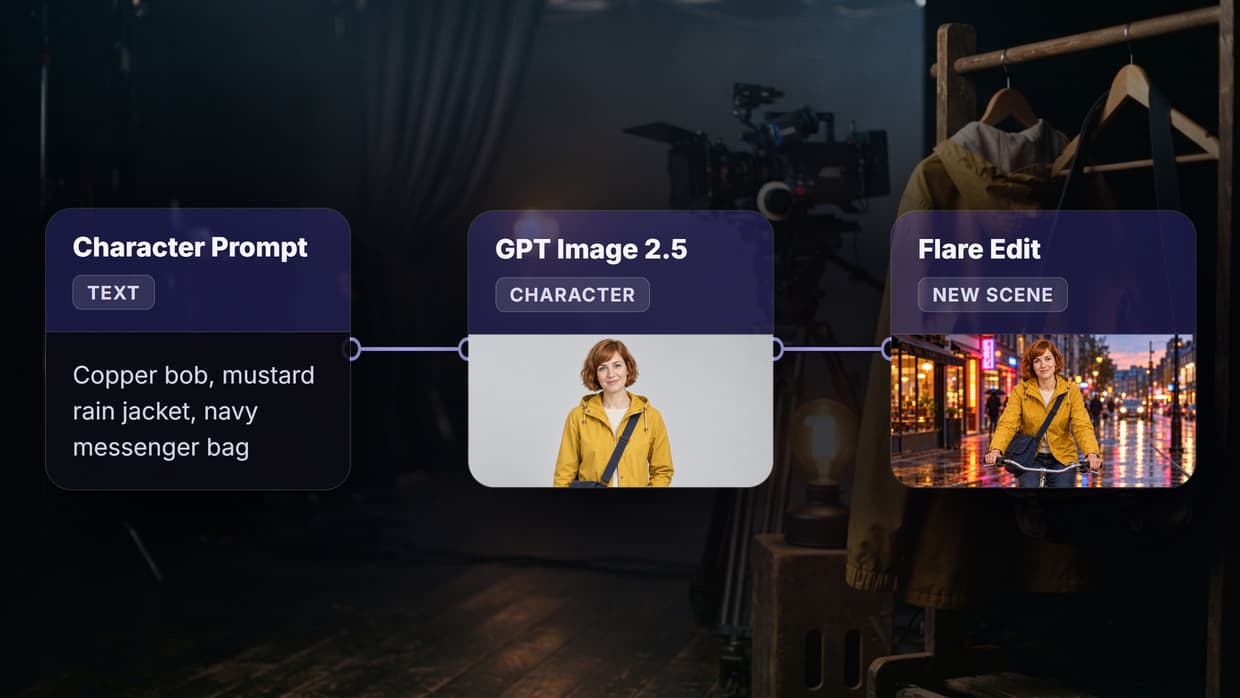
The compositing step places your isolated subject onto the new background. AI handles lighting matching, shadow generation, and color grading automatically. When using model chaining, each step feeds its output directly into the next, so you get consistent results without manual intervention between stages.
Check the edges where the subject meets the new background carefully. If you spot artifacts or rough transitions, run the composite through an AI image upscaler to smooth details and increase resolution. Most edge artifacts disappear at higher resolutions because the model has more pixel data to interpolate between the subject boundary and the background.
Step 4: Export and Optimize for Your Use Case
Export your final image in the format that matches its destination. Use PNG for transparent backgrounds or when you need lossless quality. Use JPEG for web publishing where file size matters more than perfect edge fidelity. For processing multiple photos with the same background, batch generation tools let you apply identical settings to dozens or hundreds of images at once.

Consider the aspect ratio requirements of your target platform before exporting. LinkedIn profile photos need a 1:1 square crop. Product listings on Amazon require pure white backgrounds at specific dimensions. Social media stories work best at 9:16 vertical. Planning your export settings before you start saves time, and many free background remover tools include preset export options for common platforms.
Common Use Cases
Professional headshots are one of the most popular applications for AI background changes. Rather than booking a studio session, take a photo at home in good lighting and swap in a clean office backdrop or neutral gradient. The AI headshot generation guide covers best practices for getting studio-quality portraits from casual photos.
E-commerce product photography also benefits heavily from this technique. Shoot products on any convenient surface, then replace the background with pure white, lifestyle scenes, or branded environments. Virtual try-on technology extends this further by letting customers preview products in different contexts before purchasing.
Tips for Better Results
Start with the highest quality source photo you can get. Good lighting and a clear distinction between subject and background make the AI's job easier. Avoid photos where the subject's clothing color closely matches the background, as this confuses edge detection algorithms. A side-by-side comparison of editing tools and their strengths appears in the best AI image editors guide.
For complex compositions, break the process into discrete steps rather than trying to do everything in one pass. Use a no-code AI canvas to build a multi-step pipeline: remove background, upscale, generate scene, composite, then apply final color correction. Each step produces a checkable intermediate result, so you can catch problems early.
Try it yourself: Build this background replacement workflow in Wireflow. The nodes are pre-configured with the exact setup discussed above, from subject isolation through final compositing.
Frequently Asked Questions
Can AI handle complex backgrounds like trees or busy streets?
Yes. Modern segmentation models train on millions of images and handle cluttered backgrounds well. The key factor is subject contrast. A person wearing dark clothing against a dark background is harder to isolate than someone in a bright shirt against a neutral wall. Most tools still produce usable results in difficult cases, though you may need to touch up a few edges.
Does AI background removal work with group photos?
It works, but results vary depending on the tool. Most optimize for single-subject isolation. For group photos, you may need to isolate each person individually and composite them together onto the new background. Some newer tools offer multi-subject detection that handles groups automatically, though edge quality between overlapping subjects can be inconsistent.
What resolution should my source photo be?
Aim for at least 1024x1024 pixels for clean results. Higher resolution gives the AI more data to work with, especially around fine edges. Photos below 512px on either side tend to produce noticeable artifacts after background removal. If your source photo is low resolution, consider running it through an upscaler before starting the background replacement process.
Is there a difference between free and paid AI background tools?
Free tools typically limit output resolution, add watermarks, or cap the number of images you can process per day. Paid tools offer higher resolution, batch processing, API access, and better edge refinement. The core AI models are often similar across tiers, but post-processing quality and export options differ. Compare pricing options across platforms to find the right fit for your volume.
Can I change backgrounds on mobile?
Yes. Several AI photo editing apps offer background replacement directly on your phone. Processing happens in the cloud, so your device's hardware does not limit output quality. Results match desktop tools in most cases, though the smaller screen makes it harder to inspect fine edge details before exporting.
How do I match lighting between subject and new background?
Modern AI compositing models handle basic lighting matching automatically by analyzing the direction and intensity of light in both images. For precise control, use a workflow that includes a dedicated lighting adjustment step after compositing. Describe the desired lighting in your prompt, such as "warm golden hour light from the left side," and the model adjusts the subject accordingly. Tools built around AI creative workflows make this kind of multi-step adjustment straightforward.
What file formats work best for AI background removal?
PNG is ideal because it supports transparency and preserves edge details without compression artifacts. JPEG works fine as input but introduces slight blurring near edges due to lossy compression. WebP and AVIF are good alternatives that balance quality and file size. Avoid using heavily compressed screenshots from social media as source images.
Can I automate background changes for hundreds of product photos?
Yes. Set up a reusable template with your preferred background settings and processing steps, then feed your product catalog through it in batch. Most platforms also support API-based processing for direct integration with your existing product photography pipeline and content management system.
AI background replacement in 2026 is accurate, fast, and accessible to anyone with a browser. Whether you need clean product shots for an online store, professional headshots for LinkedIn, or creative composites for social media content, the tools available today deliver studio-quality results without the studio. Build your pipeline once using a visual node editor and reuse it for every future project.

Co-Founder & Operations at Wireflow
Runs client operations and content strategy at Wireflow. Works directly with creative teams and agencies to build production AI workflows.
- Content Strategy
- Client Operations
Make AI videos and ads.
Start free, no card needed.