How to Build Multi-Model AI Workflows

In this article▾
- What Is a Multi-Model AI Workflow?
- Step 1: Define Your Output First
- Step 2: Choose the Right Models for Each Stage
- Step 3: Connect Nodes on a Visual Canvas
- Step 4: Handle Branching and Parallel Paths
- Step 5: Test, Iterate, and Save as a Template
- Practical Example: Product Photo Pipeline
- Frequently Asked Questions
Most AI tools lock you into a single model. You type a prompt, get one output, and stop there. But the best results come from chaining multiple models together, where each one handles what it does best. Wireflow makes this easy with a visual canvas that connects text, image, video, and processing models into a single automated pipeline.
This guide walks you through the core concepts, practical steps, and real examples so you can build your own multi-model workflows from scratch.
What Is a Multi-Model AI Workflow?
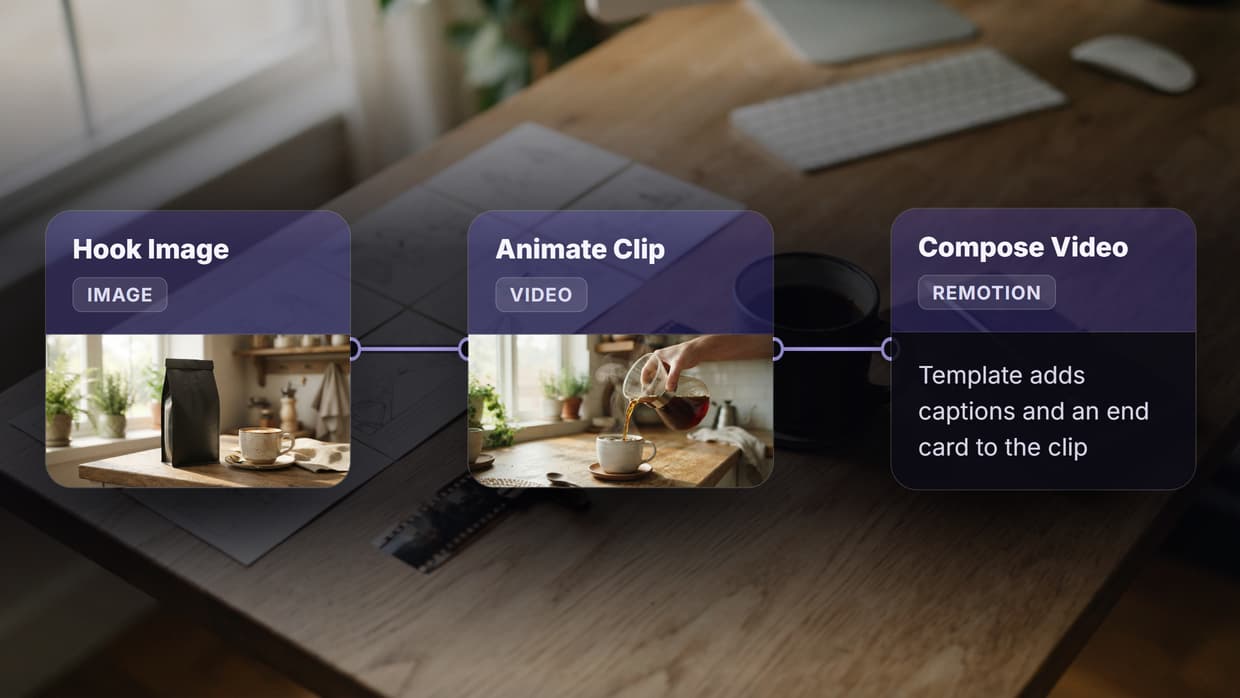
A multi-model workflow is a sequence of AI models connected so the output of one feeds directly into the next. Instead of running each model manually and copying results between tools, the workflow handles the handoff automatically.
A simple example: a text prompt generates an image with Flux 2 Pro, then that image passes to BiRefNet for background removal. Two models, one click. More complex workflows might chain five or six models across image generation, upscaling, video creation, and audio processing.
The key advantage is consistency. When you run steps manually, you lose time switching between tabs and re-uploading files. A connected workflow eliminates that friction entirely, and it produces the same result every time you run it.

Build this in Wireflow
Make the same kind of asset on a canvas you control, with a free account and no credit card.
Step 1: Define Your Output First
Before you pick any models, decide exactly what you need at the end. Working backward from the final output keeps your workflow focused and prevents you from adding unnecessary nodes.
Common multi-model output goals include:
- Product photos with transparent backgrounds: image generation plus background removal
- AI videos from a text description: image generation plus image-to-video conversion
- Upscaled editorial images: generation plus upscaling for print-ready resolution
- Consistent character content: reference image plus style-transfer across multiple scenes
- Social media batches: one prompt producing multiple format variations in a single run
Write down your target output in one sentence. If you need more than one sentence, you probably need more than one workflow.
Step 2: Choose the Right Models for Each Stage
Every model has strengths and weaknesses. The point of a multi-model workflow is to assign each step to the model that handles it best, rather than forcing one model to do everything.
Here is a practical breakdown by task:
| Task | Strong Model Options | Why |
|---|---|---|
| Text-to-image | Flux 2 Pro, Imagen 4, Recraft v4 | High fidelity, prompt adherence |
| Background removal | BiRefNet, Bria BG Remove | Clean edges on hair and fine detail |
| Upscaling | ClarityAI, Creative Upscaler, Magnific | Adds real detail, not just interpolation |
| Image-to-video | Kling 2.5, Seedance, Luma Dream Machine | Natural motion from a still frame |
| Voice generation | ElevenLabs, Chatterbox TTS | Realistic speech synthesis |
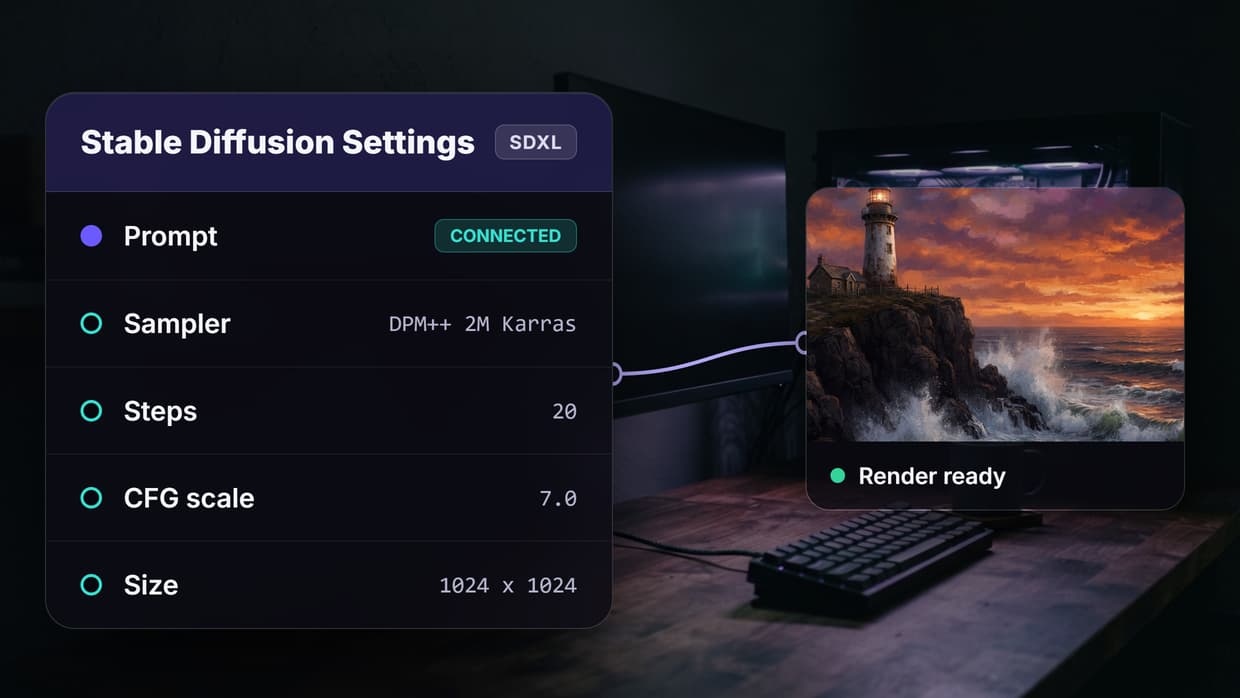
The key decision at each stage is whether the model needs to generate new content or process existing content. Generation models (Flux, Imagen) create from a prompt. Processing models (BiRefNet, ClarityAI) transform an existing image or video without needing a text prompt.
Step 3: Connect Nodes on a Visual Canvas
The practical difference between a multi-model workflow and just "using multiple AI tools" is the connection layer. On a visual node editor, you drag models onto a canvas and draw edges between their input and output ports.
Here is the process:
- Add an input node with your text prompt or reference image
- Add your first model node (e.g., Flux 2 Pro for image generation)
- Connect the input's output port to the model's input port by dragging an edge
- Add a second model node (e.g., BiRefNet for background removal)
- Connect the first model's image output to the second model's image input
- Run the workflow and both models execute in sequence
Each connection carries a data type: TEXT, IMAGE, or VIDEO. The canvas prevents you from connecting incompatible ports, so you cannot accidentally feed a text output into an image-only input. This type safety catches mistakes before you waste any API credits.
Step 4: Handle Branching and Parallel Paths
Not every workflow is a straight line. Sometimes you want one input to produce multiple outputs in parallel, or you want to compare results from different models side by side.
Fan-out pattern: connect one text prompt to two different image generators (e.g., Flux 2 Pro and Imagen 4) running in parallel. Both generate simultaneously, and you compare results.
Sequential chain: connect three or more models in a line. Text to image, image to upscaler, upscaled image to video generation. Each step depends on the previous one.
Conditional routing: use a router node to send different inputs down different paths based on content type or metadata. This is useful for batch processing where some items need different treatment.

The rule of thumb: start with a linear chain of two or three models. Add branching only after the basic pipeline works correctly. Debugging a complex graph is much harder than debugging a straight line.
Step 5: Test, Iterate, and Save as a Template
Run your workflow end-to-end with a real input before you consider it done. Check every intermediate output, not just the final one, because errors compound through the chain.
Common issues to watch for:
- Aspect ratio mismatches: a 16:9 generated image fed into a model expecting square input will crop or stretch
- Resolution drops: some models output at lower resolution than their input, which degrades quality downstream
- Prompt leakage: if your text prompt contains instructions for model A, model B might misinterpret them
Once the workflow runs cleanly, save it as a reusable template. Templates let you swap out the input prompt without rebuilding the entire graph. For production use, you can also trigger workflows via API, which lets you integrate multi-model pipelines into your own applications and automations.
Practical Example: Product Photo Pipeline
Here is a concrete three-node workflow for e-commerce product photography:
- Text Input: "A luxury perfume bottle on a marble counter, soft golden hour light, studio photography"
- Flux 2 Pro: generates a high-fidelity product image from the prompt
- BiRefNet Background Removal: strips the background to produce a transparent PNG ready for any product listing
This takes about 15 seconds total. Without a workflow, you would open a generation tool, download the image, open a background removal tool, upload the image, download again. The workflow eliminates every manual step.
Try it yourself: Build this workflow in Wireflow, the nodes are pre-configured with the exact setup discussed above.
Frequently Asked Questions
What is a multi-model AI workflow?
A multi-model AI workflow chains two or more AI models together so the output of one automatically feeds into the next. This lets you combine specialized models for better results than any single model can produce alone.
Do I need to code to build multi-model workflows?
No. Visual canvas tools let you drag models onto a workspace and connect them by drawing edges between nodes. No programming is required to build, test, or run workflows.
How many models can I chain together?
There is no hard limit. Most practical workflows use two to four models. Beyond that, each additional model adds latency and cost, so only add nodes that genuinely improve the output.
What happens if one model in the chain fails?
The workflow stops at the failed node and reports the error. You can fix the issue (adjust the prompt, swap the model, or change settings) and re-run from that point without restarting the entire chain.
Can I run multi-model workflows via API?
Yes. Most workflow platforms expose a REST API that lets you trigger saved workflows programmatically. This is useful for integrating AI pipelines into web apps, mobile apps, or backend services.
Which AI models work best together?
The strongest combinations pair a generation model with a processing model. For example, Flux 2 Pro for image creation plus BiRefNet for background removal, or Imagen 4 for generation plus ClarityAI for upscaling. Chaining those models as one repeatable graph is what an AI workflow orchestration platform does, so the whole multi-model run reproduces from a single brief.
How much does running a multi-model workflow cost?
Cost depends on which models you use. Each node in the workflow consumes credits based on the model's per-run pricing. Lightweight processing models like background removers cost fractions of a cent, while premium video generators cost more.
Can I reuse workflows as templates?
Yes. Save any workflow as a template and re-run it with different inputs. This is especially useful for batch processing, where you run the same pipeline across dozens or hundreds of inputs.

Co-Founder & Operations at Wireflow
Runs client operations and content strategy at Wireflow. Works directly with creative teams and agencies to build production AI workflows.
- Content Strategy
- Client Operations
Get unlimited ad creatives today.
One call to see if we are a fit and scope the first ad. If it fits, your first batch lands inside week one.