How to Restore Damaged Old Photos with AI

In this article▾
- Why AI Photo Restoration Works Better Than Manual Editing
- Step 1: Scan or Photograph Your Original Print
- Step 2: Assess the Type of Damage
- Step 3: Run the AI Restoration
- Step 4: Enhance and Upscale the Result
- Step 5: Colorize (Optional)
- When AI Restoration Falls Short
- After Restoration: Printing and Archiving
- Frequently Asked Questions
How to Restore Damaged Old Photos with AI
Old photographs fade, crack, and tear over time, but AI photo restoration tools can bring them back to life in minutes. Wireflow lets you chain multiple AI models into a single restoration pipeline, handling everything from scratch removal to colorization in one workflow. This guide walks you through the full process of restoring damaged photos using AI, from scanning your originals to producing print-ready results.
Once the scan is repaired, the same canvas can colorize the restored photo so a faded black and white print comes back in natural period color.
Why AI Photo Restoration Works Better Than Manual Editing
Traditional photo restoration in Photoshop requires hours of painstaking clone-stamp work, layer masking, and color correction. A skilled retoucher might spend an entire afternoon fixing one badly damaged print. AI models trained on millions of image pairs can now handle the same repairs in seconds, and the results are often indistinguishable from professional manual work. The same edit-node approach also runs in reverse: an AI aging filter adds decades of wrinkles and grey hair to a portrait while keeping the person recognizable. The technology behind these tools uses deep learning architectures that understand facial structure, fabric texture, and environmental context, so they can intelligently reconstruct missing portions of a photo rather than just smearing pixels around.
Build this in Wireflow
Make the same kind of asset on a canvas you control, with a free account and no credit card.
Step 1: Scan or Photograph Your Original Print
Before any AI tool can help, you need a high-quality digital copy of your damaged photo. Use a flatbed scanner set to at least 600 DPI for best results. If you do not have a scanner, use your smartphone camera in a well-lit room with even, diffused light (avoid direct sunlight, which creates glare and uneven shadows). Hold the phone parallel to the photo to minimize distortion. Several scanning apps like Google PhotoScan can stitch multiple exposures together to eliminate glare automatically. Save your scan as a PNG or TIFF file rather than JPEG to preserve maximum detail for the AI enhancement step.
Step 2: Assess the Type of Damage
Not all damage is equal, and understanding what you are dealing with helps you choose the right AI approach. Here are the most common types of damage found on old photographs:
- Scratches and creases: Surface-level marks that AI handles well by filling in surrounding texture
- Tears and rips: Missing sections where the AI must reconstruct content based on context clues
- Fading and discoloration: Loss of contrast and color shift from chemical degradation over decades
- Water damage: Warping, staining, and ink bleeding that creates blotchy patches
- Foxing and mold spots: Brown spots from fungal growth on the paper backing
- Chemical deterioration: Silver mirroring on old prints where the image surface takes on a metallic sheen
For photos with multiple damage types, a multi-step AI pipeline that addresses each issue sequentially tends to produce cleaner results than a single all-in-one pass.
Step 3: Run the AI Restoration
Most AI photo restoration tools follow a similar process: upload your scan, let the model analyze the damage, and download the restored version. Here is what happens under the hood and how to get the best output.
The AI model first detects damaged regions by comparing pixel patterns against its training data. It then generates replacement pixels that match the surrounding texture, color, and structure. For faces, specialized face detection models kick in to ensure eyes, noses, and mouths retain natural proportions rather than becoming distorted during the reconstruction process.
To get the best results:
- Start with the highest resolution scan you have. AI models produce better output when they have more data to work with. A 300 DPI scan limits what the model can reconstruct compared to 600 DPI.
- Crop out borders and edges before processing. Damaged borders confuse the model and waste processing time on areas you will trim anyway.
- Process in stages. Run scratch and tear repair first, then enhancement and sharpening, then colorization as a separate final step. Each model performs best when it handles one task at a time.
- Compare multiple tools. Different AI models have different strengths. Some excel at face restoration while others handle landscape details better.
For projects involving dozens or hundreds of photos (family archives, historical collections, genealogy research), batch processing through an API saves significant time compared to uploading photos one at a time through a web interface.
Step 4: Enhance and Upscale the Result
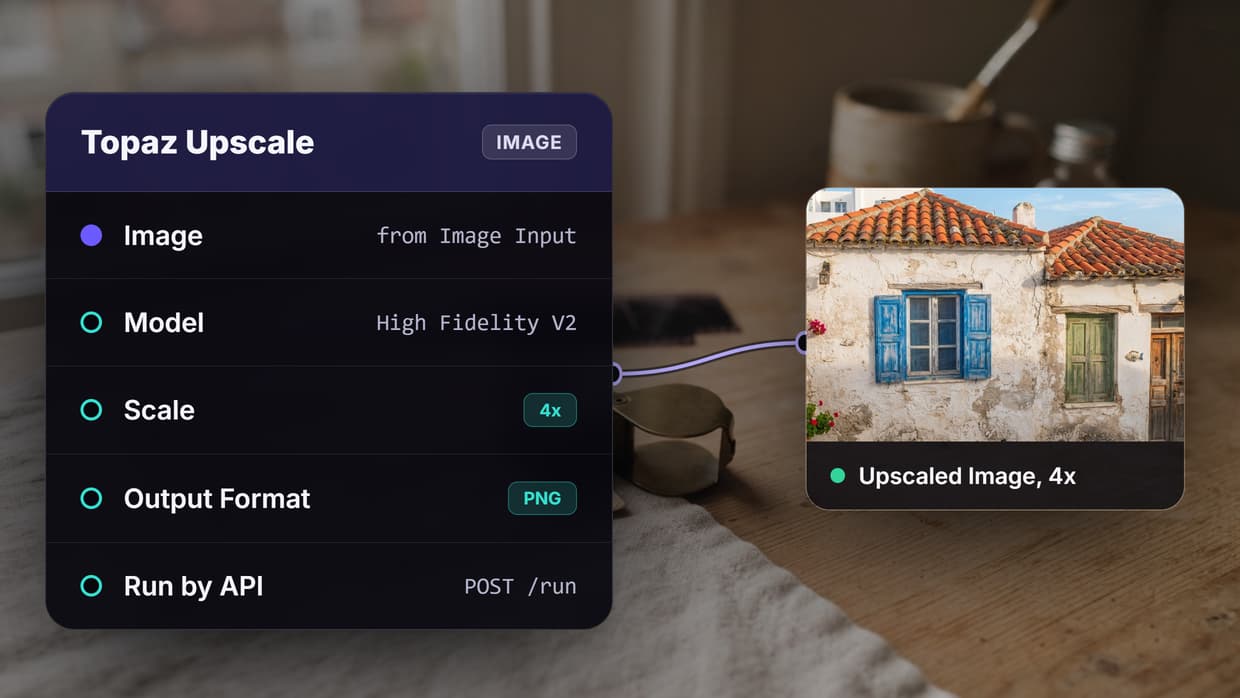
After the initial restoration pass removes scratches and repairs tears, the image often benefits from a second round of AI processing focused on quality enhancement. AI upscaling models can increase the resolution of your restored photo by 2x or 4x while adding realistic detail that was not present in the original scan. This is particularly valuable for old photos that were small prints to begin with (wallet-sized portraits, photo booth strips, or passport photos).
Enhancement models can also improve the tonal range and sharpness of your restored photo. Look for tools that offer separate controls for sharpening, noise reduction, and contrast adjustment rather than a single "enhance" button, since heavy-handed enhancement can introduce artifacts that make the photo look artificially processed.
Step 5: Colorize (Optional)
AI colorization has improved dramatically and can add realistic color to black-and-white photographs. Modern models understand that skin tones vary, grass is green, and sky is blue, but they also make contextual guesses about clothing colors, wallpaper patterns, and vehicle paint that may not match the original scene. If historical accuracy matters (archival work, museum collections, published histories), treat AI colorization as a starting point and manually adjust colors based on reference materials from the same era. For personal family photos where exact accuracy is less critical, AI colorization often produces results that feel emotionally right even if specific colors are approximate. Many AI creative workflow platforms let you fine-tune colorization output by providing reference photos from the same era or adjusting color temperature and saturation after the model runs.
When AI Restoration Falls Short
AI photo restoration is not magic, and knowing its limits saves you time and frustration. There are scenarios where the technology struggles:
- Severely torn photos with large missing sections (more than 30% of the image area) produce unreliable reconstructions. The AI lacks enough context to guess what was in the missing area accurately.
- Heavily overexposed or completely black regions contain no recoverable data, and AI cannot invent detail that was never captured by the camera.
- Photos with multiple overlapping damage types (water damage plus mold plus tearing) may need professional human restoration, since AI models trained on single damage types can interfere with each other when applied sequentially.
- Group photos where faces are very small (below roughly 64x64 pixels in the scan) may see facial features distorted rather than restored by face-enhancement models.
For irreplaceable photos with severe damage, consider consulting a professional photo restorer who can combine AI tools with manual techniques. Many professional restorers now use AI as a first pass to handle the bulk of the work, then refine details by hand, which reduces both cost and turnaround time. If you are exploring AI tools for video content creation alongside photo restoration, some platforms now offer similar repair capabilities for old film footage as well. Interestingly, the community around online social platforms has also embraced AI restoration for sharing vintage family photos during video calls and digital reunions.
After Restoration: Printing and Archiving
Once your photo is restored, protect your work for the future:
- Print on archival paper. Acid-free, lignin-free paper rated for 100+ years prevents the same chemical degradation that damaged the original. Services like Nations Photo Lab and Mpix offer archival printing options.
- Store digital copies in multiple locations. Keep the original scan, the restored version, and any intermediate versions on at least two separate storage systems (cloud + local drive). Use lossless formats (PNG or TIFF) rather than JPEG for your master files.
- Add metadata. Tag restored files with names, dates, locations, and relationships while you still remember them. This metadata becomes invaluable for future generations who may not recognize the people in the photos.
- Share with family. Visual node editors and automation tools make it easy to batch-process and distribute restored photos across family members, turning a solo restoration project into a shared family archive.
Try it yourself: Build this workflow in Wireflow, with nodes pre-configured for the exact setup discussed above.
Frequently Asked Questions
Can AI restore a photo that is torn in half?
AI can handle tears where both halves are available and aligned during scanning. If a piece is completely missing, the AI will attempt to reconstruct it based on surrounding context, but results vary depending on how much of the image is gone. Photos missing less than 20% of the image area typically restore well.
How much does AI photo restoration cost?
Many tools offer free tiers with limited resolution or watermarked output. Paid plans typically range from $5 to $20 per month for unlimited restorations. Per-image pricing through APIs generally runs $0.01 to $0.10 per photo depending on resolution and processing complexity.
Is AI colorization historically accurate?
AI colorization makes educated guesses based on training data, but it cannot know the exact color of a specific dress or car in your photo. For personal use, the results are convincing. For archival or publication purposes, cross-reference AI colorization against period photographs, catalogs, or written descriptions from the same era.
What resolution should I scan old photos at?
Scan at 600 DPI minimum for standard prints (4x6 or 5x7). For smaller originals like wallet photos or photo booth strips, use 1200 DPI. Higher resolution gives the AI more data to work with and produces better restoration results.
Can I restore photos from my phone camera instead of a scanner?
Yes, but quality depends on your setup. Use a phone with a good camera (12MP or higher), photograph in diffused natural light, hold the phone parallel to the photo, and use a scanning app that corrects for perspective distortion. Scanner results are generally superior for heavily damaged photos.
Does AI restoration work on very old photos from the 1800s?
Yes. AI models handle daguerreotypes, tintypes, and early paper prints well, though results depend on the condition of the original. Very early photographs with extreme chemical deterioration may need a combination of AI and manual restoration for best results. The same reversible edit-node trick works forward too: an AI young filter takes years off a face while keeping the same bone structure and expression intact.
Will AI restoration change the faces in my photos?
Modern face-restoration models are designed to enhance existing facial features rather than replace them. However, if a face is extremely small or badly damaged, the AI may generate features that do not match the original person. Always compare the restored face against the original scan to verify accuracy.
Can I restore multiple photos at once?
Yes. Most AI restoration platforms support batch uploads, and API-based tools let you process hundreds of photos programmatically. For large family archives or institutional collections, batch processing through an automated workflow is the most efficient approach.

Co-Founder & Operations at Wireflow
Runs client operations and content strategy at Wireflow. Works directly with creative teams and agencies to build production AI workflows.
- Content Strategy
- Client Operations
Make AI videos and ads.
Start free, no card needed.