How to Upscale Images in Claude with Hosted Upscalers

In this article▾
- Can Claude Upscale Images on Its Own?
- What You Need Before You Start
- Step 1: Connect the Upscalers to Claude
- Step 2: Get Your Photo to the Upscaler
- Step 3: Pick an Upscaler
- Step 4: Ask for the Upscale in Plain Words
- What a Real Upscale Looks Like
- Common Problems and Fixes
- Start With One Photo
- Frequently Asked Questions
To upscale images in Claude, connect a hosted upscaler through MCP, then ask for 2x or 4x in plain words. Claude cannot add pixels by itself, so the upscaler does the work and sends back a larger, sharper file. Wireflow is one way to set this up: its connector gives Claude Topaz Upscale, Crystal Upscaler and Clarity Upscaler from one sign-in.
You can take two routes to the same result. Inside Claude, the upscale runs through the connector and the finished file comes back as a link in the chat. If you would rather click than type, the same models run in the AI image upscaler in your browser. This guide covers the Claude route, with live credit prices and a real side-by-side run.
Can Claude Upscale Images on Its Own?
No. Claude has vision, so it can spot blur or JPEG noise in a photo and work out how many pixels a print needs, but it has no image model. Ask the plain chat to "make this 4K" and you get advice or code, not a bigger photo. Making brand-new pictures is a separate job, covered in our guide to generating images in Claude Code.
A script can resize, but resizing is not upscaling. Claude Code can run Pillow or ImageMagick to double the pixel count, and the result looks soft because every new pixel is an average of its neighbours. An AI upscaler predicts the missing detail instead. If your photo is blurry rather than small, see how to sharpen blurry photos with AI.
| Job | Resize script in Claude Code | AI upscaler |
|---|---|---|
| Make a file bigger for a web layout | Yes, but soft | Yes, sharp |
| Print a small photo large | No | Yes |
| Recover faces in a small portrait | No | Yes |
| Keep small label text readable | No | Yes, with a text model |
Build this in Wireflow
Make the same kind of asset on a canvas you control, with a free account and no credit card.
What You Need Before You Start
- Claude in the browser or desktop app with access to custom connectors, or Claude Code in a terminal
- The photo you want to enlarge, either online at an https:// address or saved on your computer
- An account on a hosted MCP server with credits for the runs (connecting and browsing models costs nothing)

Step 1: Connect the Upscalers to Claude
In the Claude app:
- Open Customize, then Connectors.
- Click + Add, then Add custom connector.
- Give it a name and paste
https://www.wireflow.ai/api/mcpas the remote server URL. - Click Continue, leave the advanced OAuth fields empty, then click Add.
- Sign in and approve the consent screen. There is no API key to paste.
The default permissions cover an upscale from a link. Each one is listed in the MCP connector guide, and you can revoke access from your settings at any time.
In Claude Code, one command adds the same server: claude mcp add --transport http wireflow https://www.wireflow.ai/api/mcp. Run /mcp inside Claude Code afterwards, pick the server and sign in.
Step 2: Get Your Photo to the Upscaler
Claude can see a photo you paste into the chat, but the upscaler needs the original file at a web address. There are three ways to hand it over:
- A public link. If the photo already lives at an https:// URL, paste the link.
- An upload link. Ask Claude to "send me an upload link". You get a page that needs no login and works on a phone, and the file lands on your board as an Import node. This needs the optional write permission, which you can tick on the consent screen.
- A script. In Claude Code, ask Claude to upload a local file through the media upload API.
Send the largest original you have: upscaling a compressed copy enlarges the compression damage too.
Step 3: Pick an Upscaler
The live models list prices three image upscalers. The credits below come from that list when this guide was written, and Claude can read the current figures with its list_models tool before it runs anything.
| Model | Credits | Settings | Built for |
|---|---|---|---|
| Crystal Upscaler | About 5 per megapixel (6 for a 1024 x 1024 photo) | Scale factor, creativity 0 to 10 | Faces, portraits and fast, low-cost runs |
| Clarity Upscaler | About 10 per megapixel | 1x to 4x, optional prompt, creativity and resemblance | AI art and renders where added detail is welcome |
| Topaz Upscale | 16 per image | 1x to 4x (default 2x), 11 Topaz models, PNG or JPEG | Product photos, labels and faithful results |
Topaz Upscale defaults to its Standard V2 model, which suits most photos. Switch to Text Refine when a label or sign has to stay readable, Low Resolution V2 or Recovery for tiny or damaged sources, and CGI for 3D renders. To call the same model from your own code instead of a chat, see our Topaz Upscale API guide.
Clarity Upscaler is the only one of the three that takes a prompt. A short description such as "sharp product photo, fine fabric weave" steers the new detail, creativity controls how much it invents, and resemblance pulls the result back toward your original. The settings are covered in more depth in the ClarityAI API walkthrough.
Step 4: Ask for the Upscale in Plain Words
A good request names four things: the factor or the target size, the model, what must stay true, and the file format. Ask Claude to show the model and the credit cost and wait for your OK before it runs anything.
- Product photo: "Upscale this product photo 2x with Topaz Upscale, Standard V2, PNG. Show me the credit cost first."
- Print size: "This photo is 1200 x 1500 pixels. I need an 8 x 10 inch print at 300 DPI. Work out the factor and use Topaz." Claude does the sum (2400 x 3000 pixels, so 2x) and sets the factor for you.
- Portrait: "Upscale this headshot 2x with Crystal Upscaler at creativity 0. Keep the face exactly as it is."
- AI render: "Upscale this render 4x with Clarity Upscaler. Prompt: detailed brick texture, sharp window edges. Keep creativity low."
Claude builds a small board with your photo wired into the upscaler, runs it and returns a link to the file. The board stays in your account to reopen and rerun with another model, like any of the ready-made blueprints.
What a Real Upscale Looks Like
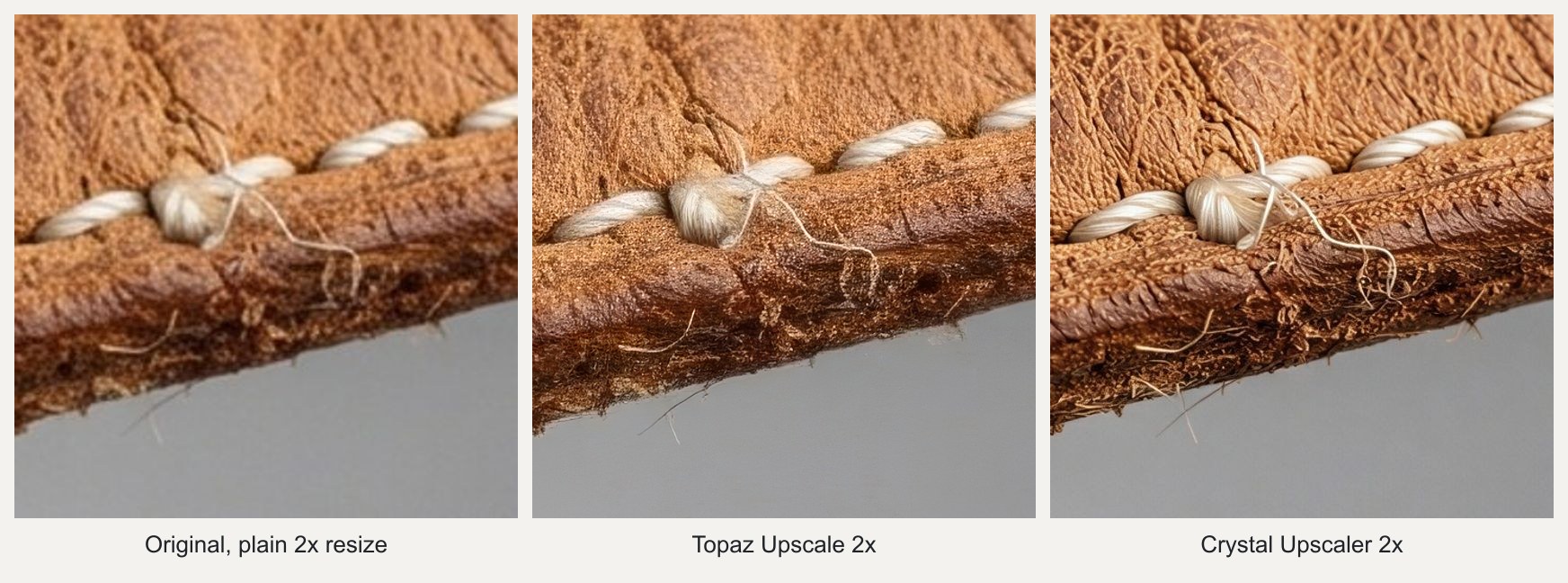
We ran one 1024 x 1024 product photo of a leather watch strap through Topaz Upscale (Standard V2, 2x) and Crystal Upscaler (creativity 0, 2x) side by side on 16 October 2026. Both returned 2048 x 2048. Topaz took 20.3 seconds and returned a 6.4 MB PNG; Crystal took 6.3 seconds and returned a 1.1 MB JPEG. The pair cost 22 credits, 16 for Topaz and 6 for Crystal.
In the crop above, the plain resize is soft. Topaz keeps the grain and the frayed stitch close to the original and adds fine texture without drawing new lines. Crystal looks crisper, but even at creativity 0 it draws deeper creases and extra grain that were not clearly in the source. For a store listing, the faithful result is usually the safer pick, and AI product photography chains that upscale after the shot itself.
Common Problems and Fixes
- Faces look waxy. Lower creativity on Crystal or Clarity, or switch to Topaz for a more literal result.
- Label text warps. Use Topaz Upscale with the Text Refine model and say "keep the text exactly as it is".
- New texture appears. Set creativity to 0 and raise resemblance on Clarity, or compare against Topaz on the same photo.
- 4x looks artificial. Run 2x first, check it, and stop there if it already meets the print size.
- The file is too large. Topaz returns PNG by default; ask for JPEG output when the image is going on the web.
- You have a whole folder. Set it up as a batch image run instead of asking for one photo at a time.
Start With One Photo
Upscaling images in Claude takes three moves: connect an upscaler, get the full-size photo to it, and say the factor, the model and what must stay true. Start with one photo at 2x, zoom in on faces and text, then reuse the request once it holds up. Credit costs per run are explained in the credits and billing docs.
Try it yourself: Open the product photo upscale workflow in Wireflow. It wires one product photo into Topaz Upscale and Crystal Upscaler side by side, the same 2x run shown above. Swap in your own photo and run it, or ask Claude to build the same two-model board for you. You can open and change this workflow for free. A new account gets up to 60 starter credits and a free video, and each run uses credits. Plans start at $36 a month for 2,660 credits.
Frequently Asked Questions
Can Claude upscale images by itself?
No. Claude can read an image but has no image model of its own. A resize script makes the file bigger without adding detail, so real upscaling needs a connected upscaler.
Can I upscale images in Claude Code?
Yes. Add the MCP server with claude mcp add, sign in through /mcp, and ask for the upscale in plain words. Claude Code can also save the result into your project folder; the browser app gives you an image link instead.
Do I need an API key?
Not for the connector. It signs in with OAuth, so there is nothing to paste. Scripted runs from your own code, outside Claude, use an API key.
Which upscaler is best for product photos?
Topaz Upscale with Standard V2 stays closest to the original, and Text Refine keeps labels readable. Crystal Upscaler is faster and cheaper but adds more texture of its own.
How much does it cost to upscale an image?
Connecting and browsing models costs nothing. A 1024 x 1024 photo costs about 6 credits on Crystal Upscaler, about 10 on Clarity Upscaler, and 16 on Topaz Upscale, and plans start at $36 a month for 2,660 credits.
How big can I upscale an image?
Topaz Upscale and Clarity Upscaler go up to 4x per run, so a 1024 x 1024 photo can become 4096 x 4096. That prints at about 13.7 inches square at 300 DPI.
Will upscaling fix a blurry photo?
Partly. Mild softness often improves, but heavy motion blur or a missed focus point needs a sharpening model, and some photos cannot be recovered.

Co-Founder & Operations at Wireflow
Runs client operations and content strategy at Wireflow. Works directly with creative teams and agencies to build production AI workflows.
- Content Strategy
- Client Operations
Ask Claude for your next ad.
Connect once. Ask any time.
- No credit card
- You keep the rights to what you make
- Cancel anytime