How to Convert Text to Video Using AI Tools


In this article▾
Converting a written script into a finished video clip used to require a camera, editing software, and hours of manual work. In 2026, AI tools handle most of that process automatically. You type a description or paste a script, and the tool returns a video with visuals, motion, and often audio included. Platforms like Wireflow let you connect text-to-video models into structured pipelines so you can go from a written idea to an exported clip without switching between five different apps. This guide covers the full conversion process in five steps, with specific tools and settings you can use today.
What You Need Before You Start
The text-to-video conversion process requires three things: a written script or prompt, an AI video tool, and a clear idea of the output format you need. Your script can be anything from a single sentence describing a scene to a full narration with shot-by-shot breakdowns. The more specific your input, the better the output. Before picking a tool, decide whether you need talking-head video, animated explainers, cinematic B-roll, or product demos, because different tools specialize in different formats. Most platforms offer free tiers, so you can test without committing to a subscription. Having a reference for the style you want, even a screenshot from another video, saves time during generation. If you plan to produce video regularly, building a library of prompt templates through a tool that supports reusable AI templates will speed up every future project.
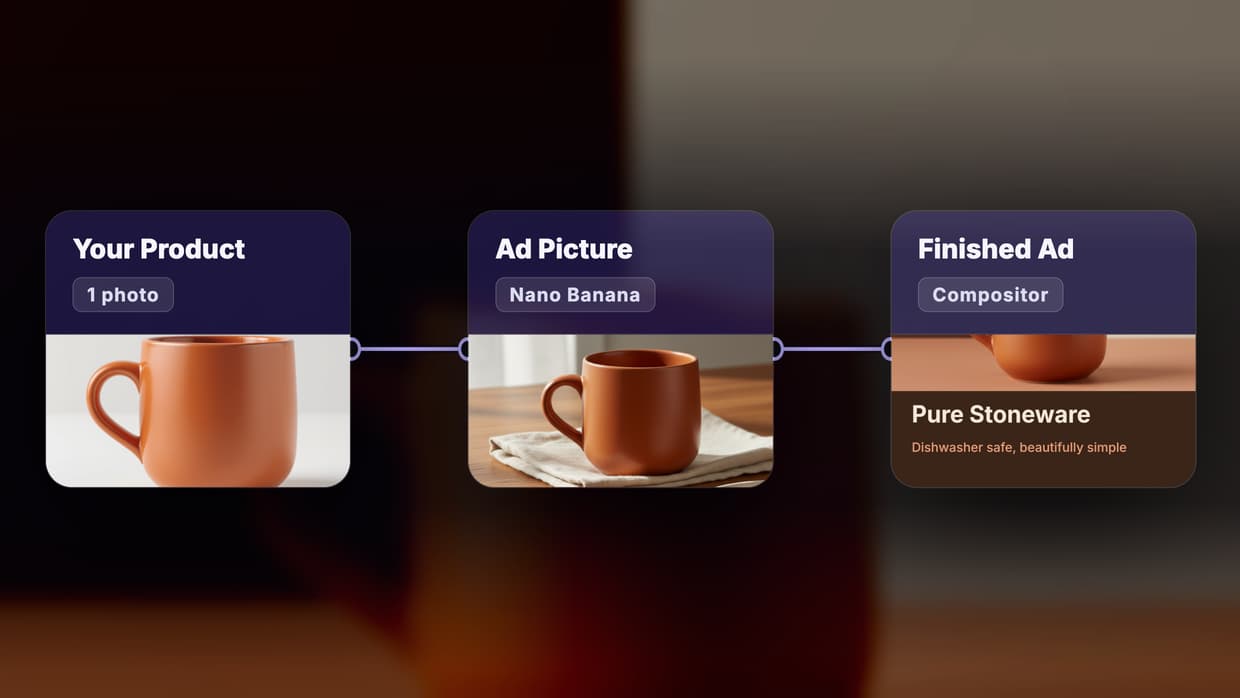
For a product explainer specifically, the product explainer workflow on Wireflow turns a product photo and a short script into a narrated 30 second clip.
When you want to start from a still instead of a prompt, an image-to-video endpoint animates a chosen frame rather than generating the scene from scratch.
Build this in Wireflow
Make the same kind of asset on a canvas you control, with a free account and no credit card.
Step 1: Prepare Your Script or Text Input
The quality of your text input directly determines the quality of your video output. A vague prompt like "make a video about dogs" gives the AI too many choices and produces generic results. A specific prompt like "a golden retriever running through shallow ocean waves at sunset, slow-motion tracking shot, 35mm lens" tells the model exactly what to generate. Break your content into individual shots, each described in one to two sentences. For a 30-second video, plan four to six separate shots. Each shot description should include the subject, the action, the setting, and the camera angle. If you are working with a longer narration script, split it into segments that map to visual scenes. Teams that produce content at scale often start from AI workflow templates rather than writing every prompt from scratch, which keeps the format consistent across dozens of videos.
Step 2: Choose the Right AI Video Tool
Different tools excel at different types of video. Here is a practical breakdown of the leading options in 2026:
- Veo 3 (Google): Strong prompt adherence, cinematic realism, and built-in audio generation. Best for high-quality B-roll and marketing clips.
- Runway Gen-4: Offers the most creative control with video-to-video transformation, inpainting, and style transfer. Best for creators who want to fine-tune every frame.
- Kling 3.0: Generates the longest clips (up to 5 minutes) with fluid character motion. Best for narrative content and longer-form projects.
- Pika: Fast generation times with a simple interface. Best for quick social media clips and iterative testing.
- Synthesia: Specializes in AI avatar talking-head videos. Best for training content, explainers, and corporate communication.
- InVideo: Combines text-to-video with a full editing suite. Best for creators who want generation and editing in one place.
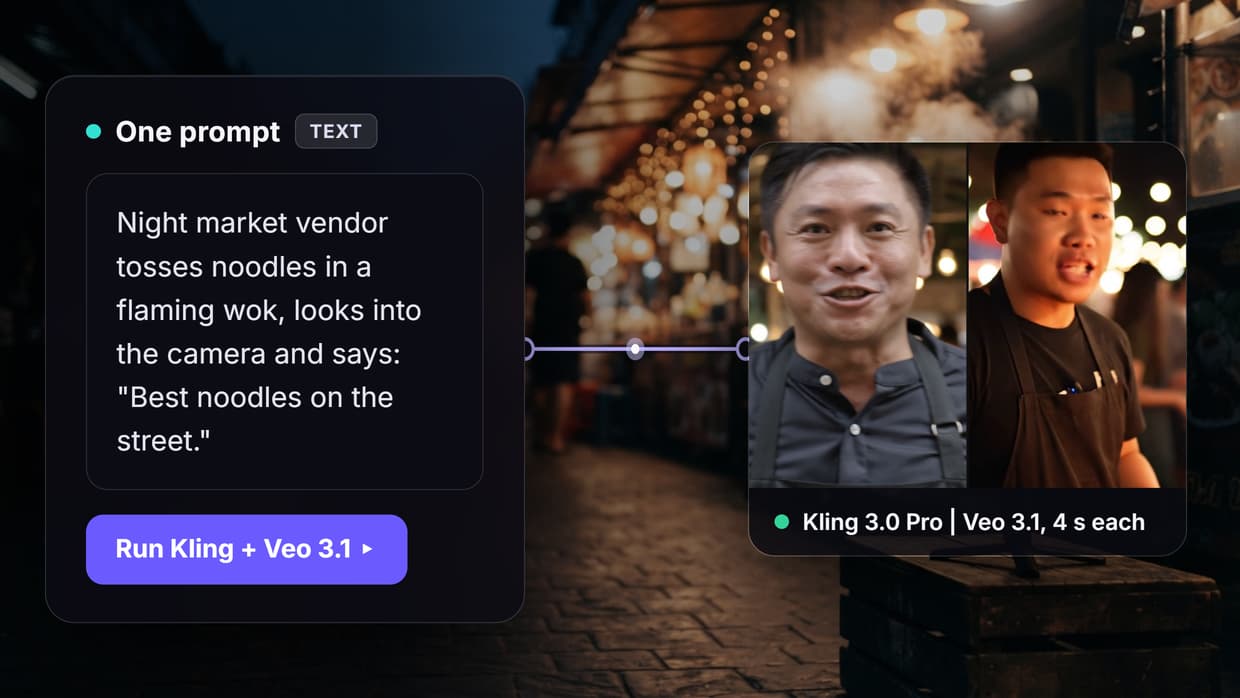
The right choice depends on your use case. For cinematic quality, Veo 3 or Runway lead. For speed and simplicity, Pika or InVideo work well. For structured content with a presenter, Synthesia is the standard. Many teams run the same prompt through two models and pick the stronger result, which is easier when you use AI model chaining to send one prompt into multiple models in parallel.

Step 3: Generate Your First Video Clip
Once your script is ready and your tool is selected, the generation process follows a consistent pattern across most platforms. Paste your text prompt into the input field, select any style or model preferences (aspect ratio, duration, camera motion), and click generate. Most tools return a preview within 30 seconds to 3 minutes depending on the model and resolution. Watch the preview carefully. The first generation rarely needs zero edits, but it shows you whether the model understood your prompt. If the composition, motion, or subject is wrong, refine the prompt rather than regenerating blindly. Small wording changes often fix large output problems. For multi-shot videos, generate each shot individually rather than trying to describe the entire video in one prompt. A no-code AI canvas makes this process visual: each shot becomes a node on a graph, and you can regenerate individual shots without losing the rest of your sequence.

Step 4: Add Voiceover, Music, and Captions
Raw AI-generated clips rarely ship without audio. Voiceover, background music, and captions turn a visual sequence into a complete video. For voiceover, you have two options: record your own narration and upload it, or use a text-to-speech model to generate a voice from your script. Tools like Synthesia and InVideo include built-in voice generation, while standalone options like ElevenLabs offer more voice variety and control. Script your narration separately from your visual prompts so you can edit the words without regenerating the visuals. For faceless content like compilations, tutorials, or product walkthroughs, a faceless AI video generator handles script, voice, visuals, and captions in a single pass.
Music sets the emotional tone and pacing of your video. Choose your track before you finalize the edit, because the beat dictates where cuts should land. Most AI video tools include royalty-free music libraries, or you can use dedicated platforms like Epidemic Sound or Artlist. Captions are no longer optional for social video; they increase watch time significantly on muted feeds. Auto-captioning is built into most tools, but always review the transcript for accuracy. For teams producing many video variants, batch AI generation creates dozens of captioned versions from one script, which is useful for A/B testing hooks across platforms.

Step 5: Review, Edit, and Export
Watch your assembled video at full size before exporting. Check for common AI artifacts: distorted hands, warped text, inconsistent lighting between shots, and unnatural facial expressions. Regenerate any shot that fails quality checks rather than trying to fix it in post-production; the model is cheaper to rerun than you are to manually edit. Once all shots pass review, arrange them on a timeline and adjust pacing. Trim dead frames at the start and end of each clip, and add transitions only where they serve the narrative (most cuts should be hard cuts). A visual node editor lets you wire prompts, models, and editing steps together, so if one shot fails you swap out that single node without rebuilding the sequence.
Export at the correct resolution for your target platform: 1080x1920 for Instagram Reels, TikTok, and YouTube Shorts; 1920x1080 for YouTube and website embeds; 1080x1080 for social feeds. Use AI pipeline automation to export in multiple aspect ratios from one source file, saving repetitive cropping and resizing. Always watch the final export once before publishing, because compression can introduce visible artifacts that were not present in the preview.
Tips for Better Text-to-Video Results
- One shot per prompt. Describing multiple actions in a single prompt produces confused output. Keep each prompt focused on one subject, one action, one camera angle.
- Use reference images. Uploading a reference image anchors the visual style and improves character consistency across shots. Even a rough sketch helps.
- Iterate on prompts, not filters. If a generation looks wrong, change the wording instead of applying post-processing effects. Better input beats better editing.
- Match resolution to platform. Generating in 4K for a TikTok clip wastes credits and time. Generate at the resolution you will publish at.
- Build a prompt library. Save prompts that produce good results and reuse them as starting points for future projects. An AI asset pipeline keeps your prompts, references, and outputs organized across projects.

Veed: Combines text-to-video AI generation with a complete online video editor, AI avatars, subtitles, voiceovers, and translation tools. Best for creators, marketers, and businesses that need an all-in-one solution for generating, editing, and publishing video content
FAQ
Can I convert a blog post directly into a video? Yes. Paste the blog text into tools like Synthesia, InVideo, or Pictory, and they will break it into scenes with matching visuals and narration. You will usually need to edit the auto-generated scenes for pacing and accuracy, but the initial conversion takes under five minutes.
How long does AI text-to-video generation take? A single 5 to 10 second clip takes 30 seconds to 3 minutes depending on the model. A complete 30 to 60 second video with multiple shots, audio, and captions typically takes 20 to 45 minutes from start to export.
Is AI-generated video good enough for professional use? For social media, ads, explainers, and internal training, yes. For broadcast television or high-end commercial work, most studios still combine AI clips with live-action footage or post-production polish. The quality continues to improve each quarter.
Do I need video editing experience? No. Most AI video tools include built-in editing features that handle shot ordering, transitions, and caption placement. Basic familiarity with timelines helps, but it is not required.
How much does text-to-video AI cost? Free tiers are available on most platforms with limited generation minutes and lower resolution. Paid plans range from $10 to $50 per month for individual creators, with enterprise pricing available for teams producing at higher volume.
Can I maintain character consistency across multiple clips? Yes, when you supply a reference image or use a character model trained on one subject. Text-only prompts without references are still unreliable for multi-shot character consistency.
What file formats do AI video tools export? Most tools export MP4 by default, which is compatible with every major platform. Some also support MOV, WebM, and GIF for specific use cases.
Can I add my own branding to AI-generated videos? Yes. Most tools support custom logos, brand colors, fonts, and intro/outro sequences. Upload your brand assets before generating to apply them automatically across all clips.
Conclusion
Converting text to video with AI in 2026 follows a clear five-step process: prepare your script, choose the right tool for your format, generate and review each shot, add audio and captions, then export at the correct resolution for your platform. The teams producing the best results treat each step as a separate lever they can optimize, rather than relying on a single prompt to do everything. Wireflow connects these steps into reusable pipelines so you can standardize your process and scale from one clip to dozens without rebuilding the workflow each time. Start with a single 15-second clip, get the quality right, then apply the same template to longer projects.

Co-Founder & Operations at Wireflow
Runs client operations and content strategy at Wireflow. Works directly with creative teams and agencies to build production AI workflows.
- Content Strategy
- Client Operations
Get unlimited ad creatives today.
One call to see if we are a fit and scope the first ad. If it fits, your first batch lands inside week one.