How to Build AI Workflows Without Code in 2026

In this article▾
The barrier to entry for AI has dropped significantly. In 2026, you no longer need Python scripts, API wrappers, or a computer science degree to chain multiple AI models into production-ready pipelines. Wireflow is one of several platforms that lets you visually connect AI models, from image generators to language models, into automated workflows using a drag-and-drop node editor. This guide walks through the practical steps of building your first AI workflow without writing a single line of code.
What Is a No-Code AI Workflow?
A no-code AI workflow is a visual pipeline where each step represents an AI operation: text generation, image creation, voice synthesis, video editing, or data transformation. Instead of writing code to call APIs and handle data flow between models, you place nodes on a canvas and draw connections between them. The platform handles authentication, data formatting, error handling, and execution order automatically. This approach makes AI accessible to marketers, designers, content creators, and small business owners who need AI creative workflows but lack engineering resources.
Build this in Wireflow
Make the same kind of asset on a canvas you control, with a free account and no credit card.
Step 1: Define Your Goal and Choose Your Models
Before opening any tool, clarify what you want your workflow to accomplish. Are you generating blog content with matching images? Converting text descriptions into marketing videos? Creating personalized email campaigns? The goal determines which AI models you need. For a hands-on look at this in action, check out the no-code AI workflow builder feature page.
Common model combinations for no-code workflows include:
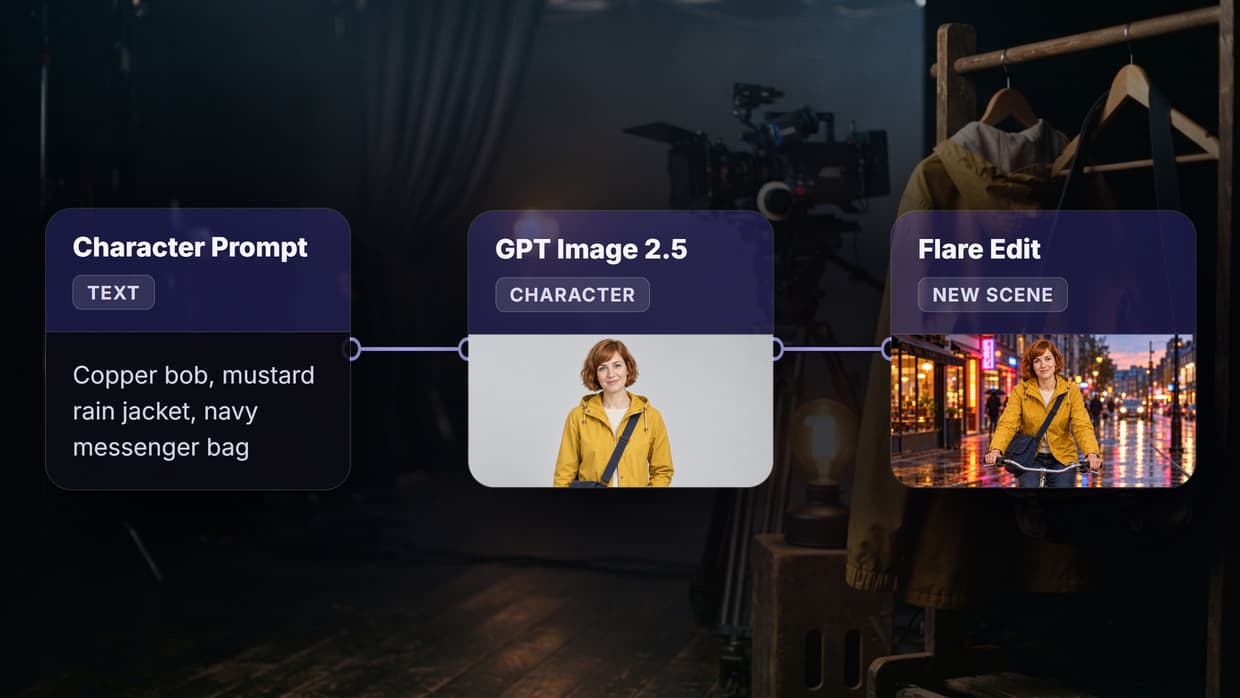
- Text to image: An LLM writes a prompt, then an image generator like Recraft V4 produces the visual
- Image to video: Upload a still image, apply an image-to-video model to animate it
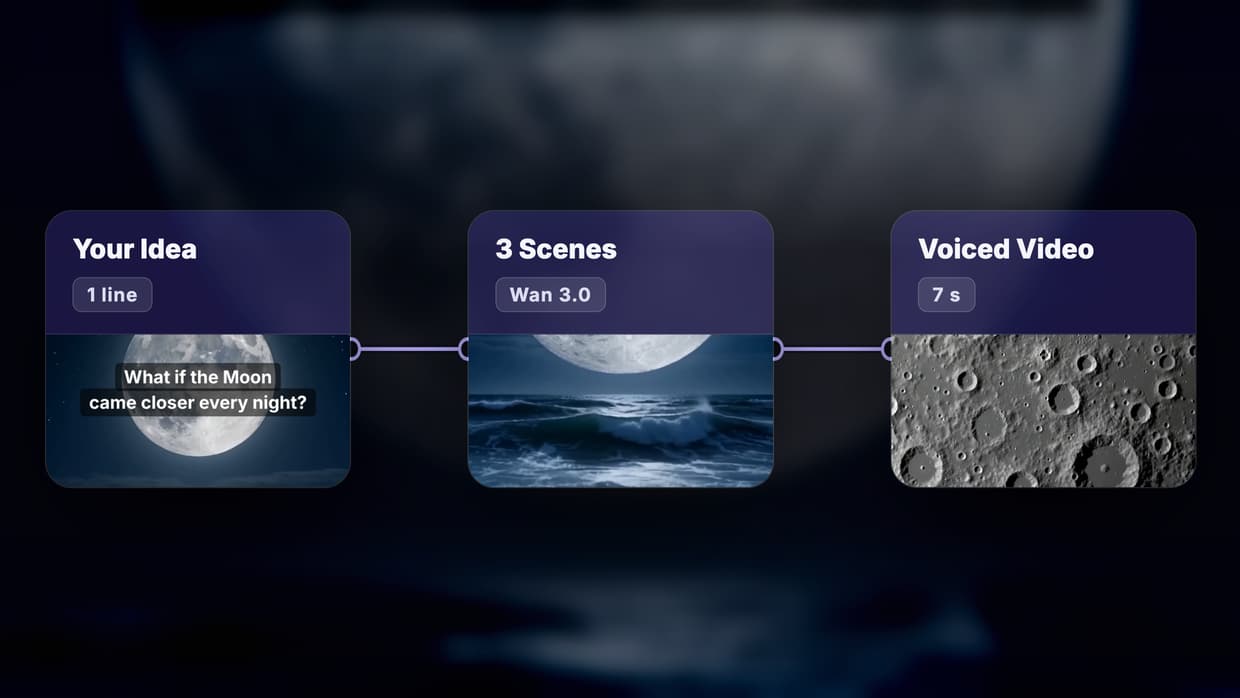
- Text to speech: Generate a script with an LLM, then convert it to audio with a voice generator
- Multi-step content: Chain text generation, image creation, and formatting into a single automated pipeline
Start with two or three nodes for your first workflow. You can always add complexity later.

Step 2: Set Up Your Canvas and Place Nodes
Open your no-code platform's workflow editor. Most platforms use a canvas with a node library panel on the side. Drag your first node onto the canvas. This is typically an input node: a text prompt, an uploaded image, or a data source. Then add your AI model nodes in sequence. Each node should have clearly labeled inputs and outputs so you can see the data flow at a glance using the visual node editor.

Here is a typical node setup for a content generation workflow:
- Input node: Contains your text prompt or uploaded file
- LLM node: Processes the input and generates text output (blog copy, script, product description)
- Image generation node: Takes the LLM output as a prompt and creates a matching image
- Output: The platform displays results from each node automatically
Connect the nodes by dragging from one node's output port to the next node's input port. The connection line confirms that data will flow correctly between steps. If a connection is invalid (mismatched types, for example), the platform will flag it. You can save frequently used setups as reusable templates to speed up future projects.
Step 3: Configure Each Node's Settings
Click on each node to open its configuration panel. For an LLM node, you will typically set the model (GPT-4o, Claude, Llama), temperature (creativity level), and any system prompt that guides the output style. For an image generation node, you will choose the model, output resolution, and aspect ratio. For a text-to-video node, you might set duration, motion intensity, and style.

Key configuration tips:
- Be specific with prompts: Vague input produces vague output. Write clear, detailed prompts for each node
- Match output formats: Ensure the output type of one node matches the input type of the next (text to text, image to image)
- Set quality levels: Higher quality settings produce better results but take longer. For testing, use standard quality; for final output, switch to pro or HD
- Use model chaining strategically: Connecting multiple AI models in sequence, known as model chaining, lets you build sophisticated pipelines that no single model could handle alone
Step 4: Run, Test, and Iterate
Hit the run button to execute your workflow. The platform processes each node in order, passing outputs forward through the connections. Watch the execution progress in real time. Most platforms show a status indicator on each node: pending, running, completed, or failed. If a node fails, check the error message, adjust your configuration, and re-run. You do not need to restart the entire workflow; most tools let you re-run individual nodes or resume from the point of failure. For workflows that need to run on a schedule or process batches of inputs, look for automation or scheduling features in your platform.

Iteration is where no-code workflows truly shine compared to coding. Changing a model, adjusting a prompt, or rerouting a connection takes seconds instead of rewriting functions and debugging API calls. Test with small inputs first, verify the outputs meet your standards, then scale up to full production runs.
Practical Use Cases for No-Code AI Workflows
No-code AI workflows are being used across industries in 2026. Here are some of the most popular applications:
- Content marketing: Generate blog posts, social media graphics, and marketing videos from a single topic prompt
- E-commerce: Create product descriptions, lifestyle photos via AI image generation, and ad creatives in one pipeline
- Education: Convert lecture notes into visual summaries, quizzes, and study guides
- Real estate: Transform property descriptions into virtual staging photos and video tours
- Music and audio: Generate instrumentals with AI music tools and pair them with AI voiceovers for podcast intros
The common thread is taking repetitive creative work that used to require multiple tools and manual handoffs, and compressing it into a single automated flow. Teams that adopt workflow templates report spending 60-80% less time on routine content production.
Try it yourself: Build this workflow in Wireflow. The nodes are pre-configured with the exact setup discussed above.
Frequently Asked Questions
What is the easiest no-code AI workflow tool for beginners?
Platforms with visual node editors and pre-built templates are the easiest starting point. Look for tools that offer drag-and-drop canvas interfaces, built-in model libraries, and sample workflows you can modify. Avoid tools that require any scripting or terminal access.
Do I need to understand AI models to build workflows?
A basic understanding helps, but it is not required. Most no-code platforms label their nodes clearly (e.g., "Text Generator," "Image Creator") and provide default settings that work well for common tasks. As you build more workflows, you will naturally learn which models suit different use cases.
How much do no-code AI workflow platforms cost?
Pricing varies widely. Some platforms offer free tiers with limited runs per month, while professional plans typically range from $20 to $100 per month depending on usage volume and model access. Enterprise plans with custom model hosting and priority processing are also available.
Can I use my own AI models in a no-code workflow?
Some platforms support custom model integration through API connectors. You provide an API endpoint, and the platform treats it as another node in your workflow. This lets teams with proprietary models benefit from visual workflow building without abandoning their existing infrastructure.
What happens if a node in my workflow fails?
Most platforms pause execution at the failed node and display an error message. You can fix the configuration and re-run just that node without restarting the entire pipeline. Common failures include timeout errors on large inputs, invalid prompt formatting, and rate limit errors from model providers.
Are no-code AI workflows suitable for production use?
Yes. In 2026, no-code platforms handle scheduling, error recovery, logging, and scaling automatically. Many businesses run production content pipelines, customer service automation, including tools like an AI call answering service that can be plugged directly into these pipelines — and data processing workflows entirely through visual editors.
Can I share or collaborate on workflows with my team?
Most platforms support workflow sharing through links, team workspaces, or export/import functionality. Some offer version control so team members can iterate on workflows without overwriting each other's changes. Shared template libraries let teams standardize their AI operations.
How do no-code AI workflows compare to writing custom code?
No-code workflows are faster to set up, easier to modify, and accessible to non-technical users. Custom code offers more flexibility, lower per-run costs at scale, and tighter integration with existing systems. For most teams, no-code handles 80-90% of use cases; custom code fills the remaining specialized needs.
Conclusion
Building AI workflows without code in 2026 is practical, accessible, and increasingly powerful. The combination of visual editors, pre-trained AI models, and automated execution makes it possible for anyone to create multi-step AI pipelines in minutes. Once that pipeline is built, a no-code workflow orchestration platform can publish it as a callable API and an MCP tool without writing any integration code. Start with a clear goal, choose two or three models, connect them on a canvas, and iterate until the output meets your standards. Wireflow and similar platforms continue to expand their model libraries and workflow capabilities, making this the ideal time to start building. Check out the pricing page to find a plan that fits your needs.

Co-Founder & Operations at Wireflow
Runs client operations and content strategy at Wireflow. Works directly with creative teams and agencies to build production AI workflows.
- Content Strategy
- Client Operations
Make AI videos and ads.
Start free, no card needed.