How to Create Animations with AI Tools

In this article▾
AI-powered animation tools have made it possible for anyone to produce polished animated content without traditional motion design skills. Whether you need animated explainer videos, character animations, or motion graphics for social media, Wireflow lets you chain multiple AI models together to build full animation workflows from a single prompt. This guide walks through the complete process of creating animations with AI, from choosing the right approach to exporting your final video.
What You Need Before You Start
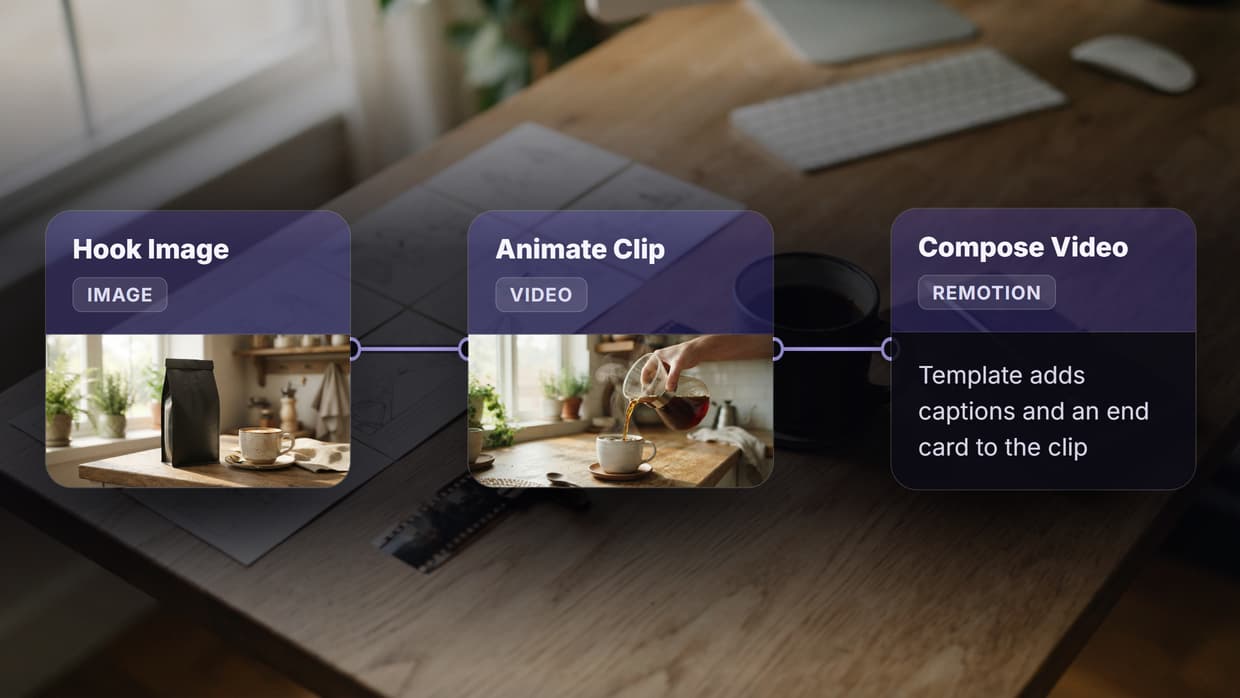
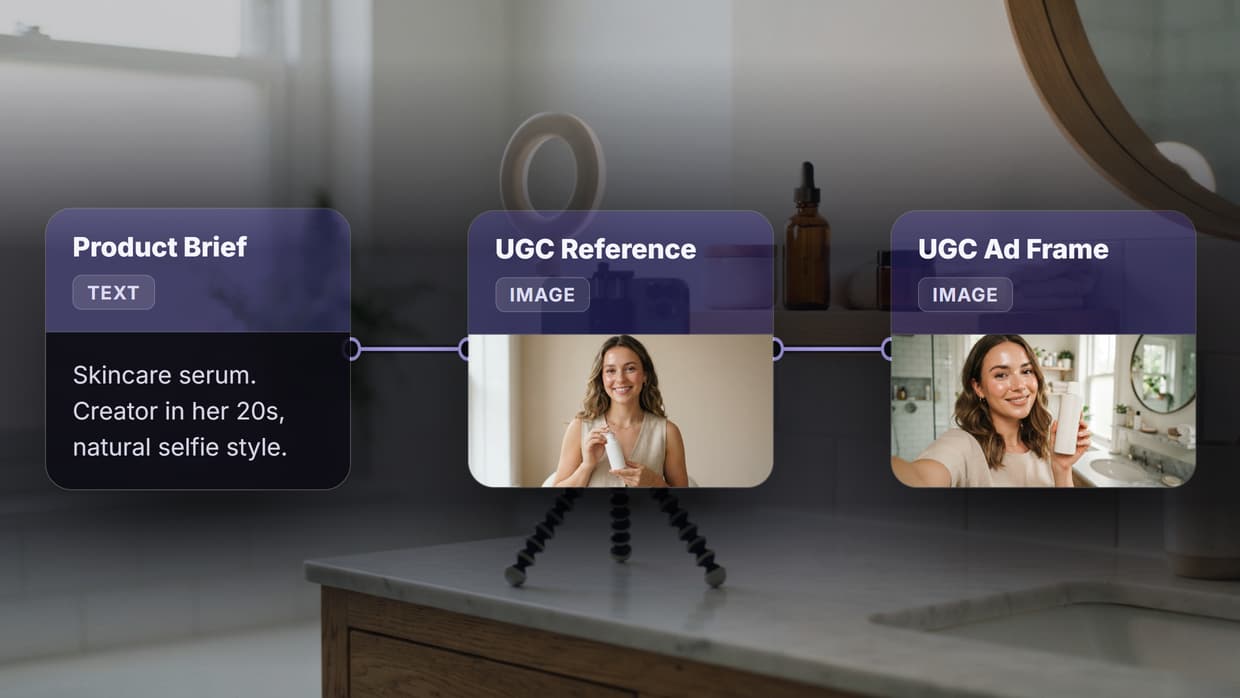
Before jumping into AI animation, it helps to know what type of output you want. AI animation tools generally fall into three categories: text-to-video generators that create animations from written prompts, image-to-video tools that animate still images, and character animation platforms that rig and move digital figures. Each approach works best for different use cases, and understanding the differences saves time. If you want a hands-on look at how these tools connect in practice, check out the how to create animations with AI tools feature page for a visual breakdown.
- Text-to-video: Best for explainer content and social clips where you start from a script
- Image-to-video: Ideal for animating product shots, illustrations, or AI-generated images
- Character animation: Used for avatar-based content, training videos, and storytelling
For brand assets specifically, an animated logo reveal runs the same models on a logo frame.
Build this in Wireflow
Make the same kind of asset on a canvas you control, with a free account and no credit card.
Step 1: Write a Clear Prompt or Prepare Your Source Material
The quality of your AI animation depends heavily on your input. For text-to-video workflows, write a prompt that specifies the subject, action, style, and camera angle. Vague prompts produce generic results. Instead of "a person walking," try "a woman in a blue jacket walking through a rainy Tokyo street at night, cinematic lighting, slow motion."
For image-to-video workflows, start with a high-resolution still image. You can generate one using an AI image generator or upload your own photo. The source image should have clear subjects and enough visual detail for the AI to infer movement.
Key tips for better prompts:
- Specify the animation style (realistic, cartoon, anime, motion graphics)
- Include camera movement instructions (pan left, zoom in, static)
- Describe the motion you want, not just the scene
- Keep prompts under 200 words for most tools
Step 2: Choose Your AI Animation Tool
The right tool depends on your budget, skill level, and output requirements. Here is a practical comparison of the main approaches available today.
| Approach | Best For | Skill Level | Typical Cost |
|---|---|---|---|
| Text-to-Video (Runway, Kling) | Short cinematic clips | Beginner | $12-40/mo |
| Image-to-Video (Stable Video, Kling) | Animating stills | Beginner | $10-30/mo |
| Character Animation (Animaker, Vyond) | Explainer videos | Beginner | $20-60/mo |
| Node-Based Workflows (Wireflow, ComfyUI) | Complex multi-step pipelines | Intermediate | $15-50/mo |
| Code-Based (Deforum, AnimateDiff) | Full control, research | Advanced | Free-$20/mo |
For most creators, a visual node editor approach offers the best balance of flexibility and ease of use. You can connect image generation, video synthesis, and post-processing nodes without writing code.
Step 3: Generate Your Base Assets
Before creating the animation itself, generate any base assets you need. This might include character images, background scenes, or style reference frames. Batch generation speeds this up significantly.
If your animation needs consistent characters across multiple frames, use a batch image generation approach with a fixed seed or style reference. This keeps your character looking the same from frame to frame, which is one of the biggest challenges in AI animation.
For background scenes, generate a single wide-format image and use it as a static backdrop. Moving backgrounds can be created separately using image-to-video AI tools that add subtle parallax or weather effects.
Practical workflow for asset generation:
- Generate 3-5 character poses using the same style seed
- Create 1-2 background environments at 16:9 aspect ratio
- Generate any overlay elements (text, logos, UI elements) separately
- Organize assets in folders before importing into your animation tool
Step 4: Animate with AI Video Generation
With your assets ready, run the actual animation step. For text-to-video, paste your prompt and select duration (most tools support 4-10 second clips). For image-to-video, upload your source image and describe the desired motion.
Current AI video models produce clips of 4-10 seconds each. For longer animations, you need to chain multiple clips together. This is where AI pipeline automation becomes valuable. Instead of manually generating and stitching clips, you can set up a workflow that generates sequential clips with consistent style and smooth transitions.
Common animation settings to adjust:
- Motion strength: Controls how much movement appears (lower values for subtle animation, higher for dramatic motion)
- Frame rate: 24fps for cinematic feel, 30fps for web content
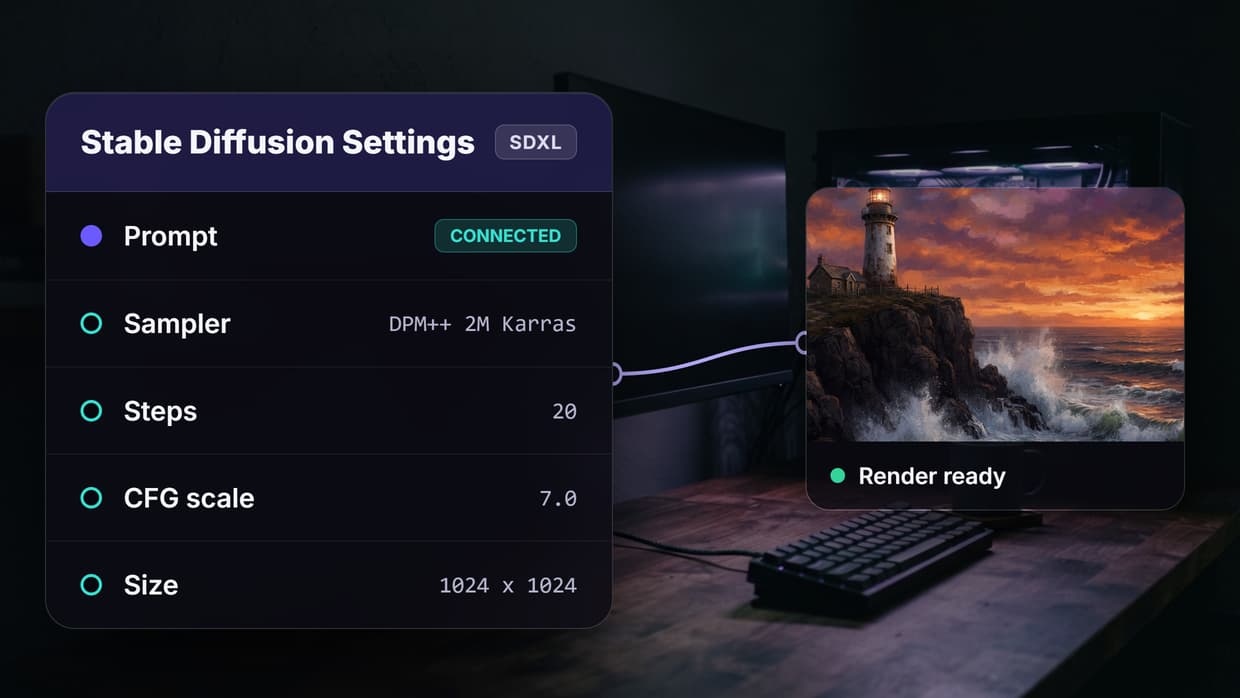
- Guidance scale: Higher values follow your prompt more closely but may reduce natural motion
- Number of inference steps: More steps produce smoother results but take longer
Step 5: Post-Process and Export
Raw AI-generated animation clips often need refinement. Common post-processing steps include upscaling for resolution, color grading for consistency across clips, and adding audio or voiceover tracks.
For audio, you can use an AI voiceover generator to create narration that matches your animation timing. Background music can be produced with an AI music generator tuned to the mood and pacing of your video.
Export settings depend on your distribution platform:
- YouTube/Vimeo: 1080p or 4K MP4, H.264 codec
- Instagram/TikTok: 1080x1920 vertical, under 60 seconds
- Website embed: 720p WebM for faster loading
- Presentation: GIF or short MP4 loop
Tips for Better AI Animations
Getting consistent, high-quality results from AI animation tools takes practice. Here are patterns that work well across most platforms.
Use reference images whenever possible. Text prompts alone leave too much room for interpretation. A single reference frame anchors the AI's understanding of what you want, producing more predictable results. Tools that support AI model chaining let you pipe a generated image directly into a video model without manual downloads.
Keep individual clips short and focused on one action. A 4-second clip of a character turning their head will look better than a 10-second clip attempting a complex sequence. Stitch shorter clips together in post-production for longer narratives.
Test at low resolution first. Generate a quick draft at 480p to check motion and composition before committing to a full-resolution render. This saves both time and API credits. Many workflow template setups include a preview step for exactly this reason.
Try it yourself: Build this animation workflow in Wireflow — the nodes are pre-configured with a text-to-image-to-video pipeline using Recraft V4 and Kling 2.5, exactly like the setup discussed above.
Frequently Asked Questions
What is the best AI tool for creating animations?
The best tool depends on your needs. For quick social media clips, text-to-video generators like Runway or Kling work well. For complex multi-step animations, node-based platforms like Wireflow offer more control by letting you chain models together.
Can I create animations with AI for free?
Yes. Several tools offer free tiers with limited generation credits. Open-source options like AnimateDiff and Stable Video Diffusion can run locally at no cost beyond hardware. Cloud platforms typically offer 50-100 free generations per month.
How long does it take to generate an AI animation?
A single 4-second clip typically takes 30-90 seconds to generate depending on resolution and the model used. Longer animations built from multiple clips can take 10-30 minutes including post-processing.
Do I need a powerful computer for AI animation?
Not necessarily. Most AI animation tools run in the cloud, so your local hardware matters less. If you want to run models locally, you need a GPU with at least 8GB VRAM. Cloud-based platforms handle the compute for you.
Can AI animate an existing image or photo?
Yes. Image-to-video AI models specialize in this. Upload a still image, describe the motion you want, and the AI generates a short animated clip. This works with photos, illustrations, AI-generated images, and even sketches.
What resolution can AI animations reach?
Most current models output at 720p or 1080p natively. Some tools support upscaling to 4K in a post-processing step. For web and social media use, 1080p is typically sufficient.
How do I maintain character consistency across animation clips?
Use the same seed value and style reference across generations. Some platforms support character locking or LoRA models trained on specific characters. Batch generation with fixed parameters also helps keep appearances consistent.
What file formats work best for AI-generated animations?
MP4 with H.264 encoding is the most widely supported format. For web embedding, WebM offers smaller file sizes. GIF works for short loops but has limited color depth and larger file sizes.

Co-Founder & Operations at Wireflow
Runs client operations and content strategy at Wireflow. Works directly with creative teams and agencies to build production AI workflows.
- Content Strategy
- Client Operations
Get unlimited ad creatives today.
One call to see if we are a fit and scope the first ad. If it fits, your first batch lands inside week one.