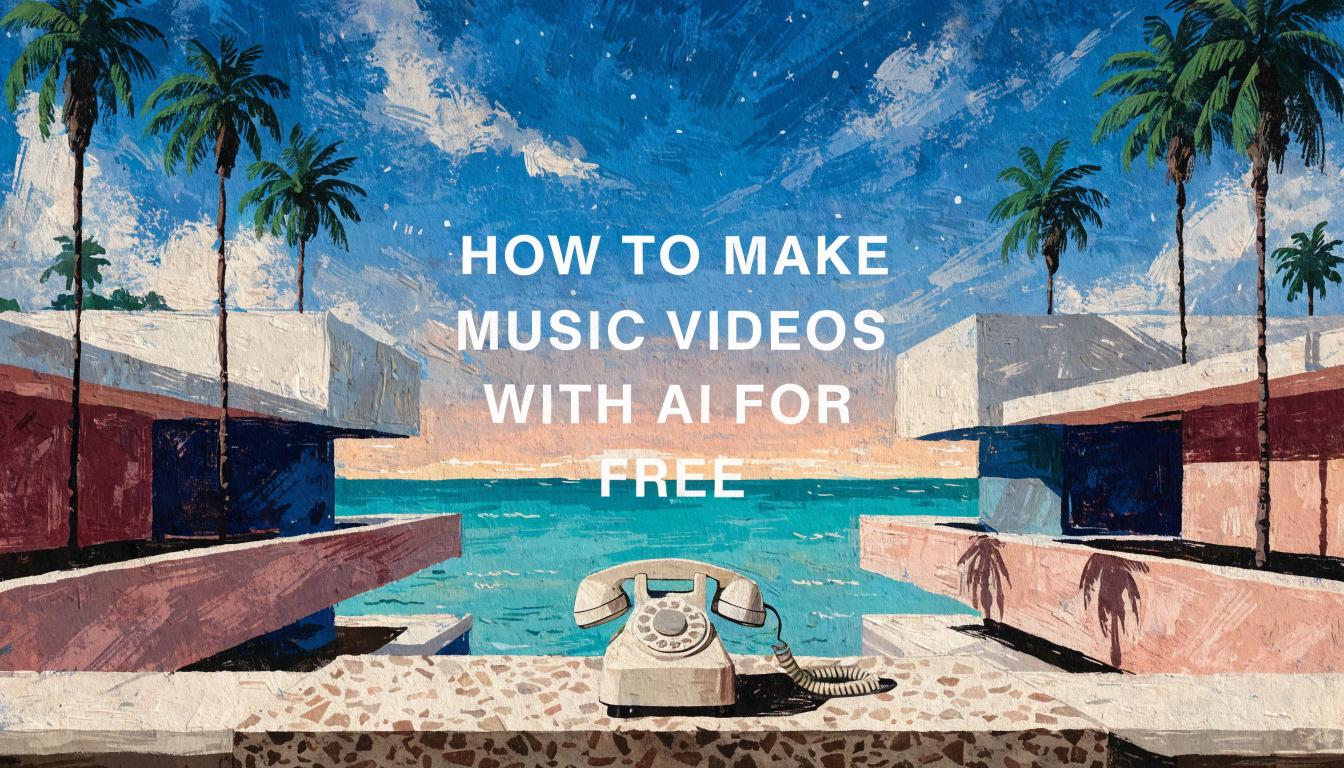
How to Make Music Videos With AI for Free

In this article▾
- What You Need Before You Start
- Step 1: Generate Your Visual Concept With AI Image Tools
- Step 2: Animate Still Frames Into Video Clips
- Step 3: Add AI-Generated Music or Sync Your Track
- Step 4: Sync Visuals to the Beat
- Step 5: Add Text, Lyrics, and Overlays
- Step 6: Export and Optimize for Platforms
- Free Tools Worth Trying
- Frequently Asked Questions
Creating a professional music video used to require a production crew, expensive gear, and weeks of editing. That has changed. Wireflow and a growing number of AI tools now let independent musicians and content creators produce full music videos from a simple text prompt or an uploaded track, without spending a dollar. This guide walks through the complete process, from concept to final export, using free AI-powered tools available today. The same footage can become a promo once you turn a script into a movie trailer on the canvas.
What You Need Before You Start
Before generating anything, gather a few essentials. You need a finished audio track in MP3 or WAV format, a rough idea of the visual style you want (abstract, cinematic, animated, live-action feel), and access to a browser. Most AI video generators run entirely in the cloud, so you do not need a powerful computer or a GPU.
If the song is for a product rather than an artist, here is how we made an AI song ad on one board.
If the track needs a spoken brand signature, make a producer tag before assembling the video.
For a hands-on look at what a full AI music video pipeline looks like, check out the AI music generator feature page for examples of audio-to-visual workflows.
Optional but helpful: write a one-paragraph creative brief describing the mood, color palette, and any recurring visual motifs you want. This brief becomes your prompt foundation for every AI tool you use in the pipeline.
Build this in Wireflow
Make the same kind of asset on a canvas you control, with a free account and no credit card.
Step 1: Generate Your Visual Concept With AI Image Tools
Start by creating the key frames that will define your video's look. Use a text-to-image model to generate 5 to 10 still frames that capture the aesthetic you are after. Tools like Recraft V4 produce high-resolution stills from detailed text prompts.
Write prompts that describe specific scenes rather than abstract ideas. Instead of "cool music video background," try "rain-soaked Tokyo street at night, neon signs reflecting in puddles, cinematic 16:9 composition." The more specific you are, the more consistent your frames will look when stitched together. If you are working on AI-generated concept art for creative projects, the same prompting principles apply.
Step 2: Animate Still Frames Into Video Clips
Once you have your key frames, feed them into an image-to-video model. This is where static art becomes motion. Upload each frame and pair it with a motion prompt describing how the camera should move or how elements in the scene should animate.

For example, a motion prompt might read: "Slow dolly forward through the street, rain falling in the foreground, neon lights pulsing gently." Models like Kling Video and other image-to-video AI tools handle this well. Each clip typically runs 4 to 10 seconds, which is enough for one verse section or chorus beat. If you want an even shorter loop for teasers, an AI GIF maker can turn one of those clips into a looping GIF for previews.
Generate at least 8 to 12 clips to cover a full 3-minute track. Vary the camera movements between clips: use dolly shots, slow pans, zoom-ins, and static holds to create visual rhythm that matches the music. You can explore more about turning images into video with AI for detailed techniques.
Step 3: Add AI-Generated Music or Sync Your Track
If you already have a finished song, skip to the next step. If you need background music or want to experiment with AI-composed tracks, several free tools can help. AI music generators let you create royalty-free instrumentals by describing a genre, tempo, and mood. You can also try platforms like Daisi AI, which offer creative AI toolkits that complement music production workflows.
For creators who want full control over the soundtrack, record your own audio and export it at 44.1kHz / 16-bit WAV for the best quality when syncing with video later. The key is having a final audio file ready before you start assembling clips, so you can time visual transitions to beats and drops.
Step 4: Sync Visuals to the Beat
This step separates amateur AI videos from polished music videos. Import your audio track and video clips into a free editor like DaVinci Resolve, CapCut, or Shotcut. Lay down the audio first, then arrange your AI-generated clips on the timeline so that scene changes land on downbeats or transition points in the song.
A few practical tips for creating animated videos with AI for platforms like YouTube:
- Map your song structure first. Mark the intro, verses, chorus, bridge, and outro on the timeline before placing any clips.
- Cut on the beat. Every scene transition should align with a rhythmic hit. This creates a sense of intentional editing even when visuals are AI-generated.
- Use longer holds for verses and faster cuts for choruses to build energy.
- Add crossfades between clips that share similar color palettes to smooth transitions.
Step 5: Add Text, Lyrics, and Overlays
Lyrics on screen turn a visual montage into a proper music video. Use your editor's text tool to add lyrics that appear in sync with the vocals. Keep fonts clean and readable. Position text in the lower third or center of the frame, and use a subtle drop shadow for contrast against busy backgrounds.
For more advanced typography, consider using AI text-to-speech tools if you want to generate a voiceover intro or outro. You can also add subtle motion graphics like particle effects or light leaks, which many free editors include in their effects library. If your video features a vocal performance and you want the visuals to match mouth movements, look into AI lip sync tools that can sync generated faces to audio tracks.
Step 6: Export and Optimize for Platforms
Export your final video at 1080p or 4K, depending on your source material quality. Use H.264 codec for broad compatibility. Most free online video makers export directly to MP4.
Platform-specific settings matter:
- YouTube: 1080p minimum, 16:9 aspect ratio, custom thumbnail
- Instagram Reels / TikTok: 1080x1920 vertical crop, under 90 seconds for maximum reach
- Spotify Canvas: 3 to 8 second looping clip, 720x720 square format
For vertical formats, re-crop your best clips or generate new ones specifically in 9:16 aspect ratio. Many AI Instagram Reel tools handle this automatically.
Free Tools Worth Trying
Several platforms let you complete this entire workflow without paying:
- Freebeat AI generates rhythm-synced music videos from uploaded tracks with consistent avatars and lip sync.
- Plazmapunk turns any audio file into a stylized AI music video in minutes.
- InVideo AI auto-generates scripts, adds music, subtitles, and transitions from a text prompt.
- CapCut provides free editing with beat-sync detection and AI effects.
- DaVinci Resolve offers professional-grade editing and color grading at no cost.
For a more flexible approach, you can chain multiple AI models together. Start with image generation, pipe the output into a video model, and add audio processing, all within a single AI workflow builder. This gives you full control over each step while keeping the process automated. If you are looking for AI-generated soundtracks specifically for YouTube content, several of these tools offer royalty-free music libraries as well.
Try it yourself: Build this workflow in Wireflow, the nodes are pre-configured with the exact image-to-video setup discussed above.
Frequently Asked Questions
Can I use AI-generated music videos commercially?
Most free AI tools grant you a license to use generated content commercially, but terms vary. Always check the specific platform's terms of service before monetizing. Tools that offer royalty-free output typically state this clearly in their pricing or FAQ pages.
How long does it take to make an AI music video?
A simple lyric video or abstract visual can be ready in under an hour. A more polished video with multiple scene types, beat-synced transitions, and text overlays takes 3 to 5 hours. The AI generation itself is fast; most time goes into editing and timing.
Do I need editing skills to make AI music videos?
Basic timeline editing is helpful but not required. Platforms like Freebeat AI and Plazmapunk handle the entire process from upload to export. For more control over the final product, learning basic cuts and transitions in a free editor like CapCut adds significant polish.
What resolution should I generate AI video clips at?
Generate at 1080p minimum. If your target platform supports 4K (YouTube, Vimeo), generate at higher resolution when the tool allows it. Higher resolution source clips give you more flexibility when cropping for vertical formats.
Can I mix AI-generated and real footage?
Yes. Many creators blend AI-generated b-roll with real performance footage. This hybrid approach works especially well for artists who want to appear on screen during choruses while using AI visuals for atmospheric verses and intros.
How do I keep a consistent visual style across clips?
Use the same prompt structure for all your image generations. Lock down specific style keywords (color palette, lighting type, camera angle) and reuse them. Some tools let you upload a reference image to maintain consistency across batches.
Are there copyright issues with AI music videos?
The visual content you generate is typically yours to use. Copyright concerns usually center on the audio. Make sure you own the rights to your music or are using royalty-free tracks. AI-generated music from most platforms comes with a commercial-use license.
What is the best aspect ratio for music videos?
16:9 landscape remains the standard for YouTube and most streaming platforms. However, creating a 9:16 vertical edit for TikTok and Instagram Reels significantly expands your reach. Many artists now produce both versions from the same source material.

Co-Founder & Operations at Wireflow
Runs client operations and content strategy at Wireflow. Works directly with creative teams and agencies to build production AI workflows.
- Content Strategy
- Client Operations
Get unlimited ad creatives today.
One call to see if we are a fit and scope the first ad. If it fits, your first batch lands inside week one.