How to Turn Any Image Into a Video With AI

In this article▾
- What Is Image-to-Video AI?
- How to Prepare Your Images for the Best Results
- Step 1: Choose Your Image-to-Video Tool
- Step 2: Write an Effective Motion Prompt
- Step 3: Configure Generation Settings
- Step 4: Generate and Review Your Video
- Step 5: Export and Use Your Video
- Advanced Technique: Chaining Image Generation Into Video
- Frequently Asked Questions
- Conclusion
Turning a still photo into a moving video used to require frame-by-frame animation or complex compositing software. Today, AI image-to-video tools can animate any photograph in seconds, adding realistic motion, camera movement, and even audio. Wireflow makes this process even more streamlined by letting you chain an image generator directly into a video model, so you can go from a text prompt to a finished video clip in one automated pipeline.
What Is Image-to-Video AI?
Image-to-video AI uses diffusion models trained on millions of video frames to predict how a still image should move over time. You provide a single photo as the "start frame," and the model generates subsequent frames that create natural motion. The technology differs from text-to-video because it preserves the exact composition, colors, and subjects of your original image rather than interpreting a written description from scratch. Most tools produce clips between 3 and 10 seconds long at resolutions up to 1080p, which makes them well-suited for social media content, product showcases, and creative projects.
Point the same nodes at a brand mark and you can turn a static logo into an animated reveal without rebuilding the graph.
When the workflow needs to run from code instead of a UI, an image to video API endpoint takes a start image and a motion prompt and returns a hosted video URL.
Build this in Wireflow
Make the same kind of asset on a canvas you control, with a free account and no credit card.
How to Prepare Your Images for the Best Results
The quality of your input image directly affects the quality of the generated video. Follow these guidelines before uploading any photo to an AI image generation or video tool:
- Use high resolution. Aim for at least 1024x1024 pixels. Low-resolution images produce blurry, artifact-heavy videos.
- Match the target aspect ratio. If you want a 16:9 video, start with a 16:9 image. Mismatched ratios force the model to crop or pad, which reduces quality.
- Avoid heavy text or watermarks. AI models often distort overlaid text during animation, creating distracting warping effects.
- Choose clear subjects. Images with a distinct foreground subject and clean background animate more convincingly than cluttered scenes.
- Check lighting consistency. Photos with even, natural lighting produce smoother motion than images with harsh shadows or mixed color temperatures.
For a hands-on look at this process in action, check out the image-to-video feature page for a step-by-step visual walkthrough.
Step 1: Choose Your Image-to-Video Tool
Several AI platforms now offer image-to-video generation, each with different strengths. Here is a practical overview of the most capable options available in 2026, along with details on video pipeline automation:
- Kling 2.6 produces cinematic motion with strong physics understanding. Free tier available with watermark.
- Google Veo 3.1 excels at natural camera movements and landscape animations. Available through Google AI Studio.
- Luma Ray 3.14 offers fast generation times (under 30 seconds) and handles complex scenes well.
- Runway Gen-4 Turbo provides fine-grained motion control with brush-based region selection.
- Pika 2.5 supports creative effects like "inflate" and "melt" alongside standard animation.
Each tool accepts a single image and a text prompt describing the desired motion. The prompt guides what should move and how, while the image locks in the visual content.
Step 2: Write an Effective Motion Prompt
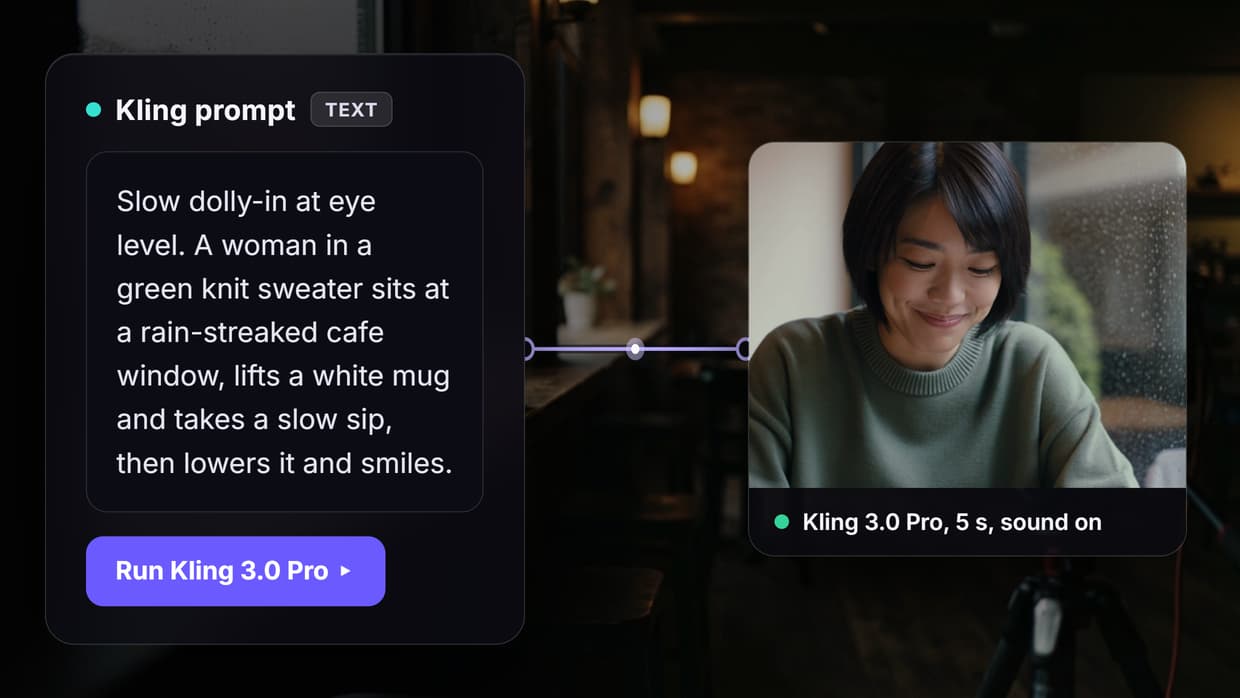
The motion prompt is what separates a good result from a mediocre one. Unlike text-to-image prompts, motion prompts should describe actions and camera behavior rather than visual appearance (the image already handles that). Here are proven patterns for text-to-video workflows:
Do this:
- "Gentle wind blowing through the trees, camera slowly panning right"
- "Subject turns head slightly and smiles, shallow depth of field"
- "Ocean waves rolling onto shore, smooth forward dolly movement"
Avoid this:
- "Beautiful cinematic 4K video" (vague, no actionable motion)
- "Everything moves dramatically" (too broad, causes artifacts)
- "Photorealistic hyper-detailed animation" (style words that conflict with the source image)
Keep prompts under 50 words. Focus on one or two primary motions. Specify camera movement separately from subject movement. If the tool supports negative prompts, use them to exclude unwanted effects like "morphing, distortion, flickering."
Step 3: Configure Generation Settings
Most tools expose a few key settings that affect output quality. Understanding these helps you get usable results on the first attempt rather than burning through credits on trial and error. These settings are similar to what you find in a visual node editor where each parameter is exposed as a configurable input:
| Setting | Recommended Value | Why |
|---|---|---|
| Duration | 5 seconds | Longer clips (8-10s) often degrade in quality toward the end |
| Aspect ratio | Match source image | Prevents cropping or padding artifacts |
| Motion intensity | Medium (50-70%) | High intensity causes warping; low intensity barely moves |
| Seed | Fixed number | Lets you iterate on the same motion with small prompt changes |
| Quality | Standard or Pro | "Turbo" modes trade quality for speed |
Step 4: Generate and Review Your Video
Upload your image, paste your motion prompt, and run the generation. Most tools take between 30 seconds and 3 minutes depending on quality settings and server load. When reviewing results, watch for these common issues and consider using AI model chaining to automate quality checks:
- Face distortion: AI models sometimes warp facial features during animation. Try reducing motion intensity or using a tool with face-locking features.
- Background warping: Straight lines (buildings, horizons) may bend. Reduce camera motion or mask the background.
- Temporal flickering: Colors or brightness shifting between frames. Re-generate with a different seed or lower motion intensity.
- Object morphing: Items changing shape mid-clip. Simplify your prompt to focus on fewer moving elements.
If the first result is not satisfactory, adjust the prompt before changing tools. Small prompt edits (adding "subtle" or "gentle" before motion words) often fix problems more effectively than switching platforms entirely.
Step 5: Export and Use Your Video
Once you have a clip you are happy with, download it in the highest available resolution. Most tools export as MP4 with H.264 encoding, which is compatible with all major editing and social platforms. Keep these practical details in mind when building your AI asset pipeline:
- Social media: Instagram Reels and TikTok work best with 9:16 vertical clips. Generate a new version with a vertical source image rather than cropping a horizontal clip.
- Presentations: 16:9 landscape clips integrate directly into PowerPoint, Keynote, or Google Slides as background animations.
- Product pages: Loop-friendly clips (where the last frame matches the first) work well as product hero animations. Ask the AI for "continuous loop" in the prompt.
- Batch processing: If you need to animate multiple images with similar motion, consider setting up a reusable template that applies the same prompt and settings across a batch.
Advanced Technique: Chaining Image Generation Into Video
Instead of starting with an existing photo, you can generate the source image with AI and feed it directly into a video model. This two-step workflow gives you full control over both the visual content and the motion. Platforms that support no-code AI canvas workflows make this particularly simple: connect a text-to-image node to an image-to-video node, and the output of one becomes the input of the next automatically.
Try it yourself: Build this workflow in Wireflow. The nodes are pre-configured with a text-to-image generator feeding into Gemini Omni Flash 1.1, so you can see the full image-to-video pipeline in action.
Frequently Asked Questions
What types of images work best for AI video conversion?
High-resolution photos with clear subjects, even lighting, and minimal text overlays produce the best results. Landscape photos, portraits, and product shots all work well. Avoid heavily filtered images, collages, or screenshots with UI elements, as these tend to introduce artifacts during animation.
How long can AI-generated videos be?
Most tools produce clips between 3 and 10 seconds. Some platforms like Kling and Runway support extending clips by using the last frame as input for a new generation, which lets you build longer sequences. Quality tends to degrade after 5-6 seconds in a single generation pass.
Are AI-generated videos free to use commercially?
This depends on the platform. Google Veo, Runway, and Kling all allow commercial use of generated content on paid plans. Free tiers often add watermarks or restrict commercial rights. Always check the specific terms of service for your chosen video generation tool.
Can I control which parts of the image move?
Yes, several tools offer region-based motion control. Runway Gen-4 lets you paint motion masks directly onto the image. Pika supports motion brushes for selective animation. For tools without built-in masking, you can achieve similar results by describing specific subjects in your motion prompt while adding "static background" to keep other elements still.
What resolution do AI video generators output?
Most tools generate at 720p or 1080p. A few premium options (Veo 3.1, Runway Gen-4 on Max plan) support up to 4K output. Higher resolutions take longer to generate and cost more credits. For social media use, 1080p is sufficient. For professional video editing workflows, look for tools that support at least 1080p natively.
How is image-to-video different from text-to-video?
Text-to-video generates both the visual content and motion from a written description, giving the AI full creative control. Image-to-video preserves your exact input image as the first frame and only generates the motion. This means image-to-video produces more predictable, controllable results because you start with a known visual. Use text-to-video for quick concept exploration and image-to-video for precise control over the final look.
Do I need a powerful computer to use these tools?
No. All the major image-to-video tools run in the cloud. You upload your image through a web browser, the AI processes it on remote servers, and you download the finished video. No GPU, no software installation, no technical setup required. Even batch generation runs server-side.
Can I use AI-generated images as input, or only real photos?
Both work. AI-generated images from tools like Midjourney, DALL-E, Recraft, or Stable Diffusion animate just as well as real photographs. In fact, AI-generated images sometimes produce cleaner animations because they tend to have more consistent lighting and cleaner edges than real photos taken in uncontrolled conditions.
Conclusion
Turning any image into a video with AI is now a straightforward process: prepare a high-quality source image, write a focused motion prompt, and let the model handle the frame-by-frame generation. The results are good enough for social media, product marketing, and creative projects. Wireflow takes this a step further by letting you chain multiple AI models into automated pipelines, so you can generate images and convert them to video in a single workflow without switching between tools.

Co-Founder & Operations at Wireflow
Runs client operations and content strategy at Wireflow. Works directly with creative teams and agencies to build production AI workflows.
- Content Strategy
- Client Operations
Make AI videos and ads.
Start free, no card needed.