How to Make YouTube Shorts with AI

In this article▾
YouTube Shorts now pull in billions of daily views, and AI tools have made it possible to produce vertical video content without a camera, editing software, or production budget. Wireflow lets you chain text-to-image and image-to-video models into a single automated pipeline, so you can go from a text prompt to a finished Short in minutes. This guide walks through the full process, from scripting to publishing, using the AI tools available today.
What You Need Before You Start
Before creating your first AI-generated Short, gather a few essentials. You need a YouTube channel with Shorts enabled (any channel qualifies), a clear idea of your niche or topic, and access to an AI video generation platform. Most AI video tools offer free tiers, so you can experiment before committing to a paid plan. You should also have a basic understanding of vertical video specs: 9:16 aspect ratio, under 60 seconds, and a resolution of at least 1080x1920 for best results. Having a library of reference Shorts from creators in your niche also helps. Study what works: pacing, transitions, text placement, and hook styles that keep viewers watching past the first second.
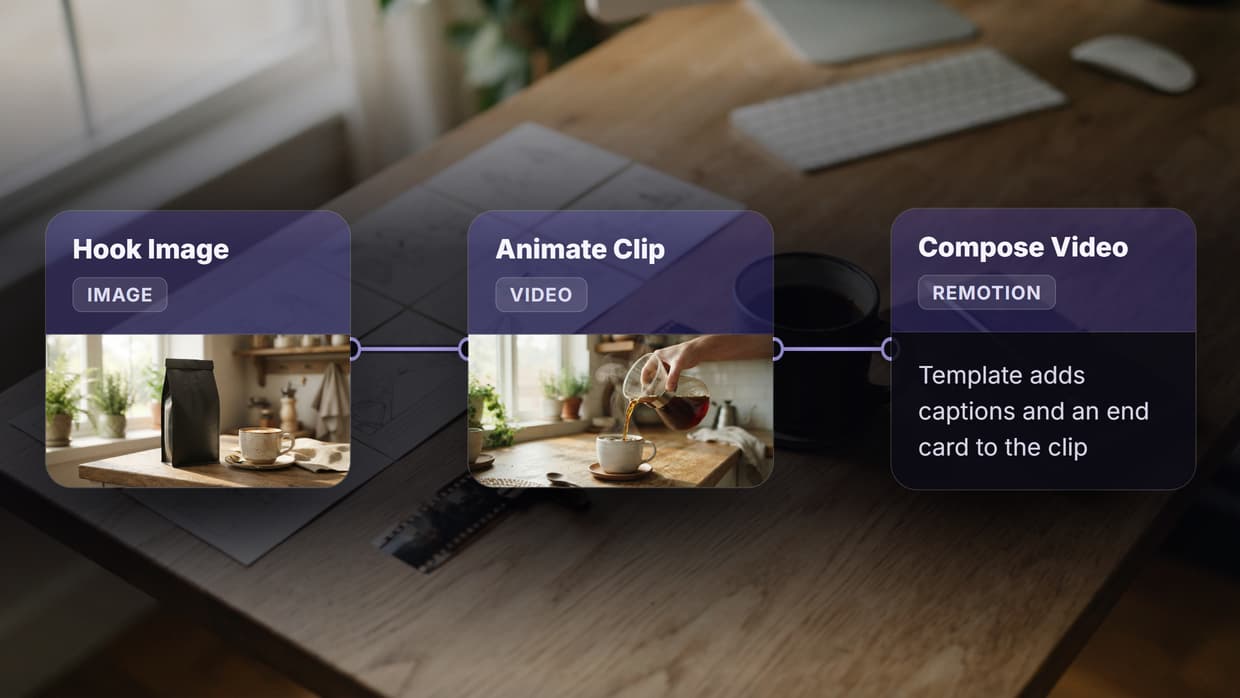
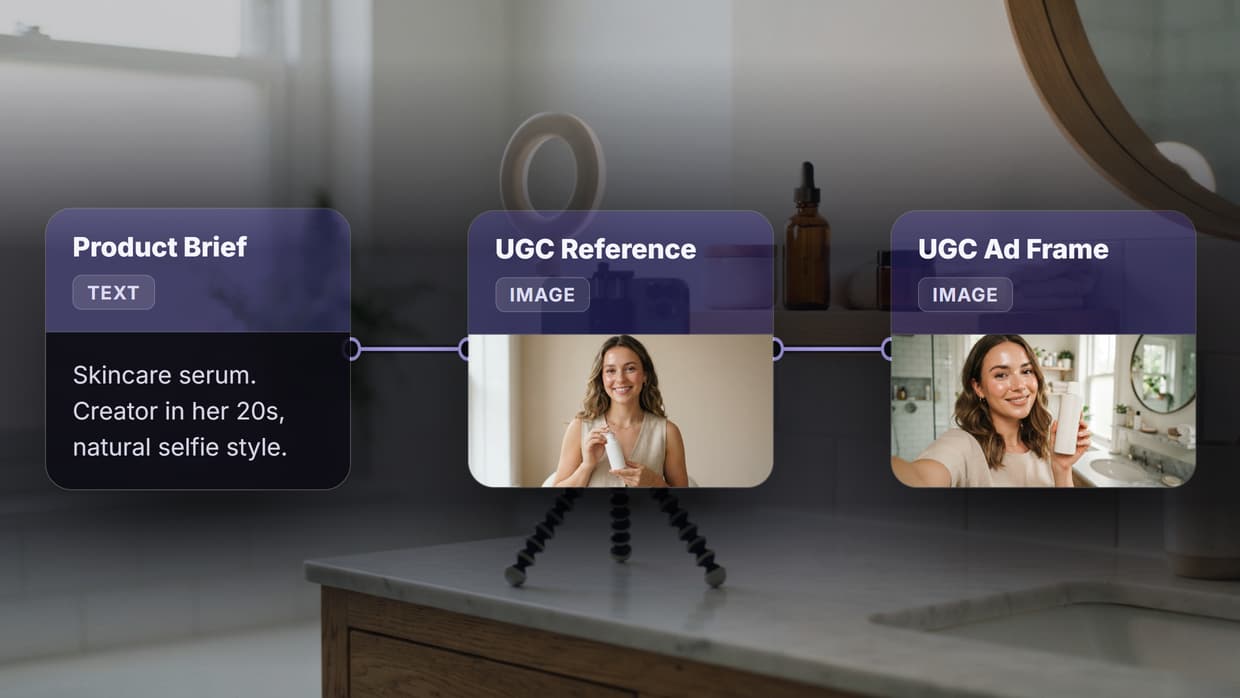
If you plan to post on a schedule, YouTube automation AI turns one topic into a script, a voiceover, B-roll and a video scene in a single reusable flow.
Build this in Wireflow
Make the same kind of asset on a canvas you control, with a free account and no credit card.
Step 1: Write a Script or Prompt
Every good Short starts with a script. Even a 30-second video benefits from a clear structure: hook, body, and call to action. Write a one-sentence hook that grabs attention in the first two seconds, then follow with your core message. Keep the total script under 100 words for a 30-second clip, or under 150 for a full 60-second Short. If you prefer to skip manual scripting, many AI workflow platforms accept a single text prompt and generate a complete script, voiceover, and scene breakdown from it.
Here are a few prompt templates that work well for different Short formats:
- Explainer: "Explain [topic] in 30 seconds using simple visuals and a conversational voiceover"
- Listicle: "Show the top 3 [items] with bold text overlays and quick transitions"
- Storytelling: "Tell a short story about [subject] with cinematic AI footage and ambient music"

Step 2: Generate Visuals with AI
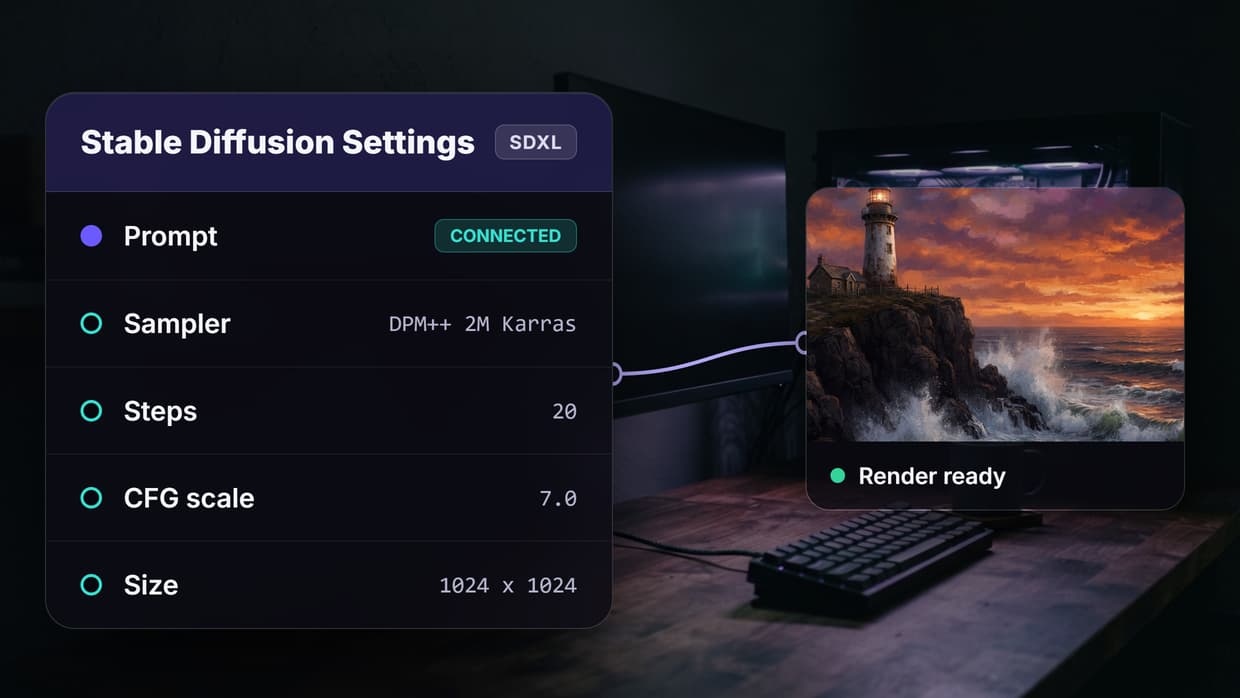
With your script ready, the next step is producing the visual content. You have two main approaches. Text-to-video tools like Kling, Veo, or Runway generate clips directly from a text prompt. Alternatively, you can use a text-to-image model to create individual frames or scenes, then animate them with an image-to-video model. The second approach gives you more control over each scene's composition and lets you preview stills before committing to video generation.
When writing your image prompts, be specific about framing, lighting, and subject position. A prompt like "close-up of a coffee cup on a desk, soft morning light, shallow depth of field, vertical composition" will produce more usable results than "coffee video." For best results, set the aspect ratio to 9:16 so your output is already sized for Shorts without cropping.
Step 3: Add Voiceover and Audio
Audio is what separates a scroll-past from a watch-through. You have several options for adding voice to your Short. AI text-to-speech tools can generate natural-sounding narration from your script in seconds. Choose a voice that matches your content's tone, whether that is conversational, professional, or energetic. Most AI voice generators let you adjust speed, pitch, and emphasis.
For background music, use royalty-free tracks from YouTube's own Audio Library or an AI music generator to create a custom backing track. Keep music volume at 20-30% of the voiceover level so your narration stays clear. If your Short is visual-only (like a timelapse or art showcase), music alone can carry the entire audio layer.

Step 4: Edit and Add Captions
Even AI-generated content benefits from a quick editing pass. Trim dead space at the beginning and end, cut any frames where the AI produced artifacts, and make sure transitions between scenes feel smooth. Captions are essential for Shorts since most viewers watch with sound off. Auto-captioning tools built into platforms like T3 Chat and other AI assistants can transcribe your voiceover and overlay animated text in seconds.
Position captions in the center or lower third of the frame to avoid overlapping with the YouTube UI elements (channel name at top, subscribe button at bottom). Use a bold, readable font with a dark outline or background box. Keep each caption line under 8 words so viewers can absorb it at a glance. Adding eye-catching thumbnails also helps your Shorts stand out in the feed.
Step 5: Chain It All Together in a Pipeline
Manually running each step (script, image, video, audio, captions) gets repetitive after your first few Shorts. The more efficient approach is building a reusable pipeline that handles the entire sequence automatically. A node-based visual workflow editor lets you connect a text input node to an image generation node, pipe that output into a video model, and attach an audio generation step at the end.
Once your pipeline is saved, producing a new Short is as simple as typing a new prompt and clicking run. This is especially powerful for faceless channels that publish daily. You can batch-generate an entire week of Shorts in a single session by feeding different prompts into the same workflow template.

Step 6: Upload and Optimize for YouTube
With your Short exported, upload it to YouTube Studio. Set the visibility to "Short" (YouTube auto-detects vertical videos under 60 seconds, but confirming helps). Write a title that includes your target keyword naturally. Add 3-5 relevant hashtags in the description, including #Shorts. Schedule your uploads during peak hours for your audience, typically between 12-3 PM or 7-9 PM in your target timezone. Consistency matters more than perfection; channels that post daily AI-generated content tend to grow faster than those posting sporadically.
Tips for Better AI YouTube Shorts
- Hook in 2 seconds. The algorithm measures retention, and the first frame decides whether someone swipes away. Start with motion, a bold statement, or a visual surprise.
- Use trending audio. YouTube's trending sounds page shows what is performing well right now. Pair your AI visuals with a popular track for extra reach.
- Test aspect ratios. While 9:16 is standard, some creators find success with slightly different framings. The AI video pipeline supports custom aspect ratios for experimentation.
- Iterate on prompts. Save your best-performing prompts in a document. Small wording changes can dramatically shift the quality and style of AI output.
- Analyze performance. YouTube Studio's analytics show exactly where viewers drop off. Use that data to refine your scripts and pacing.
Try it yourself: Build this workflow in Wireflow. The nodes are pre-configured with a text-to-image and image-to-video pipeline, ready to generate Shorts-ready content from a single prompt.
Frequently Asked Questions
Can I monetize YouTube Shorts made with AI?
Yes. YouTube's Shorts monetization program pays creators based on ad revenue. AI-generated content is eligible as long as it follows YouTube's community guidelines and you disclose AI usage where required.
What is the best AI tool for making YouTube Shorts?
It depends on your needs. For end-to-end automation, pipeline tools that chain multiple AI models together offer the most flexibility. For quick one-off clips, standalone text-to-video generators work well.
How long should an AI YouTube Short be?
YouTube Shorts can be up to 60 seconds. Most high-performing Shorts fall between 15 and 45 seconds. Shorter clips tend to have higher completion rates, which the algorithm rewards.
Do I need to disclose that my Shorts are AI-generated?
YouTube requires creators to label content that looks realistic but was made with AI. Animated or stylized AI content typically does not require a label, but adding one builds trust with your audience.
Can I use AI to make faceless YouTube Shorts?
Absolutely. Faceless channels are one of the most common use cases for AI video tools. You can generate all visuals from prompts, add an AI voiceover, and never appear on camera.
How many AI Shorts should I post per week?
Consistency beats volume, but most successful Shorts channels post at least 3-5 times per week. With an automated pipeline, producing one per day is realistic without significant time investment.
What resolution should AI YouTube Shorts be?
Upload at 1080x1920 (1080p vertical) for the best quality. Some AI models output at lower resolutions, so you may need to upscale the output before uploading.
Can I repurpose AI Shorts for TikTok and Instagram Reels?
Yes. The 9:16 vertical format works across all three platforms. Remove any YouTube-specific watermarks and adjust captions if needed. Many creators use the same AI pipeline to publish across multiple platforms simultaneously.

Co-Founder & Operations at Wireflow
Runs client operations and content strategy at Wireflow. Works directly with creative teams and agencies to build production AI workflows.
- Content Strategy
- Client Operations
Get unlimited ad creatives today.
One call to see if we are a fit and scope the first ad. If it fits, your first batch lands inside week one.