 Andrew Adams · Co-Founder & Operations at Wireflow ·
 AI Sharpen Image
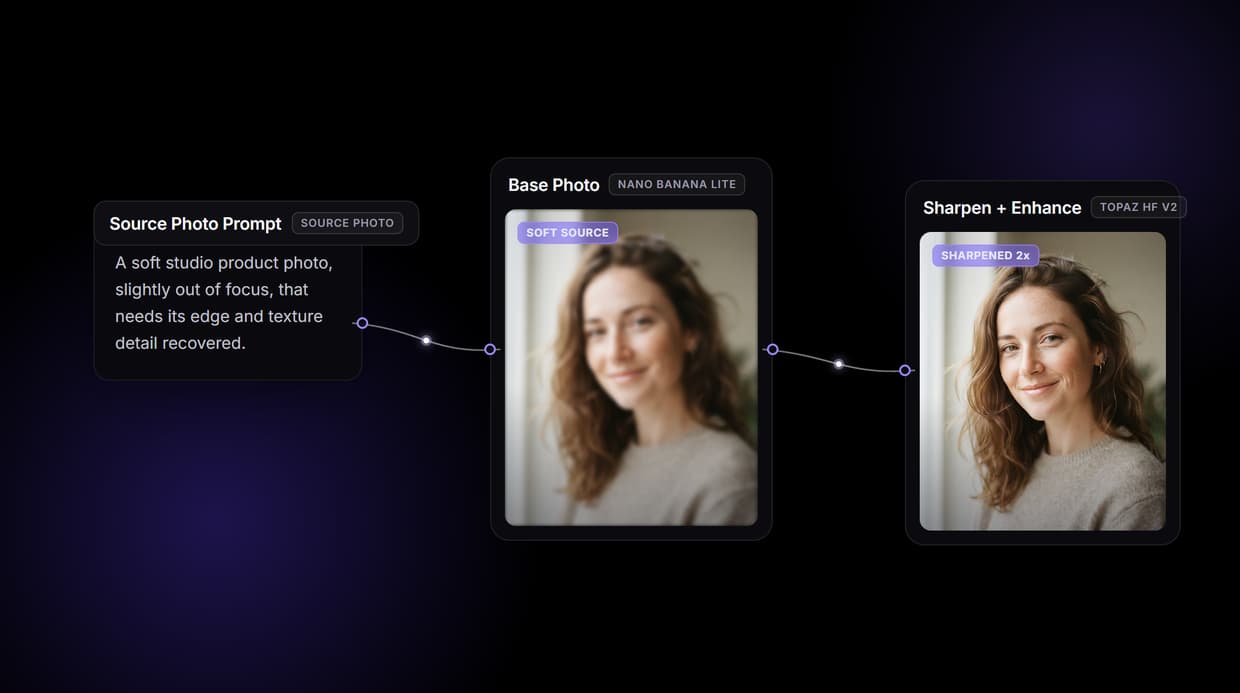
Sharpen a soft photo on one canvas: feed your image into a Topaz High Fidelity V2 node that recovers edge and texture detail, swap in Clarity or Crystal Upscaler, then batch a folder, chain upscaling and cutout, or call it as an API.
Free to build · no credit card · See how it works ↓
How to Use AI Sharpen Image
Steps to get you started in Wireflow.
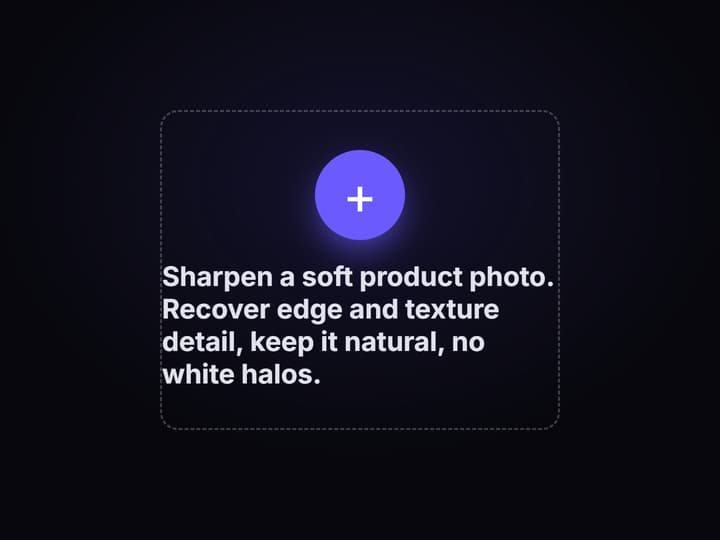
Drop in your photo
Swap the Base Photo generate node for an Import node and drop your own soft image onto the canvas, so the graph sharpens your file instead of a generated one.
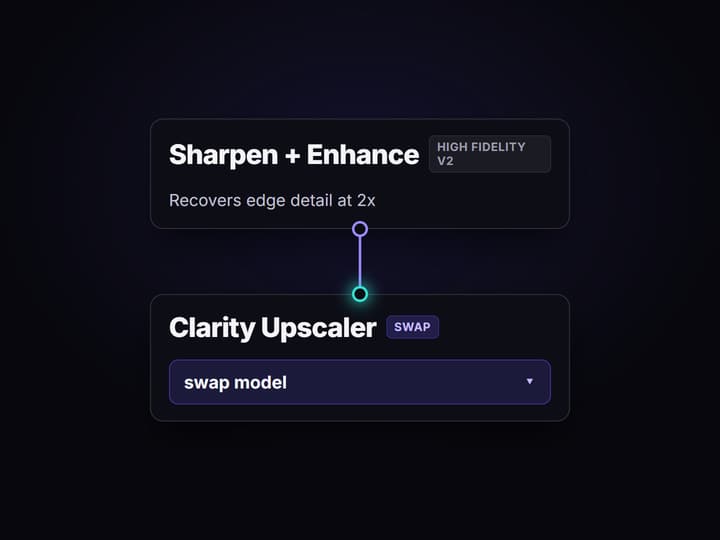
Wire the sharpen node
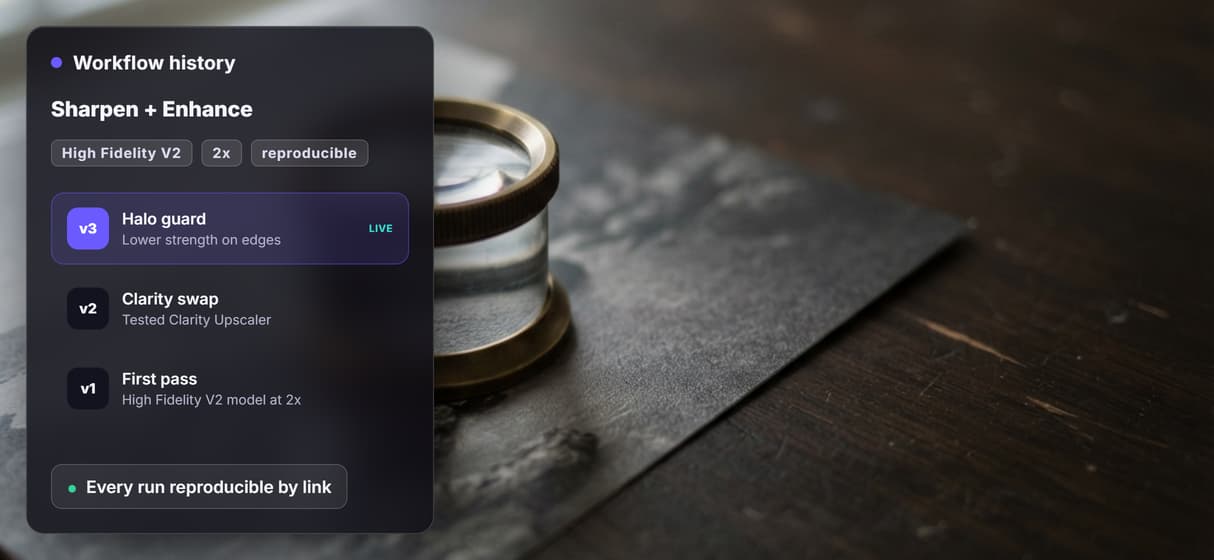
Feed the photo into a Sharpen + Enhance node running Topaz High Fidelity V2 at 2x to recover edge detail. Swap it for Clarity Upscaler or Crystal Upscaler without rewiring.
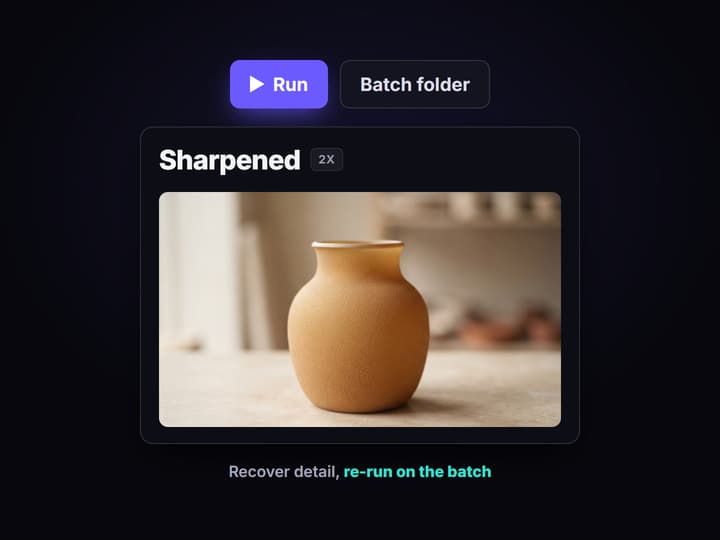
Run it, or batch a folder
Run the graph for one crisp download, or loop the saved workflow over a folder to sharpen every photo at once. The flow is versioned, so the same settings reapply next time.
Sharpening is detail recovery, not a slider
Most AI sharpen tools are a single upload box. You drop one soft photo in, drag a strength slider, and download one crisper file. When you have a folder of them, or you want the same fix on every product shot next week, you are back uploading one at a time and guessing where the slider was.
On Wireflow sharpening is a node graph instead of a slider. Your photo feeds a Sharpen + Enhance node running Topaz High Fidelity V2, which recovers real edge and texture detail at 2x rather than just boosting edge contrast. The graph is saved, so the next photo is a re-run, a batch over a folder, or an API call, and the exact same settings apply every time.
What the sharpen graph gives you
Your own photo in
Swap the Base Photo node for an Import node and the graph sharpens your uploaded file, not a generated one.
Detail recovered
A Sharpen + Enhance node runs Topaz High Fidelity V2 at 2x to rebuild edge and texture detail on a soft image.
Engine you can swap
Drop Clarity Upscaler or Crystal Upscaler in place of Topaz to try a different sharpening look, same wiring.
A chain, not one step
Wire the sharpen output into an upscaler, a background remover, or color cleanup so one run does the whole pass.
A whole batch
Loop the saved graph over a folder or product feed and it sharpens every photo, not one upload at a time.
An endpoint
The graph is a REST endpoint and an MCP tool, so a script or an agent can run the sharpen on demand.
How the sharpen graph is wired
The graph is small. Three nodes do the work, and one idea makes it reusable.
- Your photo is the source. An Import node holds the soft image. In a demo, a Base Photo node running Nano Banana Lite stands in for it, but in real use you swap that for your own upload.
- One node sharpens. A Sharpen + Enhance node runs Topaz High Fidelity V2 at 2x, recovering edge and texture detail. There is no literal sharpen slider under the hood: the detail recovery is a hosted upscaler-class model doing the work.
- Swap without rewiring. That node is just a node, so Clarity Upscaler or Crystal Upscaler drops into the same slot when a photo wants a different treatment, and the rest of the graph stays wired.
Because the whole canvas runs on hosted compute, there is no CUDA, no VRAM ceiling, and no install. Building the graph is free and each run costs credits, with plans from 24 dollars a month for Starter.
Sharpen vs upscale vs deblur vs denoise
These four get muddled everywhere, and picking the wrong one wastes a run.
- Sharpen recovers edge and texture detail on a photo that is soft but in focus. That is what the Topaz High Fidelity V2 node does here.
- Upscale raises resolution, turning a small image into a larger one. Sharpening often rides along, which is why the same upscaler-class nodes handle both.
- Deblur is a heavier correction for motion blur or an out-of-focus shot. AI can soften mild cases, but it cannot rebuild a subject the lens never resolved.
- Denoise removes grain and sensor noise, and it is often the step you run before sharpening so you enhance detail instead of amplifying noise.
If you mainly need more pixels, start at the upscale end; if the photo is the right size but soft, sharpen is the node you want.
What AI sharpening cannot fix
Sharpening recovers detail that is faint in the file, not detail that was never captured. Being honest about the limits saves you a wasted run.
A severely motion-blurred shot, a heavily out-of-focus subject, or a tiny very low-resolution source stays soft, because there is no fine detail left for the model to rebuild. Heavy JPEG compression is the same story: the artifacts are baked in, and pushing strength turns blocky edges into sharper blocky edges. And sharpening always risks going too far, so over-sharpening bakes white halos and crunchy edges into a photo. That is why the Sharpen + Enhance node exposes strength instead of forcing one aggressive setting.
This is the generation and enhancement layer, not a retoucher that decides taste for you. It will not tell you a photo is unfixable or choose the look; you pick the node, the model, and the strength, and the canvas runs it.
More Than Just AI Sharpen Image
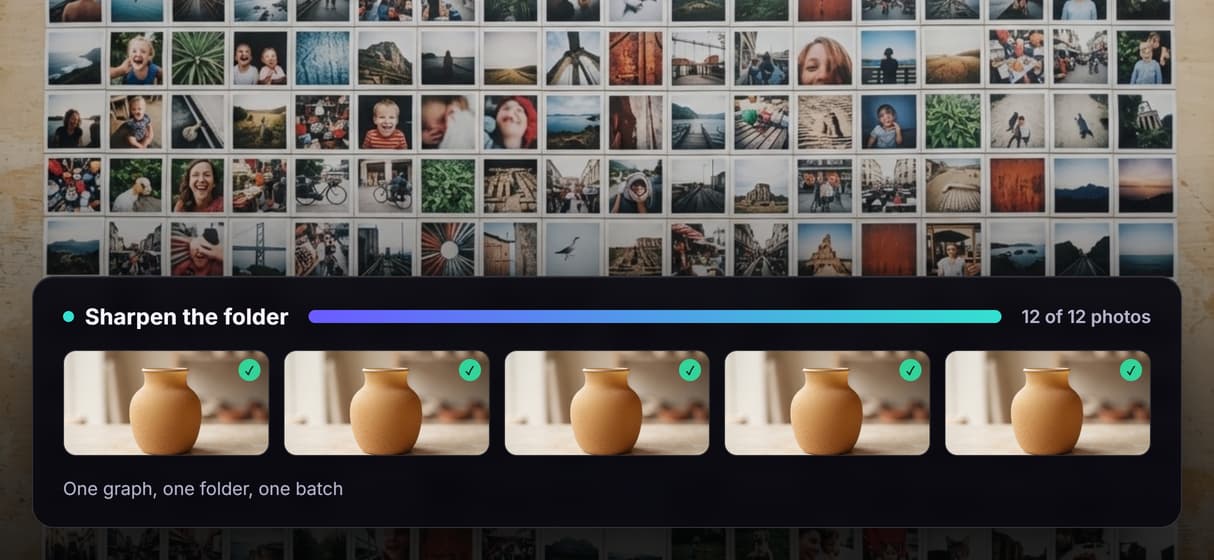
Sharpen a whole folder at once
Point one saved graph at a folder or product feed and it sharpens every photo through Topaz High Fidelity V2, not one upload at a time like a free tool.
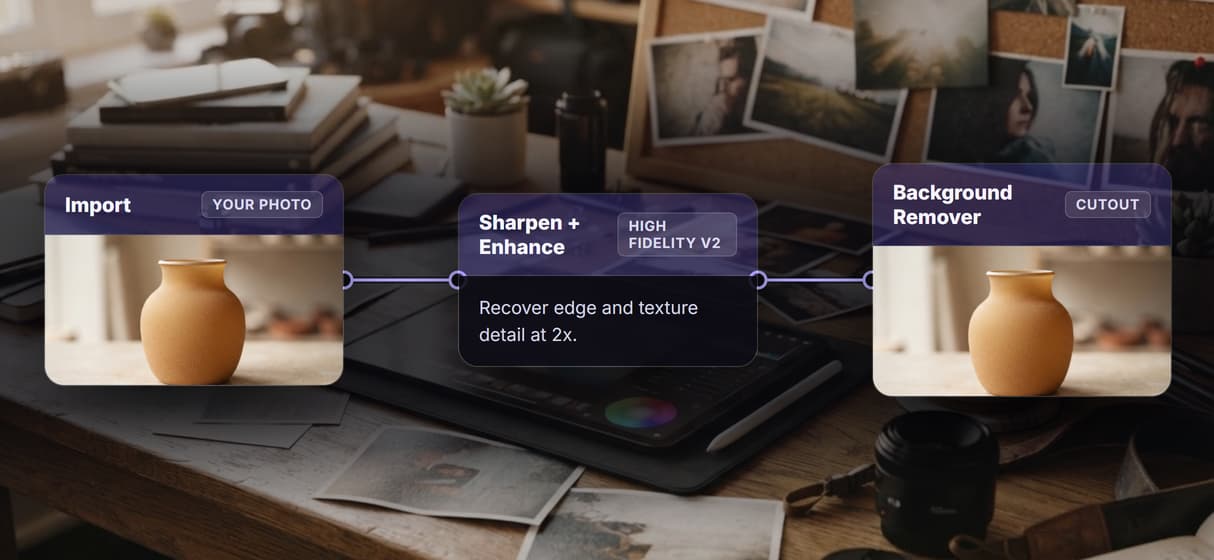
Chain sharpen, upscale, and cutout
Wire Sharpen + Enhance into an upscaler and a background remover so one pass recovers detail, lifts resolution, and cuts the background in a single run.
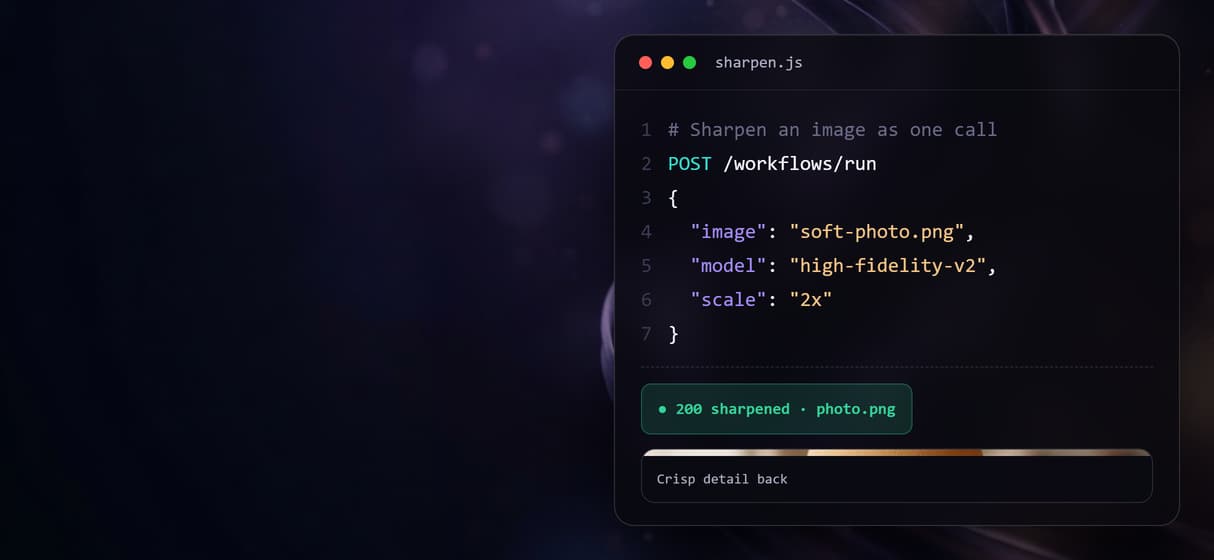
Call the sharpen flow from code
Every saved graph is a REST endpoint and an MCP tool, so a script, a store job, or an agent sharpens images with typed inputs and gets asset URLs back.
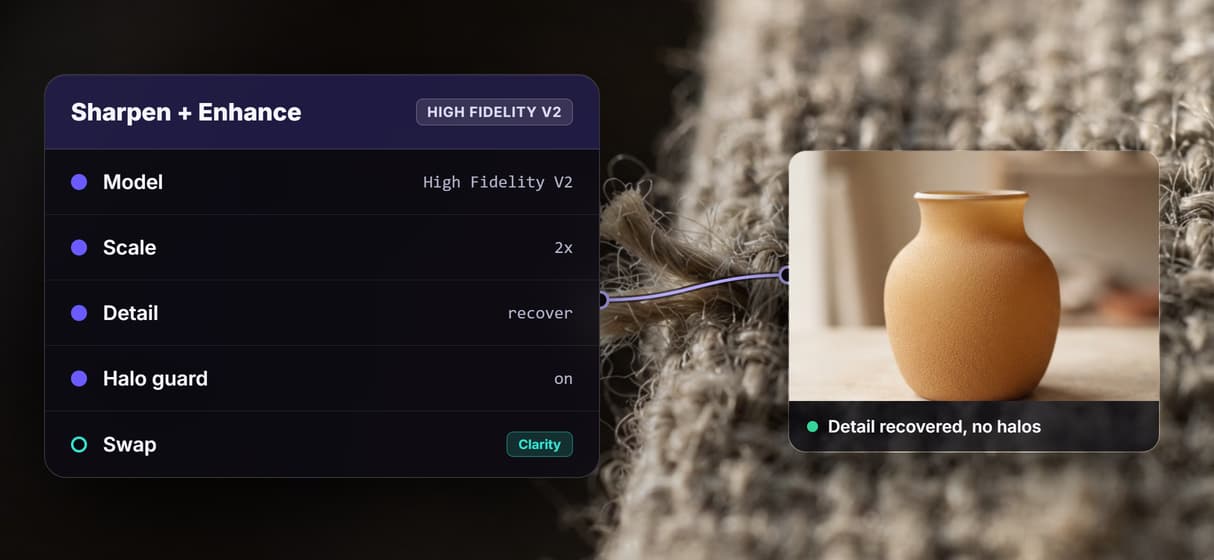
Tune detail, avoid the halos
Open the Sharpen node to set the model and 2x strength, so you recover texture without the white halos and edge crunch that over-sharpening bakes in.
Re-run the exact same sharpen
The graph is versioned server side, so the settings that fixed one photo reapply to the next batch identically, not a hand-tuned slider redone every time.
Build Any AI Workflow
AI Models Integrated
Full Commercial License
FAQs
It rebuilds edge and texture detail a soft photo lost, rather than only boosting edge contrast. On Wireflow a Sharpen + Enhance node runs Topaz High Fidelity V2 at 2x to recover fine detail and output a crisp version of your image.
Discover related AI tools
- AI Image Upscaler: Upscale to 4K in a Visual Workflow
- AI Background Remover
- AI Image Generator: Flow-Based Canvas, 31 Models
- ComfyUI Alternative
- AI Face Swap Online: Photos and Video in Your Browser
- Virtual Try On
- AI Thumbnail Generator
- AI Photo Generator
- AI Image Editor
- AI Art Generator
- Midjourney Alternative
- AI Headshot Generator
More From Wireflow
Written by
Andrew Adams · Co-Founder & Operations at Wireflow
Runs client operations and content strategy at Wireflow. Works directly with creative teams and agencies to build production AI workflows.
Sharpen your photos on one canvas
Drop in a soft photo, wire it into a Topaz High Fidelity V2 node that recovers edge and texture detail at 2x, swap in Clarity or Crystal Upscaler, then batch a folder, chain upscaling and cutout, or call it as an API. No GPU, no install, building the canvas is free.