How to Make Product Photos in Claude From One Photo

In this article▾
- What Claude Does and What the Image Model Does
- What You Need Before You Start
- Step 1: Install the Product Photography Skill
- Step 2: Hand Claude the Product Photo
- Step 3: Pick Scenes and Approve the Cost
- What a Real Run Looks Like
- Check Every Shot Before It Goes Live
- From One Product to a Whole Catalog
- Start With One Product Photo
- Frequently Asked Questions
To make product photos in Claude, connect an image model, give it one clear photo of your product, and ask for the scenes you need, such as white studio or lifestyle. Claude checks the photo, plans the scenes and writes the prompts, and the image model renders each shot. Wireflow packs that setup into a product-photography skill for Claude Code that renders every scene on Nano Banana Lite at 16 credits a shot.
This guide covers that route from install to a finished set, with a real test run and the checks to make before a shot goes on your store. If your team wants the same studio and lifestyle shots without Claude, the browser-based AI product photography tool makes them with no install.
What Claude Does and What the Image Model Does
Claude has vision, so it can look at your product photo, notice a tilted angle or glare on the label, and describe the scene you have in mind in precise words. It has no image model of its own, though. Ask a plain chat for a lifestyle shot and you get a description or a prompt, not a picture, which is why every route to generating images in Claude Code ends with a connected model.
The setup splits the job in two. Claude does the thinking: it checks the photo, suggests scenes, writes one prompt per scene and quotes the cost. The image model does the rendering, reached through a hosted MCP server that Claude calls like any other tool.
| Step | Done by | Credits |
|---|---|---|
| Check the photo and suggest scenes | Claude | 0 |
| Write one prompt per scene and quote the cost | Claude | 0 |
| Render each scene | Nano Banana Lite | 16 per scene |
| Save the files or return links | Claude Code or the Claude app | 0 |
Build this in Wireflow
Make the same kind of asset on a canvas you control, with a free account and no credit card.
What You Need Before You Start
- Claude Code in a terminal, which is what the skill is built for, or the Claude app with custom connectors
- One photo of the real product, at an https:// address or saved on your computer
- An account with credits for the renders: plans start at $36 a month for 2,660 credits, enough for 166 scenes at 16 credits each
The input photo decides most of the result. Shoot the product front-on or at three quarters, in even light, on a plain background, with the label readable. If the shape or label changes from the side or back, add those angles too, because the model has to guess any side it never saw. A clean source photo is also the base for every other AI ecommerce image you make later.
Step 1: Install the Product Photography Skill
The product photography skill guide lists two installs. The full plugin brings every skill in the set plus the connector:
/plugin marketplace add wireflowINC/skills
/plugin install wireflow-skills@wireflow
Then run /mcp, pick the server and sign in. To add only this skill, run npx skills add wireflowINC/skills --skill product-photography, then add the server with claude mcp add --transport http wireflow https://www.wireflow.ai/api/mcp. The permissions it asks for at sign-in are listed in the MCP connector guide.
Once installed, the skill shows up as /wireflow-skills:product-photography, but you rarely need to type it, because plain requests such as "packshot of this" or "lifestyle photos of this" trigger it. In the Claude app, add https://www.wireflow.ai/api/mcp as a custom connector instead. It works the same way, except you get image links rather than saved files, since saving needs a shell. It is the same setup you use to connect an AI image API to Claude.
Step 2: Hand Claude the Product Photo
Claude can see a photo you paste into the chat, but the image model needs the file at an https:// address. If the photo already lives online, paste the link. If it sits on your computer or phone, ask Claude for an upload link: it opens a page that needs no login and works on a phone, and the file arrives ready for the render. The same upload options apply when you edit images in Claude instead of restaging them.
Step 3: Pick Scenes and Approve the Cost
The skill offers six scenes by default, and you can cut the list before anything renders.
| Scene | What it shows | Good for |
|---|---|---|
| White background | The product alone on clean white | Main listing images, catalogs |
| Lifestyle | The product in a real room or setting | Product pages, ads |
| In hand | A hand holding or using the product | Showing scale and use |
| Flat lay | Seen from above with props around it | Social posts, gift guides |
| Outdoor or context | The product where it gets used | Seasonal campaigns |
| Colored backdrop | A solid studio backdrop in your color | Banners, collection pages |
Each scene renders on Nano Banana Lite for 16 credits, so the full six-scene set costs 96. Checking the photo, choosing scenes, writing prompts and quoting the price cost nothing, and a redo after approval is another 16. The output ratio follows your photo: a square input gave 1024x1024 images in the recorded test.
A typical request in Claude Code reads like this:
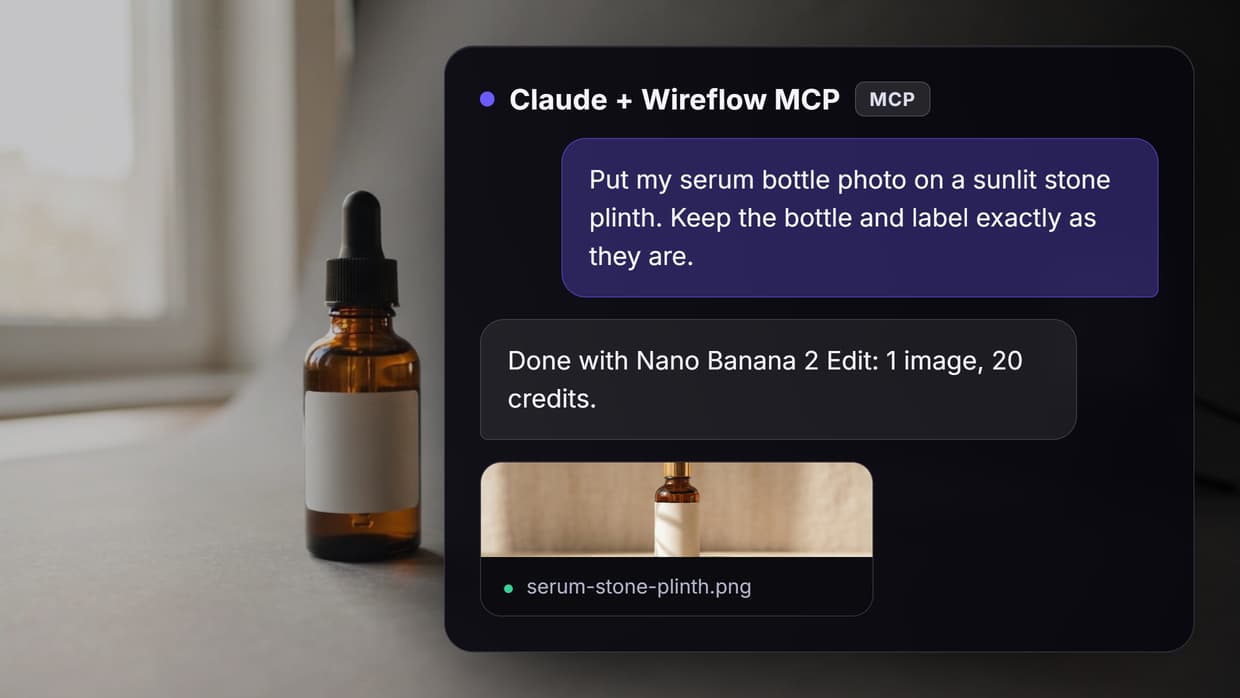
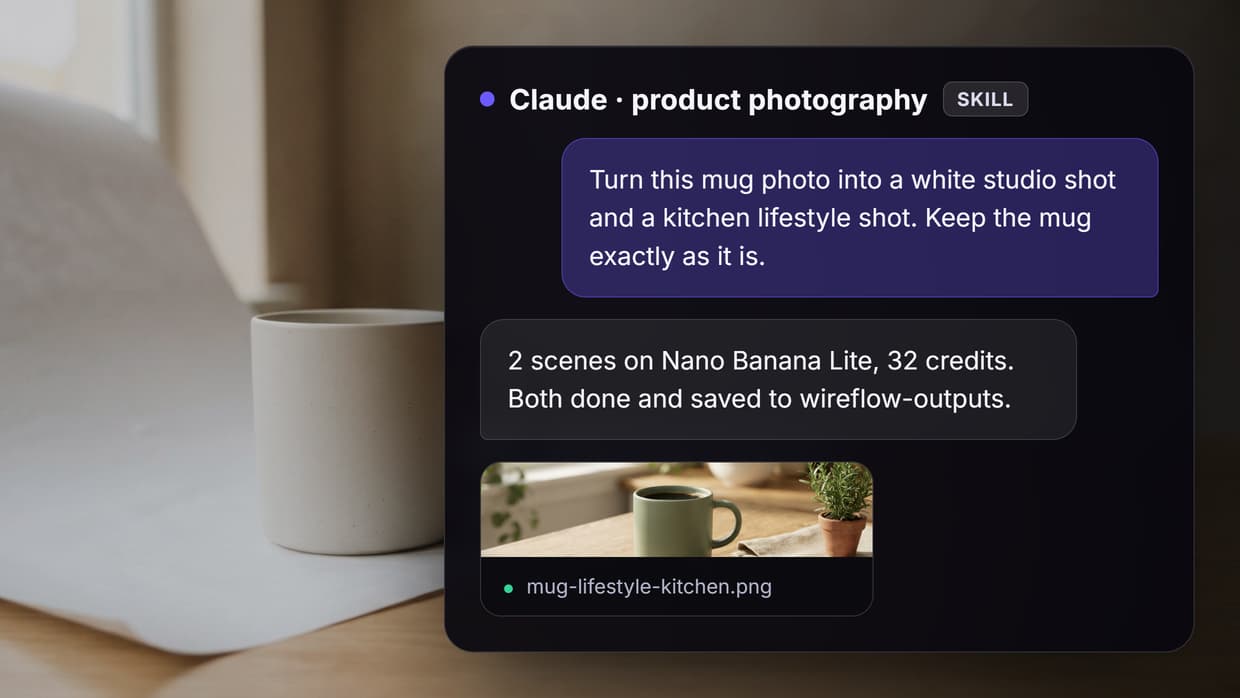
Make a white background shot and a bedside lifestyle shot of this candle.
Keep the jar, lid and label exactly as they are.
Claude replies with the two scenes, the model and the price, 32 credits here, and waits for your yes. After the run, the images land in ./wireflow-outputs/ in your project folder. For more scene ideas by product type, see our walkthrough on generating AI product images for an online store.
What a Real Run Looks Like
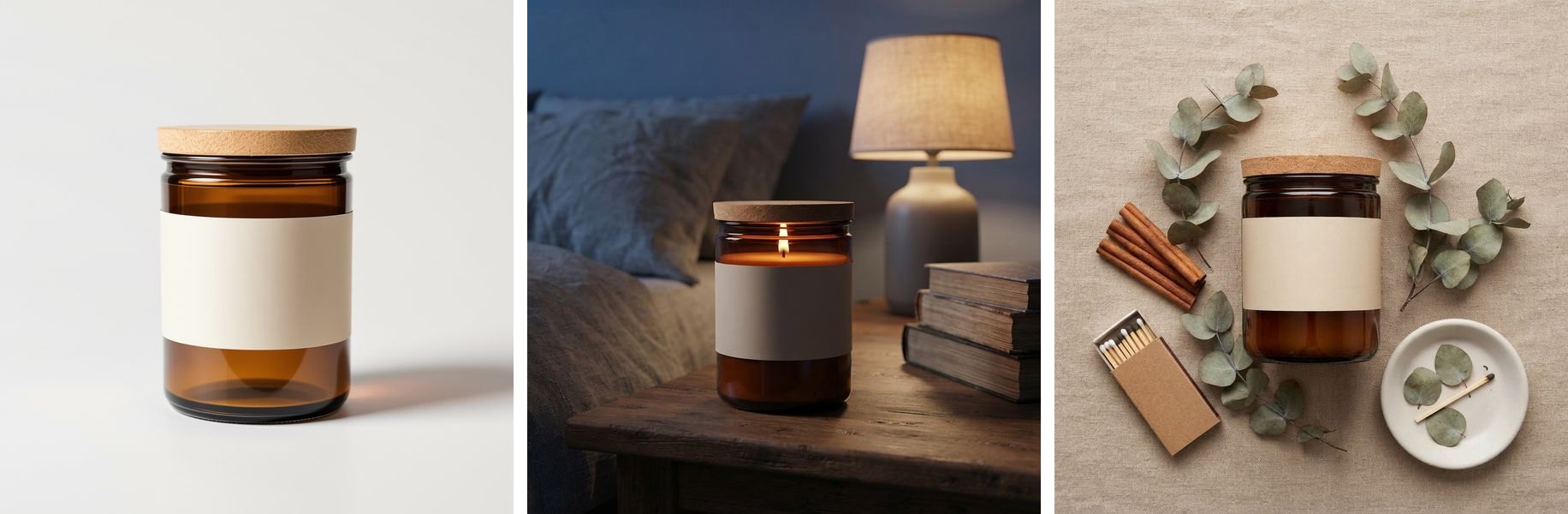
This is the skill's recorded test: one studio photo of an amber candle jar in, a bedside lifestyle shot and a flat lay out. The amber glass, the blank cream label band and the shape of the jar carried through to both scenes, and the light and shadows fit each setting. The flat lay added eucalyptus, cinnamon sticks and a matchbox on linen, the kind of props a stylist would bring to a product photoshoot.
Two details drifted. In both scenes the wooden lid reads more like cork than in the input. In the bedside shot, the candle burns with its lid still on, which a shopper would notice at once. The skill now flags drift like this and asks before it spends credits on a redo, but the final check is still yours.
Check Every Shot Before It Goes Live
- Label and logo. Zoom to full size and compare letters, colors and placement with the original.
- Shape and parts. Lids, caps, handles and buttons are where drift shows up first.
- Physics. Look for flames under closed lids, shadows that fall the wrong way, or reflections that do not match the room.
- Scale. In-hand and lifestyle shots can make a product look bigger or smaller than it is.
The skill does not check marketplace image rules, such as a pure white background for a main image. If you sell on Amazon, check the rules for your category yourself, or use an Amazon listing image generator for the full listing set.
For a cut-out on transparency, a scene model is the wrong tool, because it always paints a background. A background removal model such as Bria, at 6 credits a run, gives a clean PNG, or you can make a transparent background in the browser.
From One Product to a Whole Catalog
Once a prompt holds up on one product, reuse it. Keep the scene wording the same and swap the photo, so every product in a collection shares the same light and setting. For dozens of products at once, a batch image run applies one scene to a whole folder instead of one request per photo.

Finished stills also make good starting points for motion. An approved lifestyle shot can become a short clip for an ad or a product page with a product video generator.
Start With One Product Photo
Making product photos in Claude comes down to three moves: install the skill, hand over one clean photo, and approve a short list of scenes. Start with two scenes for 32 credits, check the label and the small parts at full size, then run the rest of the set once the product holds up.
Try it yourself: Open the product photography workflow in Wireflow. It is the workflow the skill runs behind the scenes: a product photo and a scene go in, fixed product rules keep the item unchanged, and Nano Banana Lite renders one photo per run. Swap in your own photo and scene to try it on your product. You can open and change this workflow for free. A new account gets up to 60 starter credits and a free video, and each run uses credits. Plans start at $36 a month for 2,660 credits.
Frequently Asked Questions
Can Claude make product photos by itself?
No. Claude can read your photo, suggest scenes and write the prompts, but it has no image model. The pictures come from a connected model, such as Nano Banana Lite through the skill in this guide, or from a browser tool like an AI product photo generator.
Does this work in the Claude app, or only in Claude Code?
Both. Claude Code is the main target and saves files into ./wireflow-outputs/. In the Claude app or Claude Desktop, add the server as a custom connector and you get image links instead.
How much does one product photo cost?
16 credits per scene on Nano Banana Lite, or 96 for all six scenes. Planning, prompts and the price quote are free. A new account's starter credits, up to 60, cover three scenes.
Will the product look exactly the same?
Mostly. The prompts tell the model to keep the shape, colors, label and logo, but small parts can drift, like the lid in the test above. Check every shot at full size and redo any scene that changed.
What kind of photo works best?
A sharp, evenly lit front or three-quarter shot on a plain background, with the label readable. Add side or back views when the product looks different from those angles.
Can I use these images on Amazon or Shopify?
Yes, after you check them. The skill does not check marketplace rules, so confirm the main-image rules for your store yourself. To cut a product out first, an AI background remover gives you the plain product to start from.
Do I need an API key?
No. The connector signs you in with OAuth, so there is nothing to paste.

Co-Founder & Operations at Wireflow
Runs client operations and content strategy at Wireflow. Works directly with creative teams and agencies to build production AI workflows.
- Content Strategy
- Client Operations
Make AI videos and ads.
Start free, no card needed.