How to Create AI Avatars from Photos
Turning a simple portrait into a polished AI avatar used to require a VFX team and thousands of dollars. Today, tools like Wireflow let you chain AI models together to go from a raw photo to a stylized digital avatar in minutes. Whether you need avatars for social media profiles, marketing campaigns, or video content, the process is straightforward once you understand the key steps and which tools produce the best results.
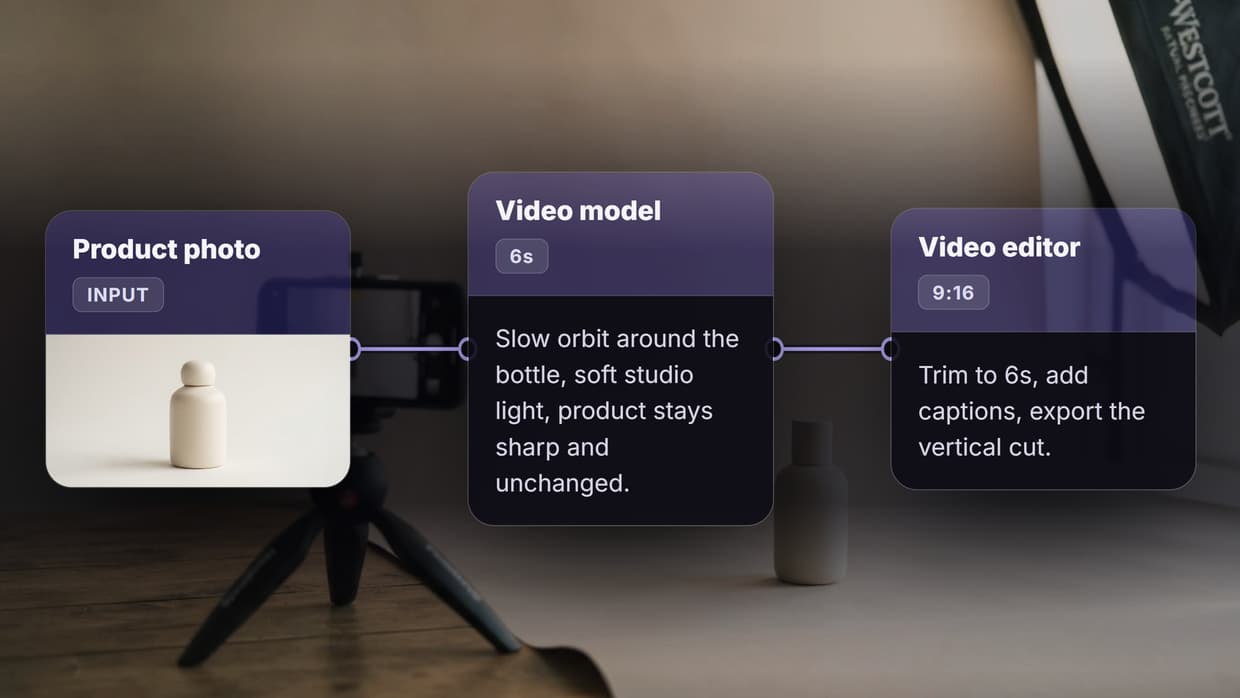
Before an avatar is final, you can edit the face on a canvas, adjusting expression and lighting with a prompt instead of masking by hand.
What Are AI Avatars and Why Use Them?
AI avatars are digital representations of a person generated by artificial intelligence. They range from semi-realistic stylized portraits to fully animated talking heads that can deliver scripted content. The technology relies on neural networks trained to understand facial geometry, skin texture, lighting, and expression, then reconstruct those elements in a new visual style.
The practical applications are broad. Content creators use AI avatars for consistent branding across video platforms. Marketers build personalized ad campaigns without scheduling photo shoots. Educators create multilingual training materials with a single avatar that can speak any language. Businesses generate professional headshots for team pages without coordinating everyone into a studio.
Build this in Wireflow
Make the same kind of asset on a canvas you control, with a free account and no credit card.
Step 1: Choose the Right Source Photo
The quality of your avatar depends heavily on your input image. A poorly lit, low-resolution selfie will produce a mediocre result regardless of which tool you use. Follow these guidelines for the best outcome:
- Use a front-facing portrait with the face clearly visible and centered in the frame
- Ensure even, natural lighting without harsh shadows across the face
- Avoid sunglasses, heavy filters, or anything that obscures facial features the AI needs to analyze
- A neutral expression typically produces the most versatile base avatar
- Minimum resolution of 1024x1024 pixels is recommended for sharp results
- Plain or simple backgrounds help the model isolate the subject more accurately
If your photo has a cluttered background, consider running it through a background removal tool first.
Step 2: Select Your Avatar Style
Different tools and models produce different avatar aesthetics. Before generating, decide what style fits your use case:
Semi-realistic avatars keep close to the original likeness while smoothing imperfections. These work well for professional headshots and social media profiles. The face shape, eye color, and key features stay recognizable, but the output looks polished and clean.
Stylized or artistic avatars push further from photorealism into illustration territory. Think anime-style portraits, 3D cartoon renders, or painterly interpretations. These are popular for gaming profiles, creative brand identities, and platforms where a unique visual identity matters more than strict likeness.
Animated talking avatars add motion and speech to the generated face. Platforms like HeyGen and Synthesia specialize in this, creating video-ready avatars that can lip-sync to any script. This category requires additional voice input or text-to-speech integration.
Step 3: Generate Your Avatar
The actual generation process varies by tool, but the core workflow follows a consistent pattern. Most platforms use some combination of face detection, style transfer, and image synthesis to produce the final result.
Here is the general process with a node-based workflow approach:
- Upload your portrait as the input node. The AI extracts facial landmarks, skin tone, and structural features from the photo.
- Write a style prompt describing the avatar output you want. Be specific: "professional LinkedIn headshot with soft lighting and a gradient background" produces better results than "make it look nice."
- Connect the nodes so the portrait feeds into the generation model alongside the prompt. The model uses both the visual reference and the text instruction to produce a coherent final image.
- Run the workflow and review the output. Most generators produce results in 10-30 seconds.
- Iterate if needed. Adjust your prompt, try a different model, or tweak the input photo if the first result does not match your expectations.
For batch avatar creation, where you need consistent styles across multiple team members, tools with template and batch processing features save significant time compared to running each portrait individually.
Step 4: Refine and Upscale
Raw AI outputs often need minor adjustments before they are ready for production use. Common refinement steps include:
- Upscaling: If the generated avatar is lower resolution than needed, run it through an AI upscaler to increase resolution without losing detail. A 512x512 output can typically be upscaled to 2048x2048 cleanly.
- Background replacement: Swap the generated background for something that matches your brand guidelines. A solid color or subtle gradient usually works best for profile-style avatars.
- Color correction: Match the avatar's color temperature and saturation to your existing brand assets. This is especially important when generating avatars for an entire team.
- Face consistency checks: Compare the avatar side-by-side with the original photo to verify that key features (face shape, eye spacing, nose structure) are preserved. If the likeness drifted too far, regenerate with a more explicit prompt.
Step 5: Export and Use Your Avatar
Once refined, export your avatar in the format your target platform requires. For static avatars, PNG at the highest available resolution gives the most flexibility. For animated or video avatars, MP4 or WebM formats with transparent backgrounds offer the best compatibility.
Common deployment scenarios:
- Social media profiles: Square crop (1:1) at 400x400 minimum for platforms like LinkedIn, X, and Instagram
- Video content: Full-body or upper-body avatars rendered at 1080p or higher for professional video production
- Website team pages: Consistent style and background across all team member avatars
- Email signatures: Small, recognizable avatar versions optimized for fast loading
For ongoing avatar needs, save your workflow configuration as a reusable template so new team members or updated photos can be processed with identical settings.
Tips for Better AI Avatars
A few practices consistently improve avatar quality across all tools and models:
Provide multiple reference photos when the tool supports it. Different angles and expressions give the AI more information about facial structure, which produces more accurate results. Even two or three reference images make a noticeable difference compared to a single input photo.
Be specific in your prompts. Instead of "cartoon avatar," try "clean vector-style avatar with flat colors, thick outlines, and a mint green background." The more detail you provide, the closer the output matches your vision.
Test at small scale first. Before processing 50 team headshots, run 2-3 through the full pipeline to verify the style, resolution, and likeness preservation meet your standards. Adjust the workflow based on those test results before scaling up with automation tools.
Try it yourself: Build this workflow in Wireflow. The nodes are pre-configured with the exact avatar generation setup discussed above.
Frequently Asked Questions
How long does it take to create an AI avatar from a photo?
Most AI avatar generators produce results in 10-30 seconds per image. The total time from upload to finished avatar, including prompt writing and any refinements, is typically under 5 minutes for a single portrait.
Do I need a high-quality photo to get a good avatar?
Yes. A clear, well-lit, front-facing portrait at 1024x1024 pixels or higher produces the best results. Low-resolution or poorly lit photos lead to avatars with inaccurate features and artifacts.
Can AI avatars be used commercially?
This depends on the tool you use and its licensing terms. Most paid platforms grant commercial usage rights for avatars generated on their platform. Always check the specific terms of service before using AI avatars in advertising, products, or client work.
How realistic are AI-generated avatars?
Modern AI models produce semi-realistic avatars that are often indistinguishable from professional illustrations. Fully photorealistic avatars are possible but may fall into the uncanny valley. Stylized avatars that lean slightly toward illustration tend to look more polished.
Can I create animated or talking avatars from a single photo?
Yes. Platforms like HeyGen and Synthesia can generate talking video avatars from a single portrait photo combined with a text script or voice recording. The avatar will lip-sync to the provided audio.
Will the AI avatar look exactly like me?
AI avatars preserve key facial features like face shape, eye color, and general proportions. However, the level of likeness depends on the model used, the style selected, and the quality of the input photo. Semi-realistic styles stay closest to the original appearance.
How many photos do I need to upload?
Most tools require just one clear portrait. However, providing 3-5 photos from slightly different angles improves accuracy. Some platforms specifically request multiple reference images for their best quality tier.
Can I update my avatar later without starting over?
If you save your workflow configuration as a template, you can swap in a new photo and regenerate with identical style settings. This is useful when you want to update your avatar after a haircut or style change without redesigning the entire look.
Would you rather we just built it?
We get on a call, learn your style, build the workflow, and ship the deliverables on a schedule. You keep the workflow either way.