Best AI Photo to Painting Tools in 2026

In this article▾
- Quick Summary: The 8 Best Photo to Painting Tools
- How We Ranked These Tools
- 1. Wireflow: Best Overall
- 2. Fotor GoArt: Best Free Web Tool
- 3. BeFunky: Best for Speed
- 4. Adobe Firefly: Best for Licensing
- 5. Deep Dream Generator: Best for Control
- 6. Picsart: Best Mobile App
- 7. Luminar Neo: Best for Photographers
- 8. Canva: Best for Non-Designers
- Comparison Table
- Which One Should You Pick
- Frequently Asked Questions
- Conclusion
Turning a photograph into a painting used to mean hours in a raster editor or a commissioned artist. In 2026 the job takes seconds, and the eight tools below cover every budget from free browser filters to model chains you control end to end. We ranked them on brushwork realism, face preservation, resolution ceiling, style range, and price. Wireflow takes the top spot because it runs the conversion as a chain of models rather than a single filter, which is the difference between a painted-looking photo and a photo with a texture pasted over it.
Quick Summary: The 8 Best Photo to Painting Tools
- Wireflow: Chained style transfer plus upscaling on one canvas. Best Overall
- Fotor GoArt: Fast browser converter with 30+ painting presets. Best Free Web Tool
- BeFunky: One-click oil, watercolor, and impressionist effects. Best for Speed
- Adobe Firefly: Style reference images and commercial-safe training data. Best for Licensing
- Deep Dream Generator: Classic neural style transfer with tunable strength. Best for Control
- Picsart: Mobile-first painting filters with editing tools attached. Best Mobile App
- Luminar Neo: Desktop photo editor with painterly looks for photographers. Best for Photographers
- Canva: Painting effects inside a full design suite. Best for Non-Designers
How We Ranked These Tools
Every tool here was judged on the same five criteria, in this order: does the output hold brushwork at 100% zoom, does a human face stay recognizable, what resolution can you export, how many distinct painting styles are offered, and what does a typical month cost. Filters that only apply a canvas texture over unchanged pixels scored lowest, because that effect is visible the moment you print. A stronger edit changes the subject itself rather than a surface texture, the way you can age a portrait older or younger and still keep the same person underneath. If you want the wider category rather than painting specifically, our AI image editors and photo tools comparison covers retouching, background removal, and generative fill in the same format.
One thing worth stating up front: no single model does all of this well. Style transfer models are good at brushwork and bad at faces. Upscalers fix resolution but flatten texture. The tools that scored highest either chain several models together or give you enough control to compensate manually, which is also the argument behind AI style transfer as a multi-step process instead of a button.
Build this in Wireflow
Make the same kind of asset on a canvas you control, with a free account and no credit card.
1. Wireflow: Best Overall
Wireflow is a node canvas where a photo enters one side and a finished painting leaves the other, with each step visible and editable. A typical chain is: image input, a style transfer node that applies the painting look, then an upscaler node that restores the detail the style pass softened. Because the steps are separate you can swap the style model without redoing the upscale, or run six styles from the same source in one pass. For a hands-on look at this in action, check out the AI photo to painting feature page, which walks through the exact node setup.
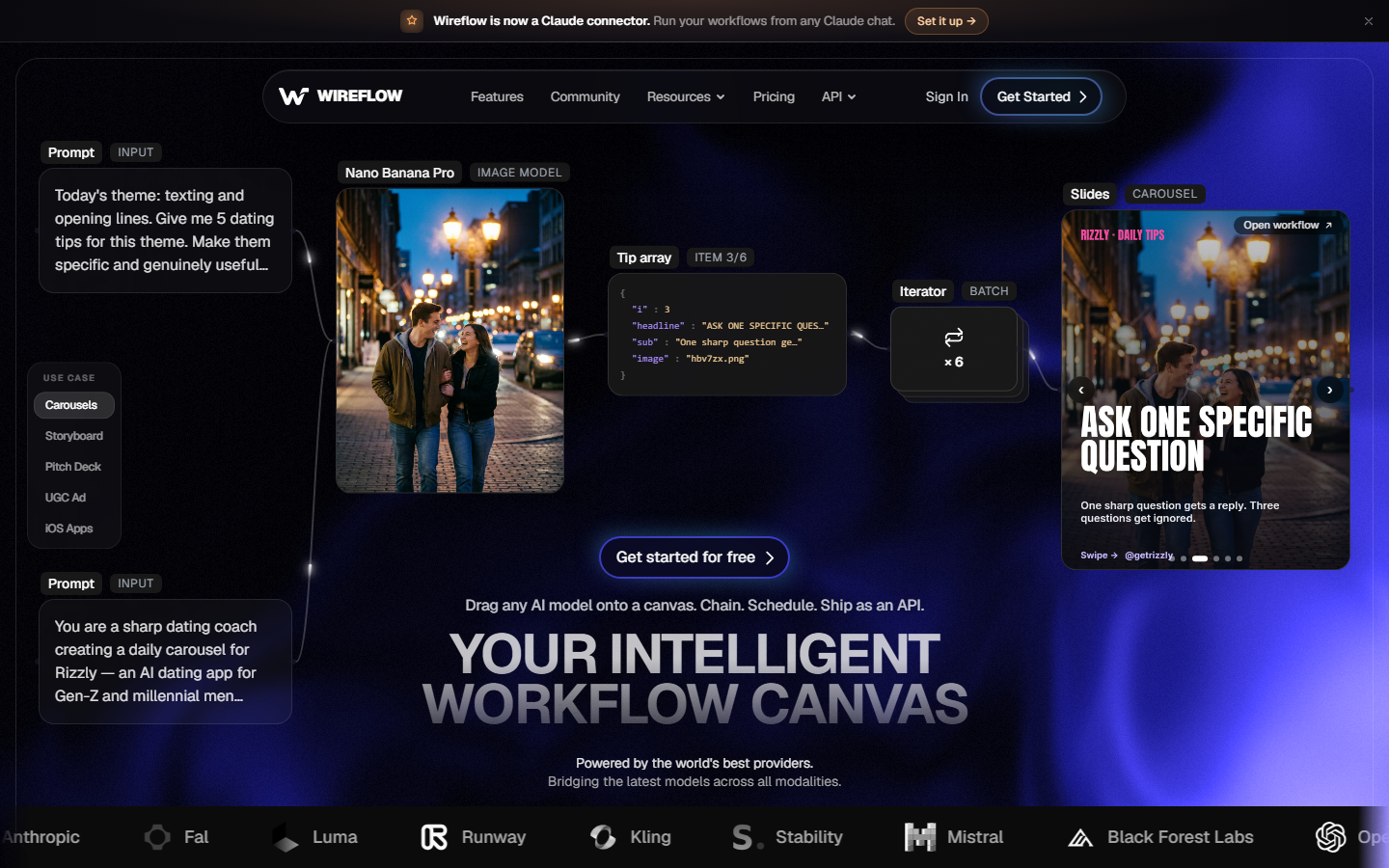
The tradeoff is honest: a canvas takes five minutes to understand where a one-click filter takes zero. What you get back is repeatability. Save the chain once and every future photo runs through the same settings, which matters if you are producing a series rather than a single image. Pricing is usage based rather than a flat subscription, so occasional users pay very little; the pricing page lists per-run costs by model. Verdict: the strongest option if you care about output quality and plan to convert more than a handful of photos.
2. Fotor GoArt: Best Free Web Tool
Fotor ships GoArt, a browser converter with more than thirty painting presets spanning oil, watercolor, ink wash, and named-artist looks. Upload, pick a preset, wait about fifteen seconds, download. The free tier watermarks and caps export around 1000px on the long edge, which is fine for social and not fine for print.
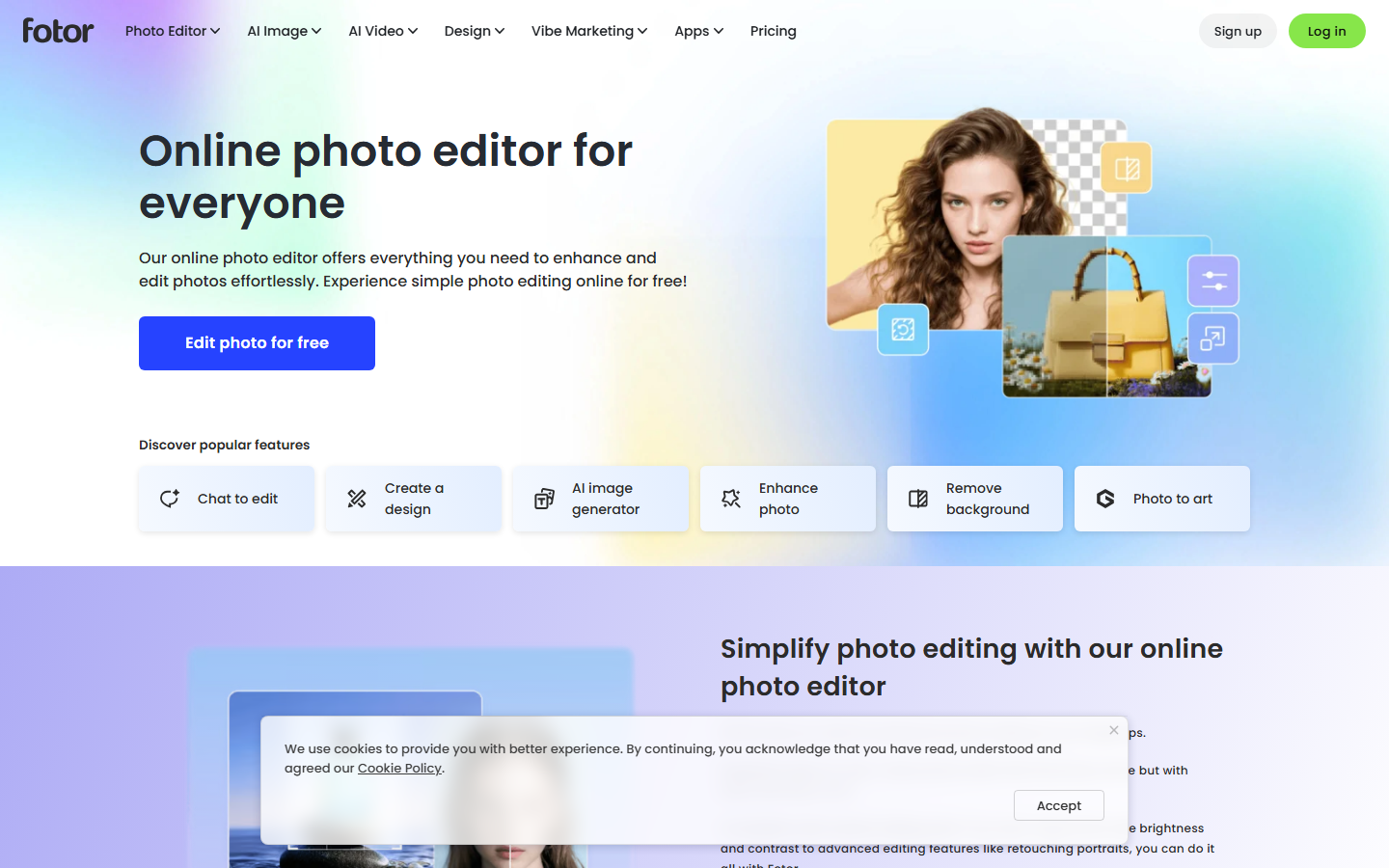
Quality is respectable on landscapes and architecture, weaker on portraits where the style pass tends to smooth eyes and mouths into mush. Fotor Pro removes the watermark and raises the export ceiling. If you want free output without the watermark tax, the roundup of free AI image generators lists tools with more generous unpaid tiers. Verdict: the best place to start if you have one photo and no budget.
3. BeFunky: Best for Speed
BeFunky has offered painterly effects longer than most of this list, and it shows in the interface: the Digital Art and Oil Painting tabs apply in under five seconds with a strength slider you can drag while watching the preview update. There is no queue and no generation wait, because much of the effect is computed locally.
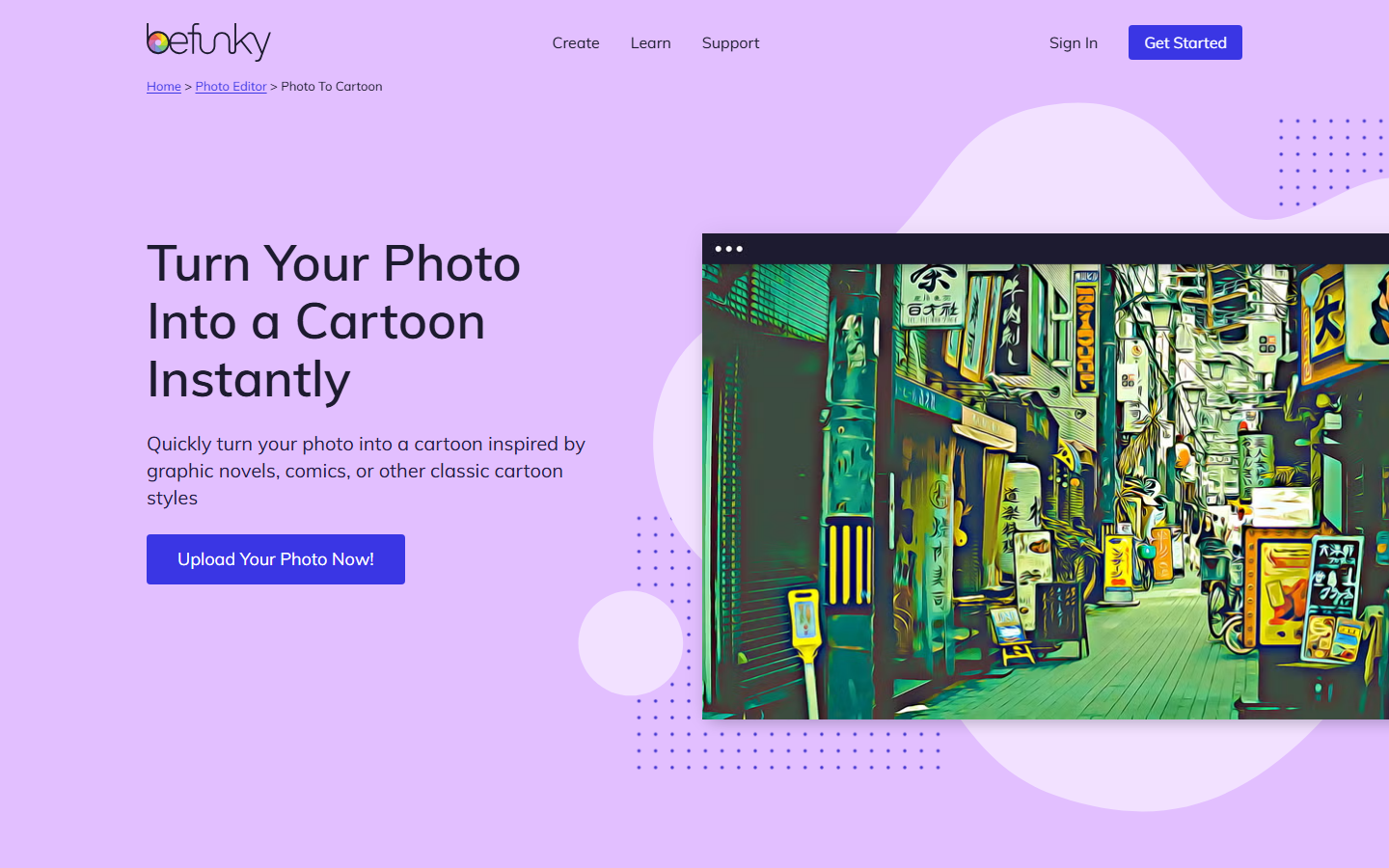
That speed comes from doing less. BeFunky's output reads as a well-tuned filter rather than a repainted image, and at full zoom you can see the original photo's edges under the brushwork. For thumbnails, blog headers, and card art that is completely adequate. Anyone needing genuine repainting should look at tools built on diffusion models instead, the same distinction we drew in the AI style transfer tools roundup. Verdict: best when you need something acceptable in under a minute.
4. Adobe Firefly: Best for Licensing
Adobe Firefly is the option to pick when the image is going into paid work. Firefly's models are trained on Adobe Stock and public domain material, and Adobe indemnifies enterprise customers against copyright claims, which no other tool on this list offers. The Structure and Style reference controls let you feed a painting as the style source and a photo as the structure source.
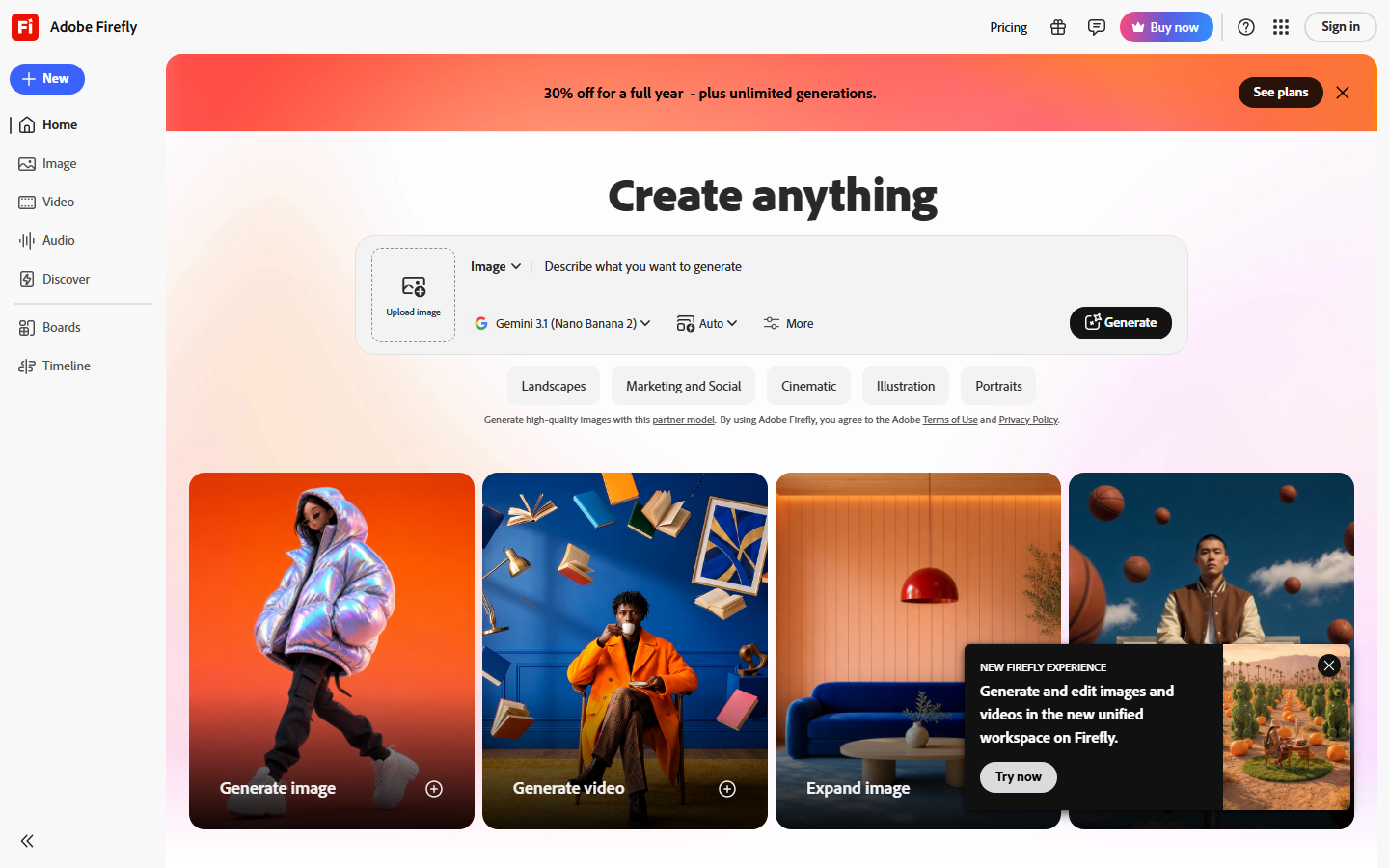
Firefly credits are bundled into Creative Cloud plans, so the effective cost depends on what you already pay Adobe. Output resolution is good, face handling is among the best here, and the results integrate straight into Photoshop for manual cleanup. The catch is style range: Firefly's painting looks are tasteful and slightly conservative compared to open models. If you also need portrait work from the same pipeline, our guide to professional AI headshots covers the face-preservation settings that transfer directly. Verdict: the safest choice for commercial use.
5. Deep Dream Generator: Best for Control
Deep Dream Generator is the survivor of the original neural style transfer era, and it still exposes the parameters most tools hide. You supply a content image and a style image, then set the style weight, resolution, and iteration depth yourself. Nothing else here lets you dial the effect that precisely.
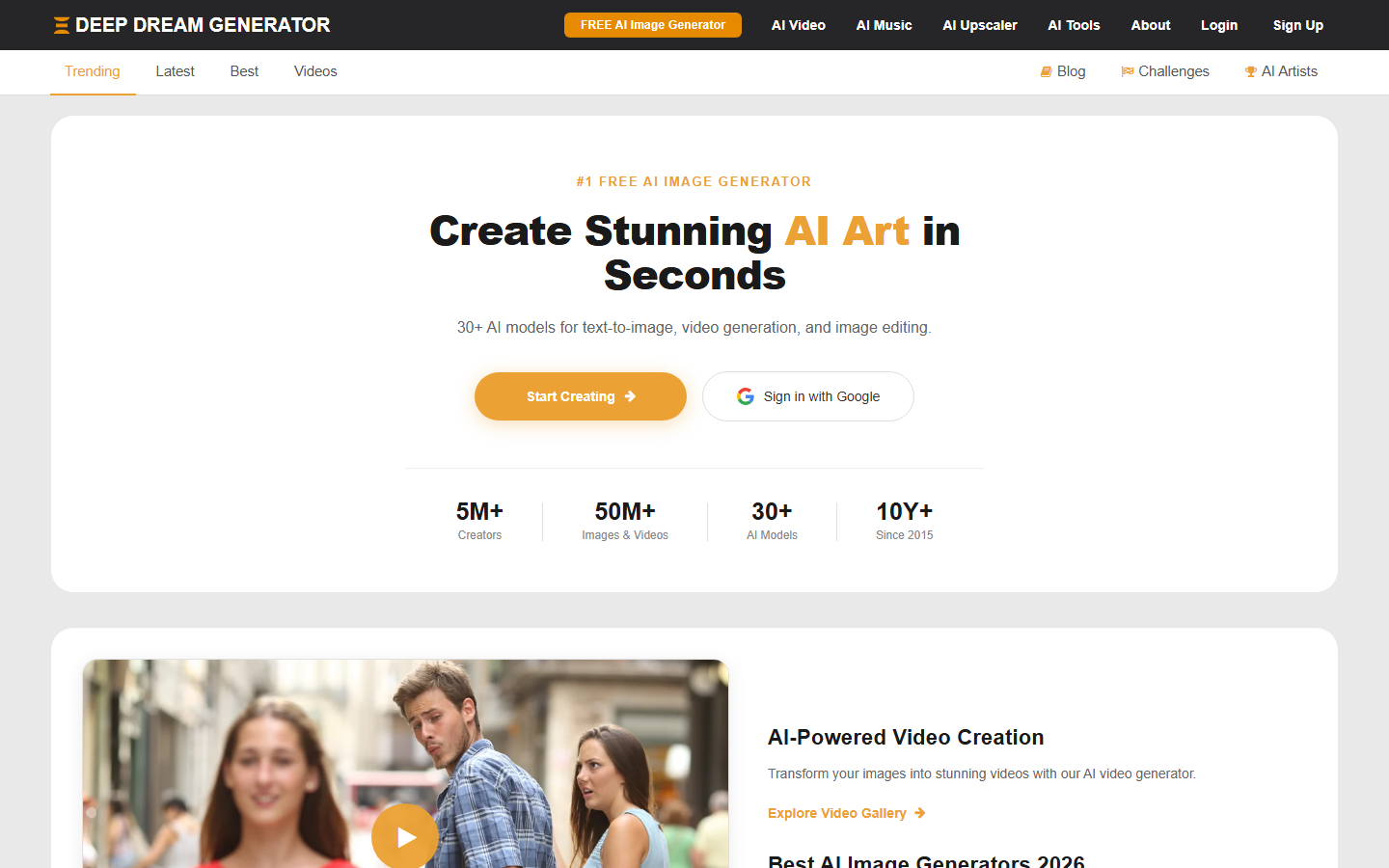
It is also the slowest and the least forgiving. Bad parameter choices produce noise, and the community-gallery model means your uploads are public unless you pay for private generation. Energy points refill daily on the free plan, which is enough for a few images a week. Verdict: worth the learning curve if you want a specific painter's texture rather than a preset approximation.
6. Picsart: Best Mobile App
Picsart puts painting conversion on a phone alongside cropping, retouching, and text tools, which matters if the photo you want to convert was taken on that phone thirty seconds ago. The AI Effects tab carries oil, sketch, and anime-adjacent painterly filters.
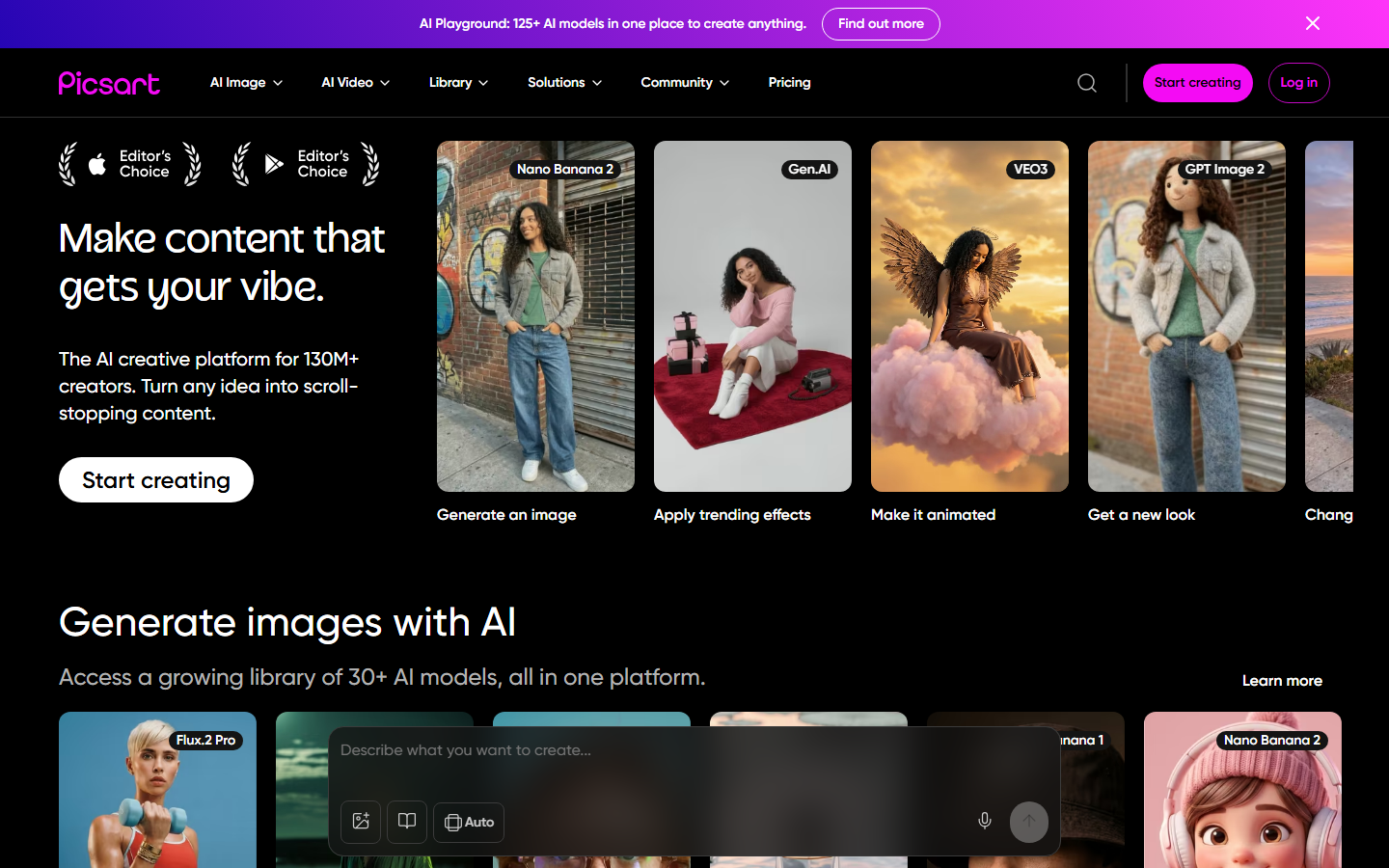
Export resolution on mobile tops out below what desktop tools manage, and the free tier is heavily interrupted by upgrade prompts. Style fidelity is middling; this is a social-output tool, not a print tool. If cartoon and anime looks interest you more than oil and watercolor, the dedicated AI photo to cartoon converter handles that style family with better line control. Verdict: the right pick when the whole job happens on a phone.
7. Luminar Neo: Best for Photographers
Luminar Neo approaches this from the photo-editing side rather than the AI-art side. Its painterly presets sit next to real raw processing, masking, and relighting tools, so you can correct exposure and colour first and apply the painting look to a properly graded image, which noticeably improves the result.
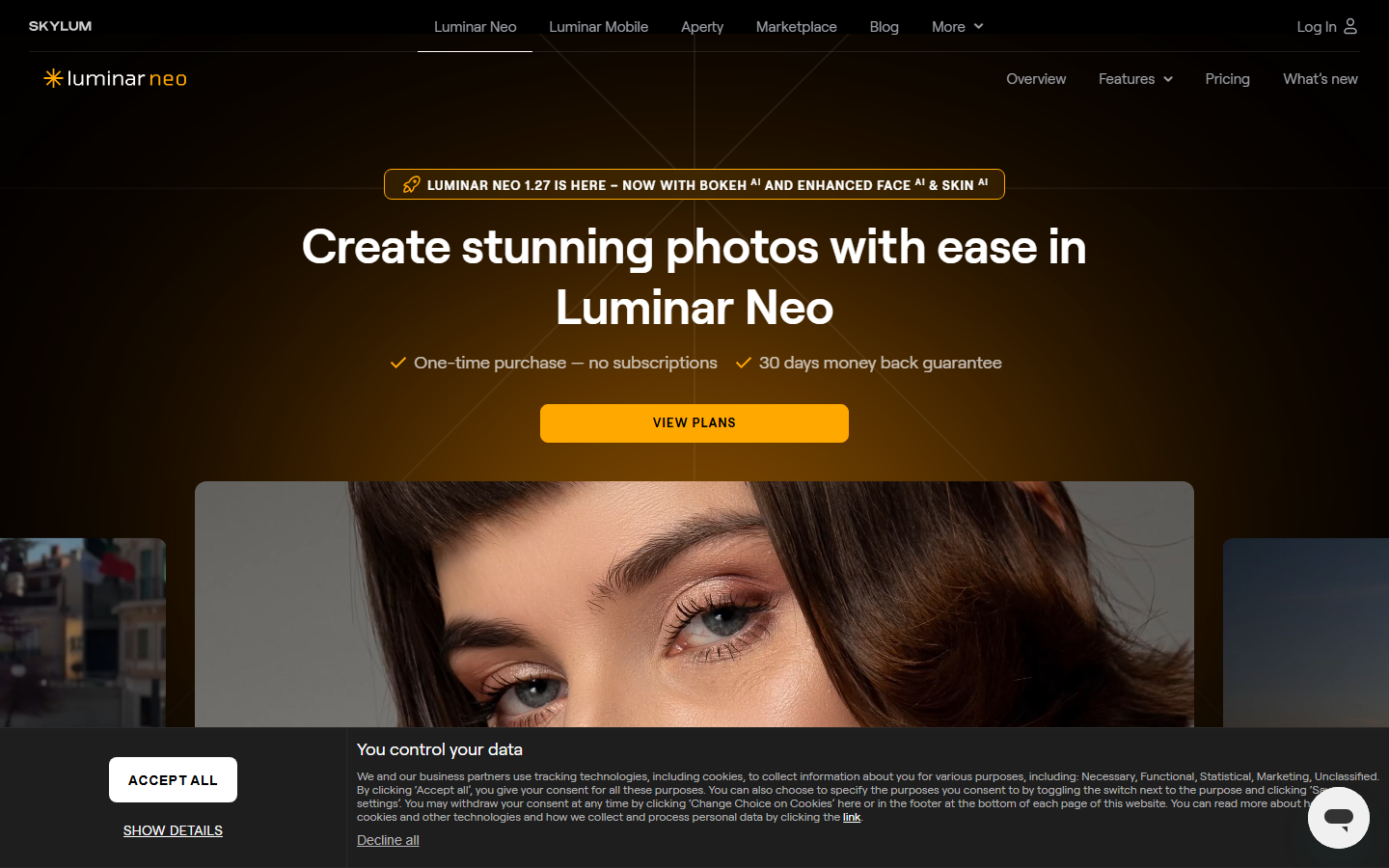
It is a desktop application with a one-time purchase option, so there is no per-image cost once you own it, and full-resolution output is standard. The painting effects themselves are fewer and more restrained than a dedicated converter offers. Photographers already running batch exports will also want to read how to run batch image generation via API for the volume side of the job. Verdict: best value if you edit photos anyway and want painting as one more look.
8. Canva: Best for Non-Designers
Canva earns its place because the painting effect lands inside the document where the image is actually used. Apply the effect, drop the result into a poster or slide, and export the whole thing without touching a second tool. Style options are limited to a handful of broad looks.
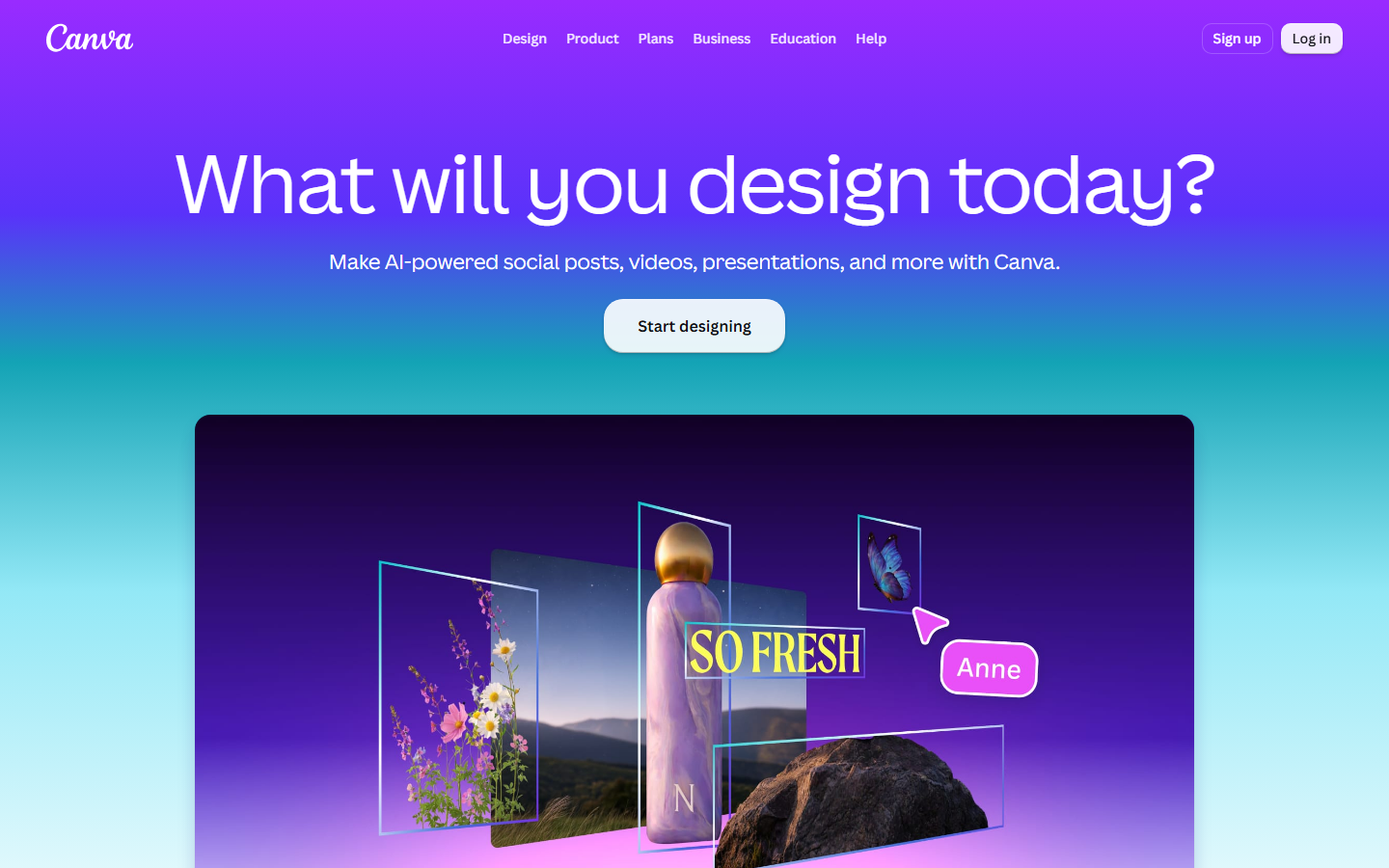
Output quality is the weakest here at close inspection, and Canva's effect credits are consumed by every AI feature in the suite, so painting conversions compete with background removal and generative fill for the same allowance. For anything more ambitious than a presentation image, use a dedicated AI art generator and import the finished file. Verdict: convenient, not competitive on quality.
Comparison Table
| Tool | Best For | Free Tier | Max Export | Face Handling | Pricing Model |
|---|---|---|---|---|---|
| Wireflow | Overall quality and repeatability | Yes, usage credits | Upscaler dependent | Strong with upscale pass | Usage based |
| Fotor GoArt | Free web conversion | Yes, watermarked | ~1000px free | Weak on portraits | Subscription |
| BeFunky | Speed | Yes, limited effects | Full res on paid | Adequate | Subscription |
| Adobe Firefly | Commercial licensing | Limited credits | High | Strongest | Credits in Creative Cloud |
| Deep Dream Generator | Manual control | Yes, daily points | High on paid | Parameter dependent | Points and subscription |
| Picsart | Mobile use | Yes, ad supported | Mobile capped | Adequate | Subscription |
| Luminar Neo | Photographers | Trial only | Full res | Strong | One-time or subscription |
| Canva | Non-designers | Yes, shared credits | Moderate | Weak | Subscription |
Which One Should You Pick
If you are converting a single photo today and never again, use Fotor GoArt or BeFunky and stop reading. If the image is going into client work, use Firefly for the indemnification alone. If you already own a photo editor, Luminar Neo adds the look without a new subscription. If you are producing a series, a set, or anything where the same treatment has to apply consistently across dozens of images, a chained pipeline beats every single-button tool, and the AI image generator side of that same canvas covers the cases where you need to create the source image too.
Try it yourself: Build this workflow in Wireflow : the nodes are pre-configured with the style transfer plus upscale setup discussed above.
Frequently Asked Questions
What is the best AI tool to turn a photo into a painting? Wireflow ranks first for overall quality because it chains a style transfer model with an upscaler, which preserves detail that single-pass filters lose. For a free one-off conversion, Fotor GoArt is the fastest good result.
Can AI photo to painting tools handle portraits? Some can. Adobe Firefly and any pipeline that includes a face-aware upscale pass keep eyes and mouths recognizable. Cheaper preset filters commonly smooth facial features, so check a 100% zoom before exporting a portrait.
Are AI painting conversions free? Most tools offer a free tier with watermarks, low resolution caps, or daily limits. Fotor, BeFunky, Picsart, and Canva all convert for free with those restrictions. Removing watermarks and unlocking full resolution generally costs between $8 and $15 per month.
What resolution can I export? Free tiers usually cap around 1000 to 2000 pixels on the long edge. Paid desktop tools like Luminar Neo export at full source resolution. Chained pipelines can exceed the source by running an AI image upscaler after the style pass, which is how you get print-ready output from a phone photo.
Which painting styles work best on photos? Impressionist, oil, and watercolor styles handle photographic content most reliably because their brushwork tolerates soft edges. Fine-line styles like pen and ink expose any blur in the source, so they need a sharp, well-lit original.
Do these tools work on old or low-quality photos? Upscale first, convert second. Running a restoration or upscale pass before the painting pass gives the style model more detail to work with, and the AI concept art generator workflow uses the same ordering for the same reason.
Can I use AI paintings commercially? Check each tool's terms. Adobe Firefly is the clearest on this point with training data drawn from licensed stock and enterprise indemnification. Most other tools grant commercial rights on paid plans but not on free tiers.
How long does a conversion take? Between five seconds for local filter effects like BeFunky and roughly a minute for a multi-model chain that includes upscaling. Deep Dream Generator's high-iteration settings can take several minutes per image.
Conclusion
The photo-to-painting category has split cleanly in two. On one side are the one-click filters, which are fast, free, and honest about being filters. On the other are model pipelines that genuinely repaint an image, cost a little more, and hold up at print size. Pick based on where the output is going, not on which interface looks simpler. For anyone converting more than a few images, the chained approach is the one that stays consistent across a whole set, and it costs less per image than a monthly subscription you use twice.

Co-Founder & Operations at Wireflow
Runs client operations and content strategy at Wireflow. Works directly with creative teams and agencies to build production AI workflows.
- Content Strategy
- Client Operations
Make AI videos and ads.
Start free, no card needed.