Best AI Tools for Motion Graphics Design in 2026

In this article▾
- Quick Summary
- How We Ranked These Tools
- 1. Wireflow (Best Overall)
- 2. Adobe After Effects (Best for Precision)
- 3. Jitter (Best for Teams)
- 4. Rive (Best for Interactive)
- 5. Runway (Best for Generative Footage)
- 6. Cavalry (Best for Data-Driven Work)
- 7. Canva (Best Free Option)
- 8. Kapwing (Best for Social Clips)
- Comparison Table
- How to Choose
- FAQ
- Conclusion
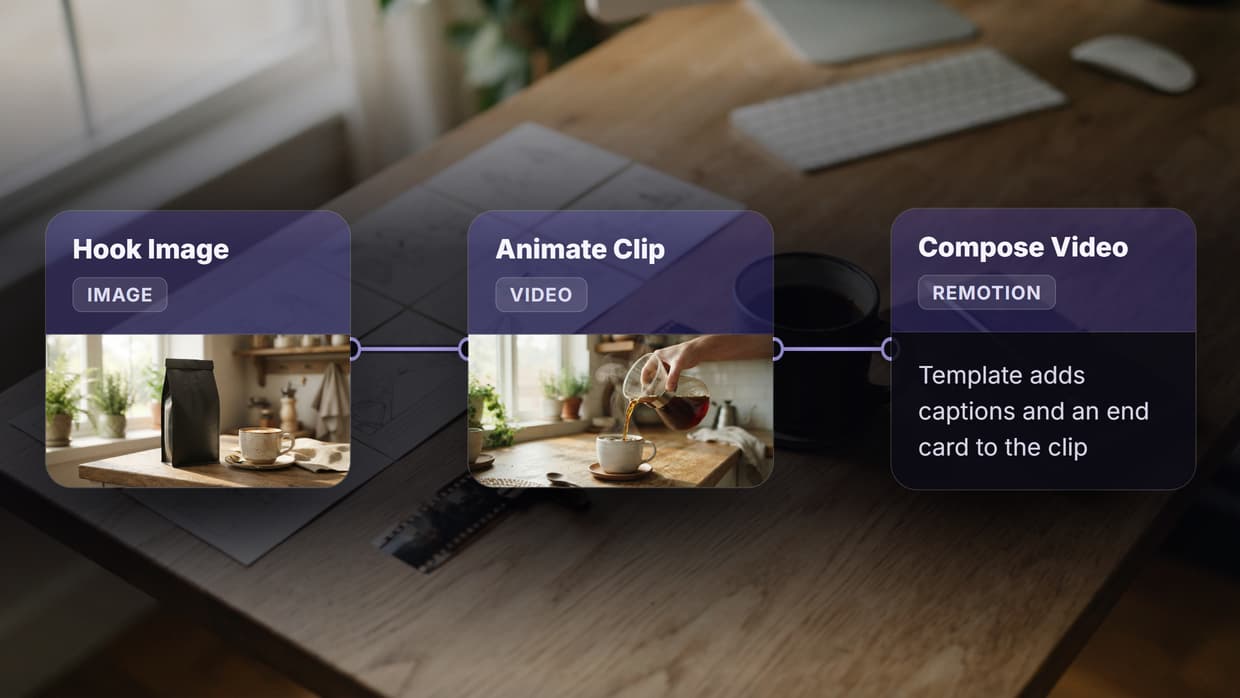
Motion graphics work in 2026 splits into two tracks: AI tools that generate movement from a prompt or a still frame, and traditional tools that give you frame-level control over every keyframe. The eight tools below cover both tracks, ranked by how much production work they remove. Wireflow takes the top spot because it chains multiple AI models into one repeatable pipeline, so a still frame, an animated pass, and an upscale run as a single job instead of three separate tool sessions. Prices run from free tiers to $59.99 per month for Adobe's full suite.
Quick Summary
- Wireflow: chain image, video, and audio models in one canvas. Best Overall
- Adobe After Effects: the industry standard for frame-level motion control. Best for Precision
- Jitter: browser-based motion design for brand and product teams. Best for Teams
- Rive: interactive animations that ship inside apps and sites. Best for Interactive
- Runway: generative video for source footage and concept passes. Best for Generative Footage
- Cavalry: procedural, data-driven 2D animation. Best for Data-Driven Work
- Canva: template-driven animated graphics for non-designers. Best Free Option
- Kapwing: fast browser editing with auto-subtitles and motion presets. Best for Social Clips
How We Ranked These Tools
The ranking criterion is production throughput: how many finished, on-brand motion assets a small team ships per week without hiring a specialist. That favors tools automating the repetitive middle of the pipeline (rotoscoping, keyframe interpolation, variant generation, format resizing) over tools that speed up a single step. For a hands-on look at multi-model motion pipelines, the AI animation maker page walks through the node setup discussed below.
Secondary criteria: price transparency, export quality at 1080p and above, commercial usage rights, and whether output stays editable downstream. Tools producing only flattened MP4s scored lower for professional work. If you are weighing a code-based renderer against a visual canvas, the Remotion alternative breakdown covers that tradeoff.
Build this in Wireflow
Make the same kind of asset on a canvas you control, with a free account and no credit card.
1. Wireflow (Best Overall)
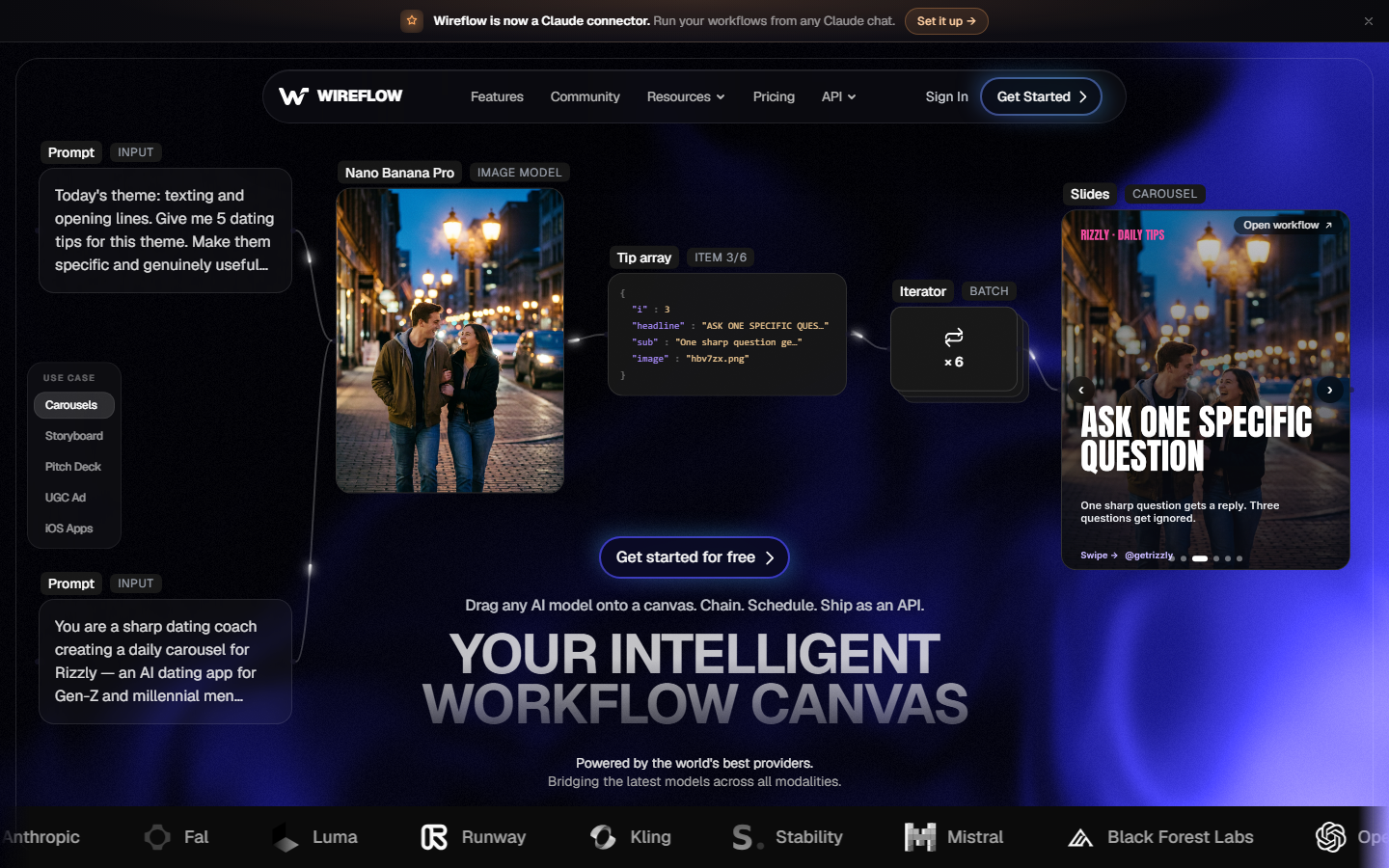
Wireflow is a node canvas for chaining AI models. You connect a text or image input to an image model, feed that output into a video model, then route the result into an upscaler or an audio pass, and the whole graph runs as one job. That matters for motion work because most AI motion output is a sequence, not a single generation: design a frame, animate it, clean it up. Running those as three disconnected tool sessions is where the time goes. When the deliverable is a still rather than a clip, you can generate a poster from a brief on the same canvas and animate the winning frame later.
The practical advantage is repeatability. Once a graph produces a look you want, swap the input and rerun it, which turns a one-off animation into a template for a series. The same rerun habit lets you generate banners with AI, swapping the headline and offer while the layout and call to action stay locked. The canvas also mixes model vendors inside one flow, so you are not locked to whichever provider is strongest this quarter. See the AI video workflow page for available node types.
Best for: repeatable multi-step motion pipelines and variant sets. Limitation: a pipeline tool, not a timeline editor, so per-keyframe easing still belongs in After Effects.
2. Adobe After Effects (Best for Precision)
After Effects remains the reference tool for professional motion graphics, and recent releases added AI-assisted rotoscoping, automatic reframing, and scene edit detection that remove the most tedious manual passes. Roto Brush now handles hair and motion blur far better than the 2023 version, which used to be the main reason teams outsourced cleanup. The single-app plan runs $22.99 per month annually, the full Creative Cloud suite $59.99. For where code-based rendering fits alongside it, see the best Remotion alternatives roundup.
Nothing else here matches its control surface: expressions, a deep plugin ecosystem, precise easing curves, and 32-bit color. The costs are the learning curve and render times. Use it when output needs frame-level correctness, such as broadcast packages, title sequences, or strict brand motion specs.
Best for: precise, spec-driven motion work and complex compositing. Limitation: steep learning curve and slow iteration compared with browser tools.
3. Jitter (Best for Teams)
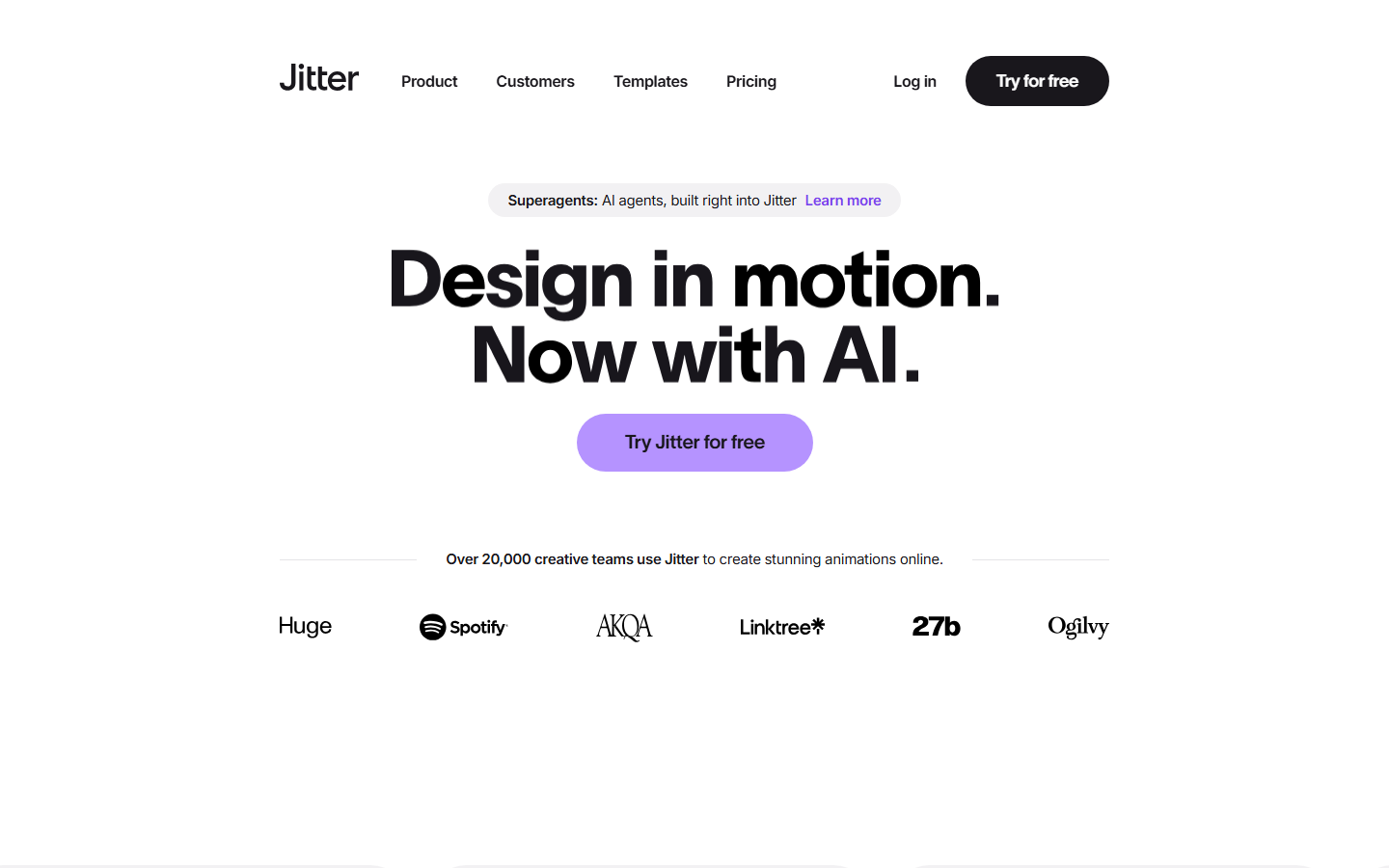
Jitter is a browser-based motion design tool built around the Figma workflow. Paste Figma frames straight into Jitter, apply animation presets to layers, and export to MP4, GIF, or Lottie. Collaboration is the selling point: several people work in one file, and non-designers can duplicate an approved animation and swap the copy without breaking the motion.
It suits brand and product teams producing app store previews, feature announcements, and social posts that share a motion language. The free tier covers basic exports; paid plans add resolution and team features. The tradeoff is depth, since the animation model stays deliberately simple. Teams pairing it with generative passes often run stills through an AI animated video step first.
Best for: design teams animating Figma work at volume. Limitation: limited depth for complex or character-driven animation.
4. Rive (Best for Interactive)
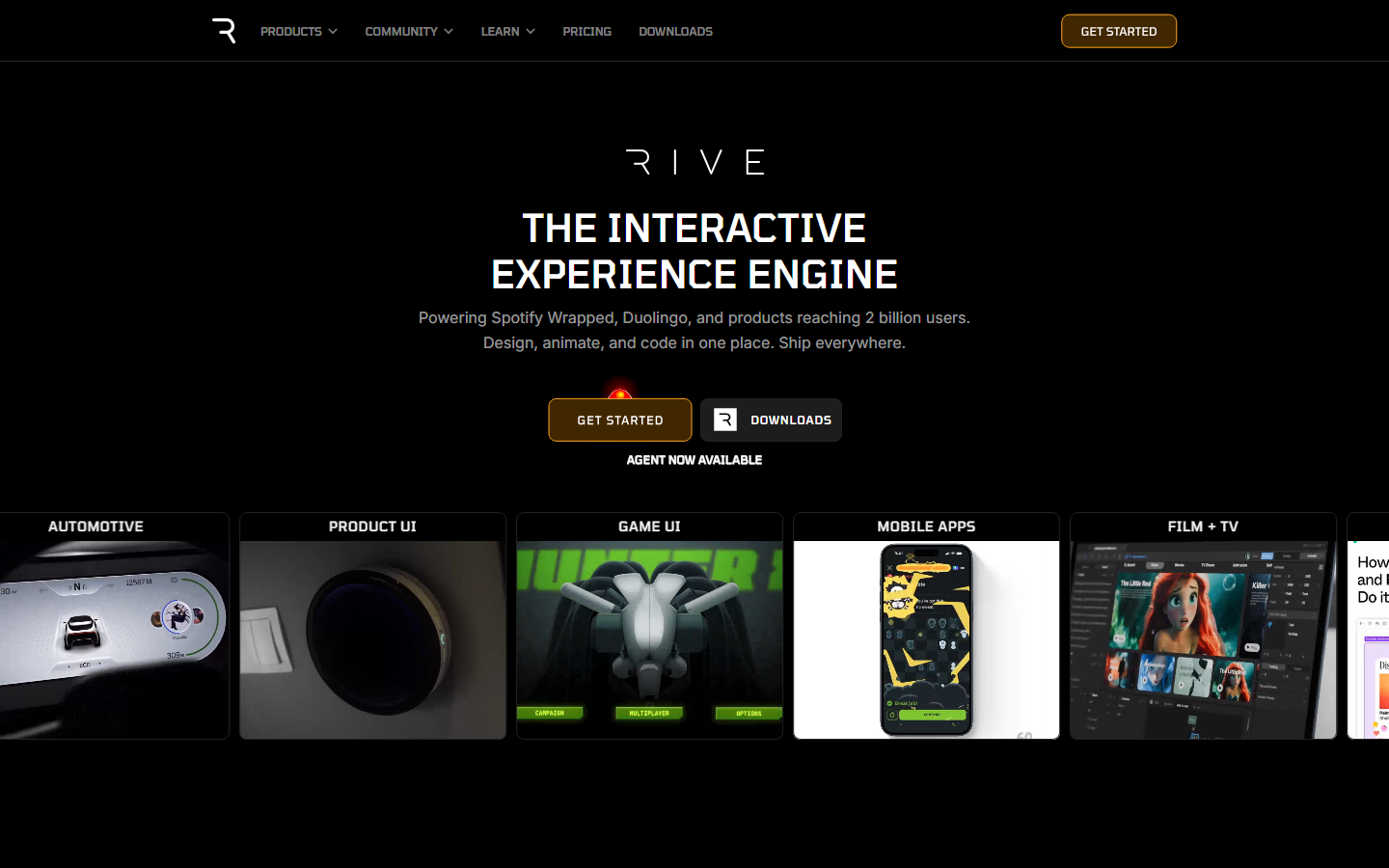
Rive solves a problem no video export can: animations that respond to input. You build a state machine alongside the artwork, then ship a small runtime file that plays inside a site, app, or game and reacts to hovers, taps, scroll position, or app state. File sizes are far smaller than equivalent video, which is why product teams use it for onboarding sequences, loading states, and animated icons.
The editor covers vector drawing, bone rigging, and constraints, so it is a real animation tool rather than a wrapper, with runtimes for web, iOS, Android, React Native, Flutter, and Unity. If your deliverable is an MP4, use something else. For static-to-motion conversions, the guide on how to animate still images with AI is a better starting point.
Best for: interactive animation embedded in products. Limitation: not built for linear video output.
5. Runway (Best for Generative Footage)
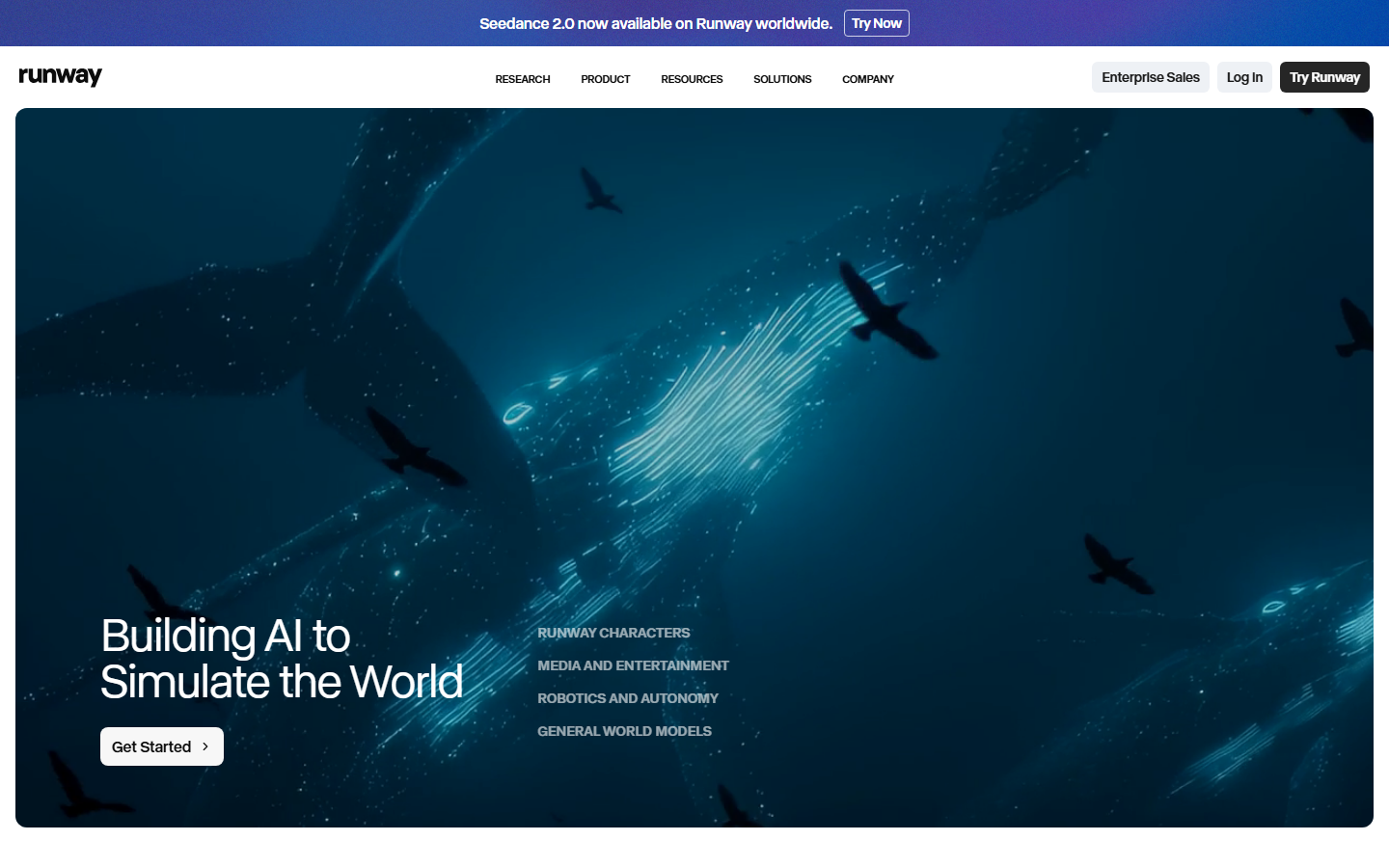
Runway generates video from text or from a still image, which makes it a source-footage engine rather than a motion graphics editor. Designers use it for backgrounds, texture plates, transition elements, and concept passes that would otherwise need a shoot or a stock license. The image-to-video path is the controllable one: design the frame exactly, then let the model add movement.
Its non-generative tools matter too, including background removal, inpainting, and motion tracking, which cover cleanup that used to require rotoscoping. Quality varies run to run, so budget for reruns, and credits are consumed per generation. Long-form output stays weak, keeping it in the "generate elements, assemble elsewhere" category. The walkthrough on creating animations with AI tools covers that assembly step.
Best for: generating source clips and backgrounds from prompts or stills. Limitation: inconsistent results across runs; credit costs add up on iteration.
6. Cavalry (Best for Data-Driven Work)
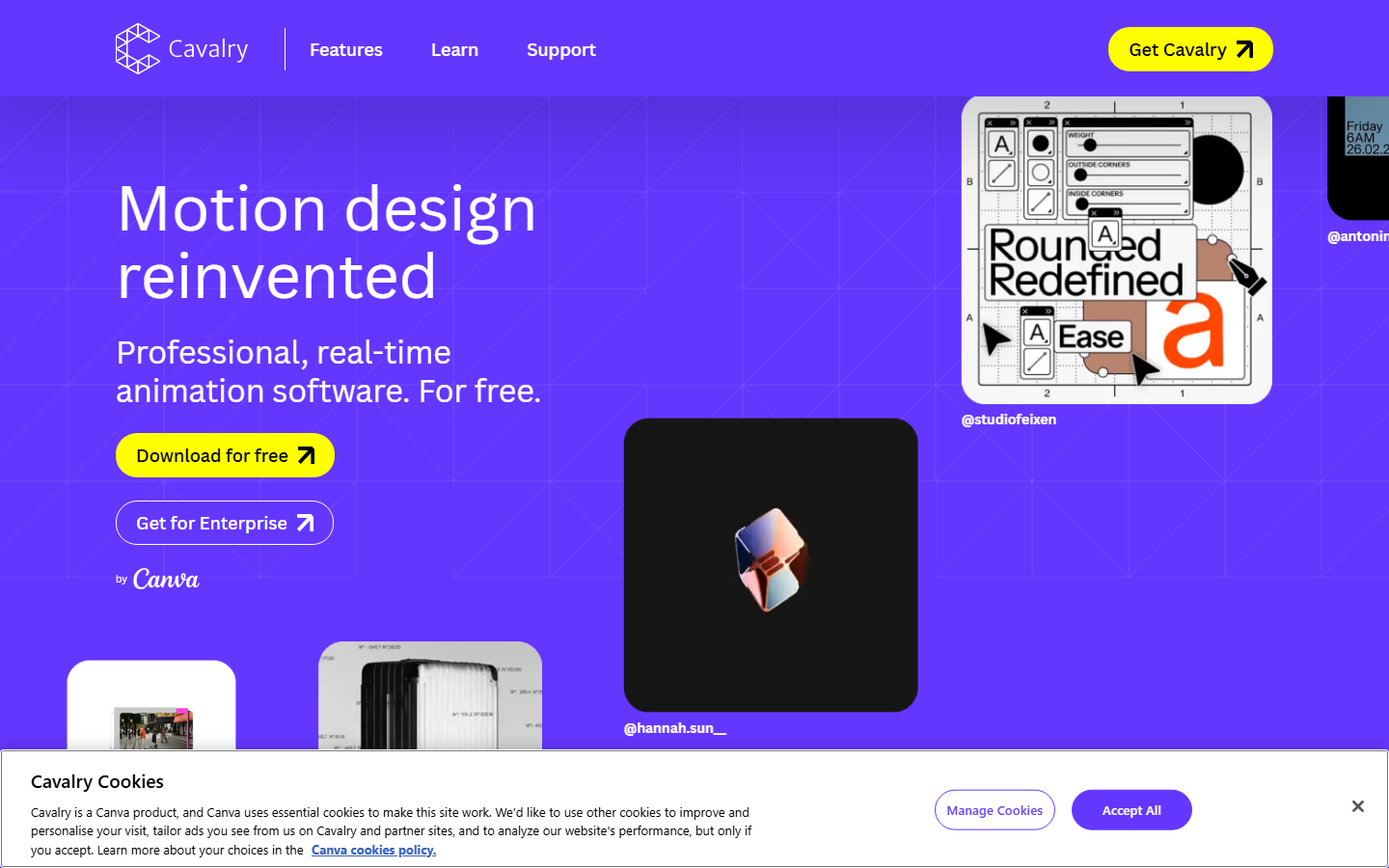
Cavalry is a procedural 2D animation tool built by former motion designers, targeting exactly what After Effects handles clumsily: hundreds of variants from a data source. Drive layer properties from spreadsheets, JSON, or expressions, then batch render the set. Sports graphics, election packages, and large campaign runs are where it earns its place.
Its node and behavior system replaces manual keyframing for anything systematic, which changes the economics of variant-heavy jobs. A free tier exists with export limits. The learning curve is real and the community is smaller than the Adobe world, so expect fewer tutorials for edge cases. Teams already generating variant sets through model chains can compare the approach on the AI video generator page.
Best for: procedural, data-driven, high-variant 2D animation. Limitation: smaller ecosystem and a nontrivial learning curve.
7. Canva (Best Free Option)
Canva covers the low end well. Animation presets apply entrance, exit, and emphasis motion to any element in a few clicks, and Magic Animate suggests a coherent motion pass across a whole design. For teams needing presentation animations, simple social posts, or animated ads with no motion designer on staff, it removes the tooling problem entirely.
The free plan is genuinely usable; Pro adds brand kits, cross-format resizing, and background removal. Output is not broadcast grade, and template-derived motion looks like template-derived motion. It is the right answer when the alternative is a static graphic. If you chain several models per asset, compare costs against the Wireflow pricing page.
Best for: non-designers producing simple animated graphics quickly. Limitation: template-bound motion with a recognizable look.
8. Kapwing (Best for Social Clips)
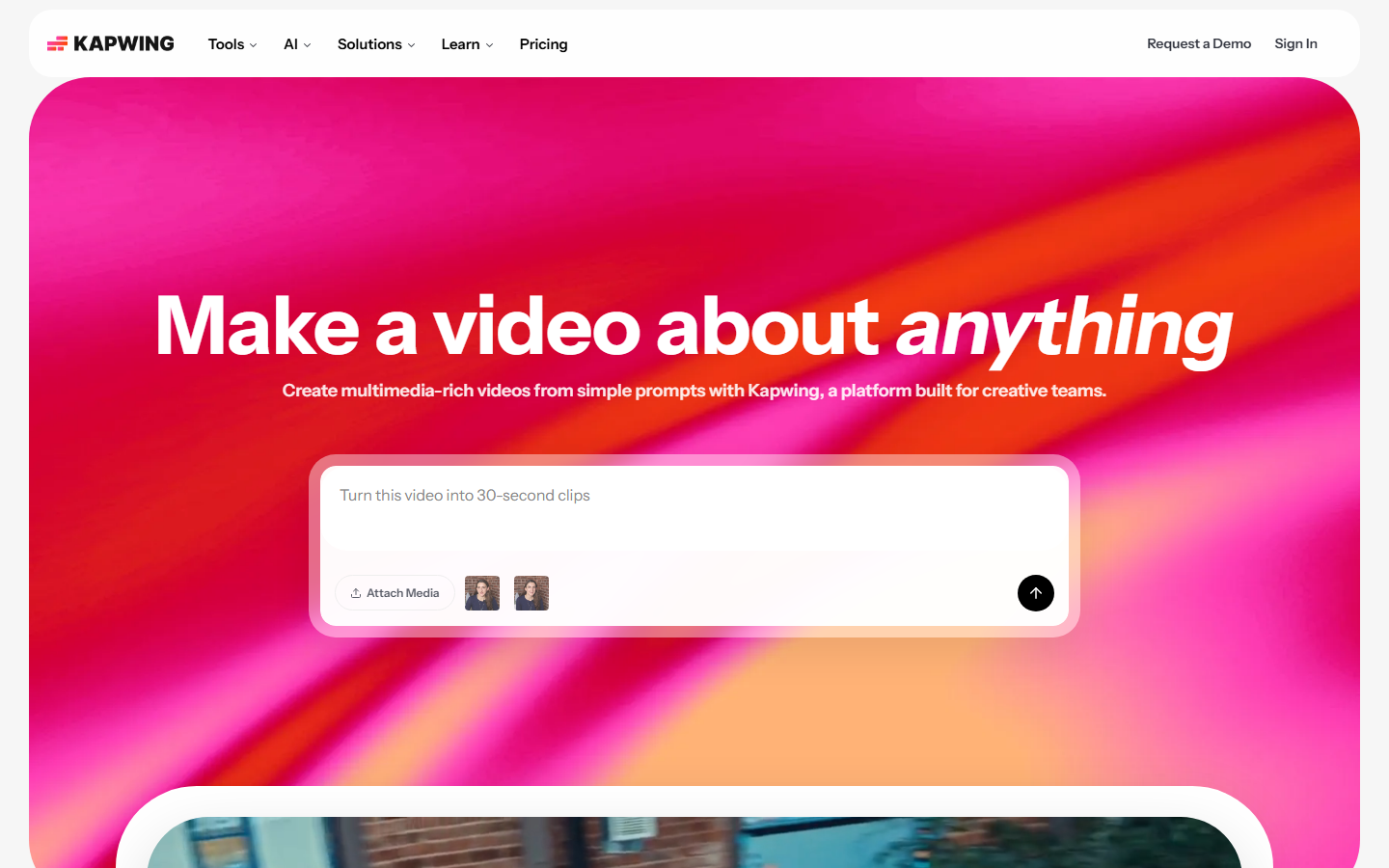
Kapwing is a browser video editor with motion features aimed at social output: animated subtitles, text presets, smart cuts that strip silences, and one-click resizing between vertical, square, and landscape. Subtitle animation alone saves hours on talking-head content, and accuracy on clear audio is high enough that corrections stay quick. Free exports carry a watermark; paid plans remove it and raise the resolution ceiling. For image-first pipelines, the AI animate image page shows the single-step equivalent.
Best for: fast social edits with animated captions and presets. Limitation: shallow motion controls; an editor first, a motion tool second.
Comparison Table
| Tool | Best for | Output type | Starting price | AI motion features |
|---|---|---|---|---|
| Wireflow | Multi-model pipelines | Video, image, audio | Free tier | Model chaining, image-to-video, upscaling |
| After Effects | Frame-level precision | Video, project files | $22.99/mo | Roto Brush, scene detection, auto reframe |
| Jitter | Team brand motion | MP4, GIF, Lottie | Free tier | Animation presets, Figma import |
| Rive | Interactive animation | Runtime files | Free tier | State machines, vector rigging |
| Runway | Generative footage | Video clips | Credit-based | Text-to-video, image-to-video, inpainting |
| Cavalry | Data-driven variants | Video, image sequences | Free tier | Procedural behaviors, data binding |
| Canva | Simple animated graphics | MP4, GIF | Free | Magic Animate, motion presets |
| Kapwing | Social clips | MP4 | Free with watermark | Animated subtitles, smart cut |
How to Choose
Start from the deliverable. If it ships inside a product and must respond to input, Rive is the only real option. If it must match a broadcast or brand motion spec frame for frame, After Effects. If you are producing dozens of variants from structured data, Cavalry. If the job is a repeatable sequence of AI steps ending in a finished clip, a chained pipeline beats stitching separate tools by hand. Most teams end up running two: one generative tool for raw movement and one editor controlling how that movement lands.
Try it yourself: Build this workflow in Wireflow. The nodes are pre-configured with the image-to-motion setup discussed above.
FAQ
What is the best AI tool for motion graphics in 2026? For repeatable multi-step pipelines, Wireflow ranks first because it chains image, video, and audio models into one runnable graph. For frame-level precision on a single deliverable, Adobe After Effects remains the strongest choice.
Can AI replace a motion graphics designer? No. AI removes repetitive passes such as rotoscoping, interpolation, and variant generation, but it does not make the design decisions: timing, hierarchy, easing, and how motion carries meaning.
What is the best free AI motion graphics tool? Canva's free plan is the most usable for simple animated graphics with no learning curve. Rive, Jitter, and Cavalry offer free tiers with export or feature limits that suit evaluation and small projects.
Do AI motion graphics tools produce commercially usable output? Most do, but terms vary by tool and plan. Generative video platforms typically grant commercial rights on paid tiers and restrict them on free ones. Check current terms before using output in paid client work.
What is the difference between AI motion graphics and AI video generation? AI video generation creates footage from a prompt or still image. AI motion graphics tools animate designed elements such as type, shapes, logos, and UI, where the layout is authored rather than generated. Many workflows use both.
Which tool is best for animating a still image? Image-to-video models handle this best, either through Runway directly or through a chained pipeline that generates the still and animates it in one run. The chained approach is more repeatable across a set of images.
How much do AI motion graphics tools cost? Free tiers are common. Paid plans typically start between $10 and $25 per month, with Adobe's single-app plan at $22.99 and the full suite at $59.99. Generative video tools usually bill by credits, so heavy iteration costs more than a flat subscription.
Can these tools export to After Effects or Premiere? Partially. Cavalry and Jitter export video and image sequences that drop into any editor, and Rive exports runtime files rather than video. Generative tools output flattened clips, so plan on compositing downstream rather than expecting an editable project file.
Conclusion
The motion graphics stack in 2026 is not one tool, it is a pairing: something that generates movement cheaply and something that controls how that movement lands. Pick the generative half based on what you are animating, and the control half based on how strict the spec is. Teams shipping motion assets weekly save the most time with pipelines that run the whole sequence as one job rather than a chain of manual handoffs.

Co-Founder & Operations at Wireflow
Runs client operations and content strategy at Wireflow. Works directly with creative teams and agencies to build production AI workflows.
- Content Strategy
- Client Operations
Get unlimited ad creatives today.
One call to see if we are a fit and scope the first ad. If it fits, your first batch lands inside week one.