Best AI Selfie Enhancer Apps and Tools in 2026

In this article▾
- The 8 best AI selfie enhancers at a glance
- 1. Wireflow: best overall
- 2. Remini: best for blurry and low-resolution selfies
- 3. YouCam Perfect: best mobile selfie retoucher
- 4. Topaz Photo AI: best for print-quality detail
- 5. Fotor: best free browser enhancer
- 6. Picsart: best all-in-one editor
- 7. Adobe Lightroom: best for keeping selfies natural
- 8. Aiarty Image Enhancer: best for batches
- Comparison table
- How to pick the right one
- FAQ
- Conclusion
Best AI Selfie Enhancer Apps and Tools in 2026
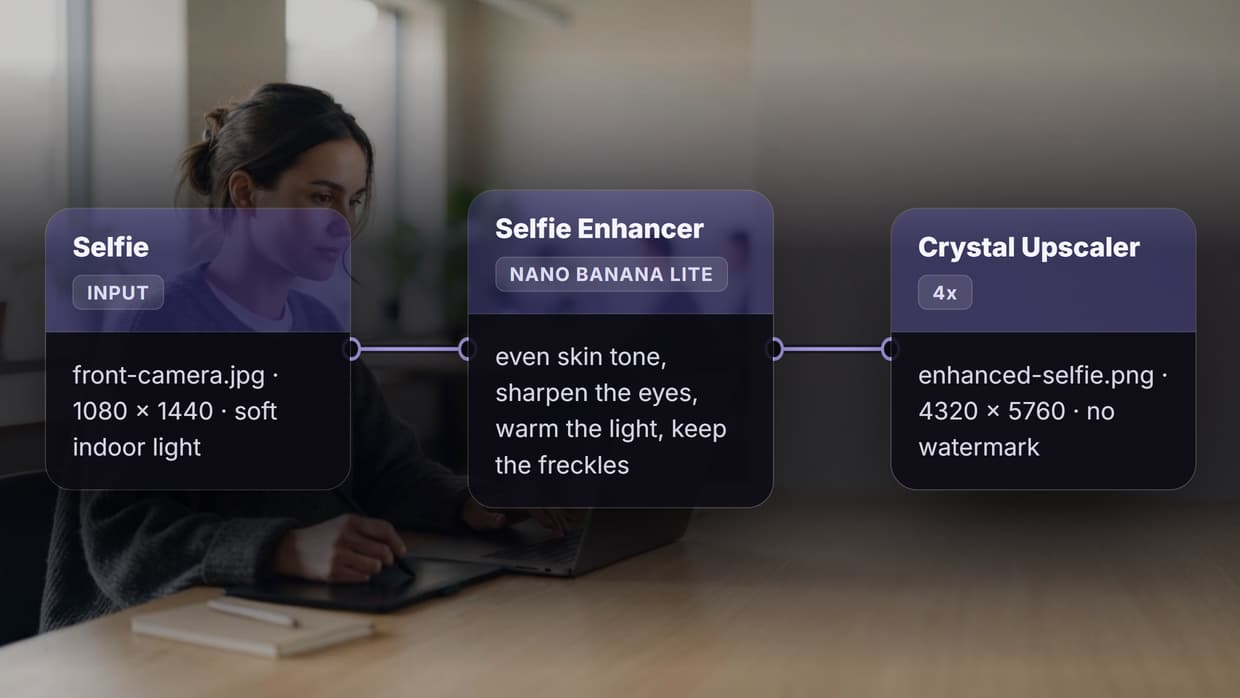
Most selfie problems come down to three things: soft focus, flat indoor light, and not enough resolution to crop or print. This guide ranks eight AI selfie enhancer apps and tools for 2026 by which of those three they actually fix, and how much control you get over the fix. Wireflow opens the list because it is the only option here that puts the enhance step and the upscale step on one canvas, so the same recipe reruns on the next selfie instead of being redrawn by hand.
For deeper changes than a cleanup, you can edit a face from a prompt, reshaping expression, lighting, and hair while leaving identity and framing intact.
For older prints, the same node approach lets you colorize a black and white photo while keeping faces and framing untouched.
The 8 best AI selfie enhancers at a glance
- Wireflow. Best overall. Chain an enhancer and an upscaler on one canvas, then reuse it.
- Remini. Best for blurry or low-resolution selfies. Face restoration is its whole job.
- YouCam Perfect. Best mobile retoucher. Skin, light, and body edits in one phone app.
- Topaz Photo AI. Best for print detail. Desktop denoise, sharpen, and upscale.
- Fotor. Best free browser enhancer. One-click fix, no install.
- Picsart. Best all-in-one editor. Enhance plus effects, backgrounds, and templates.
- Adobe Lightroom. Best for natural results. AI denoise on top of real photo controls.
- Aiarty Image Enhancer. Best for batches. Offline desktop processing of whole folders.
The ranking criterion is simple: how well the tool fixes a real front-camera selfie, how much of the process you can see and change, and whether the result survives being cropped or printed.
Build this in Wireflow
Make the same kind of asset on a canvas you control, with a free account and no credit card.
1. Wireflow: best overall
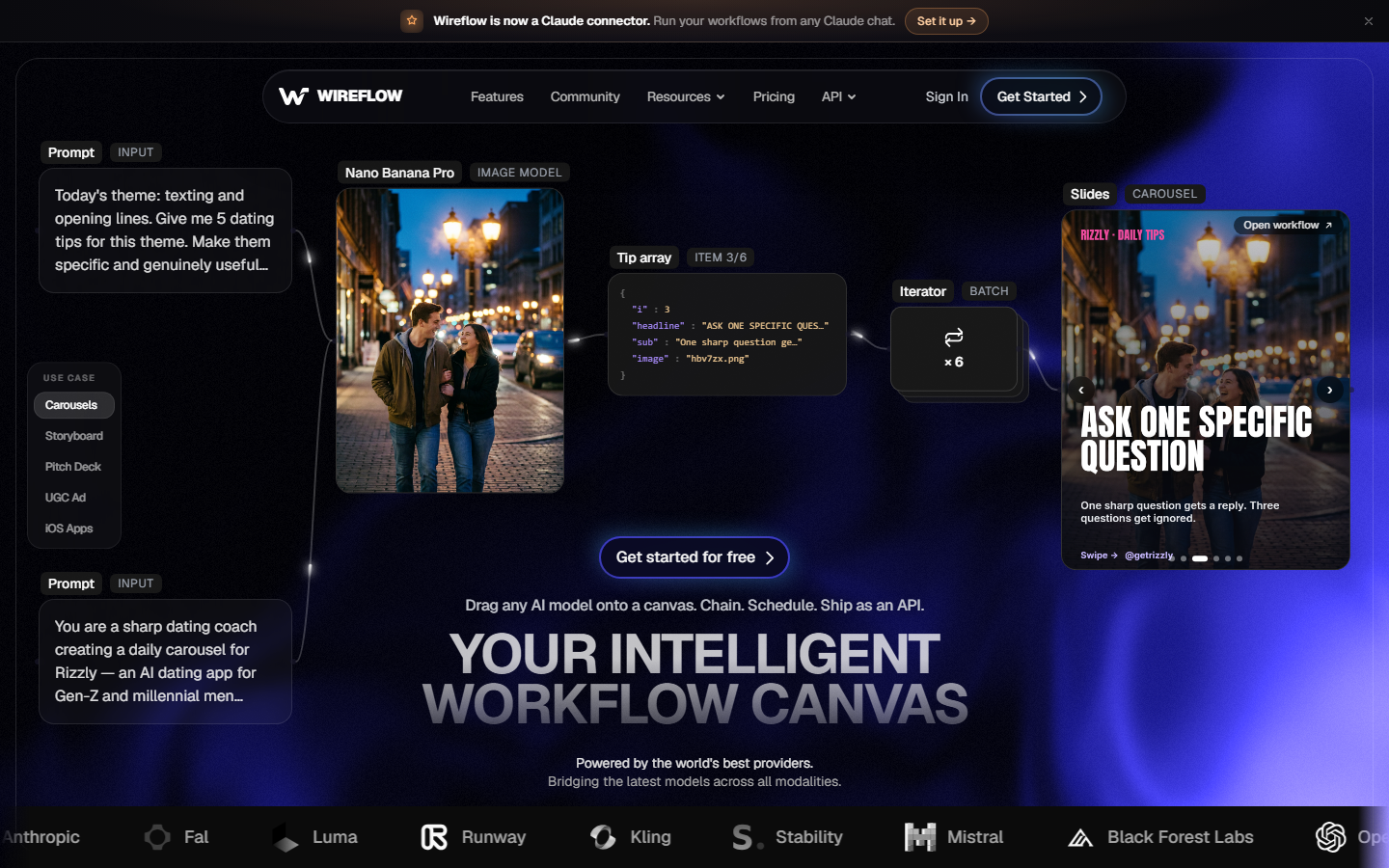
Every other tool on this list is a button with a slider hidden behind it. Wireflow is a canvas: drop the selfie into an input node, wire it into an enhancer model, wire that into an upscaler, run the chain. Nothing is hidden and any node can be swapped. For a hands-on look at the exact setup, the 'ai selfie enhancer' feature page walks through the wiring node by node.
The difference shows up on the second selfie. A one-click app gives one output and forgets it; a saved workflow keeps the instruction, the model choice, and the upscale factor, so the next photo comes out matching the first. That saved-workflow logic is what lets an aging filter you can rerun apply the same age edit across a whole set of portraits instead of one lucky selfie. Adding an image upscaler node after the enhancer is what gets a phone selfie to a size you can print. The cost is five minutes of setup you would not spend in a one-tap app.
Best for: anyone enhancing more than one selfie, or anyone who wants to change what the model is doing.
2. Remini: best for blurry and low-resolution selfies
Remini built its reputation on one job: taking a soft, small, or badly compressed face and reconstructing detail in it. On a genuinely blurry selfie it still beats the general editors, because the model is tuned on faces rather than on whole scenes.
The catch is that it is generative, not forensic. Remini invents plausible detail where the pixels are gone, which is fine for a profile picture and less fine if likeness accuracy matters. The same caveat applies when you restore damaged old photos with AI: the output is a convincing reconstruction, not a recovered original.
Best for: old phone selfies and anything under about 1000 pixels wide. Heavy-handed on skin, and the free tier limits output.
3. YouCam Perfect: best mobile selfie retoucher
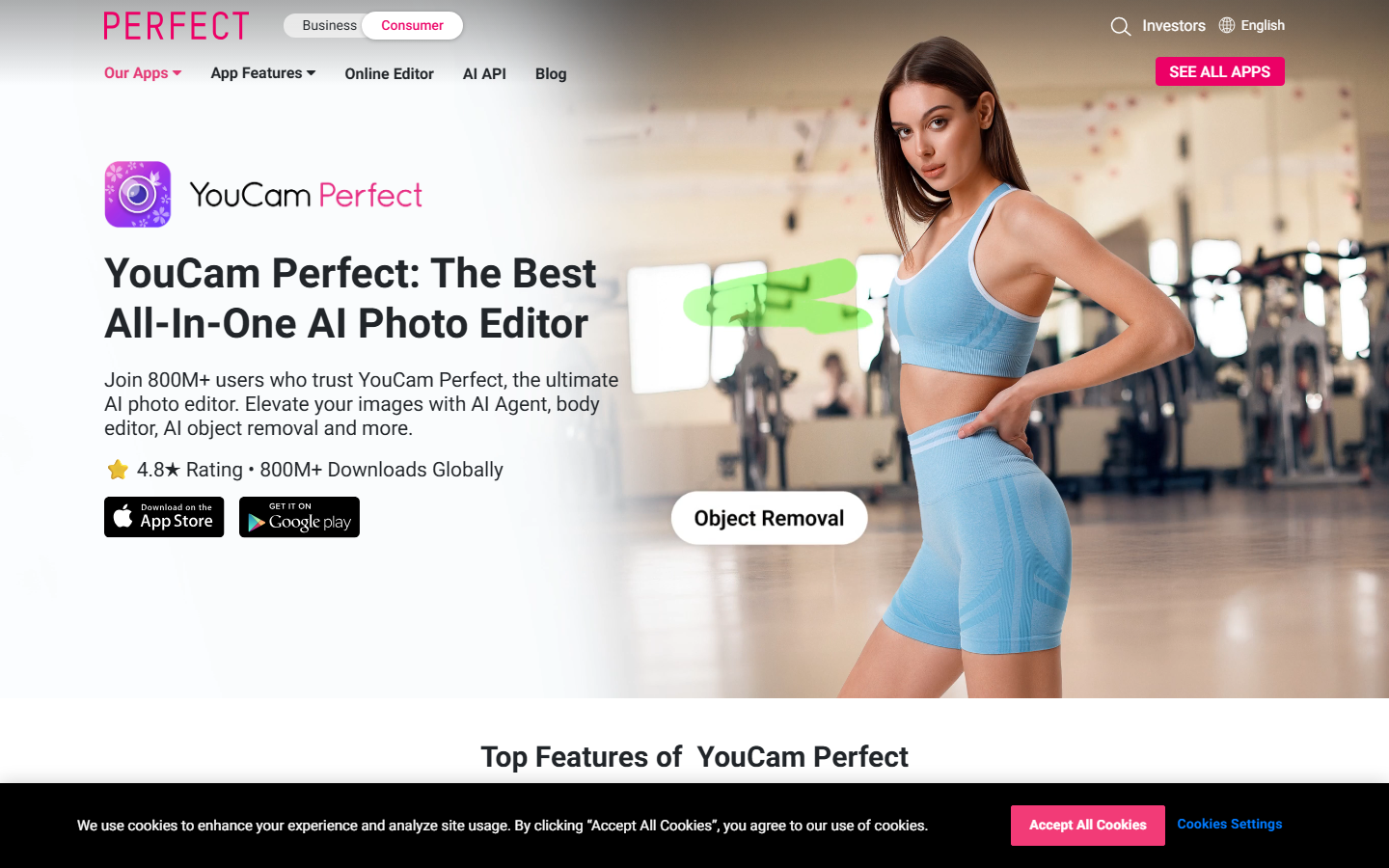
YouCam Perfect is the phone app most people mean when they say selfie editor. Skin smoothing, blemish removal, relighting, object removal, and body adjustments all sit in one place, on the device, with a live preview.
Where it is weaker is resolution. It polishes what you already have rather than rebuilding detail, so a sharp selfie gets noticeably better and a blurry one stays blurry. If you want studio-looking output rather than a retouched snapshot, a dedicated pass at professional AI headshots beats pushing the retouch sliders further.
Best for: fast phone edits before posting. Easy to overdo, since the default beauty presets are strong.
4. Topaz Photo AI: best for print-quality detail
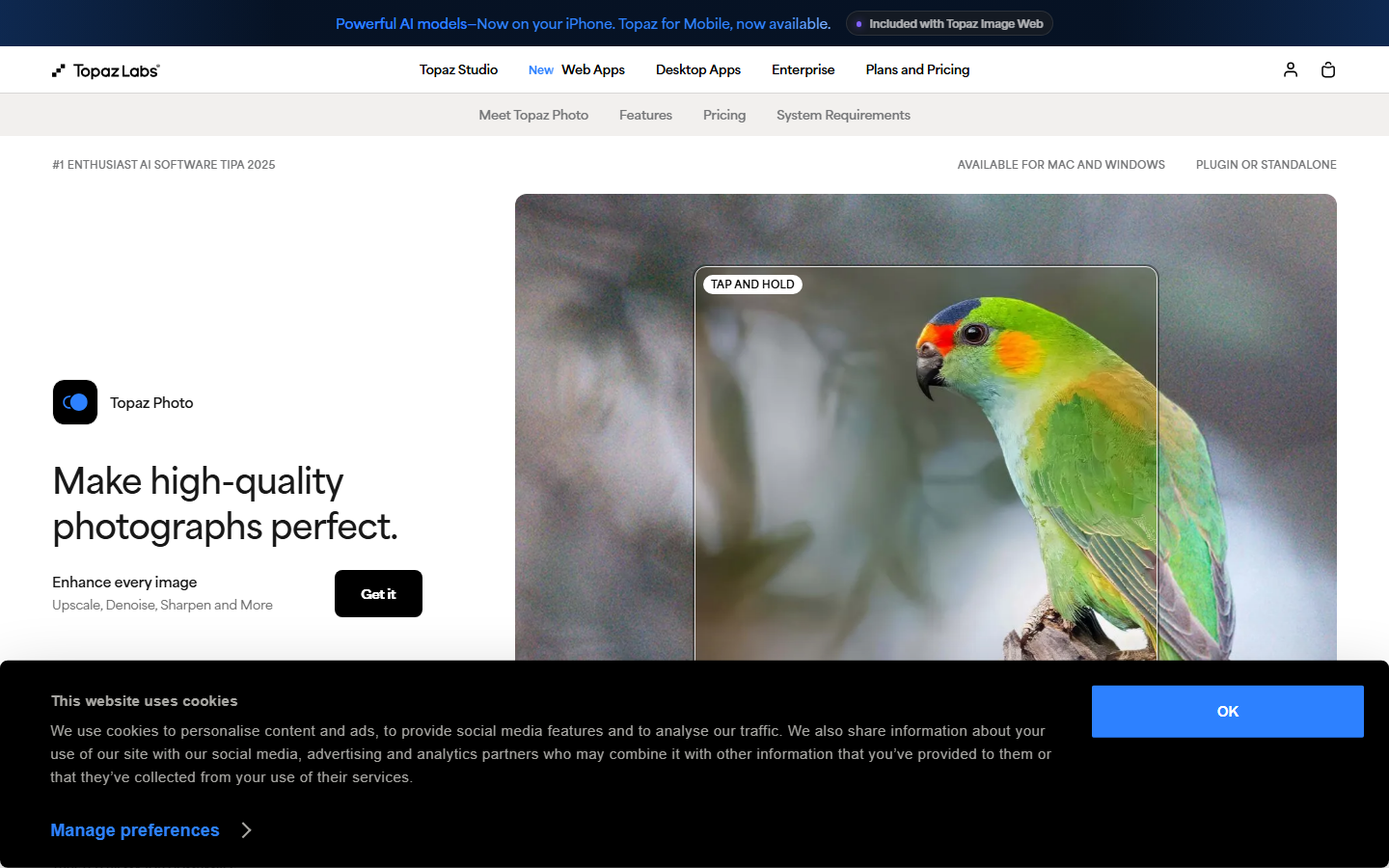
Topaz Photo AI is a desktop application that splits the problem into three models: denoise, sharpen, and upscale. That separation is why photographers keep it around. You can clean the noise out of a dim indoor selfie without also over-sharpening the skin, which single-slider tools cannot do.
A face-specific recovery mode runs alongside the general models, so eyes and hair get treated differently from the background. If the endpoint is a print or a large crop, run it after any generative step rather than before, the same order used to sharpen blurry photos with AI.
Best for: selfies headed for print or a portfolio. Desktop only, paid licence, slower than anything browser-based.
5. Fotor: best free browser enhancer
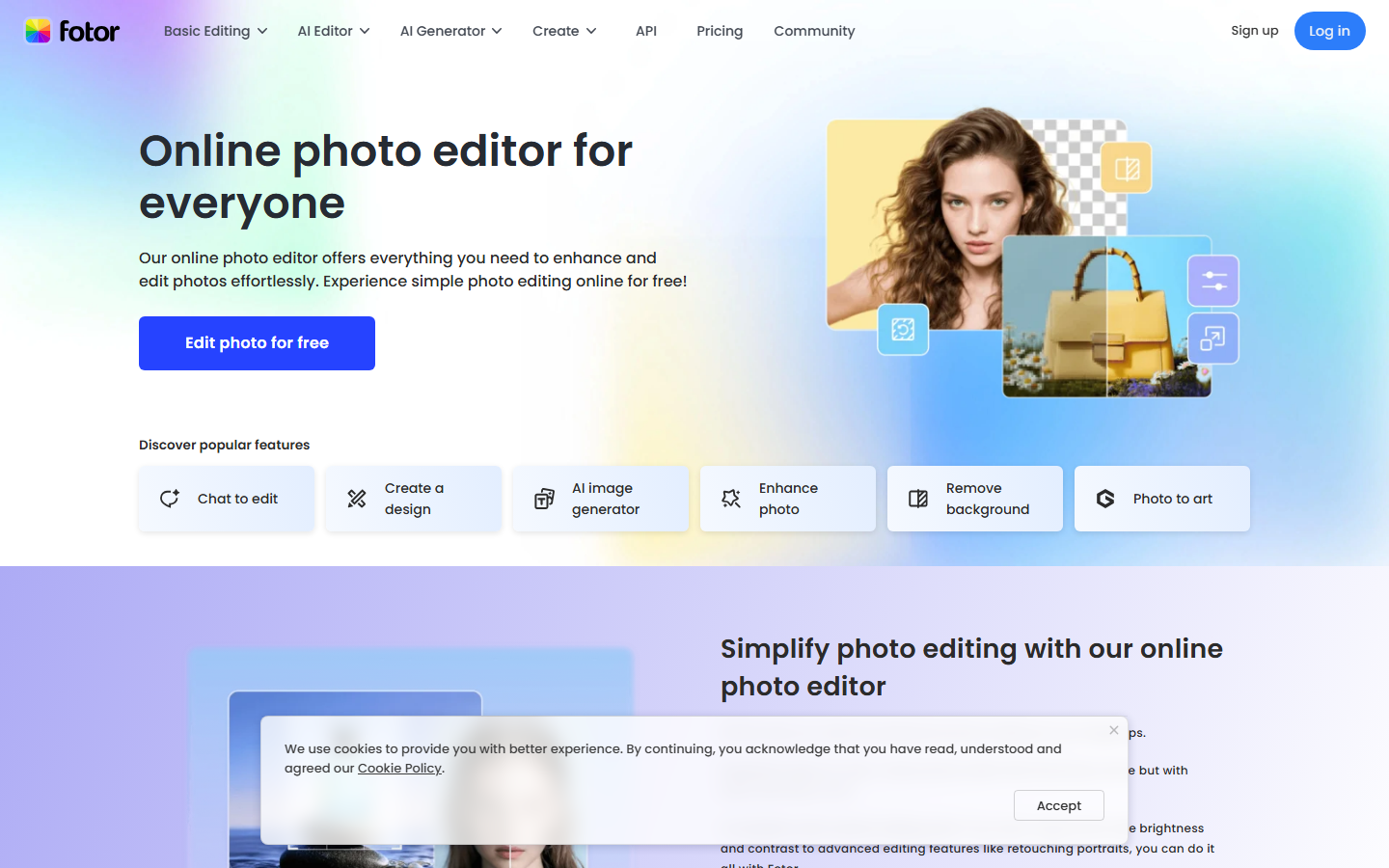
Fotor is the fastest path from "this selfie is a bit flat" to a usable file. Upload, click enhance, compare, download. There is nothing to install and nothing to configure, which is the point.
The one-click enhance corrects exposure, contrast, and colour, then applies a mild sharpen. It is a good first stop because it is conservative, and a fair benchmark for what a general AI photo enhancer does before any face-specific model gets involved. Free exports are capped in size.
Best for: a quick fix with no account setup. No control over what the enhance actually changed.
6. Picsart: best all-in-one editor
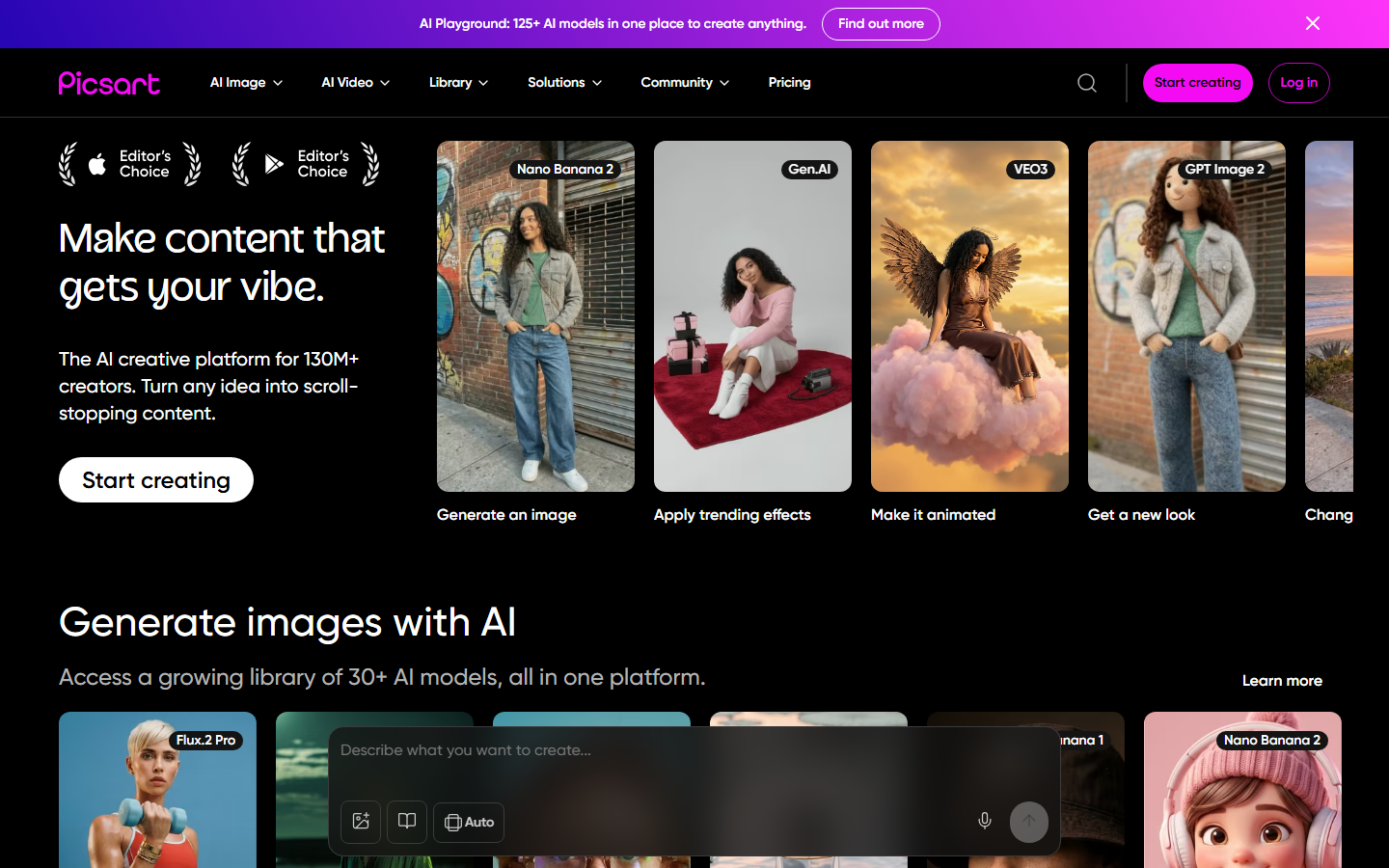
Picsart treats enhancement as one tool among dozens. The same session that sharpens your selfie also swaps the background, adds text, applies a style, and exports a story-sized crop, on either phone or browser.
That breadth is both the reason to pick it and the reason to be careful. Enhancement quality is good rather than best in class, so if the selfie only needs to be sharper, a specialist wins. If it needs to become a post, Picsart finishes the job in one place, much like a general AI image editor rather than a single-purpose enhancer.
Best for: social posts where the enhance is one step of five. Busy interface, best tools on the paid tier.
7. Adobe Lightroom: best for keeping selfies natural
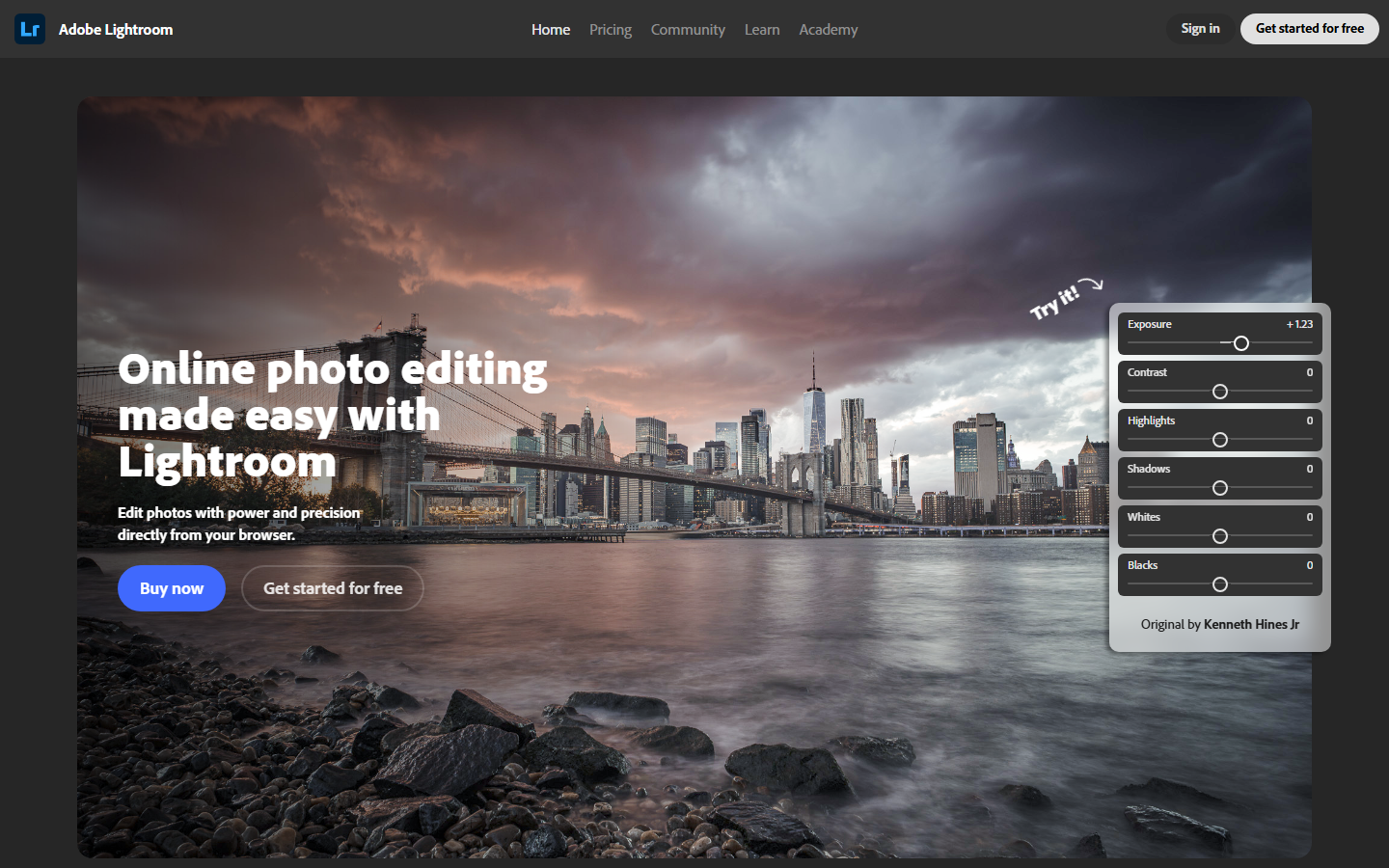
Adobe Lightroom comes at this from the photography side. AI Denoise and the detail tools sit on top of ordinary exposure, colour, and masking controls, and the AI never redraws the face. Nothing is invented, which is why the result still reads as a photograph of you.
That restraint matters for anything identity-related, such as a passport-style crop or a work profile, and it is also why a badly blurred selfie stays blurred. Head-to-head notes on that split live in this comparison of AI image editors and photo tools.
Best for: natural results and full manual control. Subscription, plus a learning curve.
8. Aiarty Image Enhancer: best for batches
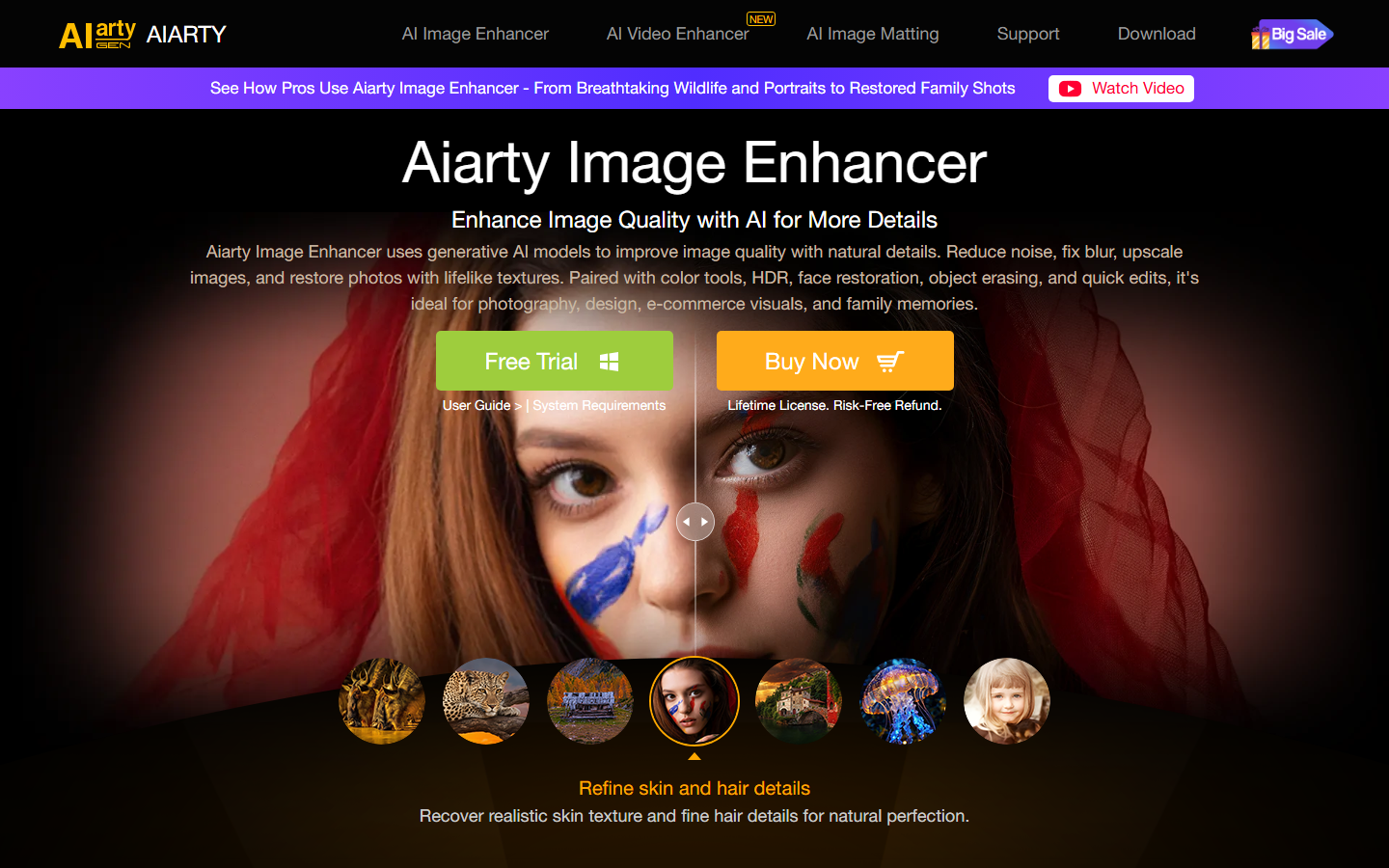
Aiarty Image Enhancer is a desktop tool built around volume. Point it at a folder, pick a model and an upscale factor, and let it run offline on your own machine. Nothing uploads, which matters when the folder is full of personal photos.
It is the least interactive option here and the most practical when the job is a hundred files rather than one. For anyone who would rather stay in the browser, a scripted batch image generation pass gets the same result with no desktop install.
Best for: camera rolls and event photos processed in bulk. Paid licence, and quality varies across models.
Comparison table
| Tool | Best for | Platform | Rebuilds facial detail | Built-in upscale | Pricing model |
|---|---|---|---|---|---|
| Wireflow | Repeatable enhance plus upscale | Browser | Yes, model of your choice | Yes, as a wired node | Free to build, pay per run |
| Remini | Blurry, low-res selfies | Mobile, browser | Yes | Yes | Freemium subscription |
| YouCam Perfect | Fast phone retouching | Mobile | No | Limited | Freemium subscription |
| Topaz Photo AI | Print and large crops | Desktop | Face recovery mode | Yes | One-time licence |
| Fotor | Quick free browser fix | Browser | No | Limited | Freemium subscription |
| Picsart | Enhance plus full editing | Mobile, browser | Partial | Yes | Freemium subscription |
| Adobe Lightroom | Natural, accurate results | Desktop, mobile, browser | No, by design | No | Subscription |
| Aiarty Image Enhancer | Bulk folders, offline | Desktop | Yes | Yes | Paid licence |
How to pick the right one
Start from the failure, not the feature list. A soft or small selfie needs a model that rebuilds facial detail, which points at Remini, Topaz, or a chained setup. A sharp but dull one needs light and colour work, which is Lightroom or Fotor territory. Skin complaints go to a mobile retoucher. Order matters more than most guides admit: generative repair first, then detail work, then any image restoration or colour pass last.
The second question is whether this repeats. For one photo, a one-click app is genuinely the right answer. For a recurring job, a team profile refresh or a monthly content set, what saves time is a saved recipe rather than a faster button, and swapping the enhancer model becomes a one-node change instead of a new subscription. The same logic covers adjacent jobs like changing photo backgrounds across the same batch. One limit applies to all of them: AI enhancement guesses at detail that was never captured, so check the eyes and teeth at full size before using the result anywhere identity matters. That same identity check matters for a younger filter you can rerun across a whole set of selfies, since a rebuilt eye or tooth is easy to miss at thumbnail size.
Try it yourself: open the selfie enhancer workflow in Wireflow and run it on your own photo. The nodes are pre-wired with the enhance and upscale setup described above.
FAQ
What is the best AI selfie enhancer in 2026? For a single quick fix, Remini on a blurry selfie and Fotor on a flat one both finish in seconds. For anything you will repeat, a wired enhance plus upscale chain beats both, because the settings survive to the next photo.
Is there a genuinely free AI selfie enhancer? Yes, with limits. Fotor, Picsart, and YouCam Perfect all have free tiers that enhance a selfie at reduced resolution or with a watermark. Full-size exports are almost always the paid feature.
Can AI fix a badly blurry selfie? Partly. Face-specific models reconstruct eyes, hair, and skin texture convincingly on mild blur. Severe blur has no detail left to recover, so the model invents it and the person in the output stops looking exactly like you.
Do AI selfie enhancers change how I look? Most do, slightly. Beauty presets smooth skin and adjust proportions by default, and generative models redraw features. The same trade-off shows up when you generate realistic AI faces from scratch.
Enhancer or upscaler, which do I need? They fix different faults. An enhancer fixes focus, noise, and light; an upscaler adds pixels. A soft photo that is also small needs both, in that order, with a sharpen step between them if the source was noisy.
Are my photos private? Browser and mobile tools upload to a server, so read the retention terms first. Topaz and Aiarty process locally and never upload.
Can I enhance a whole camera roll at once? Aiarty and Topaz both batch on desktop. In the browser, a saved workflow loops over a folder and applies identical settings to every file, which keeps the set consistent.
Will an enhanced selfie still print well? Only if the resolution is there. Enhancement alone does not add pixels, so pair it with an upscale pass and aim for at least 300 DPI at your print size.
Conclusion
There is no single winner here, only a right answer per failure. Remini rebuilds detail, Lightroom preserves it, YouCam polishes it, and Topaz protects it at print size. Pick by what is actually wrong with the photo and you will be right more often than by picking the highest-rated app. If the job repeats, what is worth building is the recipe rather than the habit of clicking through another one-tap tool, and the pricing page shows what running that recipe costs per photo. Wireflow exists for that second case: build the chain once, then stop thinking about it.

Co-Founder & Operations at Wireflow
Runs client operations and content strategy at Wireflow. Works directly with creative teams and agencies to build production AI workflows.
- Content Strategy
- Client Operations
Make AI videos and ads.
Start free, no card needed.