Best AI Tools to Cartoonize Your Photos in 2026

In this article▾
Turning a regular photo into a cartoon-style illustration used to require hours of manual work in Photoshop. In 2026, AI-powered tools make the process instant. Wireflow takes this further by letting you chain cartoonization models into repeatable workflows, so you can batch-process entire photo libraries with consistent style settings. Whether you want anime-inspired portraits, bold comic-book aesthetics, or soft watercolor effects, these seven tools deliver quality results without design skills. Creators who want repeatable output can use our character design generator you can re-run on one canvas.
Quick Summary
- Wireflow - Best for automated cartoon workflows via API and visual canvas
- PhotoDirector - Best all-in-one photo editor with cartoon AI
- Canva - Best for quick one-click cartoonization
- Adobe Firefly - Best for commercially safe cartoon generation
- Fotor - Best free option for beginners
- BeFunky - Best for classic cartoon filter effects
- starryai - Best for custom prompt-based cartoon styles
1. Wireflow
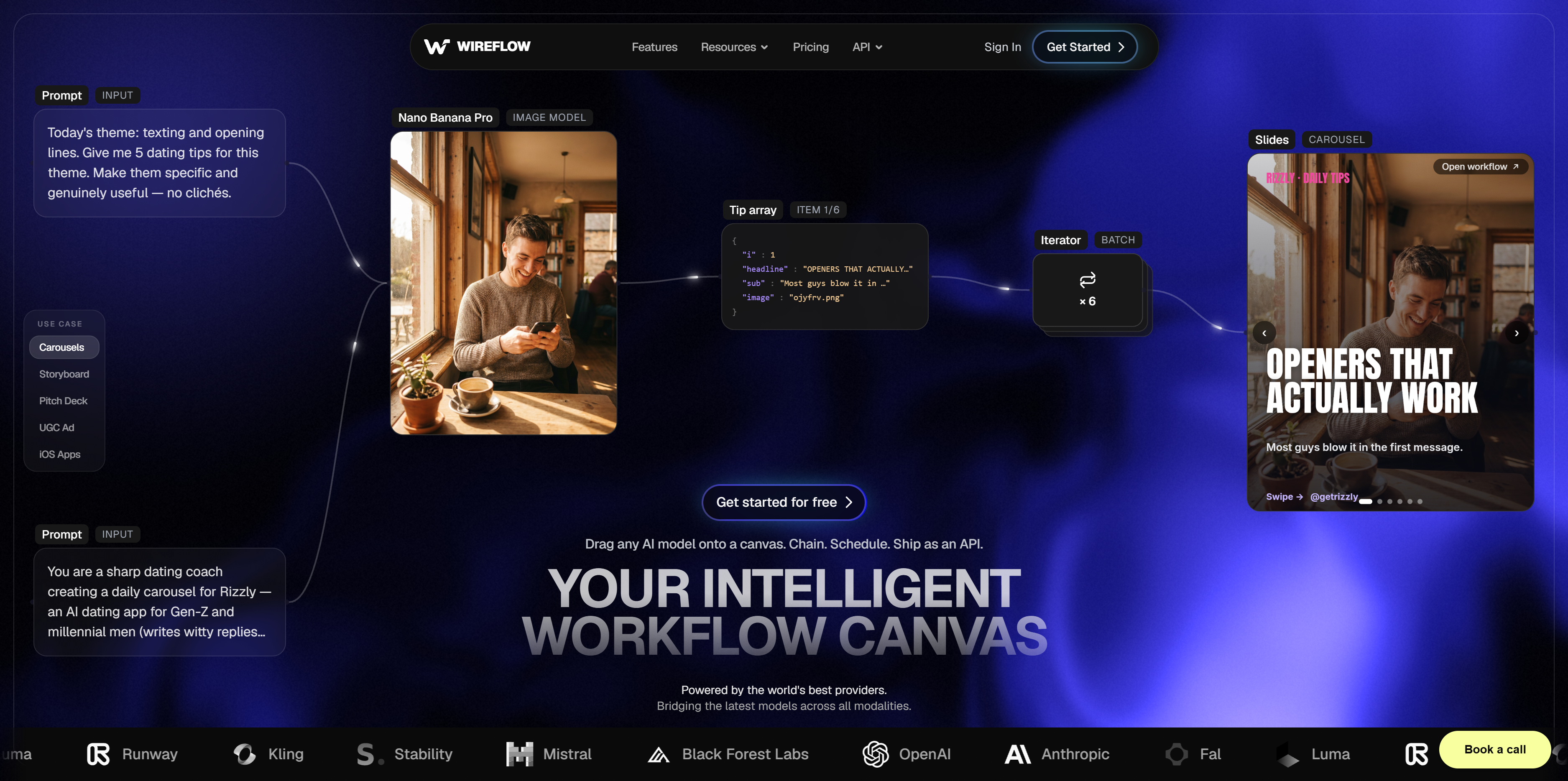
Wireflow is a visual AI workflow builder that connects multiple AI models on a drag-and-drop canvas. For cartoonization, you wire a portrait input node to a style-transfer model like Nano Banana 2 2, configure the cartoon parameters (outline thickness, color saturation, style reference), and run the workflow. The output appears directly on the canvas.
What sets it apart for cartoon workflows is the ability to process batches. Upload 50 headshots, apply the same cartoon style to all of them, and download the results in minutes. The batch generation feature handles queue management automatically. You also get full API access, meaning you can trigger cartoonization from your own app or script without touching the UI.
You can sign up free to build workflows and browse the gallery, but running generations requires a paid plan; pricing scales based on compute usage.
Build this in Wireflow
Make the same kind of asset on a canvas you control, with a free account and no credit card.
2. PhotoDirector
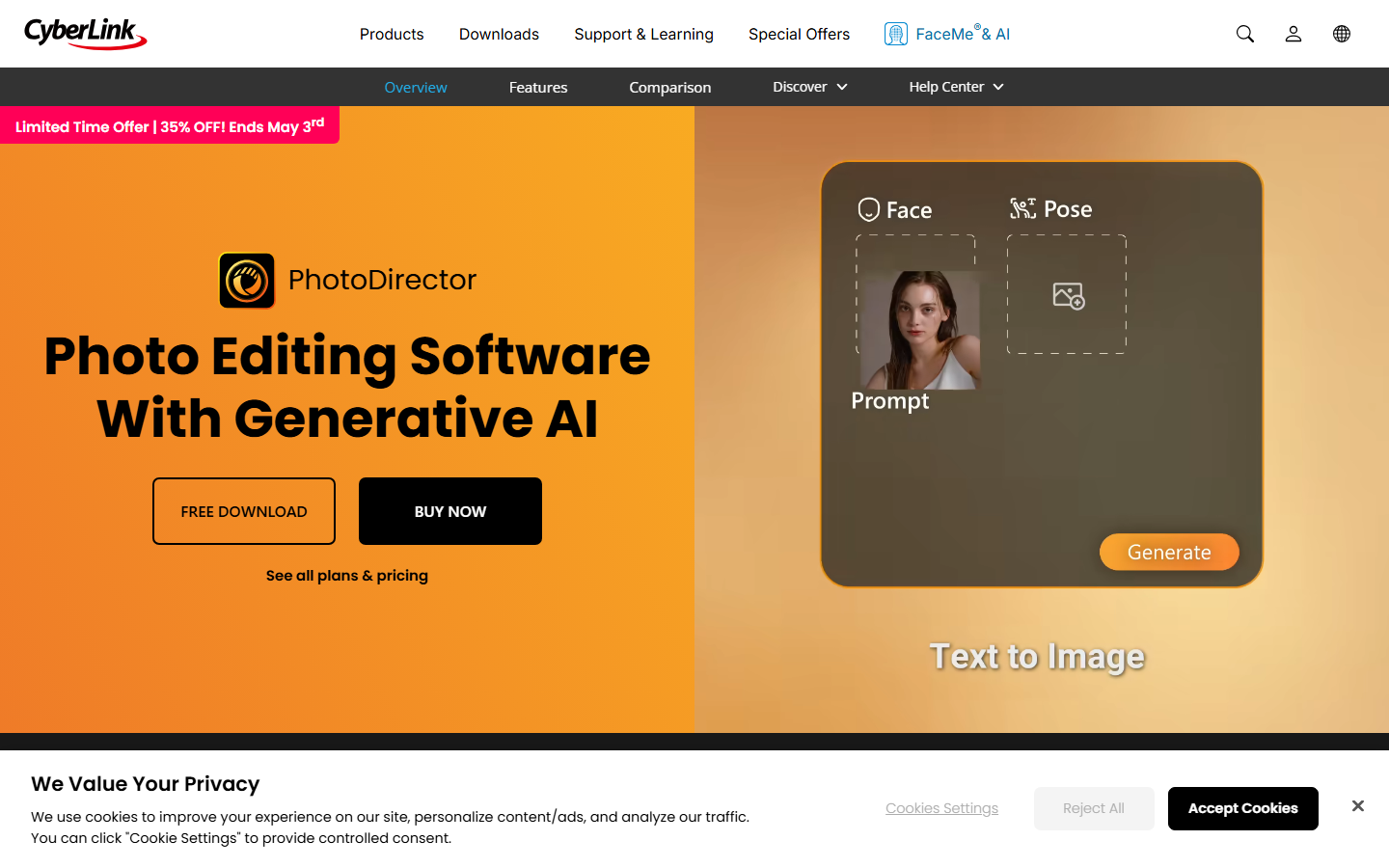
CyberLink's PhotoDirector bundles AI cartoon effects inside a full-featured photo editor. The cartoon styles range from pencil sketch to anime and pop art. You select your photo, pick a style preset, and adjust the intensity slider. Results render in seconds on desktop; the mobile app is slightly slower but produces the same quality.
The advantage here is context. After cartoonizing, you stay in the same editor to crop, adjust colors, add text overlays, or composite the cartoon onto a new background. The AI image editing tools built into PhotoDirector cover face reshaping, background removal, and object erasing, all in one place.
PhotoDirector offers a subscription model at $4.33/month (annual plan) with a 7-day free trial.
3. Canva
Canva's AI Cartoon Generator is buried inside the photo editor, but once you find it, it works with a single click. Upload a photo, select "Cartoonify" from the effects panel, and the AI processes the image instantly. There is no watermark on the output, even on the free plan, though you get limited daily credits.
The cartoon style Canva produces leans toward a clean, modern illustration look with soft gradients and slightly simplified features. It works best on clear, well-lit portraits. Group photos and complex scenes sometimes lose detail in the conversion. For social media profile pictures and avatar creation, it is one of the fastest paths from photo to cartoon.
Free plan includes limited daily credits. Pro plan ($13/month) removes credit limits.
4. Adobe Firefly
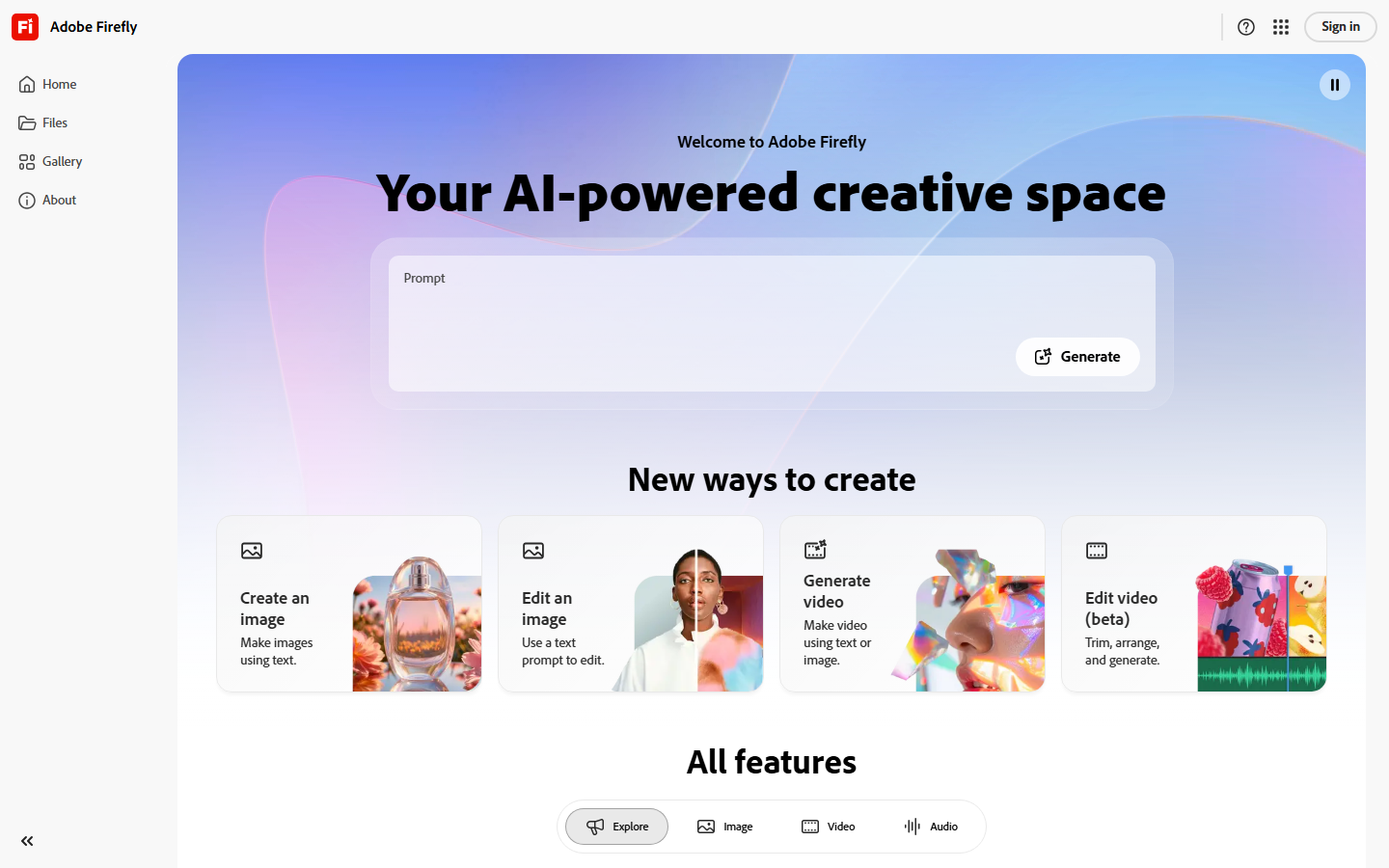
Adobe Firefly's cartoon generator is trained exclusively on licensed and public domain content, making it the safest option for commercial use. The style transfer capabilities let you reference a specific cartoon aesthetic (anime, Pixar-style 3D, flat vector, watercolor comic) and apply it to your uploaded photo while preserving the subject's pose and proportions.
Integration with Photoshop and Illustrator means you can refine results with professional image enhancement tools after the initial AI pass. The generation quality is high, particularly for portraits, though full-body shots occasionally lose hand detail. Firefly credits come bundled with Creative Cloud subscriptions, or you can purchase standalone access starting at $4.99/month.
5. Fotor
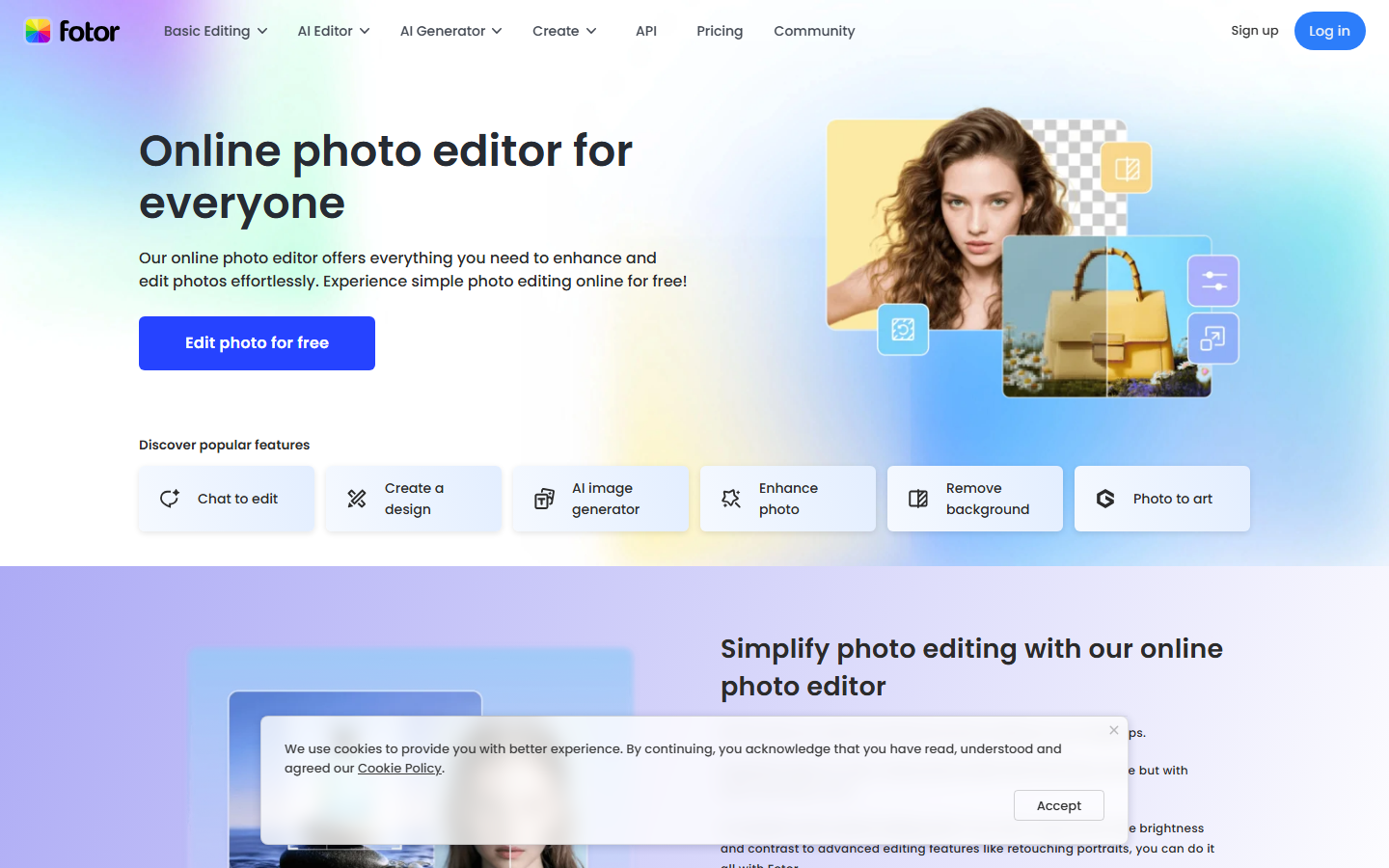
Fotor positions itself as the beginner-friendly option, and for basic cartoonization it delivers. Upload your photo, select one of roughly 15 cartoon presets (ranging from bold comic to subtle sketch), and download. The entire process takes under 30 seconds. The free tier adds a small watermark on outputs; the Pro plan ($8.99/month) removes it and unlocks higher resolution exports.
Quality-wise, Fotor handles headshots and simple compositions well. The AI preserves facial features accurately and applies consistent line weights. Complex backgrounds or group photos sometimes produce artifacts where the AI struggles to distinguish foreground subjects. For single-portrait cartoon profile pictures, it is reliable and fast.
6. BeFunky
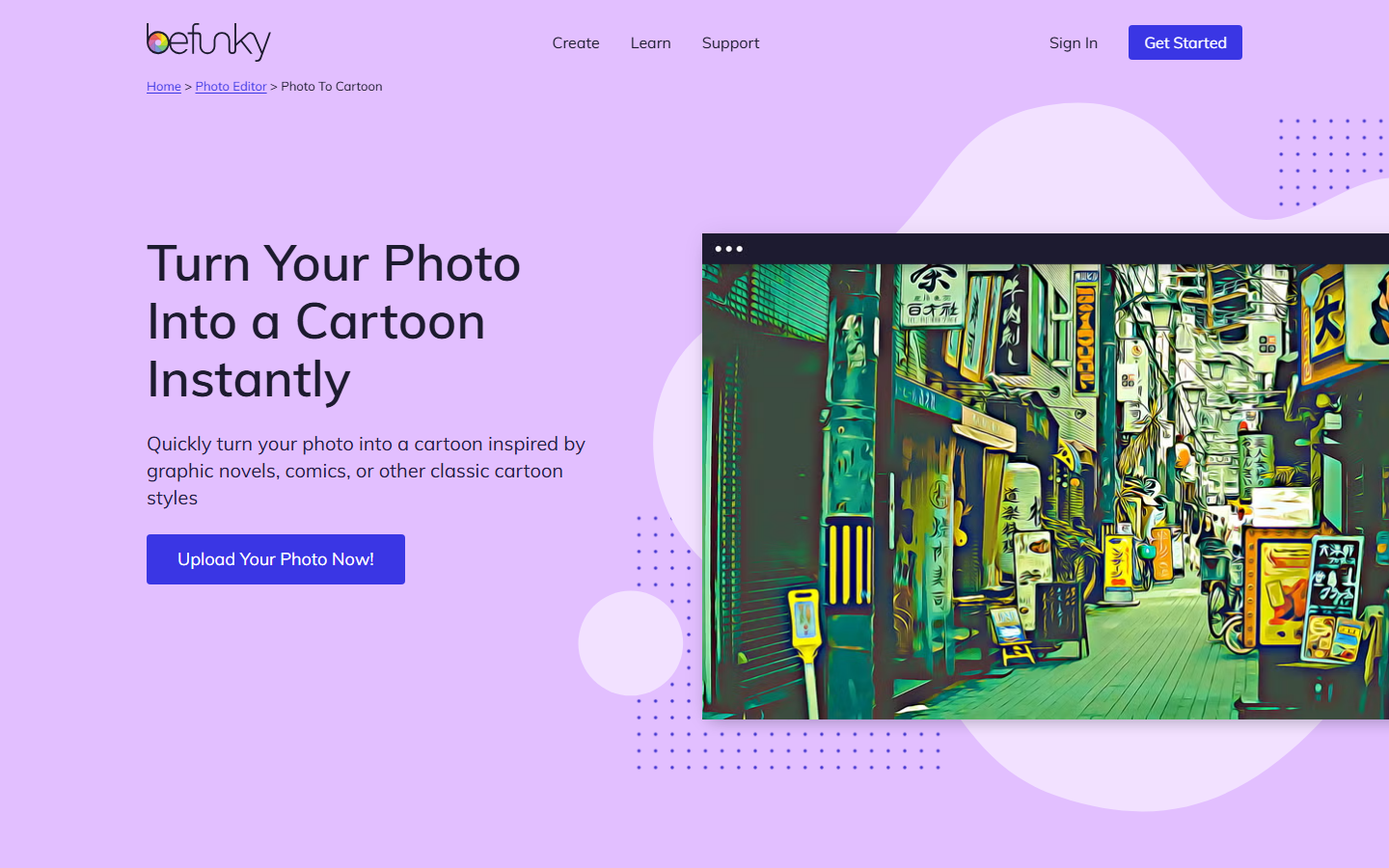
BeFunky pioneered online cartoon photo editing with its original Cartoonizer tool, and the 2026 version adds AI-powered style transfer on top of the classic filter approach. You get two modes: the traditional filter (which applies edge detection and color simplification) and the newer AI mode (which actually re-renders the image in a cartoon style).
The AI mode produces significantly better results, with proper style consistency across the image and cleaner line work. The trade-off is speed: AI cartoons take 5-10 seconds versus instant for filters. BeFunky also offers background generation tools to place your cartoon on a stylized scene. The Plus plan ($9.99/month) unlocks AI features.
7. starryai
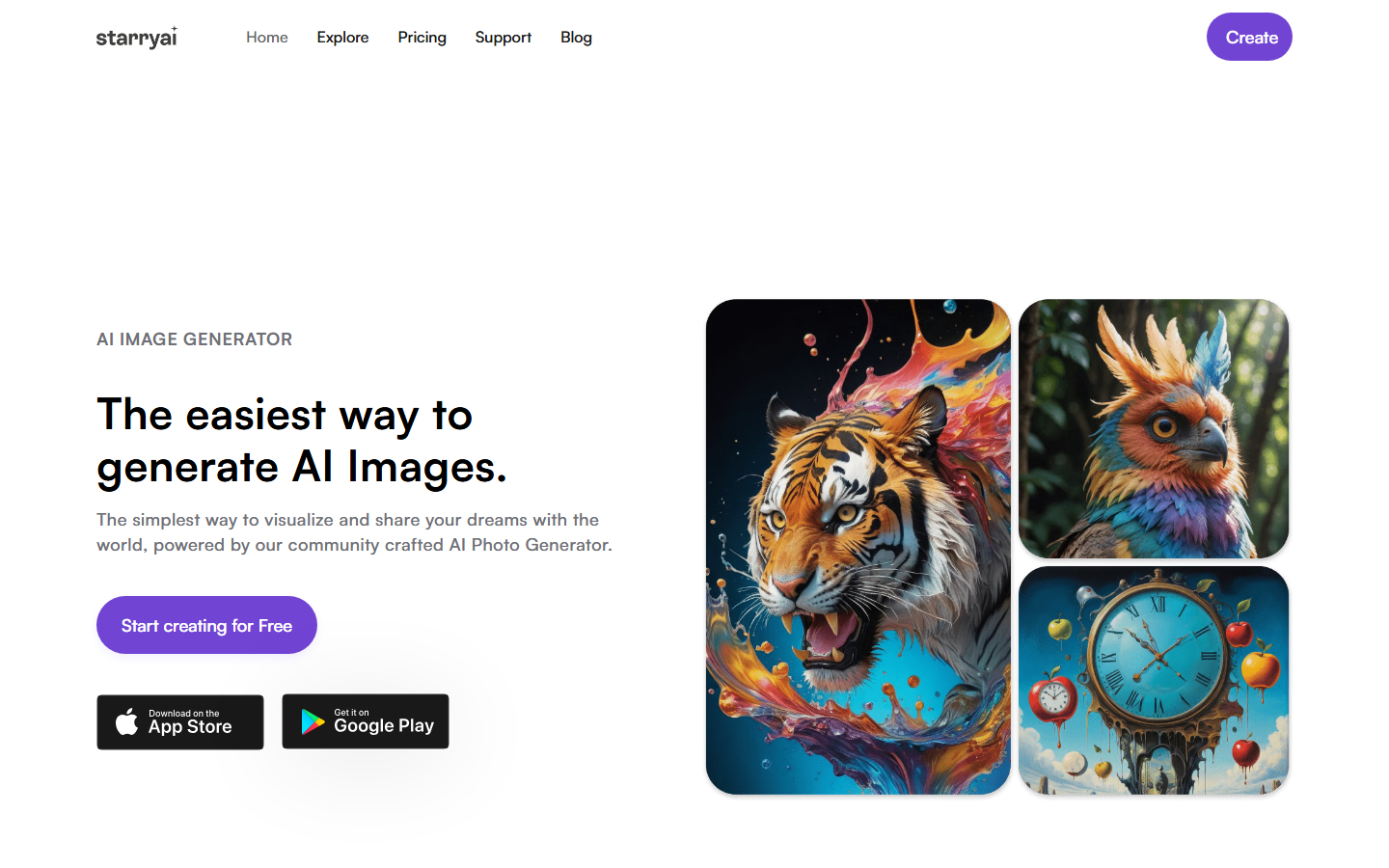
starryai takes a different approach by giving you full prompt control over the cartoonization process. Instead of one-click presets, you upload your photo, write a text prompt describing the cartoon style you want ("bold anime with thick outlines and pastel colors"), select a base model, and generate. This produces more varied and creative results, but requires experimentation to dial in the exact look you want.
The platform offers 5 free daily credits and supports multiple AI models for different aesthetics. For users comfortable with text-to-image workflows, starryai provides the most creative flexibility. The results can range from photorealistic cartoon renders to highly stylized abstract illustrations depending on your prompt.
Comparison Table
| Tool | Best For | Pricing | Batch Processing | API Access | Commercial Use |
|---|---|---|---|---|---|
| Wireflow | Automated workflows | Build free, usage-based paid | Yes | Yes | Yes |
| PhotoDirector | Full editing suite | $4.33/mo | No | No | Yes |
| Canva | Quick single photos | Free / $13/mo | No | Limited | Yes (Pro) |
| Adobe Firefly | Commercial safety | $4.99/mo | No | Yes | Yes |
| Fotor | Beginners | Free / $8.99/mo | No | No | Yes (Pro) |
| BeFunky | Classic cartoon filters | $9.99/mo | No | No | Yes (Plus) |
| starryai | Creative prompt control | Free daily credits | No | No | Personal |
How to Choose the Right Cartoon Tool
The right tool depends on your use case. If you need to cartoonize photos in bulk for a product line or social campaign, a workflow-based tool with API access saves hours of manual work. If you want a quick cartoon for a profile picture, a one-click tool like Canva or Fotor gets you there in seconds.
Consider these factors when deciding: output resolution requirements, whether you need consistent style across multiple images, commercial licensing terms, and how much creative control you want over the cartoon aesthetic. Tools with model chaining let you add post-processing steps like upscaling or background replacement after the cartoon pass. The cartoon pass itself is really a way to restyle a photo into any art style, not just a fixed cartoon look.
Tips for Better Cartoon Results
Getting the best output from any AI cartoonizer starts with your input photo. Well-lit portraits with a clean background produce cleaner cartoon conversions. Here are key tips:
- Use high-resolution source photos (at least 1024x1024 pixels)
- Ensure even lighting across the face to avoid shadow artifacts
- Simple backgrounds let the AI focus on the subject
- Front-facing portraits convert more accurately than profile angles
- Remove glasses if the tool struggles with reflections
For professional results, consider running the cartoonized output through an image upscaler to sharpen details lost in the style transfer process.
Try it yourself: Build this cartoon workflow in Wireflow - the nodes are pre-configured with the exact style transfer setup discussed above, ready to cartoonize your own photos.
FAQ
What is the best free AI tool to cartoonize photos?
Canva offers free daily credits for its AI Cartoon Generator with no watermark on outputs. Fotor also provides a free tier, though it adds a small watermark. starryai gives 5 free generations per day with full prompt control.
Can I use AI-cartoonized photos for commercial purposes?
Yes, but check each tool's license terms. Adobe Firefly is specifically trained on commercially safe content. Wireflow, PhotoDirector, and Canva Pro all include commercial usage rights. Free tiers on some platforms may restrict commercial use.
How do I cartoonize multiple photos at once?
Most one-click tools process photos individually. For batch processing, use a workflow tool like Wireflow that supports uploading multiple images and applying the same cartoon style to all of them in a single run via the visual canvas or API.
Do AI cartoon tools work on group photos?
They can, but results vary. Most tools perform best on single-subject portraits. Group photos sometimes lose individual facial detail or produce inconsistent styling across subjects. For groups, consider cropping individual faces, cartoonizing separately, and compositing.
What photo resolution do I need for good cartoon results?
A minimum of 1024x1024 pixels is recommended. Higher resolution inputs give the AI more detail to work with, producing cleaner line work and better feature preservation. Most tools automatically resize very large images during processing.
Can I control the cartoon style (anime, comic book, watercolor)?
Tools like starryai and Adobe Firefly offer full style control via prompts or reference images. One-click tools (Canva, Fotor) provide preset style options. Wireflow lets you choose different AI models, each producing distinct aesthetics from anime to vector illustration.
Are AI cartoon tools safe to use with personal photos?
Reputable tools process images on secure servers and do not store them after generation (check each platform's privacy policy). Adobe, Canva, and Wireflow all state they do not use uploaded images for model training. Avoid unknown tools that lack clear privacy policies.
How long does AI cartoonization take?
One-click tools (Canva, Fotor) process in under 5 seconds. AI-powered style transfer (BeFunky AI mode, starryai, Wireflow) takes 5-30 seconds depending on resolution and complexity. Batch jobs scale linearly with the number of images.

Co-Founder & Operations at Wireflow
Runs client operations and content strategy at Wireflow. Works directly with creative teams and agencies to build production AI workflows.
- Content Strategy
- Client Operations
Make AI videos and ads.
Start free, no card needed.