Features
Shopify Product Photos
A flow that makes Shopify product photos, not a studio booking: send one product photo and a scene, and get one store-ready product photo in that scene.
One run is 9 credits, about $0.12 on Starter. New accounts get a free video.
Free to build · no credit card · Read the agent docs · See how it works ↓
 Andrew Adams · Co-Founder & Operations at Wireflow ·
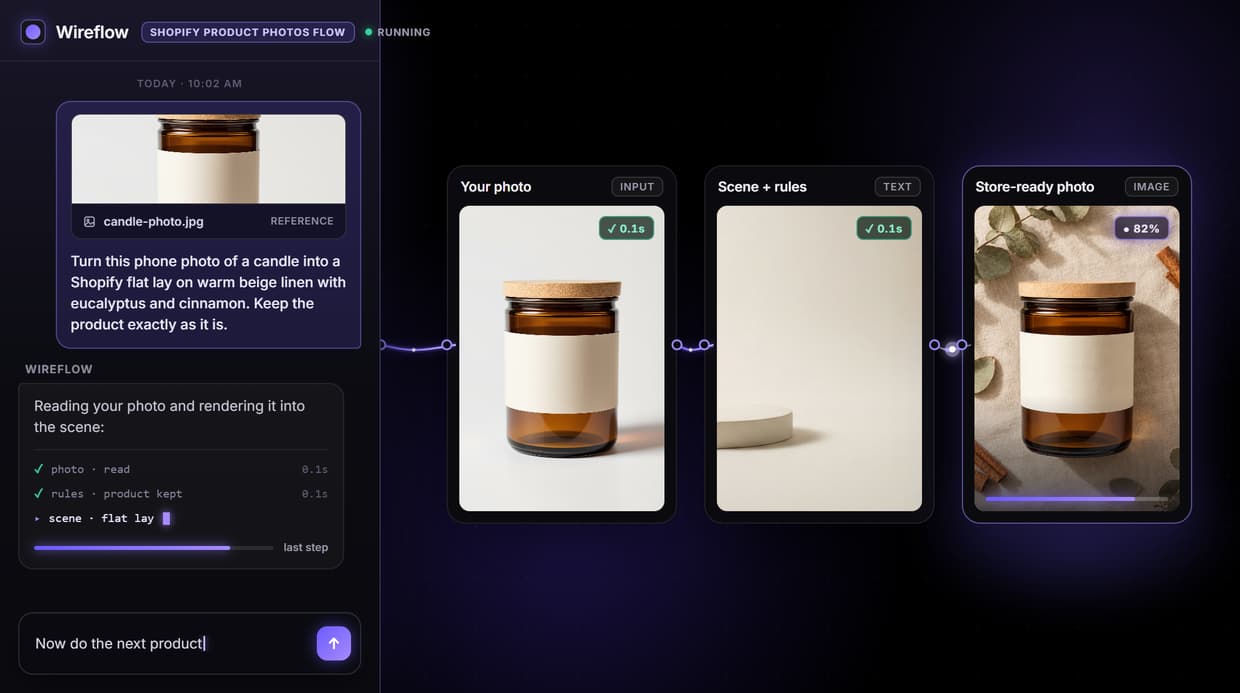
How to Use Shopify Product Photos
Steps to get you started in Wireflow.
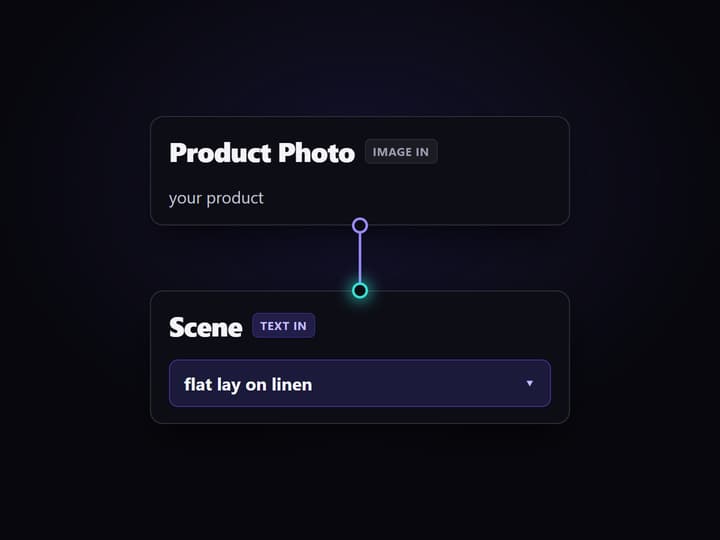
Add your product photo and a scene
Open the flow, drop your product photo into the Product Photo node, and type the backdrop you want into the Scene node: a flat lay on linen, a marble shelf, an outdoor table, for example.
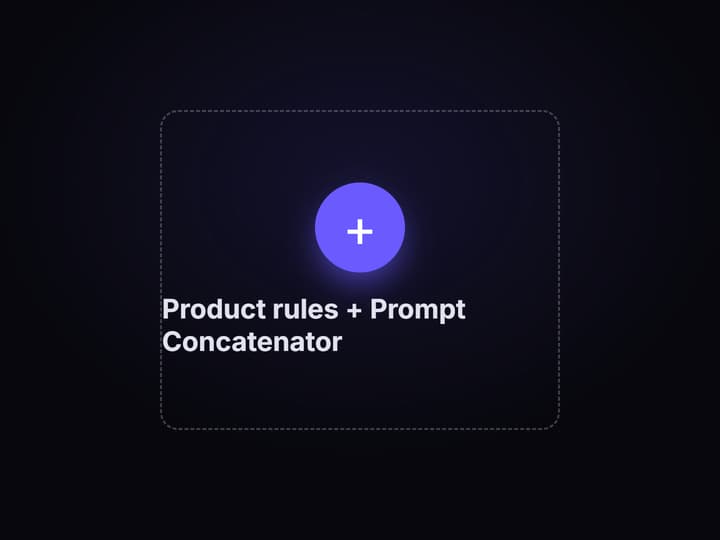
The rules keep the product, the prompt builds
A fixed Product rules node tells the model to keep the shape, label and color exactly, and the Prompt Concatenator joins those rules with your scene into one prompt for the image node.
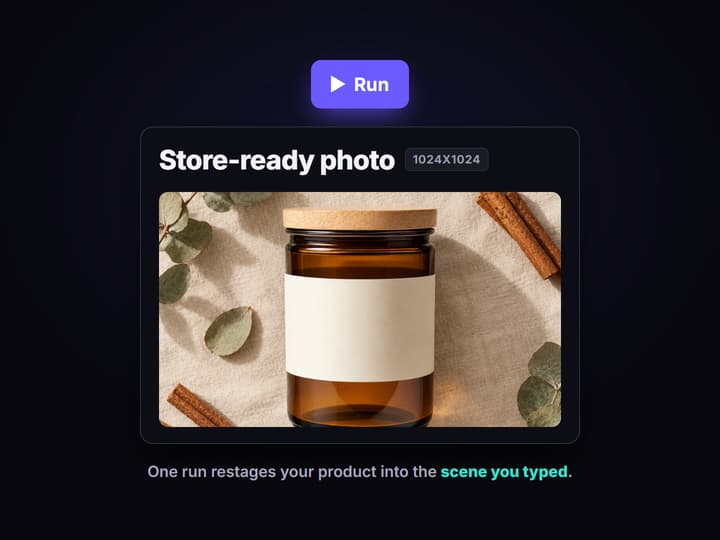
One node renders the store-ready photo
The GPT Image 2.5 Flare Edit node renders your product in that scene in one run. Open the board to see it, then copy the flow to rerun it on your next scene or product.
More Than Just Shopify Product Photos
Your product, any store scene
Send one product photo and a scene line, and GPT Image 2.5 Flare Edit returns a store-ready shot, the lifestyle look an AI product photo generator gives you.
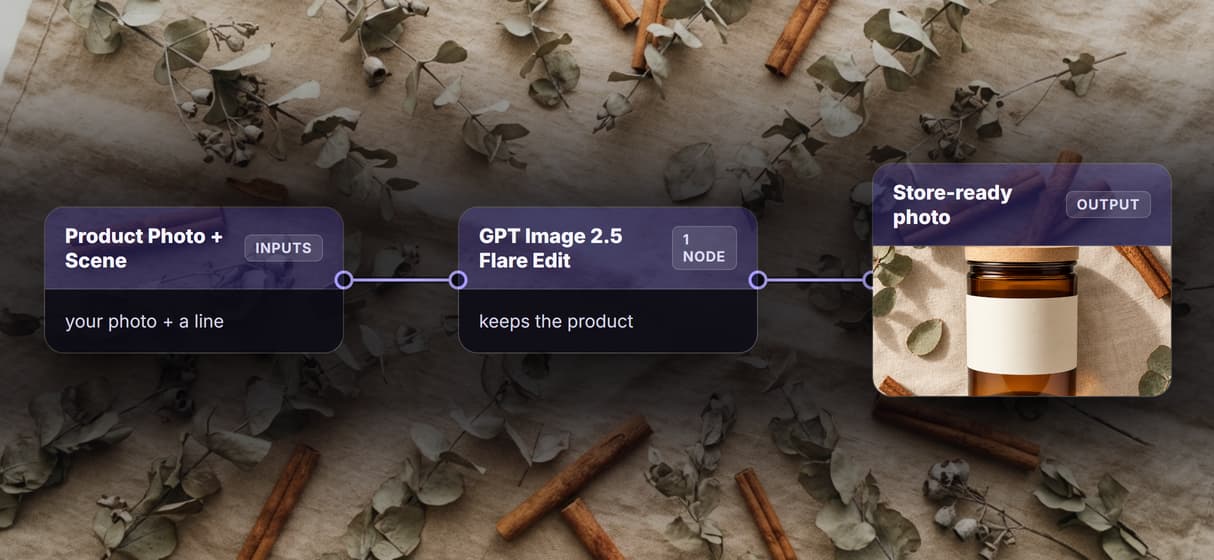
The product stays the product
A fixed Product rules node keeps the shape, label and color, so the jar you photograph is the jar you ship, closer to the real item than a redrawn AI packshot.
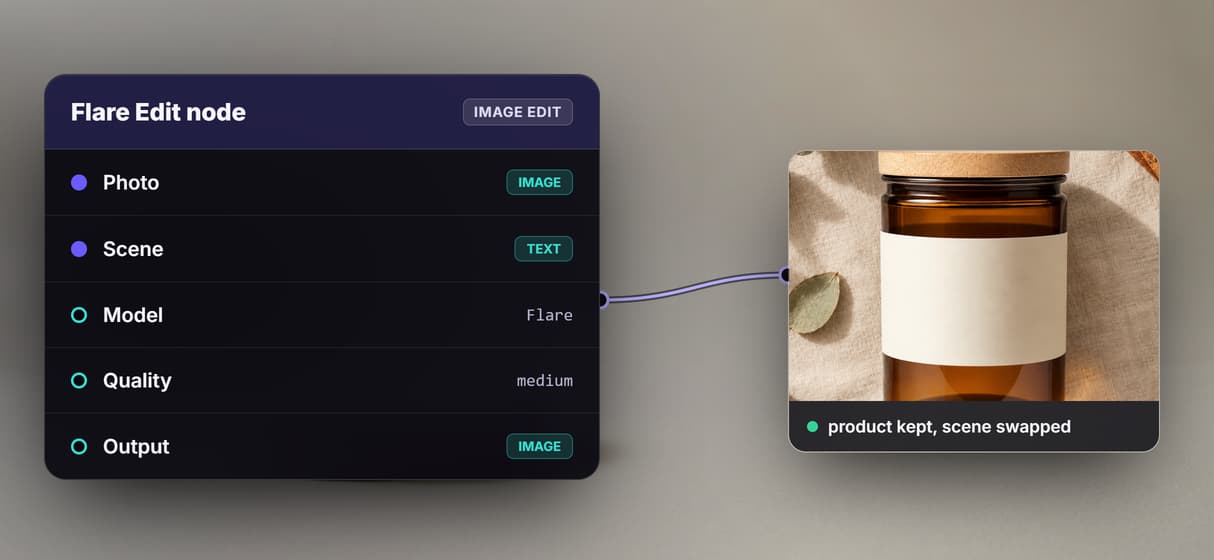
Reshoot by typing a new scene
Change the Scene line and rerun the same graph for the next backdrop, so one flow covers linen, marble or a background change without a new shoot.
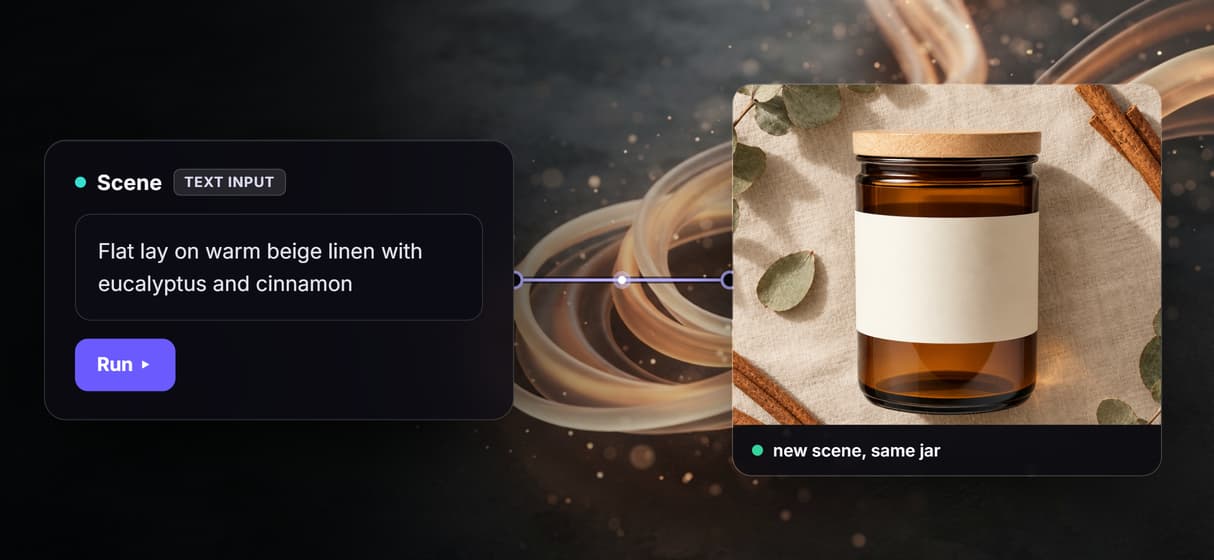
A phone photo is enough
Upload one phone shot and the flow does the set dressing, the way an Amazon listing image generator turns a single photo into store-ready images.
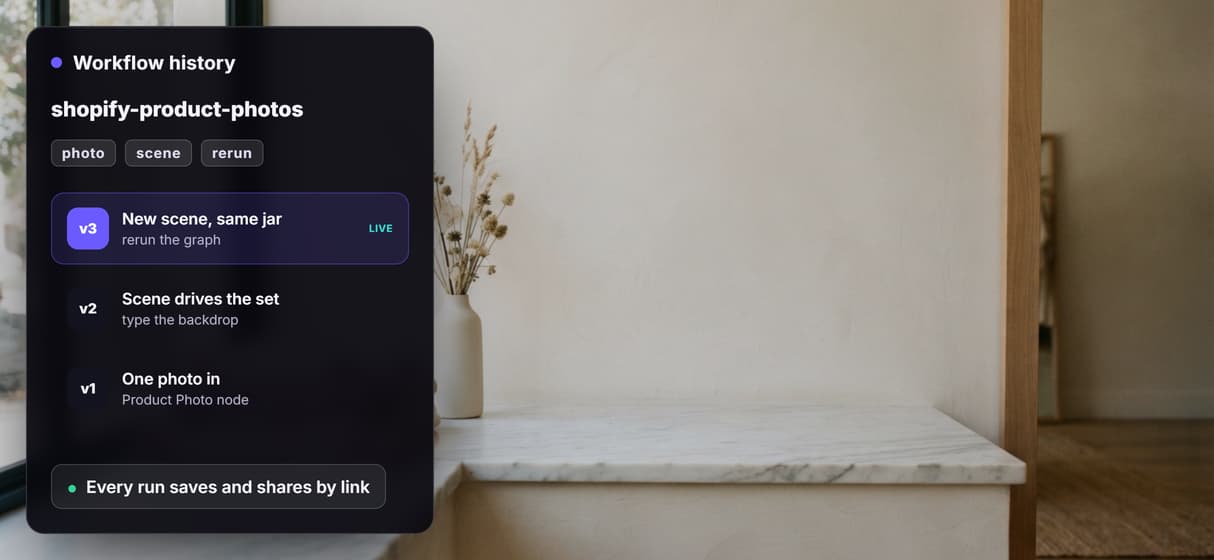
Pay per photo, not per seat
Building on the canvas is free and each run is 9 credits, so a whole catalog pays per image, like one editor making ecommerce images.
Build Any AI Workflow
AI Models Integrated
Full Commercial License
One photo in, one store-ready photo out
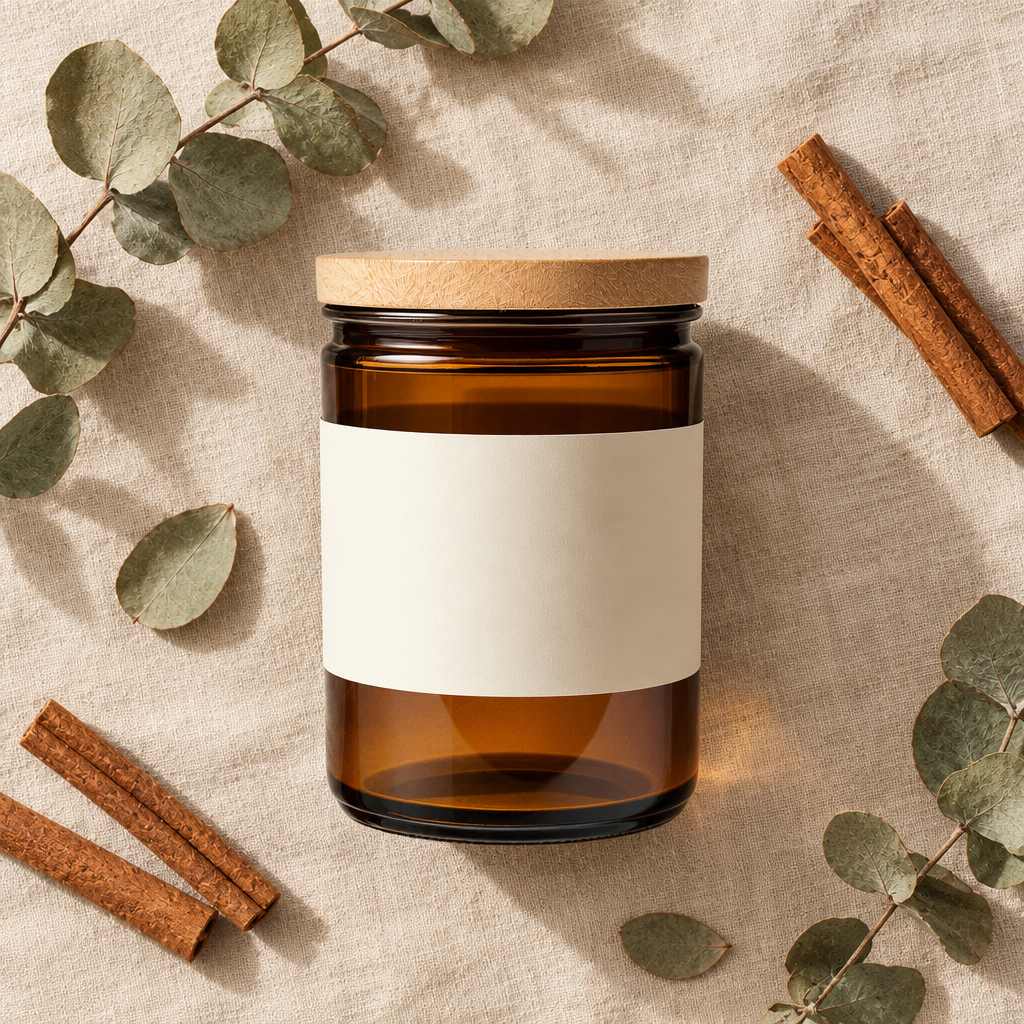
Here is one real run of this flow. The input was a plain amber candle jar with a blank label, our own sample product with no real brand and no people in it. The scene line was "flat lay on warm beige linen with dried eucalyptus and cinnamon sticks, soft daylight from above". One run rendered the same jar into that scene, store ready, at 1024x1024.
What goes in and what comes out
A product photo and a scene line go in, and one store-ready product photo comes out, with the prompt built in between on the same canvas. These are the nodes:
- Product Photo. An image input node that holds the photo of your product.
- Scene. A text input node with the backdrop you want: a flat lay on linen, a marble shelf, an outdoor table.
- Product rules. A fixed text node that tells the model to keep the product's shape, proportions, color, material and label and to add no branding.
- Prompt Concatenator. Joins the rules and your scene into one prompt for the image node.
- GPT Image 2.5 Flare Edit. One image edit node that renders your product in the scene and saves the result.
Because every step is a node, this flow drops into a wider setup: the same output can feed your other store assets, and there is a plain-English walkthrough in product photos in Claude.
What one run costs
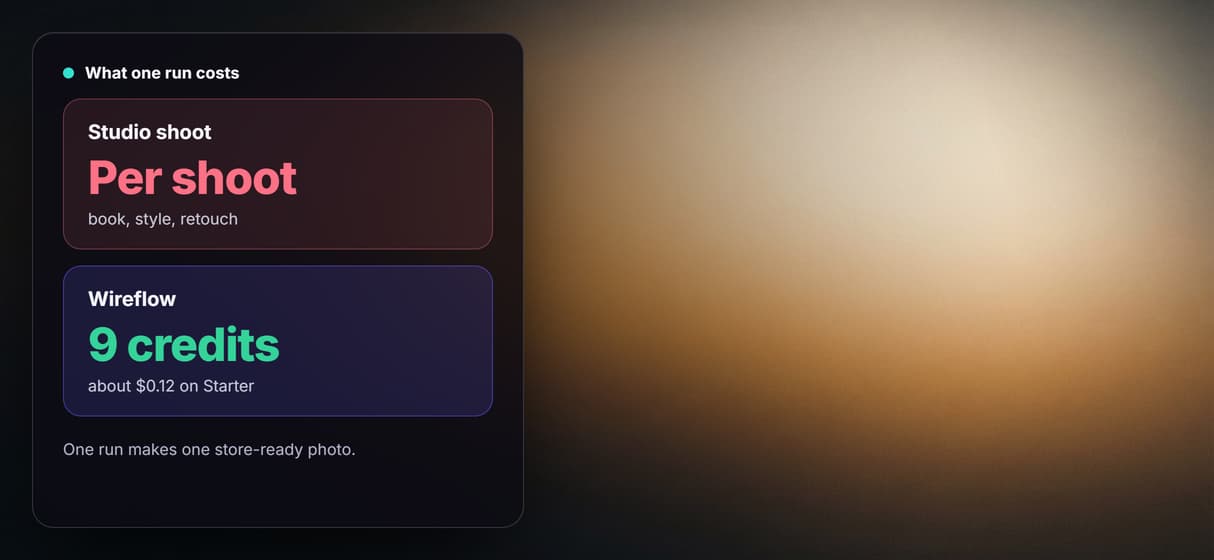
One full run of this flow is 9 credits: one GPT Image 2.5 Flare Edit image at medium quality. The number is from a run receipt, not a list price.
On Starter, which is $36 a month for 2,660 credits, that is about $0.12 a run, roughly 295 runs a month. On Professional, which is $59 a month for 4,370 credits, it is about $0.12 a run, roughly 485 runs a month. Building on the canvas is free, and new accounts get a free video.
Open the flow
Open the workflow here: the Shopify product photos board. It opens logged out, with the saved candle photo and its store-ready result from the run above, so you can see every node and its output before you sign in. Copy it to your account to run it on your own product and scene.
Run it from Claude
You can run this flow from Claude through the Wireflow connector. In Claude, open Customize, then Connectors, then Add custom connector, paste the address https://www.wireflow.ai/api/mcp, and sign in. The setup steps are in the Claude app docs.
Then give Claude this prompt:
Use Wireflow to turn this product photo into a Shopify lifestyle shot: <your photo link>. Scene: flat lay on warm beige linen with dried eucalyptus and cinnamon sticks. Keep the product exactly as it is. Tell me the credit cost and wait for my yes before you run it.
With that last line, Claude looks up the price and waits for your yes before it spends any credits.
Run it from the API
Every published Wireflow workflow is also a REST endpoint, so a script or an agent can send a product photo and a scene and get the store-ready photo back:
curl -X POST https://www.wireflow.ai/api/v1/workflows/cmvylqa3f000eic08ad1xp1lf/run \
-H "Authorization: Bearer $WIREFLOW_API_KEY" \
-H "Content-Type: application/json" \
-d '{"inputs":{"product-photo":"YOUR_PHOTO_LINK","scene":"Your scene"}}'
The run route works on workflows you own: open the flow, copy it to your account, and use your copy's id. The POST returns 202 with an executionId; poll GET /api/v1/workflows/executions/{executionId}/poll, or pass a webhook. Full reference is in the run API docs.
What each node does
Product Photo
An image input node that holds the photo of your product.
Scene
A text input node with the backdrop you want for the shot.
Product rules
A fixed node that keeps the product the same and adds no branding.
Prompt Concatenator
Joins the rules and your scene into one prompt for the node.
GPT Image 2.5 Flare Edit
One image edit node renders your product in the scene.
Sticky Note
A note on the canvas that says what the flow does.
When another tool is the better fit
This renders the photo, it does not choose your product or write your listing; you bring the shot and the scene and it makes the picture. GPT Image 2.5 Flare Edit redraws the product to light it for the scene, so the outline and label can shift a little from your input, read the output against your photo before you ship it. If you need a pixel-exact cutout of the real item, a background remover and a clean packshot are the safer path. For a full set of angles and a wider store workflow, AI product photography covers the broader setup.
Build here when you want one product photo restaged into any scene in a single run, kept on a canvas you can rerun for every product and wire into the rest of your store's assets.
FAQs
It restages one product photo into a scene you type. A product photo and a scene line go in, and one store-ready product photo comes out, rendered by a single GPT Image 2.5 Flare Edit node on a canvas you can rerun.
Discover related AI tools
- Weavy AI Alternative (Weavy.ai Is Now Figma Weave)
- Flora AI Alternative
- Freepik Spaces Alternative
- RoboNeo AI Alternative: 79 Models in Your Browser
- Sotatech AI Alternative
- Pletor AI Alternative: 79 Models, No Black Box
- Fuser Studio AI Alternative
- AI Creative Workflows
- Visual Node Editor
- No Code AI Canvas
- Reusable AI Templates
- AI Pipeline API
Written by
Andrew Adams · Co-Founder & Operations at Wireflow
Runs client operations and content strategy at Wireflow. Works directly with creative teams and agencies to build production AI workflows.
Run the Shopify product photos flow
Open the flow, drop in a product photo and type a scene, and get one store-ready photo from a graph you can rerun for every product. Building is free, and new accounts get a free video.