Best AI Face Editor Tools in 2026

In this article▾
- Quick Summary
- How We Ranked These Tools
- 1. Wireflow: Best Overall
- 2. Adobe Firefly in Photoshop: Best for Professional Retouching
- 3. Remini: Best for Photo Restoration
- 4. Fotor: Best Free
- 5. Picsart: Best for Social Content
- 6. PhotoRoom: Best for Headshots
- 7. Pixlr: Best Lightweight Editor
- 8. Luminar Neo: Best for Photographers
- Comparison Table
- Choosing the Right Tool
- FAQ
- Conclusion
Face editing splits into four jobs that rarely live in the same app: repairing detail on a soft or old photo, changing expression and lighting from a text prompt, swapping or generating an identity, and finishing the shot so it matches everything else in the set. This guide ranks eight AI face editor tools for 2026 by which of those jobs each one genuinely handles, what it costs, and where it stops. Wireflow opens the list because it is the only entry that chains those four steps into one reusable canvas instead of asking you to redo them by hand on every new photo.
Quick Summary
- Wireflow: chain restore, prompt edit, and upscale on one canvas. Best Overall
- Adobe Firefly (Photoshop): generative fill inside a pro retouching stack. Best for Professional Retouching
- Remini: detail reconstruction on soft, old, or low-res portraits. Best for Photo Restoration
- Fotor: browser face retouch with a usable free tier. Best Free
- Picsart: fast social-ready face edits with heavy preset library. Best for Social Content
- PhotoRoom: clean cutouts and headshot backgrounds. Best for Headshots
- Pixlr: lightweight browser editor with AI face tools. Best Lightweight Editor
- Luminar Neo: portrait batch editing for photographers. Best for Photographers

How We Ranked These Tools
Ranking criteria were deliberately narrow, because "face editor" covers tools that barely overlap. Each tool was judged on identity retention (does the person still look like themselves after the edit), prompt control versus slider control, output resolution, batch capability, and whether the edit can be repeated on a second photo without redoing the work. For a hands-on look at prompt-driven face editing in action, check out the AI face editor feature page.
A tool that scores well on one criterion often fails another. Remini reconstructs detail beautifully but gives you almost no control over what it invents. Photoshop gives total control but needs a human at every step. Reusability is the criterion most listicles ignore, and it is the one that decides whether editing 40 photos takes an afternoon or ten minutes, which is also true for selfie enhancement workflows.
Build this in Wireflow
Make the same kind of asset on a canvas you control, with a free account and no credit card.
1. Wireflow: Best Overall
Wireflow is a node canvas where each AI model is a node and the connections between them are the edit. Instead of picking one face model and living with its limits, you place a restoration node, a prompt-edit node, and an upscale node on the same canvas, wire them in order, and run the chain. One of those prompt-edit nodes can be an age-progression workflow that makes the same face older or younger and reruns identically on the next portrait. The output of one becomes the input of the next with no exporting and re-uploading in between.
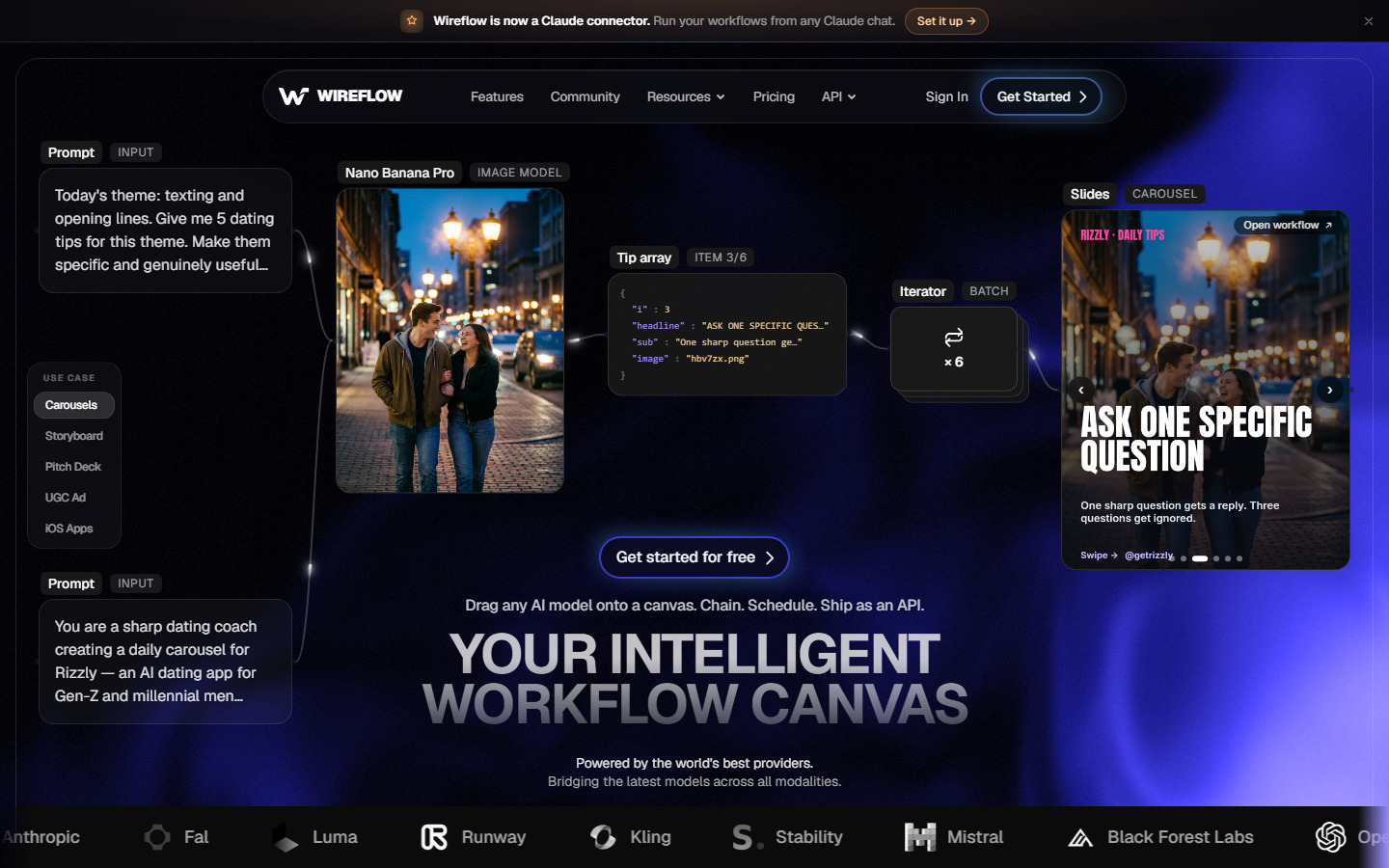
The practical difference shows up on the second photo. A finished canvas is a recipe: drop in a new image and the same restore, edit, and finish sequence runs again with identical settings. That covers adjacent jobs too, since the same graph can route into face swap or a background replacement step without rebuilding anything.
Where it asks more of you is the first hour. A canvas takes longer to set up than tapping a preset in a phone app, and the payoff only arrives once you are editing more than a handful of faces. If you need one photo fixed right now, a single-purpose tool is faster. If you need the same edit applied consistently across a shoot, this is the only entry here that stores the whole sequence, including the image upscaling pass at the end.
Verdict: best when face editing is a repeated process rather than a one-off fix.
2. Adobe Firefly in Photoshop: Best for Professional Retouching
Adobe Photoshop with Firefly generative features remains the reference point for controlled face work. Generative Fill handles skin, hair, and background patches with a text prompt, and Neural Filters cover smoothing, colorization, and expression adjustment, all inside a layer stack you can revise later.
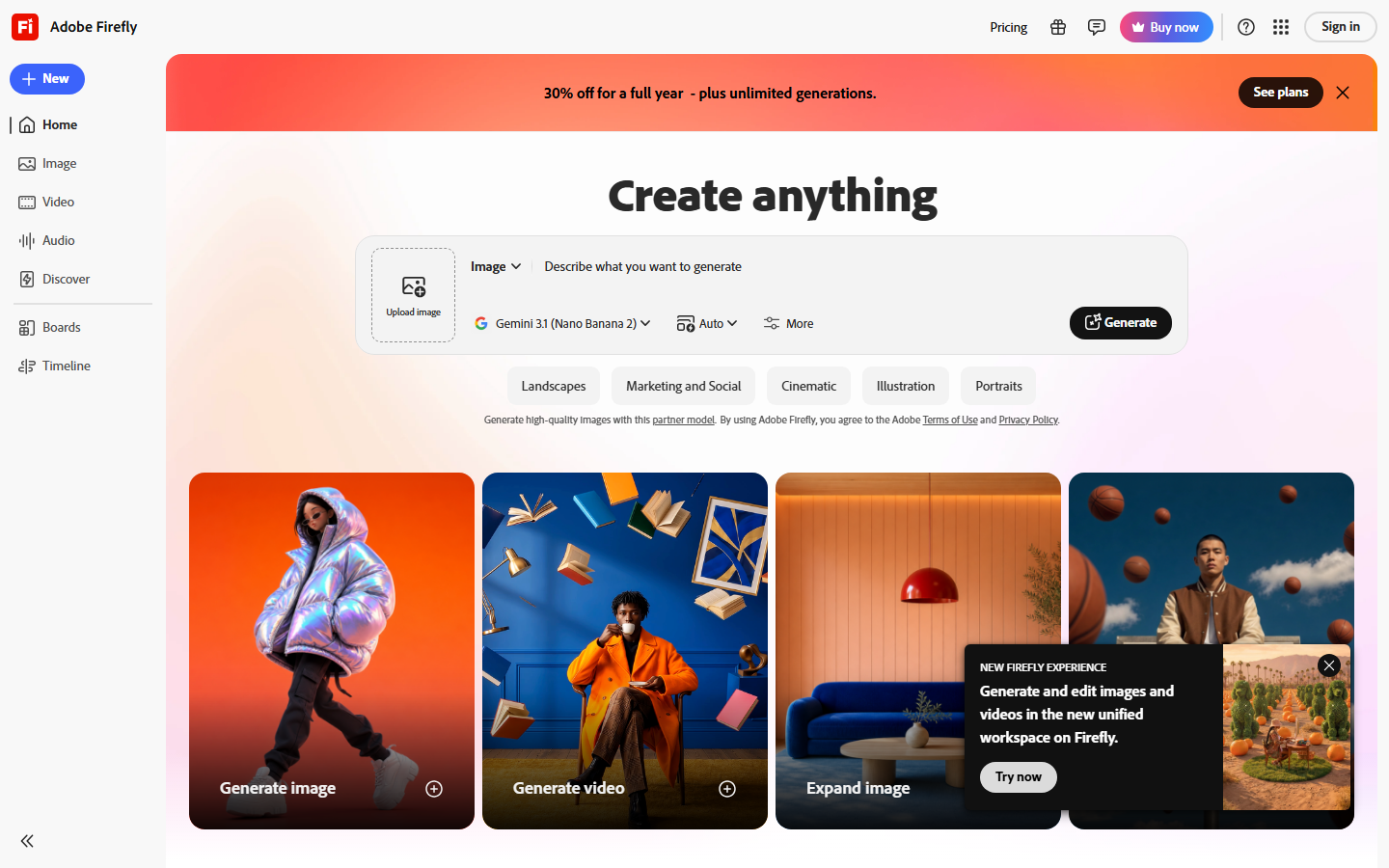
The strength is precision. Masks, layer opacity, and non-destructive adjustment layers mean you can dial a face edit to 30 percent instead of accepting the model's full output. That level of control is hard to find anywhere else, and it is why studio retouchers have not moved off it despite dozens of cheaper AI options appearing, several of which are covered in our AI image editor comparison.
The cost is time and subscription. Photography plans start around 10 to 12 dollars a month, generative credits are metered, and every edit is manual. There is no batch mode for "apply this exact face edit to 50 photos."
Verdict: the strongest choice when one image matters more than throughput.
3. Remini: Best for Photo Restoration
Remini does one thing: it rebuilds facial detail on photos that do not have any. Old scans, compressed social downloads, and blurry phone shots come back with defined eyes, lashes, and skin texture, and the result usually looks like a real photograph rather than a filter.
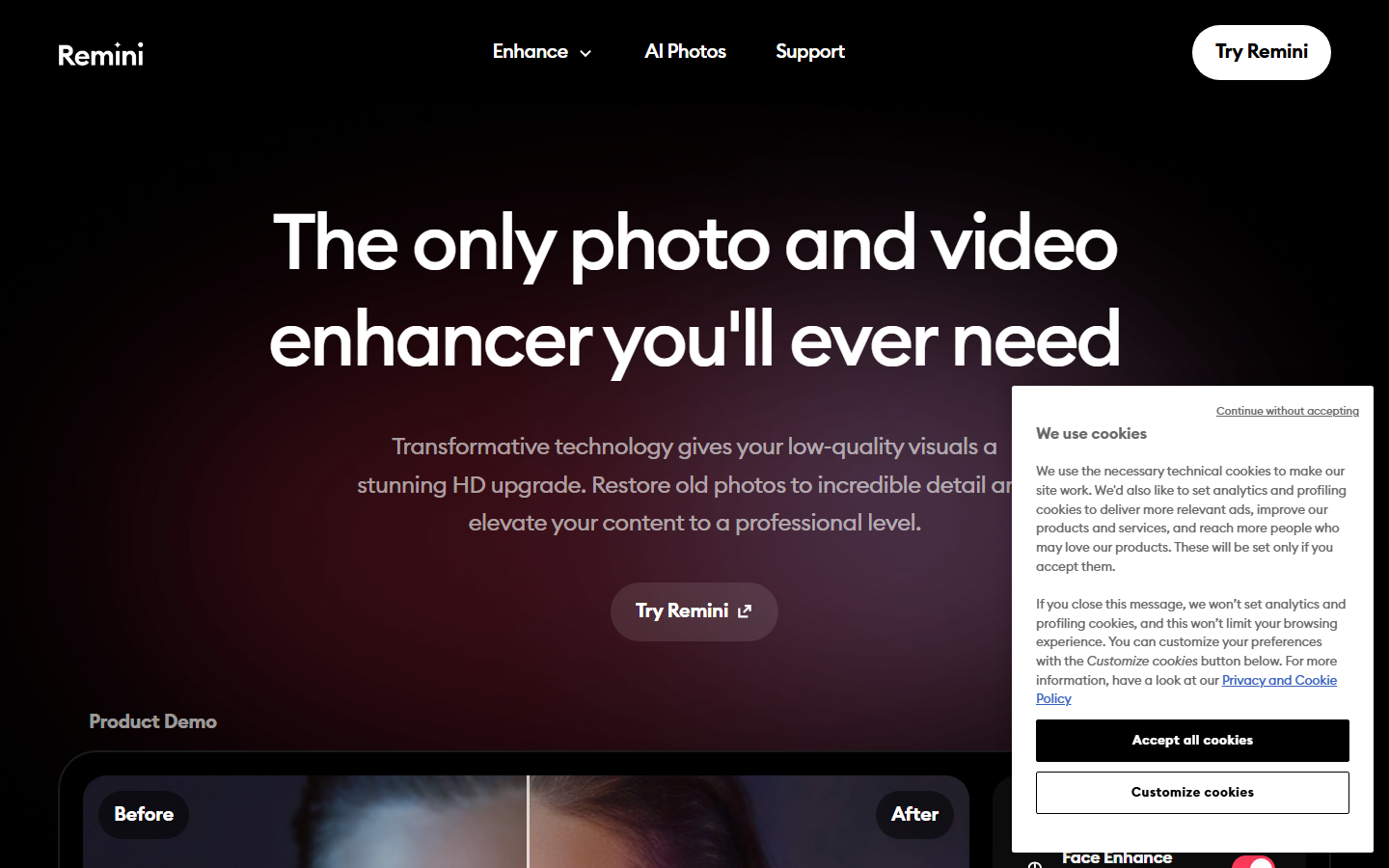
Its weakness is the flip side of its strength. Remini reconstructs rather than recovers, so on very degraded faces it invents plausible detail that drifts from the actual person. On family archive photos this is worth checking against another copy before you print anything, a caution that also applies to general photo enhancement tools that sharpen aggressively.
Pricing runs on a weekly or annual subscription with a limited free daily quota, and the mobile app is the primary surface.
Verdict: best single-purpose restorer, weakest on control.
4. Fotor: Best Free
Fotor is the most usable free option for straightforward face work in a browser. Blemish removal, skin smoothing, teeth whitening, eye brightening, and a one-click portrait enhance are all available without paying, and the editing surface is simple enough that no tutorial is needed.
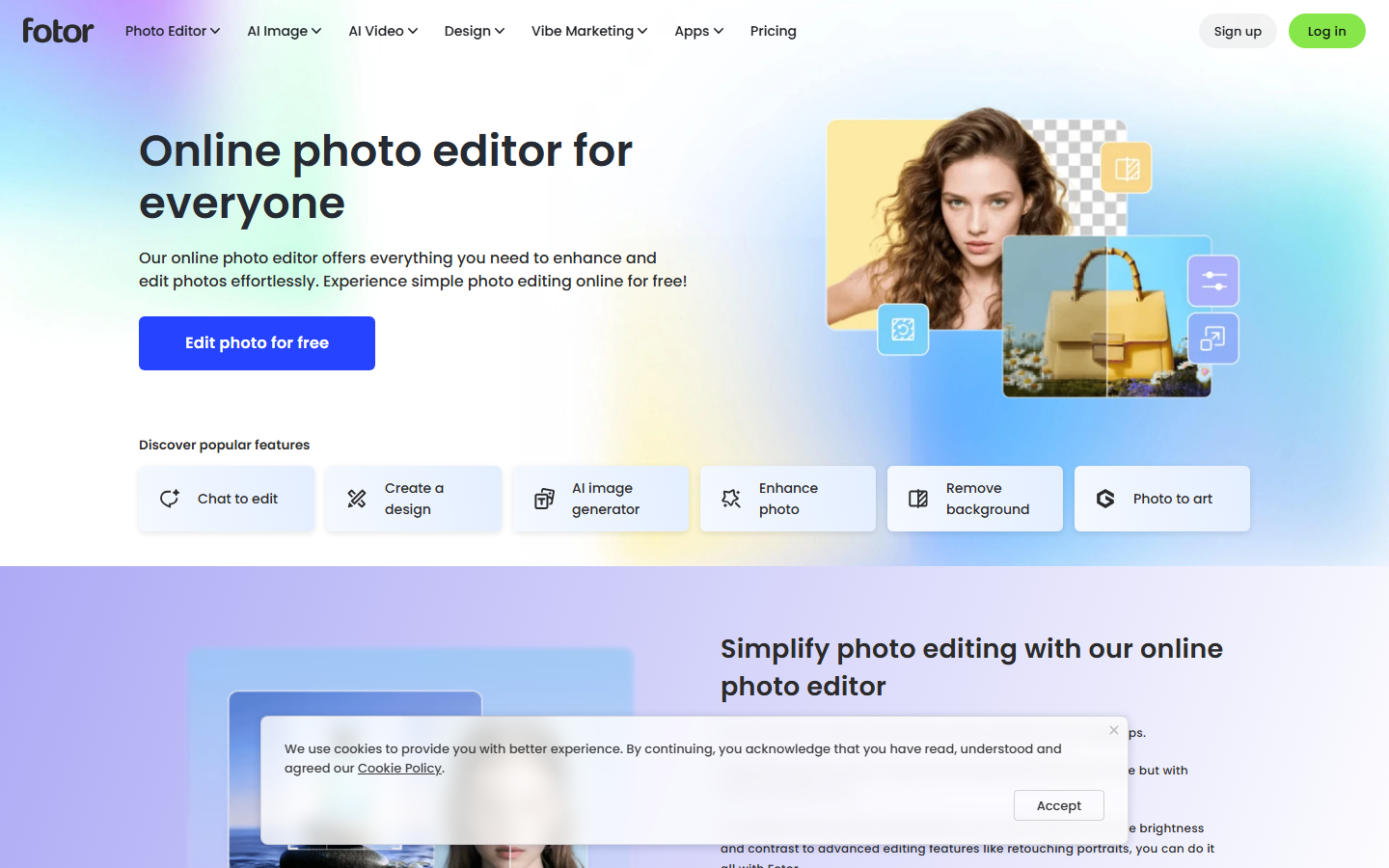
The free tier watermarks some AI outputs and caps export resolution, so it fits social sizes better than print. It also leans toward a smoothed, slightly stylized look by default, which is fine for a profile picture and wrong for anything documentary. Pull the sliders back from their defaults if you want the result to read as unretouched, the same discipline that applies when you generate portraits from photos.
Verdict: the tool to try first if the budget is zero.
5. Picsart: Best for Social Content
Picsart is built for volume posting. AI retouch, face reshaping, hair recolor, background removal, and a large template and effects library sit in one mobile-first app, and the whole loop from import to export takes under a minute.
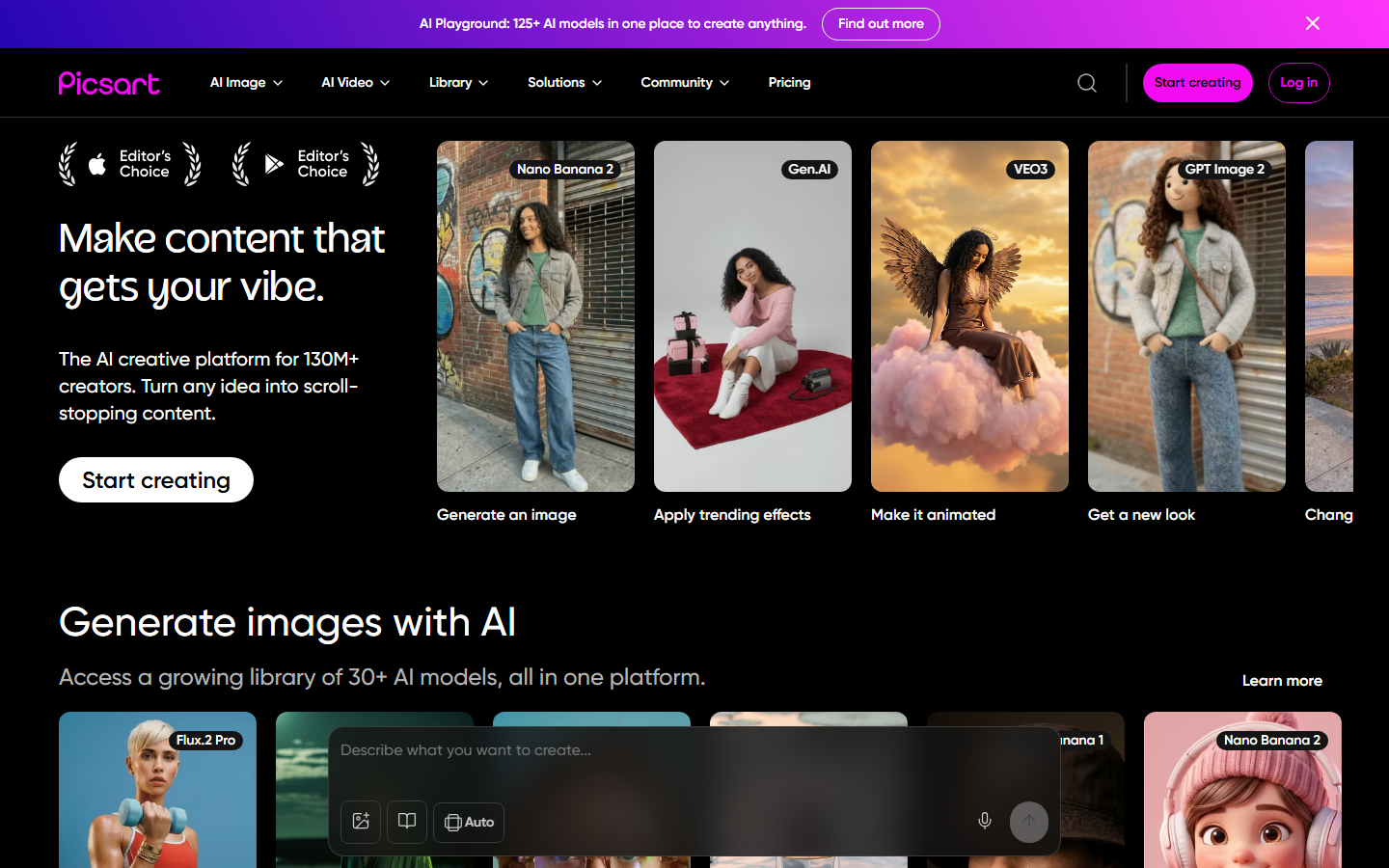
The tradeoff is depth. Effects are applied to the whole face rather than a precise region, and there is no meaningful masking, so subtle corrections are difficult. It is also aggressively upsell-driven, with many of the better AI tools locked behind Picsart Gold. For creators who need a daily post rather than a portfolio piece, that is an acceptable trade, especially alongside a dedicated background remover.
Verdict: fastest path from phone photo to posted image.
6. PhotoRoom: Best for Headshots
PhotoRoom started as a product-photo cutout tool and turned that precision toward people. Its subject isolation on hair edges is among the cleanest available, which makes it the practical pick for turning a casual photo into a headshot on a clean or generated background.

It is not a face retoucher in the traditional sense. There is no expression editing and only light skin work, so it pairs with another tool rather than replacing one. Batch mode is genuinely good, which matters when a whole team needs consistent profile images, a job also covered by dedicated AI headshot generators.
Verdict: best cutout quality, narrow feature set.
7. Pixlr: Best Lightweight Editor
Pixlr gives you a layered editor in the browser with no install, plus AI generative fill, face retouch, and background removal bolted on. It is the closest free thing to a stripped-down Photoshop that still opens in a tab.
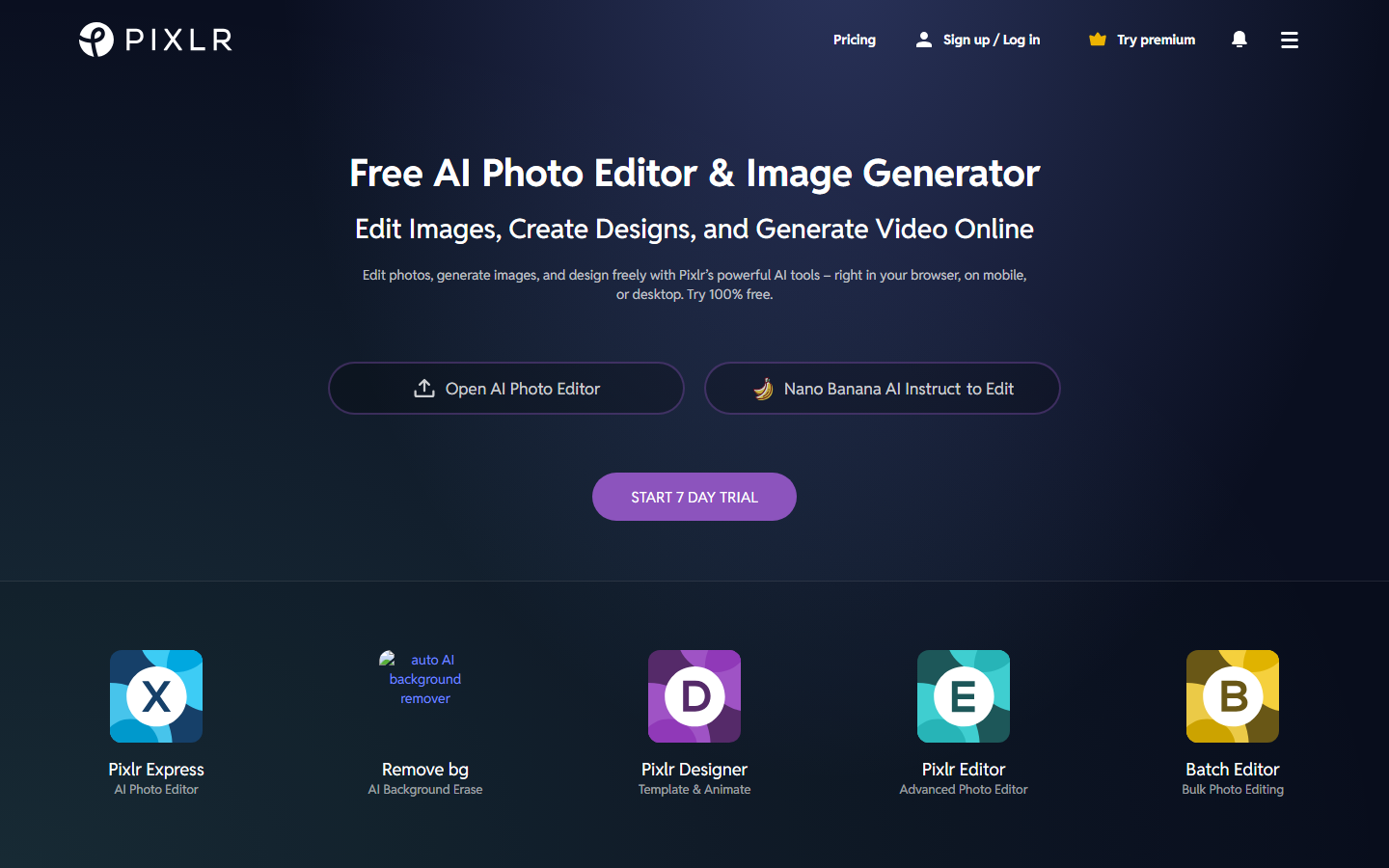
Face-specific AI here is competent rather than leading, and the free tier is ad-supported with credit limits on the generative tools. What it does better than most is let you combine a manual layer edit with an AI edit in the same document, which is unusual at this price point and useful for anyone starting from an AI-generated face that needs manual cleanup.
Verdict: best free option when you still want layers.
8. Luminar Neo: Best for Photographers
Luminar Neo from Skylum is a desktop editor with portrait-specific AI: FaceAI for eyes, lips, and slimming, SkinAI for blemishes, and relighting tools that adjust light direction after the shot. It reads RAW files and works as a Lightroom plugin.
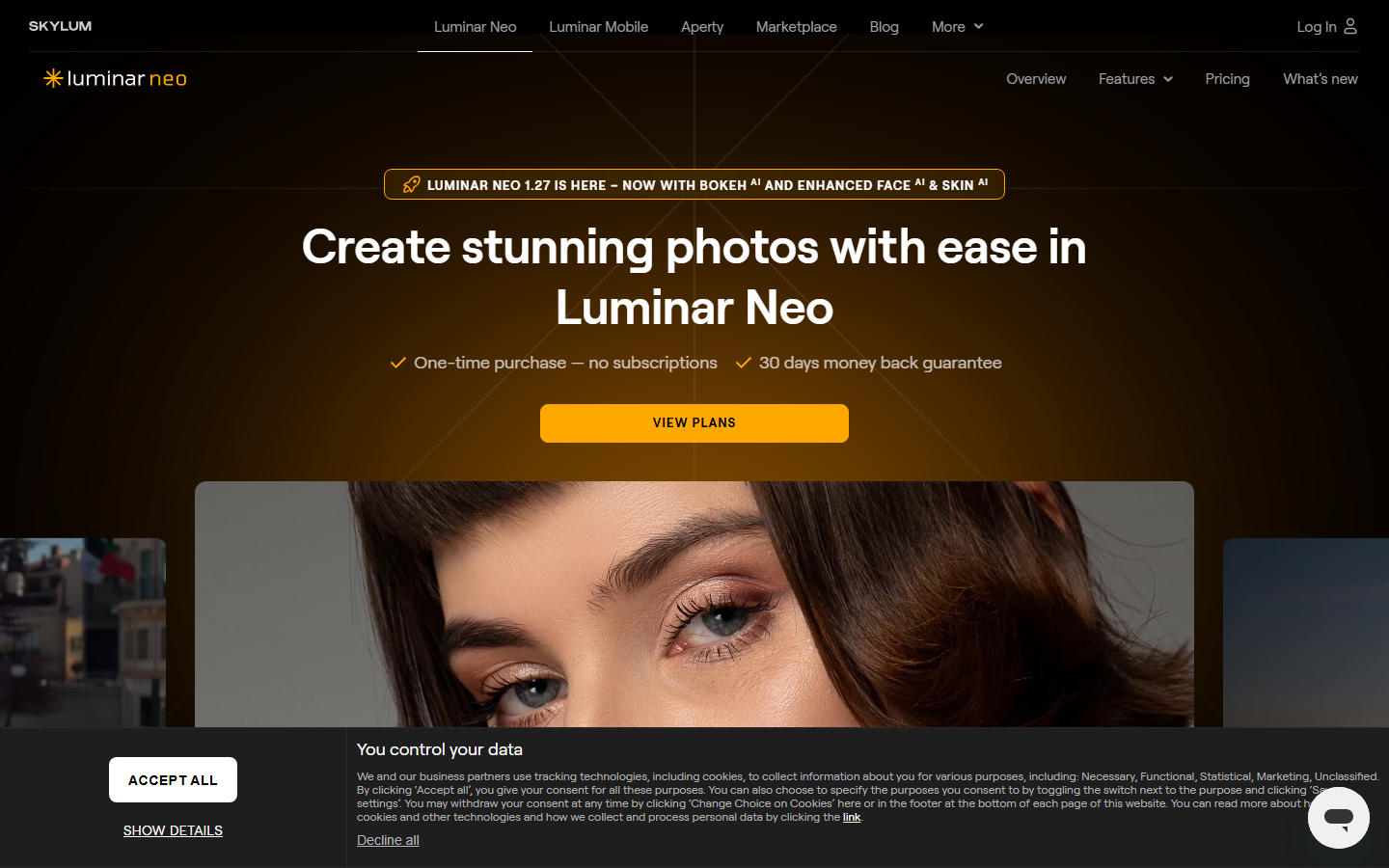
It sells as a one-time license or subscription, which appeals to anyone tired of monthly fees, though extensions are sold separately and add up. Batch processing across a shoot is solid, and the sliders behave predictably, which is exactly what a wedding or event photographer wants when the deliverable is 400 consistent frames rather than one perfect one. Photographers who also need cutouts should still pair it with a free background removal tool.
Verdict: the strongest desktop option for high-volume portrait work.
Comparison Table
| Tool | Best For | Prompt Editing | Batch | Free Tier | Starting Price |
|---|---|---|---|---|---|
| Wireflow | Chained, repeatable edits | Yes | Yes | Yes | Usage-based |
| Adobe Firefly | Professional retouching | Yes | No | Trial only | ~$10/mo |
| Remini | Restoring degraded photos | No | Limited | Daily quota | ~$5/wk |
| Fotor | Free browser retouch | Limited | No | Yes | ~$9/mo |
| Picsart | Social content | Limited | No | Yes | ~$5/mo |
| PhotoRoom | Headshots and cutouts | No | Yes | Yes | ~$10/mo |
| Pixlr | Layered browser editing | Yes | No | Yes | ~$2/mo |
| Luminar Neo | Photographer batch work | No | Yes | Trial only | ~$99 one-time |
Prices are indicative starting points as of 2026 and change often; check each vendor before buying. The pattern worth noticing is that the cheap tools are single-step and the expensive ones are manual, which leaves the middle ground, repeatable multi-step editing, mostly to canvas-based tools and to anyone willing to script an image editing pipeline.
Choosing the Right Tool
Match the tool to the job rather than to the review score. One damaged photo goes to Remini. One important photo goes to Photoshop. Forty photos that all need the same treatment go to a canvas or to Luminar. A daily social post goes to Picsart or Fotor, and a team profile refresh goes to PhotoRoom.
The second question is identity. Any tool that reconstructs a face is guessing at detail it cannot see, and the guess gets worse as source quality drops. The same identity constraint applies when a node is set up to make a face look younger: the model should remove years, not swap in a different-looking person. Start from the highest resolution original you have, and if the result needs to be truthful rather than flattering, keep the edit conservative. That constraint matters even more when the starting point is synthetic, as it is when you generate realistic AI faces.
Try it yourself: Open this face editing workflow. The nodes are pre-configured with the restore, prompt-edit, and finish chain described above.
FAQ
What is an AI face editor? An AI face editor is a tool that modifies facial features in a photo using machine learning rather than manual selection and brushwork. Typical operations include retouching skin, adjusting expression, reconstructing detail on low-resolution images, changing lighting, and replacing or generating an identity.
Which AI face editor is best for beginners? Fotor and Picsart have the shallowest learning curve because their face tools are one-click presets. Both work in a browser or phone with no setup, and both have free tiers that cover basic retouching.
Can AI face editors keep the person recognizable? Mostly, but it depends on source quality. Light retouching and relighting preserve identity reliably. Heavy reconstruction on a very low-resolution photo invents detail, so the output can drift into looking like a similar person rather than the same one. Compare against a second photo of the subject before using a restored image anywhere it matters.
Is there a genuinely free AI face editor? Yes. Fotor and Pixlr both offer free tiers with working face tools, and Remini gives a small daily free quota. The common limits are watermarks, reduced export resolution, and caps on generative operations per day.
What resolution should I start from? As high as you have. AI face tools add detail based on what they can already see, so a 2000-pixel-wide original produces a far more faithful result than a 500-pixel screenshot of the same image. Upscale after editing, not before.
Can I apply the same face edit to a whole batch of photos? Only with certain tools. Luminar Neo and PhotoRoom support batch processing, and a node canvas stores the entire multi-step edit as a reusable graph. Most phone-first editors require you to repeat every adjustment manually on each image.
Do AI face editors work on video? Some do, but this list covers still images. Video face editing is a separate category with different constraints, mainly temporal consistency, since an edit that looks correct on one frame can flicker across a sequence.
Are AI face edits detectable? Often, yes. Heavy skin smoothing, over-symmetrical features, and mismatched lighting between face and background are the common tells. Keeping edits subtle and matching the light direction to the original scene is the practical fix.
Conclusion
There is no single best AI face editor in 2026, because the category covers four separate jobs. Remini restores, Photoshop retouches, Fotor and Picsart post, and Luminar and PhotoRoom handle volume. Pick by the job in front of you and by how many times you will need to do it. When the answer is "many times, the same way," a chained canvas beats any single-purpose tool, which is the gap the Wireflow pricing model is built around.

Co-Founder & Operations at Wireflow
Runs client operations and content strategy at Wireflow. Works directly with creative teams and agencies to build production AI workflows.
- Content Strategy
- Client Operations
Make AI videos and ads.
Start free, no card needed.