 Andrew Adams · Co-Founder & Operations at Wireflow ·
 Gemini Omni Flash on Wireflow
Gemini Omni Flash, Google's video model that writes picture and sound in one pass, runs as a node on the Wireflow canvas.
Prompt it for a clip with audio, wire in a first frame or a reference, and compare it against Veo 3.1 and Seedance 2.5 on the same prompt. Hosted compute, no local GPU, pay per generation.
Free to build · no credit card · See how it works ↓
How to Use Gemini Omni Flash on Wireflow
Steps to get you started in Wireflow.
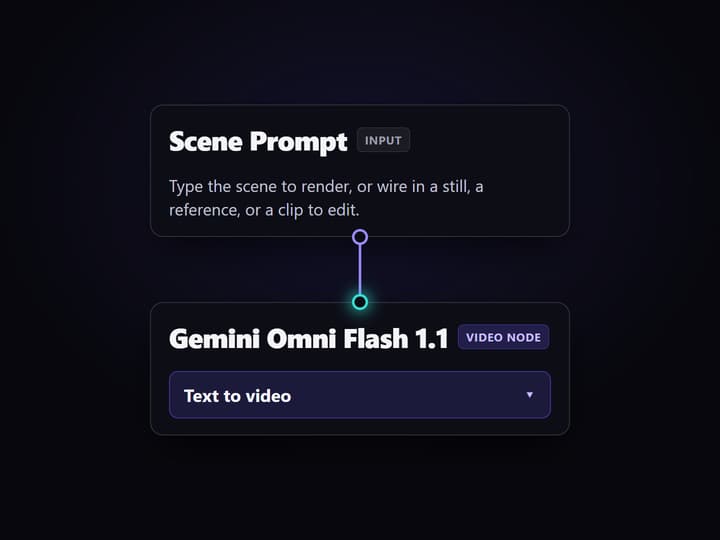
Write the scene or wire an input in
Start with one clear scene prompt, or wire a still in as the first frame, a reference image, or an existing clip to edit. Use a concept-art node first when you want to lock the look before the clip.
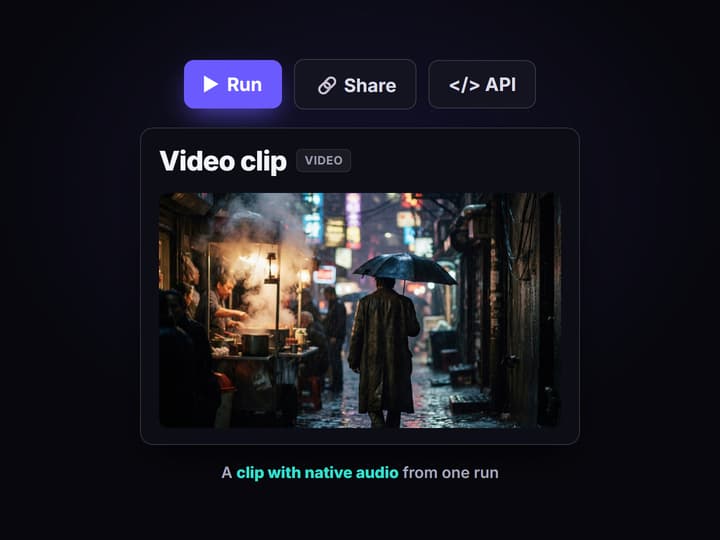
Run the Gemini Omni Flash node
Send the prompt to Gemini Omni Flash 1.1 and inspect the clip it returns, with its native audio. Pick an aspect ratio and clip length that match where the video will run.
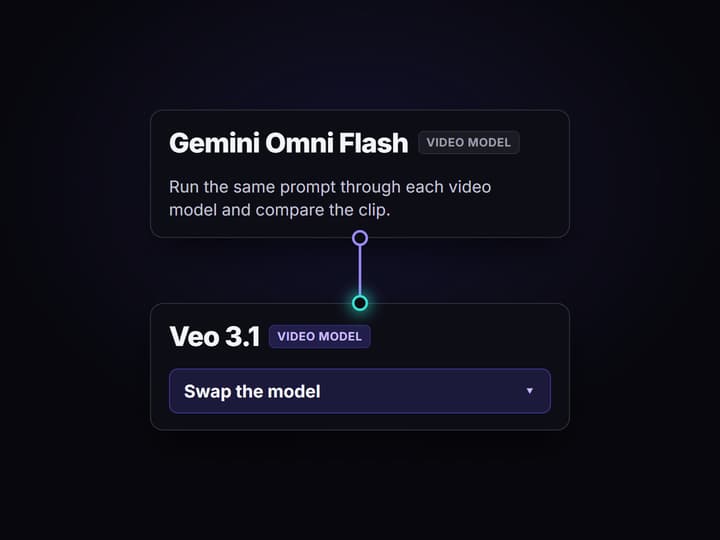
Swap the model and compare
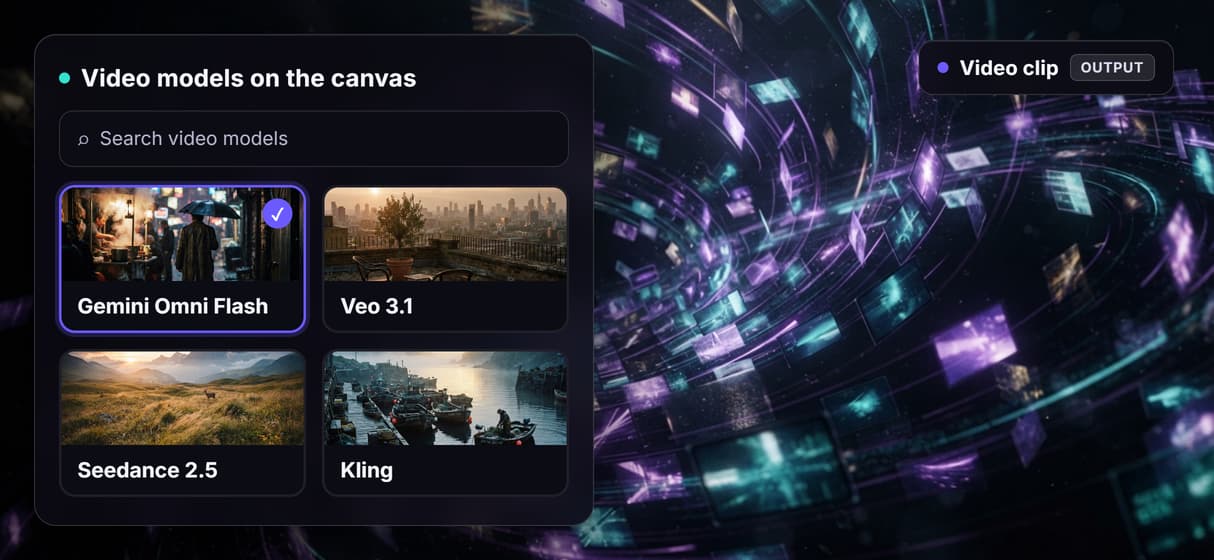
Send the same prompt into Veo 3.1 or Seedance 2.5 on the same canvas and compare the clips side by side before you commit credits to a final render.
Gemini Omni Flash on Wireflow: what it does and how it runs
Gemini Omni Flash is Google's video model. Give it a text prompt, a first frame to animate, a reference, or an existing clip to edit, and it returns a video clip with native audio generated in the same pass. The node auto-switches mode based on what you wire into it, so one node covers text-to-video, image-to-video, reference-to-video, and a video edit.
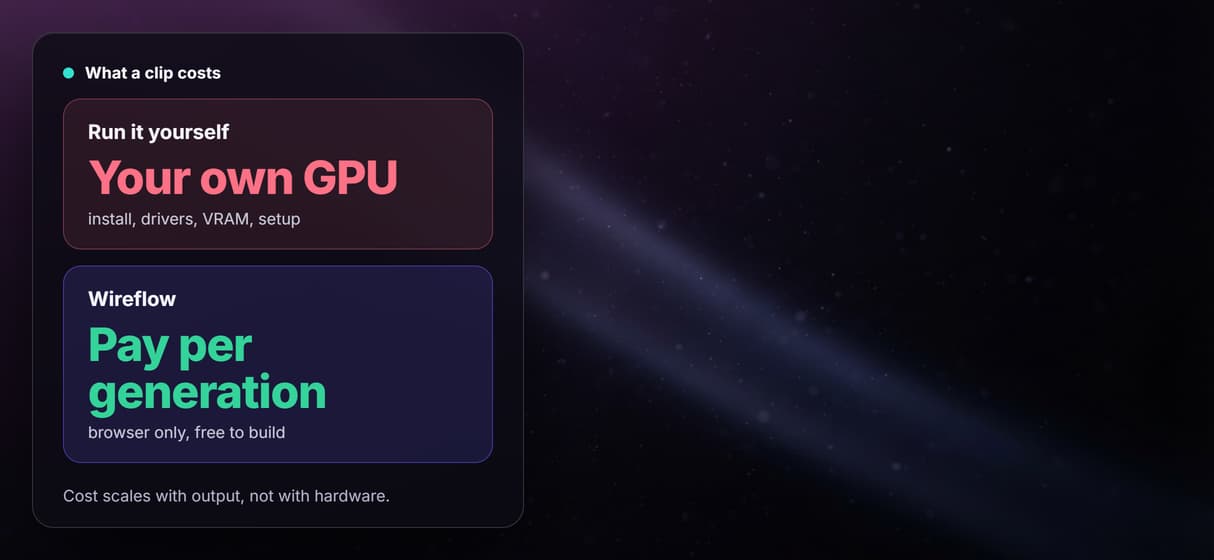
On Wireflow it is a node on the canvas rather than a standalone site or an API you glue together yourself. You wire a prompt in, press run, and get the clip back on hosted compute in the browser, no CUDA install and no local GPU. The same canvas drives your text to video and image work, so the step that writes the scene and the step that renders it live in one graph.
What you can do with the Gemini Omni Flash node
Text to video
Describe a scene and the node returns a clip that matches the prompt.
Native audio in one pass
The model writes dialogue, music, and sound effects into the clip as it renders.
First frame to video
Wire a still in as the first frame, with an optional end frame, and animate it.
Reference and edit modes
Feed reference images or clips, or wire an existing clip in to edit it.
Pick ratio and resolution
Set the ratio to 16:9 or 9:16, up to 4k resolution, so the clip fits its placement.
Compare models
Run Veo 3.1 and Seedance 2.5 on the same prompt, side by side.
From a prompt to a clip in one graph
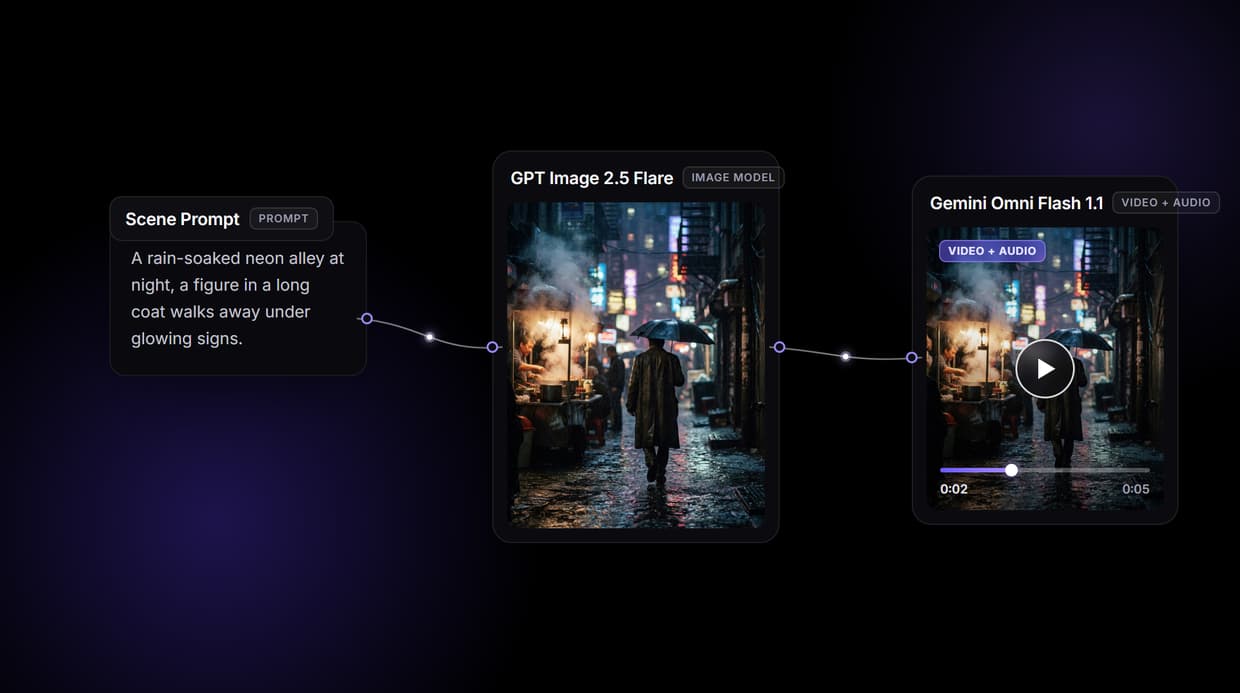
The example behind this page's button shows the pattern. One Scene Prompt node feeds the same cinematic description to two nodes at once:
- GPT Image 2.5 Flare renders a concept still. The saved image output on the example comes from this node, so you can judge the look instantly without paying for a video run.
- Gemini Omni Flash 1.1 turns the prompt into a clip with audio. It ships ready to run rather than pre-rendered, because video generations cost more credits. Press run on that node when you want the clip.
Swap the Gemini Omni Flash node for Veo 3.1 or Seedance 2.5 and the node-based pattern stays the same, which is how you turn one idea into an AI video workflow instead of a pile of browser tabs.
Gemini Omni Flash next to Veo 3.1 and Seedance 2.5, same prompt
Most pages about Gemini Omni Flash list its specs, or compare it using a different prompt in every example. None of them show it next to Veo 3.1 and Seedance 2.5 on the same prompt, which is the only test that tells you which model to actually use. On the canvas you wire all three to one prompt node, run them, and watch the clips come back next to each other, audio and all.
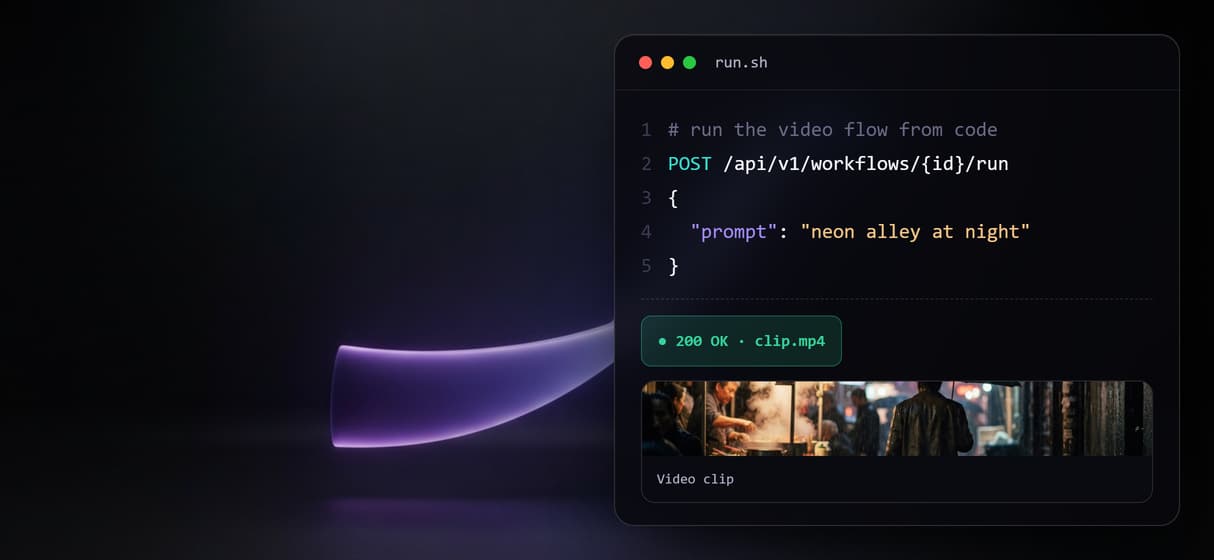
Because every published workflow is both a REST endpoint and an MCP tool, you can then call the winning model from code the same way you would reach for the Veo 3.1 API, without stitching three separate vendor SDKs together. Pick the model per shot, keep the rest of the graph identical, and let credit cost per run guide the final choice.
When a full editor is the better call
If your job is a timeline edit, a sound mix, color grading, or stitching many takes into a finished film, that work belongs in a tool like Premiere or Resolve, and this page will not pretend otherwise. A generated clip is a strong starting shot, not a locked cut, and the model's native audio is a scratch track you will often replace.
Wireflow is the generation layer: it generates the clips, next to your image and audio nodes, so you can iterate on an idea fast and pay per generation instead of standing up your own GPU box. Export the shots you keep and finish them in whatever editor you already use.
More Than Just Gemini Omni Flash on Wireflow
Prompt to a clip with sound in one flow
Type one scene prompt and the canvas feeds the node, so a single AI video pipeline run turns text into a clip with its own audio.
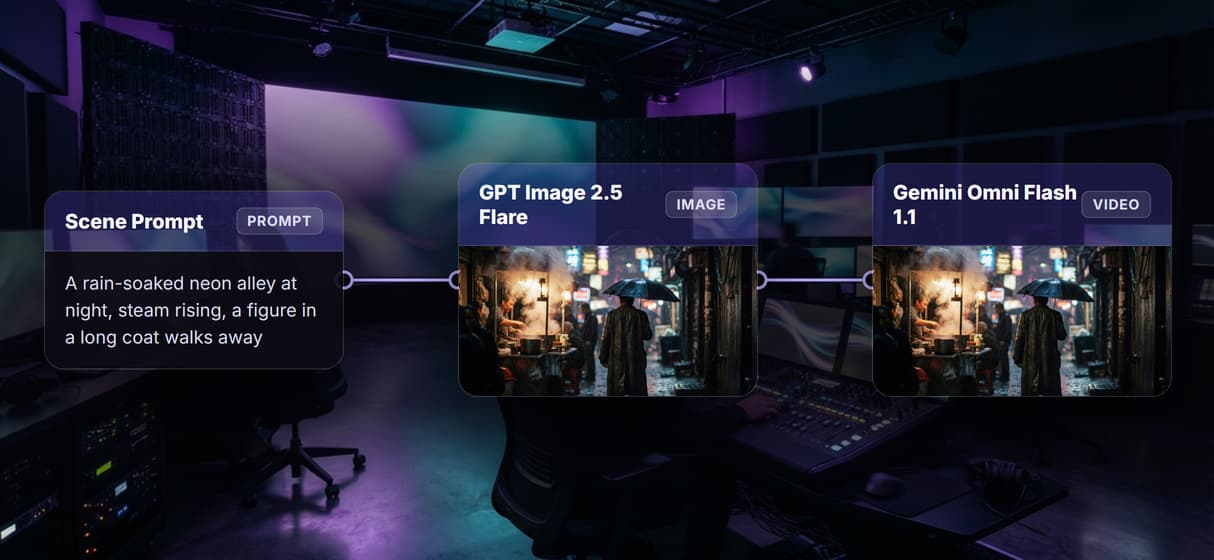
Text, a frame, or a reference all go in
Prompt it from text, wire in a still as the first frame like an image to video API, or feed a reference and let the node pick the mode.
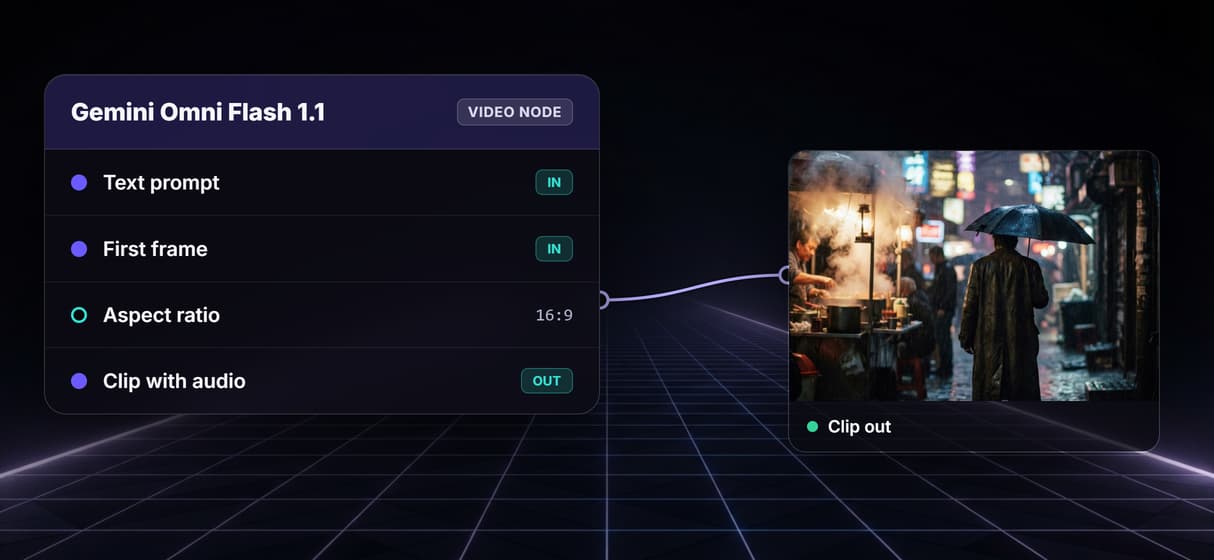
Compare it beside other video models
Run Gemini Omni Flash, Veo 3.1, and Seedance 2.5 on one canvas through the same prompt, so you compare AI video models side by side.
No install, no GPU, pay per run
No CUDA and no VRAM ceiling: the model runs on hosted compute in the browser, and building is free like the rest of the AI video generator.
Versioned, and callable from code
Every flow is versioned and shareable, plus a REST endpoint and an MCP tool, so an agent can call this clip step as a video API for coding agents.
Gemini omni flash on wireflow Workflows
No Code Required
API & Batch Processing
FAQs
Gemini Omni Flash is Google's video model. It turns a text prompt, a first frame, a reference, or an existing clip into a video with native audio, and on Wireflow it runs as a node on the canvas.
Discover related AI tools
More From Wireflow
Written by
Andrew Adams · Co-Founder & Operations at Wireflow
Runs client operations and content strategy at Wireflow. Works directly with creative teams and agencies to build production AI workflows.
Try the prompt-to-clip example
Open the example: one scene prompt drives a GPT Image 2.5 Flare concept still and a Gemini Omni Flash 1.1 clip. The concept frame is pre-rendered; run the video node for the clip with audio. Building is free; each generation uses credits.